live_tv
Livestream Starting Soon
00
Hours
:
00
Minutes
:
00
Seconds
Up next in 10


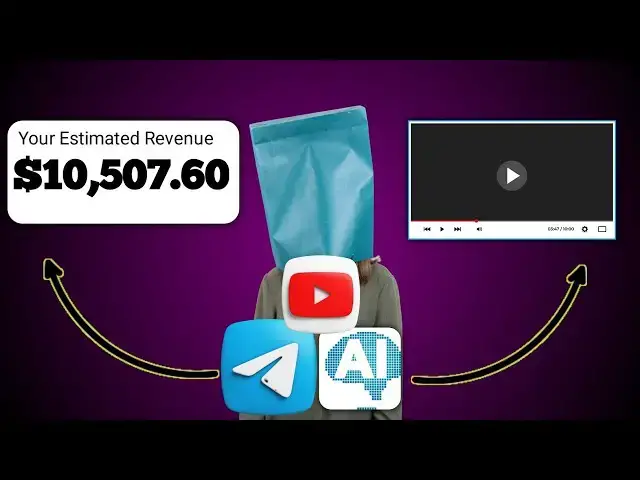
How to Start making a faceless Ai motivational content with your smartphone.
Discover the secrets of faceless AI with Ogojide and learn how to create epic content on your smartphone. Get inspired to create amazing videos with this innovative technology!
In this video, I'm going to show you how to make faceless AI motivational content with your smartphone. This is a cool technique that can help you create amazing and motivating content that can help inspire your viewers.
If you're looking to start making faceless AI motivational content on your phone, then this is the video for you! I'll show you how to set up the software and use the secret formula to create faceless AI content that will inspire and motivate your viewers. Whether you're a beginner or an experienced content creator, this video is a great way to get started with faceless AI content on your phone!
#makemoneyonline #ai #aiyoutube #aishorts #aishortmaker
Please Subscribe to my YouTube channel please
https://www.youtube.com/channel/UCnx80-vWFaOph44ovEFvXSQ?sub_confirmation=1
faceless youtube channel ideas
faceless youtube channel ai
how to create a faceless youtube channel
youtube automation
ai youtube channel
side hustle
Show More Show Less View Video Transcript
0:00
hi welcome back to my channel if you're new to this channel don't forget to subscribe make sure you turn the notification button so that whenever I
0:06
draw new content you be notify now in today's tutorial I want to teach you on
0:12
how you can um now you can um generate and create a
0:19
faceless video on your smartphone so everything we are going to make use is
0:25
on your smartphone so just sit back and just follow the procedure one by one so
0:33
um before you can do anything you need the following app you need the following app you need chat smart then after
0:42
you've gotten that you need motion motion ninja and you need uh you
0:48
need a power director and also you need a
0:53
telegram account so now let me show you so that you can get it uh
1:00
you need power uh CH Smith on your phone then you need
1:07
um you you need motion ninja you need this motion ninja then
1:14
you also need power director and also you need
1:21
um finally you need tegram so these are the app that we are going
1:29
to use so uh make sure you get everything one by one if you don't get it try and pause
1:35
this video and rewatch so that you'll be able to understand how everything works
1:40
so the first thing we are going to do is to generate um a a kind of like the kind
1:47
of um video want to do you generate um um a write up for it so you open this
1:56
chat uh Smith just click on it that way then you open it so once you open it
2:04
this way you can search for any kind of stuff that you want you
2:09
can see video Concepts you can just click on that you can just what you see
2:15
what type of video that you you want to create just say um um before
2:27
name motivational motivational
2:33
quat so uh once you drop it that way uh on your um chart meth then it will take
2:42
some time it depend on the version of H um GTP that you using it depend on the
2:50
version if you're using 3.5 it will be faster but it might not generate the
2:56
necessary stuff that you want let me explain it you can see we have chart G GT GPT we have 3.5 and we have four so
3:05
and you can see the differen is the reasoning of three is not have four to
3:10
four and the speed of um three has speed but uh four does not have speed then
3:17
this uh consistence this um four has it but the
3:24
one on Three is low so that's the reason why if you drop presently you can see
3:29
the one I selected it is on four that's the reason why it is taking time there
3:34
are times that it will take more than expected like the way it is taking now
3:40
so and you might even get another arrow you might get an eror as feedback so
3:47
just try and retry it you keep retrying it until you get the kind of resources
3:54
that you need now why this generates so let's try
3:59
and open another app so let's go straight to our telegram
4:06
group so you need to you need to have a telegram so a telegram account so once
4:12
you have it you open it this way then you search for AI this is it search for
4:19
AI text to speech so once you open it this way so you can generate different
4:26
different um voice voices on your on the um telegram it will generate it
4:33
for you so while we are waiting for for um our system to generate the language
4:39
that we need we can actually change the current language to any of your choice
4:44
so you just have to click on change then you select the language that you want to use presently we will just stick with
4:51
English and on English there are different formats there are different you can see there are different voice
4:58
now most of the um of the motivational video that you used to see they make use
5:04
of um 11 laps but presently um 11 laps
5:10
has a free version and sometimes when you have through with that um free account you have to pay but for this
5:17
telegram one it doesn't have Adam Adam voice but it give you free access to
5:24
voice uh to other voice now based on some of the voice
5:30
I've used um very well lamb this Liam is
5:35
part of it I used to use it use um this user very well then um you can just scow
5:42
down and see if you can get another one that will be better for you the one that
5:48
you will prefer uh most of these um most of them are there um let's just try
5:58
christova I don't know how Christo will be but we can just try it out and just
6:03
like we want it to generate this kind of um stuff it's just for um tutorial sake
6:10
while the chart GPT is generating U the text we can make use of this for now so
6:16
you click on convert to text to speech once you click on it then you can now drop what you want it to convert let me
6:23
delete this one so you can see it has converted the stuff for us let's listen to it
6:30
thanks for watching please don't forget to subscribe like and share God bless
6:36
you so um like this one now I don't like it seriously I can just click on it
6:43
current then you select the language back just go to English if you want to
6:49
make use of English you are good to go then um yeah um I have I've been using one of
6:59
this voice before before changing it to L so let's just use the one I've been
7:06
using so let's stick with this Canadian person so um we are good to go with that
7:13
one so let's minimize and check if AI has generated as you can see
7:19
um you can see the title and this is just a format you can see it just the
7:27
system is telling us what what we the chat is telling us what what we should
7:33
do and um so you can see that is the scene first scene second third scene now
7:40
if you don't need all these you just click on this uh chat assistance so then
7:46
you go to um story teller telling here story telling here so you click on that
7:54
then what is the topic so you just say um a
8:00
motivation motivational h on
8:08
love okay and
8:15
peace in your relationship so you can
8:20
specify the number of um um sentences that you need okay
8:27
um nothing less
8:34
than five sentence so once you submit it that way
8:40
don't forget it depend on the you know CH you can see this one is even faster
8:47
you can say love is powerful so now the system has given us um what
8:55
we need so what we just have to do next is to copy so click on
9:02
copy once you copy it you minimize in case you don't like what the system you can improve it by uh clicking on most
9:10
time I use encouraging so you click it that way the system will uh the charge
9:16
gbt will generate another one so it will generate another format for you yeah so
9:24
let's just wait I noticed that um U my hand has been touching the microphone so in case you are hearing another sound
9:31
sorry about that but let's just stay focused so um let's quickly make use of
9:37
the um the one I've copied already so you click on convert to text and uh you
9:43
paste it and you can see creating voice B on so you can see it has generated a
9:51
34 seconds voice love is a powerful force that has the ability to bring
9:56
people together and create a sense of peace and Harmony in their lives it is essential to nurture and care for the
10:02
relationships we have as they are the foundation of our happiness and well-being as the famous motivational
10:08
quote goes love is not just about finding the right person but creating a right relationship this reminds us that love
10:15
requires effort understanding and communication in order to thrive by embracing these words of wisdom we can
10:21
cultivate a relationship filled with love care and peace and create a lasting bond that withstands the test of time
10:29
so as you can see um it has generated um the voice over but I still
10:36
want to check if uh we still have the new one so um let's just make use of
10:41
that and do uh the necessary stuff that we need to do now as you can see it has
10:48
downloaded like it has generated the whole stuff so the next thing you are going to do is that you go to
10:55
your to your file manager yeah part of part of the app I supposed to mention is
11:02
this file manager plus sorry most of the time
11:07
there most of the time um you might have this file on your phone but I prefer to
11:14
make use of file manager to access my file so once you open it this way now
11:19
you can actually go to your um telegram folder on your phone then you will see
11:26
audio so click on the audio like today is um so you can see this last one is
11:33
your is the audio you've generated then all you have to do is just to put
11:39
MP3 at the end so once you play Love is a powerful force that has the ability to
11:45
bring people together so you can see we we we were able to get the audio that we
11:51
need so you can even rename it to um to love uh love uh voice over
12:02
so once you are done that way you can now minimize it let's check if this one has generated you can see we have
12:09
another
12:14
one so yeah let's just forget about this and just um continue to what we want to
12:21
do so the next thing you are going to do is that you go straight to your motion ninja you open that just open it you can
12:31
just get all this app on your Google Play store so you can search Google it
12:36
will take you to the app or better I will drop the um link to the app on the
12:41
description below so the next thing you're going to do once you open uh motion ninja is that you click on new
12:47
project and um now you can decide on the
12:53
kind of uh size that you want presently um
12:59
let's go for 9 by 16 format that is for um for short videos so uh size for short
13:08
videos so the next thing you're going to do is that uh after you've you've open
13:13
it and you click on this plus button to add um some stuff there so uh go
13:20
straight to the stock and uh you go to uh PX Bay so now you search for anything
13:29
don't forget that we uh the stuff B on love right you search for love this way
13:35
you'll be able to get some clip about love so what you need to do is just to
13:40
click on those one you you you have and if you don't see any you can actually
13:47
download them so once you click on it this way the next thing you do is to add
13:53
it this way and before you know it you will see the whole stuff would have been
13:59
on your timeline but if you notied the stuff is not that full so
14:05
this is what I want us to do I like the combination of the two of the two stuff
14:10
that we have right now let's try and string our timeline so that you will be able to see all videos
14:18
uh so you you can make use of your two finger just to Spring them now the first
14:24
one I want to use is that I will place this one at the first then the second
14:29
one I will I'm going to place this one as the second now then the next thing
14:36
you going to do is to click the first you click on the first uh video Once you
14:43
click on the first video you can enlarge the video now what I normally do is that you
14:51
can see an AR um an arrow a line on the top and downward I make sure that the
14:57
video um touch is boot line so once it touches boot line I leave leave it that
15:04
way so now this is it this how it will look and
15:10
um so the second thing you're going to do is that you're going to add that
15:16
audio so to add the audio what you need to do is to click on audio at the bottom
15:23
this at the bottom here so click on audio then you you go to looker click on
15:29
Loca you just click on Loca you go to Loca that way then you search for search
15:36
for the love love voice something I think uh
15:41
let's just yeah I think love love voice over let just search for love and let's see
15:48
if the system have anything with love so as you can see our local uh directory
15:54
doesn't have um the the form um the audio yet and the reason is that we
16:00
supposed to move out the um the voice over to the main um stuff um to the main
16:08
drive just move it to any place that you want just move it to any place that you
16:13
prefer you can just look around and see any like this one that has desktop I can
16:19
just paste it here then once I minimize it back then I search for it again you
16:28
can close the the audio you reopen it so that the system would have loaded the
16:34
stuff then you search you can see it's bring it back then you can just click on
16:39
it this way now if you see the video of the audio the video of the audio is not
16:45
that long just 34 uh minutes clip so what we you need to do is just to trim
16:53
your your you have to trim out your um your videos so that it can actually
17:02
be be on the same level with others so yes so once you trim it this way you
17:10
the next thing is just to you had uh some wellbe yeah you had some um some effect
17:19
to it now uh based on the effect that you've added you there will be a space
17:24
some space so you just have to enlarge some and don't forget that this one now
17:29
we haven't stretched it yet so you have to do that and um once you do that the
17:36
second one to click on them this way just make sure that the U main uh
17:45
the your main focus are on the center of the of the of the uh is a powerful force
17:51
that has the ability to bring people together and create a sense of peace and Harmony in their lives it is essential
17:57
to nurture and care for the relationships we have as they are the foundation of our happiness and well-being as the famous motivational
18:04
quote goes love is not just about finding the right person but creating a right relationship this reminds us that love
18:10
requires effort understanding and communication in order to thrive by embracing these words of wisdom we can
18:17
cultivate a relationship filled with love care and peace and create a lasting bond that withstands the test of
18:24
time so you can see how the video is presently right so the next thing you
18:30
can also do once you notice that a video is somehow long and uh you can put you
18:37
can put some um some effect at the center so that uh there will be you can
18:43
you can cut it once you cut it then you will put some effect on it so that
18:51
um it can be different like once it load it will be different from uh others it
18:58
will be the same with other clip like it will Lo uh it will load in love is a powerful
19:07
that has the ability to bring people together and create a sense of peace and Harmony in their lives it is essential
19:12
to nurture and care for the relationships we have as they are the foundation of our happiness as the famous motivational
19:20
quote goes love is not just about finding the right so you can just put some of this um action there so after
19:27
after you've done all these the next thing you do you export now depending on the kind of
19:34
phone there are phones that will s that will support 2K and 4K but the phone I'm
19:40
using presently will only support 10 1080p so you can just then I can go for
19:47
60 frame so with just make sure you know the kind of there are phone that will
19:53
just support this and a phone that will support this and there are even some phone that will this so just try and
20:01
understand the kind of uh phone you are using and what it will support so you click on that and boom you will see that
20:09
uh your video will be exporting so while your video is being export the next
20:15
thing you're going to do is just to minimize it then you now open the third um our last app which is um this um
20:24
Power director so just click on it you open it and um on power director we are
20:31
going to do two to three things on it the first thing is that we are going to
20:36
generate a lyric um the lyrics of the audio and also we are going to add music
20:44
to it like background music so um there are features on um on this uh on this um
20:54
Power director there are there are a lot of features sorry about that there are a lot of future on it so you just have to
21:01
make sure that um you check those future um from up to down so the next thing we
21:07
are going to do you click on new project now while you click on new project you
21:13
can just minimize it yeah you minimize it to check if yeah this is we it is
21:20
still exporting we still have to wait for some minutes so you just have to
21:27
look at it this way while once it has exported it will be listed here so just
21:35
minimize it and um now while you are waiting for it you can click on audio to
21:43
check on some sound that will be okay for your uh video so what you do is to
21:51
click on meta then um you search for
21:56
love don't forget the keywords of the M
22:02
motivational speech was based on love so that's the reason why you um you can see I'm typing love everywhere so you click
22:10
on that to to listen to the audio before you download
22:17
it so any I don't like I don't like to use voice um background I don't like to
22:23
use music background that has um voice over so I prefer an instrumental
22:29
background like music backround so I don't like um using voice over
22:37
background so on I notice because of copyright so you have to be very very
22:42
careful because of copyrights um you it is I won't advise you to make
22:49
use of
22:54
um so like this now I like this but let's just listen to it to some
23:01
[Music] level you see the the starting point was
23:08
okay but at the mid there was a voice over like there was lyrics on this
23:17
song so I prefer to just use uh use a uh an
23:25
instrumental music background so uh let's check if this video has been
23:32
exported as you can see see it has been exported successfully but uh we still need to
23:39
check on some audio that we can use if you have any existing audio on your on
23:46
your on your device you can actually select it but
23:52
uh for me I prefer to use um stock um
23:57
free um [Music]
24:02
so you can just you know most of this motivational videos I used to see they
24:07
are fully based on the on instrumental
24:21
alone most of the time if you don't see any just touch for motivational so
24:29
you can just search for something like that then to to look at U another way
24:35
you can look at this one now you can do it too this is just
24:44
um yeah something like this you can now download it so this is how it's it's
24:50
been and you can see it's depending on your network it might take time and if your network is somehow fast it will
24:58
download on time now after you've done all this the next thing you are going to
25:03
do is to you have to input um import your video rather so you
25:10
have to import your video so you can see our video a so we've imported so the
25:16
next thing is that we should make sure that it
25:22
is the video full the old stuff so love is a powerful for ability to bring
25:29
people together now next thing we are going to do is that on this stuff we are
25:34
going to click here you click on the video then you click on the auto auto
25:40
caption so it will automatically it will automatically ask
25:47
you then you select the video the video sound so you can select the track track
25:56
um actually you must take note of the tracks you can see this one is audio
26:01
this one is the video so you select it based on that then you click on start so
26:07
the the app will automatically look for the app will
26:12
automatically generate the um caption for your video so that way you can just
26:20
edit it to make it fa instead of you typ in one by one so um that's uh that's one
26:26
of the benefits for using power director so that is one of the main reason and
26:32
the second reason we are why we are using power director is that most of these audio are not copyright audios so
26:41
once you use it for background you won't get any copyright but there are some app
26:47
like that if you like motion if you make use of motion you might get copyright as
26:52
you can see you can see uh you can see how
26:59
the system has generated the stuff just make sure you reedit it to make it
27:09
fit so once you do it this way then the next thing you do is to check the
27:16
font yeah so once you check the font then the
27:22
next thing you do is to you can change you can change the color
27:28
you can do a lot of it you can do key Framing and um you can animate the the H Stu the way
27:37
you want it like right now I can just do
27:44
in you can just look for uh magnify now if I make use of
27:51
magnif power you can see how the stuff look too and you can apply the whole
28:00
stuff to all stuff let me show you love is a powerful force that has the ability to bring people together and create a
28:05
sense of is essential to now um you can see
28:12
everything is set the only thing we are going to do is to mix the voice over to
28:19
um to the background store so once you want to do that just click on this uh
28:25
audio mixing click on this audio mixing then click on it then you give it 100%
28:33
and the last one that is 100 you take it to like 25 to 30 any of your choice just L
28:40
listing to it love is a powerful force that has the ability to bring people together and create a sense of peace and
28:47
Harmony in their lives it is essential to nurture and care for the relationship so to me I think the background stuff is
28:54
too much if you off it you will see notice that love is a powerful force that has the ability to bring people you
29:01
notice that there won't be any audio so just maintain like 20 to 25 to
29:10
30 love is a powerful force that has the ability to bring people together and create a sense of peace and Harmony in
29:16
their lives it is essential to nurture and care for the relationships we have as they are the foundation of our
29:21
happiness and well-being as the famous motivational quote goes love is not just about finding the right person but
29:28
creating a right relationship as you can see now so in case if you want your your
29:34
your your uh so you can the only the only
29:40
differences uh on this um Power director
29:45
that once you want to use a background for your text it will disable your
29:53
animation so you have to choose one of the two so let's just leave it the way
29:58
love is a powerful force that has the ability to bring people together and create so once you are done with
30:03
everything the next thing you do is that you cut out you you split the audio and
30:10
delete the one that you don't need then on the audio side you can fed out and
30:16
fed in so once you do that so it will start like this love is a powerful force
30:23
that has the ability to bring people together and on the end part and the test of
30:30
time so you can see now the next thing you're going to do is just to click on
30:35
um export then you export it that way so like I've said like power
30:43
director Now power director will check your phone automatically and will give you access to only the format your phone
30:51
can export so what you can add more is that you can click on more settings once
30:57
you click on more settings this way it will bring the other um stuff out
31:04
so you can just the bit rate you go for better quality and the frame you go for
31:10
60 um if your phone supports 60 frame if not you stay stick with 30 or 50 so you
31:18
now click on produce so it will it will
31:24
automatically you can see generate the stuff for you and um another thing we
31:29
are going to do which will be a bonus is that um another app we are going to make
31:36
use is um pixel so please um try and install pixel too this is it pixel lab
31:46
so try and install it on your phone pixel out so open it and
31:53
um we are going to generate a thumbnail through the you're going to
31:58
generate a thumbnail to that so uh what we are going to do now is that
32:05
we are going to minimize it so and you go to you go to
32:11
Chrome you you go to free.com then you search for what you
32:17
need I need um um
32:23
chat I need charts
32:29
G PT logo so you search for what you need and
32:36
once you get it you download it I don't know if we see
32:43
anyone don't I don't think we have any but we can make use of this a
32:50
high so you download it this way and um
32:58
you download it this way and another thing you are going to need is telegram
33:05
logo don't forget that we make use of telegram to generate the voice
33:11
over Tell G so it's just a way of
33:19
um then um you look for any anyone that
33:24
you like let me just go with this
33:30
so though this will download the folder which I will have to export so
33:36
nevertheless I still need this kind so download again and
33:42
um from here now the next thing we are going to do is that we minimize it and
33:48
go back to our just go back to your file
33:55
manager so once you go to your file manager you go to your download
34:02
folder now the file is still downloading but uh I think we have an
34:10
artificial being downloaded you can extract it you extract it to the folder
34:16
and you will see an image here then there's another app we are going to make use um you can just contact me if you
34:24
need this app just drop a comment I'm going to to find a way to send it to you
34:31
now I prefer to use this format because using this I know where the icon are so
34:38
we use big eraser a BG background eraser so we are going to make use of
34:44
background eraser to remove some of the stuff that we need like this AI so you
34:51
just need to remove it out of the whole stuff so that it will have transparent
34:58
bar garant so let's just stick to that so that we'll be able to make use of it
35:04
on our um pixel app why doing that there
35:09
are some phone that doesn't support minimization so you can see our video is
35:14
already live and I'm going to also show you how you can upload it and do the
35:21
needful um settings now um click on save once it has removed the
35:30
background and since we are downloading the other one let's check if it has been
35:36
downloaded or not so you can extract it and also once you extract it you need to do
35:43
the same you need to remove the background too so once you remove the background
35:51
you select you click on that and it should be here then you select it this way we
35:58
want to remove the background of this telegram icon too then why after that
36:04
when we are done with that there is another another image I want to remove
36:11
the background so I normally you make use of this uh app to remove the
36:16
background of most of my um stuff so I've downloaded
36:22
this this um this photo radio from from um um free
36:30
pics you can also just get access to some resources that you need then you
36:36
save it then we are good to go now we go to
36:41
we come here we are going to delete um the other stuff I've
36:48
done we are going to delete it now um the reason why I
36:54
downloaded those resources they are copyright free uses the reason why I
37:01
downloaded them is that we want to create uh a thumbnail for that video and
37:07
it is just a bonus and I'm going to also teach you how you can set up the old um
37:14
video after uploading using vid IQ on this same on this same channel so make
37:19
sure you subscribe now let me let's just search for
37:24
faceless YouTube so you can just search for it and um
37:32
when you search for something like this um you can see this is the kind of stuff
37:38
we want to replicate I don't know if you get it want to replicate something like
37:44
this so uh yeah we have to you you have to get
37:52
ideas so we can just um
37:58
you can just go for uh like uh this week this month Rider you can do the
38:05
filter this you can see how um they be designing the old
38:11
stuff and um let's just look
38:16
for any of the stuff that we will love to use so why we look for that yeah
38:24
something like this we can replicate something like this so this is part of what we want to do so
38:30
let's just go let's go then you click on this plus
38:36
you select the background you select uh this is the
38:42
lady I want to use then I
38:51
make so you can just Center it don't worry if you don't get it just try and
38:59
uh wait for a tutorial on how to use pixel lab to design now if you notice
39:05
our icon is below so I have to move it up and
39:11
down and I have to resize it if I should Center
39:16
it so you can see then uh we are going to make use of
39:22
two other app which is telegram app telegram icon wrer use telegram
39:30
[Music] icon so you can just place it that way we
39:39
import a high to so can you see the reason why I said we
39:45
should we should download U the necessary Stu now
39:50
like the a AI now I don't like it so I have to create a ship for that so I will
39:56
find a sh CLE
40:02
ship and I resize that and um I import a
40:10
test in can see it will F the but I still have
40:18
to still have to
40:25
adjust so
40:30
yeah so I can just
40:36
put so you just have to have an idea on what you want so we can actually
40:44
reach we change this to a square one then we just have to give it a
40:50
radius and uh
40:55
we we are good to go now
41:01
um the next thing you are going to do is that if you notice the one we said we
41:07
are going to use as example you can just go through down and see how okay look at
41:17
this your extimate rewards so you can see the way they did it right you can
41:24
see the way they did it so we can also copy something like that so let's
41:30
replicate that and let's just come here we resize
41:44
everything let just put it up here this
41:54
way just take your time and just understand understand what you want and
41:59
[Music] just just click on it you get what you
42:07
want you can and bring it
42:12
up so that's once you do that now
42:19
um we go back to our we go back to our browser to
42:24
download we need to download the file when once you search for
42:31
YouTube you search for
42:38
YouTube so you sech for YouTube there are some formats there are some stuff I want us to
42:46
download yeah something like this you
42:53
get okay sorry so we can download something like
43:00
this so that's this is what we want to do we want to replicate this
43:07
action so and for this we can actually do this your estimated
43:13
Revenue so we just uh and you can see you can see the
43:20
views pressing R so um once we wait for the stuff to
43:27
download you can now uh based on the fact that we are going to um we are
43:33
going to we going to remove the background too so the red background on
43:39
that image that we downloaded the stuff has not started like don't think it has
43:45
download so you can just check um download is
43:50
free I think okay so it has downloaded but we still
43:56
have to extract it so let's come back here then we
44:03
extract so that we will be able to see it where we are going
44:09
to export it
44:14
so you just have to take your time till you reach that
44:19
fooder sometimes uh you might not quickly see
44:24
the folder based on the f that you just you can just close the uh
44:31
BG the background remover then you reop it again so that you know it has been
44:39
loaded before I so you can just so this is it then we
44:46
select it it to I want it to remove the red parts so that way it will it will check
44:54
and remove the Neary part so
45:01
so you can see then we can save it now so processes and save it so the next
45:07
thing we are going to do is to import that you select it from the gallery then
45:15
you import so you can
45:24
see so and um you can actually resize it most of
45:32
the time you can I love to I love to give it a unique
45:38
feel um if you notice any Burger yeah love it
45:43
to give it a unique feel then you can put Shadow on it and if you notice there
45:49
there are arrows on the on the uh the stuff that we watch the only difference is that
45:57
there is no arrow that will go for up here so what you need to do is to
46:02
download Arrow but we might not do that we can just make use of
46:09
this then once you we have access to it we
46:14
can we can rotate it we can just rotate it this way and we
46:22
resize it so most of the time try to lock try
46:29
try to lock some of the stuff you've done the one that you don't want it to
46:35
to move and just lock it
46:41
so as you can see the arrow doesn't have any it doesn't add any beauty to it so
46:48
you can just go ahead and download arrows so you can search on you on um
46:54
Google
47:00
so then you select image yeah something like
47:06
this something like this is
47:12
okay so yeah I prefer this I love this
47:19
so once you have something like this or this which one should we go for
47:26
let's go for for this one just download it and
47:33
um if you download it you need to edit the background as
47:38
us so and you can see it is black color
47:43
right so you select it you remove the
47:49
background and um to make it unique with pixel app you can add add appline to it
47:58
and you can flip this let's just delete this arrow that we then you select the
48:04
arrow that you want to make this then once you select it you go this way then
48:10
you can resize resize it till it fit what you
48:17
want and next thing we are going to do is to put a stroke now you can see the stroke there
48:25
so so this stroke will make it unique you
48:31
can see then you can double it and once you double it then you can flip
48:40
it so um to flip you can
48:48
actually so uh let's do something we can just
48:54
re so you can just flip it this
49:00
way yeah
49:06
so now once you flip it then you can create the other ship uh we can use this
49:12
one to
49:20
create so you can add radius
49:28
so and you are good to go then you can put a shadow at the top then uh try un
49:35
lock all the arrows including the first one then you can lock everything this
49:42
way so the next thing you're going to do is to put add um
49:49
Tex your exim something something like that I think that's that was
49:55
the that was the uh that was the right up on the
50:06
video your XT I XT Meed uh
50:15
Revenue I hope I'm correct so you can just go and check the video yes but uh I
50:22
think let just put it this way and um the color should be black like the one
50:30
on the video and you can also resize it to fit there you can place it
50:42
here so um once you minimize it you go to the video and you can see an amount
50:51
there so you can also add an amount of your choice
50:58
and put so I think does it has um scent at
51:07
the back so you can check okay it does so you can put
51:15
Point 56 so we are good to go change the
51:20
color to Black and uh you can make it
51:28
Bo and the format you can change the
51:35
font yeah you can just try and check the font for uh the font
51:44
that's so you can resize
51:53
this so as you can see once I
52:03
so once you resize it you can use this you can see it this way so we've
52:09
done the necessary things so the next thing we can do is just to export you
52:14
click on export here then you click on um Ultra then you save it to your
52:22
dashboard now the next thing we I'm going to quickly do is that I'm going to minimize this and I'm going to go to the
52:29
to my YouTube and I'm going to enter plus and create a video and don't forget
52:35
um we're supposed to upload a status right a status video right so um
52:42
actually the thumbnail that we did is for this um current video that I'm
52:48
recording so let's just upload the uh the shot that done so
53:01
love is a
#Software
#Email & Messaging
#Text & Instant Messaging
#Voice & Video Chat
#Intelligent Personal Assistants
#Teleconferencing