Up next in 10

How to Create Free & Monetizable AI Avatar Videos for Faceless YouTube Channels
Mar 16, 2024

How to Create Free & Monetizable AI Avatar Videos for Faceless YouTube Channels
//Creative Commons Attribution Licence video (Reuse allowed)
Show More Show Less View Video Transcript
0:00
Hell yeah, what's up, guys
0:01
It's Chris Pike. My friends call me Big C. Back in action. Today, I got a quick one for you
0:06
This is an AI video. I'm going to show you how to create your own news videos
0:11
Not only regular news videos, these are faceless news videos insofar as these
0:15
are AI-generated characters. The voice is AI-generated as well. And you can monetize these on YouTube
0:23
So there's a million reasons why you might want to try making these. I'm going to show you how to do it for free
0:28
Let me give you an example so you'll see what you're getting. Here we go. Today, Big C ran the 100 meter in just under 50 seconds
0:35
There you go. I'm just under 50 seconds from my 100 meter dash. How did I do that
0:40
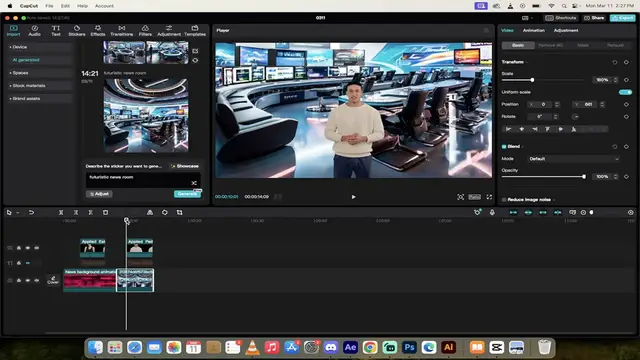
Let's start from scratch. I'm going to show you. All right, here we go. So we've got a blank project in CapCut
0:45
If you do not have CapCut Desktop, you can always just go to this website
0:49
I'll put a link in the description below. And you can literally download it for free
0:53
It costs nothing. And it's really, really good. OK, so here we are
0:57
We've loaded it up. The first step is over here on the left side, you're going to see a whole bunch of options
1:02
We want to create our background. Now, there's two ways to do it. We can either create our own background using AI
1:08
or we can use one of their pre-built backgrounds. I like their backgrounds, so I'm going
1:12
to click on Stock Materials. Under Stock Materials, you'll see a few options
1:17
But what we want to do now is press or type in at the top here. We're just going to type in the word News and hit Enter
1:23
When you do that, you'll see a whole bunch of different news styles here that you can use
1:28
Now, a lot of them are really, really good. For this one, I don't know
1:32
Let's go with, I don't know. Let's see which one do I like the most. I like this one here
1:36
This one looks fine. So I'm going to go hover over it. And then at the bottom right, you're
1:40
going to see Add to Track. So I'm going to click on that. When I do that, it adds it right in
1:45
And if I hit Play, you'll see here that we've added in that cool news background
1:49
And remember, there's all different types. There's red ones, pink ones, green ones, all different styles
1:54
This is the one I'm going to go with for now. And this is counterintuitive
1:58
I'm going to be honest with you. You've got to watch this one. And it doesn't exactly make sense
2:02
from a workflow perspective. But we actually want to add in text now
2:06
Even though we're creating an AI avatar that speaks, the next step is to click on the Text button
2:12
Yep, trust me, it's weird. And when you do that, you'll see here under text
2:17
you'll see a whole bunch of different styles. The style doesn't matter. I'm just going to click on the default trending one here
2:23
So I'm just going to click on this, Add to Track. It's going to go ahead now
2:27
and just add default text into the track. Now, on the right side
2:31
you'll see here that we've got this text open here. We've got this text box
2:35
And then in here, we can type in whatever we want it to say. So in this case, I'm going to say
2:40
welcome to today's news. Enter featuring Big C. He ran the, oops, this is
2:50
ran the 100 meter dash into the track. Just under 50 seconds
2:59
Something silly like that. The text doesn't have to fit on the screen correctly
3:04
It actually is just there as a placeholder to tell the AI character what to say
3:09
Again, it's a little strange, but it is what it is. So there we go. We've added in the text that you want it to say
3:14
So this is just part one. Now, on the right side here up at the top
3:19
you'll see AI characters. Click on AI characters. And when you do that, you get a whole bunch of basic
3:26
I mean, you get a whole bunch of different people that can be your AI avatar
3:30
So look at all these butterfed white girls. No, there's all different types, sizes, races
3:36
It's pretty cool. I'm going to go down here a little bit. And in this case, I'm going to select this dude here
3:42
So I'm going to hover over him. I'm going to click on him. And when I do that, at the bottom right here
3:47
you'll see add. So I'm going to basically add him in. And when I do that, watch this
3:52
When I add him, it says generating speech, which is kind of strange
3:57
But what it's doing is it's taking that text that we wrote out earlier and then applying it as speech
4:03
It should be done in about five seconds here. And then when that's done, we're going to turn the text off
4:08
And I'm going to show you exactly, I'm just going to show you the final product and export it. And we're done here
4:12
So now I'll move the play head back to the beginning. Listen to this. Welcome to today's news featuring Big C
4:18
He ran the 100 meter dash in just under 50 seconds. All right
4:22
See how fast I am, guys? Now that doesn't look quite right, does it? Now look at this
4:27
We're just going to click on that eyeball to hide the track. And now
4:31
To today's news featuring Big C. We've got a perfect example of an AI avatar
4:37
doing the news with AI voice, with the avatar, with everything all included
4:42
Why is this interesting? Because if, you know, English isn't your first language
4:46
or if you want to create videos in other languages and you don't know how to speak them
4:50
you can use a tool like this and you can upload them. And not only that, as it stands right now
4:55
these are monetizable videos. So you can create videos, monetize them, do what you want to do
5:01
Those are the techniques front to back. Actually, I'm going to show you one last thing. Just in case you weren't sure
5:05
you've got to go up to the top right here and click on export. And when you do that
5:09
just make sure that your settings are correct. 1080p is usually fine
5:13
H.264, MP4, et cetera. And then hit export so that you've exported it
5:18
and it goes to your drive. But for me, it goes right onto my desktop
5:21
That is all there is to it, guys. Thanks for watching
Online Media
Software
Finance
Voice & Video Chat
Clip Art & Animated GIFs
Other