Up next in 10


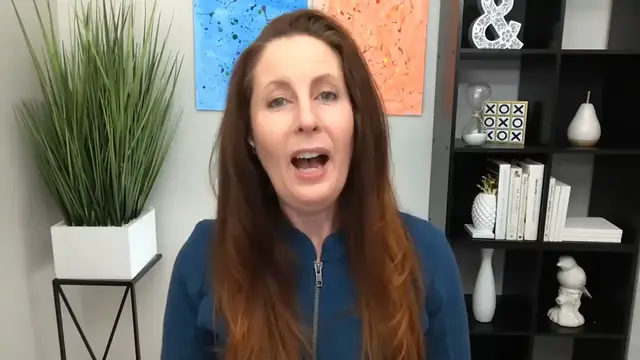
Follow these great tips to look professional in any virtual interview or presentation.
//Creative Commons Attribution Licence video (Reuse allowed)
Show More Show Less View Video Transcript
0:00
Hi, I'm Kim Merritt, the URL Doctor
0:08
I'm here to give you several tips to make you look fantastic in your upcoming virtual interview
0:13
Tip number one, your computer equipment. We'll be recording your virtual interview through Zoom
0:20
Zoom requires your computer to have a minimum of 4GB of RAM
0:24
For optimum screen sharing performance on laptops, we recommend a quad-core processor
0:29
or higher. Tip number two, your internet connection. Your internet connection will make or break your recording session
0:38
Use a hard-wired internet connection, which means your computer is wired directly into
0:42
your router through a cord like this. You can still use Wi-Fi, but you'll want to make sure to have a strong internet connection
0:50
Bandwidth requirements for Zoom require download and upload speeds of 3 to 5 megabits per second
0:57
To check your internet speed, Google search Internet Speed Test and click the blue Run
1:02
Speed Test button. Tip number three, your internet browser. Zoom requires Internet Explorer, Chromium Edge, Google Chrome, Safari, or Firefox in
1:14
the versions listed. Note, mobile web browsers are not supported. Also, please exit out of all other websites and computer programs during your interview
1:27
Tip number four, positioning your computer. You'll want to have your computer or laptop directly in front of you with your webcam
1:34
at eye level. We want to see at least the tops of your shoulders and about two inches above your head
1:42
Tip number five, record in a quiet space. Turn off all air conditioning and heating systems and fans to cut down on background noise
1:51
Let family members or office co-workers know that you'll be recording for the next hour
1:55
and you need them to be as quiet as possible. Turn off your phone
1:59
We also suggest you wear headphones or earbuds that have an external microphone built in
2:04
to cut down on feedback while you're recording. To cut down on echo, prop some pillows around your computer out of view or position your
2:12
computer to where you're speaking into upholstered furniture or blankets. Tip number six, be well lit
2:21
We want to see your face clearly, so don't sit with your back to a window
2:25
Turn on lamps or lights in front of you. Tip number seven, dress to impress
2:32
Wear professional-looking clothing that you're comfortable in. Avoid busy patterns and sleeveless shirts
2:38
Instead, stick to solid colors. Tip number eight, break up your presentation into sections
2:46
Your presentation is going to be formatted as an e-learning course and placed in an online
2:51
learning management system. To keep viewers' attention, we'll want to split your presentation into segments of around
2:57
five to ten minutes each. We ask that you include white slides in your presentation that say, new video, where you
3:04
feel it makes the most sense to end one segment and start a new one
3:08
Keep this in mind when you're giving your presentation that you'll want wording to
3:12
transition from one segment to another. Tip number nine, fill out your questionnaire
3:19
You'll receive a questionnaire from us with questions about your presentation, you, and
3:23
your company. Please fill out that completely and return to us prior to your taping
3:28
It will include providing us with a copy of your presentation as a PowerPoint or Keynote file
3:34
Tip number ten, practice. There's nothing to be nervous about. Being taped for a virtual presentation is easy
3:42
There isn't an audience other than the person recording the session and giving you direction
3:46
And yes, don't worry, we'll tell you exactly what you need to do
3:50
But just in case you get jittery before you speak, practice your presentation several times
3:54
before taping. The more confident you feel, the better your performance will be
4:00
That's it. Now you'll look and sound like a pro during your virtual interview
4:04
We can't wait to see you
#Online Media
#Voice & Video Chat
#Jobs & Education
#Virtual Worlds
#Virtual Tours
#Virtual Reality Devices
#Augmented & Virtual Reality