0:00
So, you want to do screen recording
0:03
on the Nothing Phone 3A
0:07
recent Nothing Phone released in the
0:10
The first question is,
0:12
is screen recording built into it? Yes.
0:15
Screen recording is built into Nothing
0:17
OS. Here's how to go about using it.
0:30
>> Swipe down twice from the top edge of
0:41
Scroll down and look for screen record.
0:45
You can see it right here.
0:49
And if you tap it, it's added here.
0:54
Here it is. Depending on the space
0:56
available in your quick settings, it
0:59
might be added somewhere else, but it's
1:01
added here. This is the icon.
1:04
So that you can recognize it anytime.
1:07
Now that it's here, all you have to do
1:14
And then you're back to your
1:21
this is what to press
1:24
in order to do screen record.
1:27
And let me show you. And you tap on
1:30
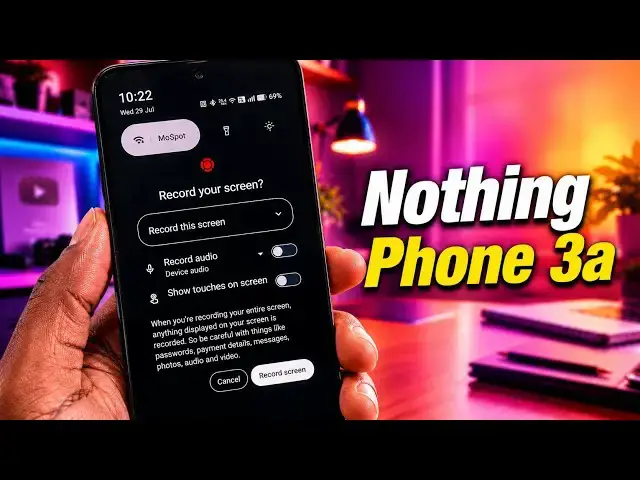
The app asks you, "Do you want to record
1:33
your screen?" And then it gives you two
1:37
Record one app. Record this screen.
1:40
What are the differences between these
1:43
Record one app allows you to select just
1:48
that will be recorded.
1:51
For example, you can select your YouTube
1:54
app. While a video is playing on
1:56
YouTube, you're recording the screen. If
1:58
you move away from the YouTube app, the
2:01
phone will not record anything else that
2:06
shows on your screen.
2:07
If you move away from the YouTube app
2:11
email app, go to your messaging app, go
2:18
those other apps will not be recorded.
2:21
If you go back to YouTube, it will
2:24
continue to record the YouTube app.
2:27
The second option, record the screen,
2:30
what that does is whatever is on your
2:34
If you swipe down, the swiping down will
2:37
be recorded. If you go into your app
2:39
drawer, that will be recorded. If you go
2:41
into another app, that will be recorded.
2:43
Whatever you do on the screen will be
2:45
recorded. The second option, record the
2:49
Now, regardless of which option you
2:51
select, the option to record the audio
2:54
from the device is there. So, for
2:57
example, if a video is playing with
2:59
audio and you want the audio from that
3:02
to be recorded as well, you select this.
3:05
If you don't, if you want only the video
3:08
without audio, just leave it alone.
3:11
If you're demonstrating something to
3:12
your audience and you want
3:14
your taps and touches on the screen
3:18
to register in the recording, to be
3:20
visible in the recording because you're
3:21
demonstrating something. Like in this
3:23
video now, I'm demonstrating something.
3:25
So, I might want people to know when I
3:28
tap on this, when I press on that, then
3:31
you select this. If you don't
3:33
[clears throat] need it, you leave it
3:34
alone, grayed out. When you are done
3:37
with these options, the next thing is to
3:41
Take note, when you're recording your
3:42
entire screen, anything displayed on
3:44
your screen is recorded. So, be careful
3:46
with things like passwords, payment
3:48
details, messages, photos, audio, and
3:51
I'm going to demonstrate this.
3:57
and showing touches on the screen.
4:01
And then I'm doing this.
4:13
While the recording is going on, you
4:15
will see this counter in red with a red
4:18
background, white text, red background.
4:20
That's the recording counter.
4:23
To stop recording, tap on it.
4:26
And then the question, stop recording,
4:28
you're currently recording your entire
4:32
and the recording ends.
4:35
You will see this icon now.
4:38
That screen recording icon, it's just in
4:41
white. If you scroll down,
4:43
you will see a notification of the
4:45
recording you have done. Tap to view
4:49
and you select whatever app you want to
4:54
And this is our recording. You can see a
4:56
small light circle where my finger
4:59
registers touch on the screen because I
5:02
selected that. The recording is always
5:04
found in your gallery. So, if you go to
5:12
that's our recording.
5:14
That is how to do screen recording on
5:17
the Nothing Phone 3A,
5:19
3A Pro, 4A, 4A Pro, and 3. I'm not
5:24
certain about the older models,
5:26
but all Nothing Phone models from 3A and
5:29
newer all support screen recording that
5:35
Thank you for watching this video.
5:37
Please do like it. Do share it. Follow
5:39
my channel. Turn on your notifications.
5:41
I look forward to seeing you again.