0:00
Making sure that your Samsung phone
0:02
cannot be switched off without asking
0:04
for a password when the screen is locked
0:16
I'm going to demonstrate how to do it.
0:18
This is a Samsung phone running 1 UI
0:21
version 8.0 based on Android 16. And you
0:25
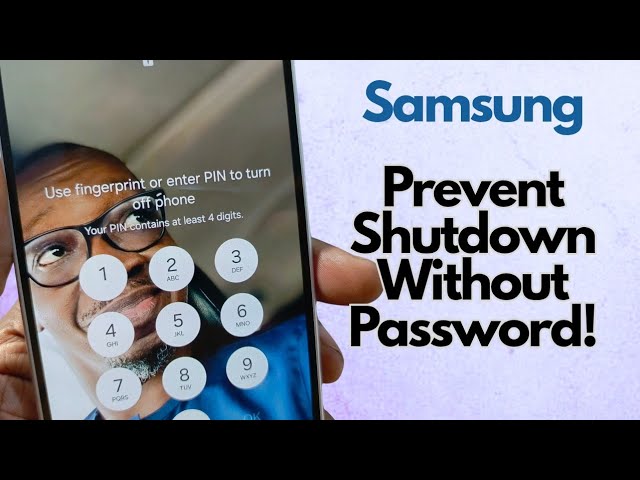
want a situation where when the screen
0:28
is locked this way and someone presses
0:31
and holds the power button and the power
0:34
off or restart options come up,
0:38
it asks for your PIN before the phone
0:42
can be turned off. This is a good
0:44
security measure in case your phone is
0:46
snatched from you and you have the find
0:49
my device or similar service active. You
0:52
want to be able to find your device if
0:54
it's not with you. Once someone is able
0:56
to turn it off, of course, game over.
0:59
So, to prevent that from happening, here
1:01
is what you need to do. Go to the phone
1:03
settings. Scroll down to lock screen and
1:11
screen lock and biometrics. Set your
1:14
fingerprint, password, whatever you
1:17
prefer. FA um face recognition.
1:20
Then come back to secure lock settings
1:24
again. It's going to ask for your PIN to
1:26
get in there and set this lock instantly
1:28
with the side key. And you should use
1:30
this all the time. Immediately you're
1:31
putting your phone down. Tap the the
1:34
side key to switch off the screen. Then
1:37
come down to lock network and security.
1:41
Prevent Wi-Fi and mobile data from being
1:43
turned off when your phone is locked.
1:44
Find My Mobile uses this connection to
1:47
locate and control your phone when it's
1:49
lost. And once you've turned this on,
1:52
this particular one, it's also the same
1:56
feature that prevents your phone from
1:59
being turned off when the screen is
2:06
And then it produces this. That's it.
2:08
It's as simple as that. I do not know
2:10
how many other Samsung models have this
2:15
feature, this security feature built
2:17
into it, but this is the Galaxy A36.
2:20
It's safe to assume that every model
2:22
above the A36, that's the A56, S25, S26,
2:29
the Z Flips, etc., all have this feature
2:33
built in. Below the A36, maybe the A26
2:37
will have it as you go down the ladder.
2:39
there's a chance that this feature may
2:41
not be available on your Samsung device.
2:44
This is from experience. I have found
2:46
out that some features that are
2:48
available on the upper mid-range Samsung
2:50
phones are not necessarily available on
2:54
all the lower mid-range and entry-level
2:56
models. So, check your device and let me
2:59
know if this tip works for it. Thanks
3:04
for watching. Do like the video. Do
3:06
follow my channel. I'll see you next