Up next in 10

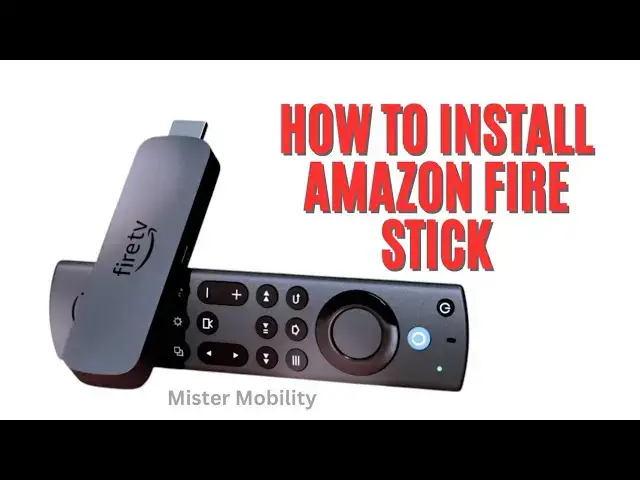
A short guide on how to install Amazon Fire Stick on your TV. It is pretty easy.
Buy Fire Stick: https://amzn.to/3ZC7XQR
Show More Show Less View Video Transcript
0:02
[Music]
0:08
hello this is Mr Mobility today I want
0:12
to walk you quickly through how to set
0:14
up an Amazon fire stick what is a fire
0:17
stick fire stick is a product by Amazon
0:21
that is very similar to Google's
0:22
chomecast it does pretty much what
0:25
chomecast does it helps you to convert
0:29
your Reg TV into a smart TV by plugging
0:33
in providing internet access and apps
0:37
and services that allow you to stream
0:41
and watch a wide range of movies and TV
0:44
shows unlike Google's chomecast uh with
0:48
the later versions looking like a flying
0:51
saucer or a Starship from Star Trek and
0:54
all that Amazon's ftic looks like a
0:56
flash drive you know just look like
0:59
something you plug into your PC that to
1:01
copy files and all that but it does the
1:04
same thing now again like uh Google
1:07
scrom Cast there are different versions
1:09
there fire stick light there's the 1080p
1:13
fire stick and then there is the 4K fire
1:16
stick all of this have to do with
1:18
resolutions by default if you don't have
1:21
a 4K screen 4K TV screen then the
1:25
1080p version is just fine for you so
1:29
what do you need for your setup and to
1:33
activate um fire stick on your TV of
1:37
course you need to buy your fire stick
1:38
buy whichever version you want and then
1:41
secondly you plug it into your regular
1:44
TV via the HDMI port if your regular TV
1:48
does not have an HDMI port you have to
1:50
look for an HDMI to AV Adapter or dongle
1:56
of some sort to use to connect them but
1:58
usually the your TV in this day and Agee
2:02
will have an HDMI port it's usually at
2:05
the back so look for it all right then
2:08
you make sure that your home internet
2:10
Wi-Fi is working because like Google's
2:12
chomecast this requires an internet
2:15
connection as well it requires Wi-Fi to
2:23
work the first step you need to take in
2:25
setting it up is you need to plug your
2:27
fire stick into your wall power slot
2:31
into your wall power outlet because it
2:33
requires electricity when you open your
2:36
box the fire stick is there there's a
2:37
remote controller there's a cable there
2:40
is a charging adapter there is there
2:43
might be an HDMI adapter as well or
2:46
extender as well depending on your
2:49
location and region so the first thing
2:52
you do plug your fire stick into a power
2:55
socket the next thing you need to do use
2:58
your televisions remote controller to
3:00
select the input that matches the port
3:03
that you have plugged the fire stick
3:05
into if you remember where did I say
3:07
You're supposed to plug it into the
3:10
HDMI slot so you scroll through the
3:13
input on your TV screen till you see
3:16
HDMI and then you select that because
3:19
that's where you plug your fire stick to
3:21
once you pick the correct Port the firti
3:24
Boop will appear on the TV also the next
3:28
thing that will happen is that your
3:29
remote control the fire stick remote
3:31
control should Auto pair with the fire
3:34
stick if it doesn't press and hold home
3:37
button on on that remote control for
3:41
about 13 seconds to compel it or force
3:43
it to do that next thing follow the
3:46
instructions on the TV screen to connect
3:49
your F stick to your home internet
3:51
Network once connected navigate to the
3:55
App Store Amazon's App Store on Google
3:59
chomecast
3:59
it's Google's App Store but here it's
4:02
Amazon's App Store so at this point you
4:05
might also need to sign on if you are
4:08
not already signed into your Amazon
4:10
account you're going to need to sign
4:11
into your Amazon account to access the
4:13
app store and then you start downloading
4:16
the apps you need whether it's Netflix
4:18
whether it's um YouTube whatever apps
4:22
you need you download right and then
4:24
begin to stream and watch all the shows
4:27
and movies that you want note that
4:31
depending on the apps you download you
4:33
might require a subscription for example
4:35
if you download Netflix you will require
4:37
a subscription if you download Prime TV
4:41
yes you require subscription if you
4:43
download um show Max you require
4:45
subscription YouTube is free then
4:47
there's YouTube premium if you want to
4:49
enjoy YouTube without the ads so that's
4:52
it you have successfully installed your
4:55
fire stick on your TV and now you can
4:57
enjoy your shows and movies as you like
5:00
let me know if you found that helpful
5:03
I'll see you again in my next video
#TV & Video
#Online Video
#Consumer Electronics
#Media Streaming Devices