Up next in 10



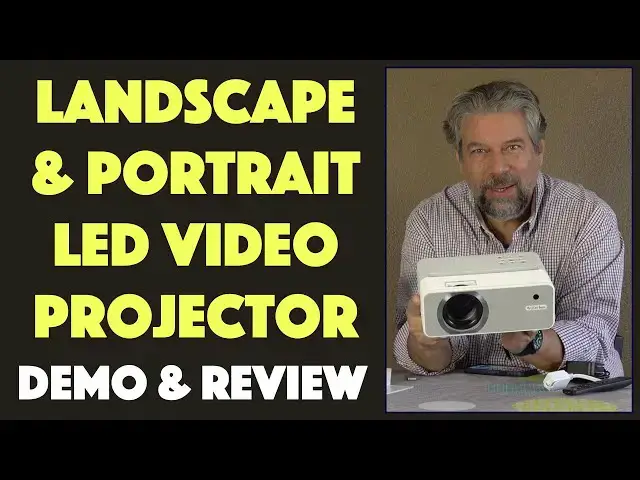
Tired of staring at that tiny screen, or having your kids glued to their tiny screen? The EZCast Beam V3 Video Projector offers a ton of wireless connectivity options - including AirPlay, Miracast, DLNA and Chromecast - along with USB, HDMI, even SDCard compatibility. And it can project a bright, vivid image horizontally OR vertically. Tech expert Dave Taylor of https://www.AskDaveTaylor.com/ ran the EZCast Beam V3 through its paces in this informative review. Lots to like and a few things that could do with improvement...
Check it on Amazon: https://amzn.to/304swX0
... and don't forget to utilize DAVEBEAMV3 for a 10% discount too.
Show More Show Less View Video Transcript
0:00
A video projector to keep the kids entertained, and maybe you too. Let's check it out
0:13
Dave Taylor here and I'm checking out this. This is the EasyCast Beam V3 and it's an LED
0:20
video projector. Now, it's a fairly unassuming little device, but it does push out 200 lumens
0:26
so it's reasonably bright if you're in a dark space. In a well-lit space like this, you're
0:33
not going to see much of anything. That's the reality of all projectors. Unless you
0:36
get something with thousands of lumens, which costs a lot of money, you really need to be
0:42
in a really dark space. So, I'm going to give you a lot of demo, but we're going to have
0:46
to turn all the lights off. But before we get there, let me talk to you just a little
0:50
bit about it. So, first off, this is really cool because it does landscape and portrait
0:56
mode. So, you can actually use it projecting this way and you can do it wirelessly from
1:02
your Android or iPhone or Mac or PC. And you can use this, so obviously for things like
1:08
Instagram or TikTok, ideal. This is why I was saying that it might be great for the
1:13
kids. But either way, it does 1080p at 120 hertz, so it's actually pretty clean and it's
1:19
a thousand to one contrast ratio. It's actually a pretty nice bright image. Once you get it
1:25
onto the right surface, I actually have a, what would you call this? A movie projector
1:33
screen. It's a fabric screen I bought off Amazon that is designed specifically to be
1:38
the screen for projection systems. So, that really helps. It's a good luminosity, it's
1:44
a good reflectivity, and of course it's a completely neutral white. Now, the lamp, that's
1:49
one of the big things. These are really all about the lamps. And this is a 30,000 hour
1:54
LED lamp. So, theoretically, you should be able to use this until the end of time and
2:00
never have an issue. Now, one of the things a lot of these tend to do is they have crappy
2:04
little speakers and these guys, EasyCast, sidestepped that. So, in the back, you actually
2:10
have a five watt speaker. Now, it is mono, but it is certainly enough to be able to listen
2:16
to the audio from a movie, TV show, the game, whatever it is you want to do. In fact, you
2:21
can even use this as a Bluetooth speaker if you want. So, you can do wired or wireless
2:27
connections. It supports, let me show you on the side, it supports a headphone jack
2:33
great addition, HDMI, USB, and then this little mystery spot that says wireless kit. Actually
2:41
it comes with an additional gizmo you put in and I can't get it to come back out. It
2:47
fits in to the unit and this gives you all that wireless access. You definitely want
2:52
to have that too. I believe it comes in the box, but double check when you're looking
2:57
And it also supports Miracast, DLNA, Airplay, Chromecast. I mean, basically, however you
3:05
like to send and push wireless content, it'll work. For example, with my iPhone, you can
3:12
see here that when I was just trying it with Airplay, all I had to do was open up Airplay
3:17
make sure they were both on the same Wi-Fi network, and then choose the EasyCast Beam
3:23
V3 and I was good to go. Again, I'll give you that demo in just a second. Now, one of
3:28
the downsides is it does have a manual focus. Let me pop this little annoying lid off, come
3:34
back to that, but you do have to manually focus it. Some of these actually have an automatic
3:39
focus where it can just sort of project and see what it's projecting. I don't exactly
3:45
know how that works, but it's pretty handy because my experience with projection systems
3:50
is you are not infrequently adjusting the focus because it seems like they drift out
3:55
of focus just a little bit. Maybe my expectations are high, but be that as it may, you will
4:01
need to actually get it all set up and positioned and have the wall clear for it to project
4:06
onto and then have fine-tuned that focus to get it just right. So, enough talking about
4:13
it. Let me go ahead and give you the demo and then we'll come back and I'll show you
4:18
a little bit more about the system, show you the remote, and we'll talk about the pros
4:22
and the cons. So, let's fade to black. We're going to start here at the home screen and
4:27
you can see all the different compatibility it has, but since I have my PC hooked up via
4:33
HDMI, let's just use the remote to choose HDMI and see how that looks. Let's see if
4:41
this works. And there we go. So, here's HDMI and I can log into my PC, maybe. Here we go
4:52
So, it's going to be a little tricky because I can't see the screen. No, that was wrong
5:00
It is in fact hard to work in the dark. There we go. So, you can see that the HDMI connection
5:08
is really clean and crisp. There's a lot to like here and using this with your PC and
5:15
then if on your PC you happen to have something like Netflix, this is going to work really
5:20
well. But, let's actually leave this and go back to home with the button on the remote
5:31
There we go. And now, what I'm going to do is I'm going to look. I happen to have put
5:37
a flash drive in and there should be some content on it. So, I'm going to go to USB
5:43
and let's see what videos are on there and you'll get some sound too. So, it is possible
5:49
I have the first season of Westworld from HBO on this flash drive. So, let's watch the
5:57
opening of the first episode just for a couple of seconds because I obviously don't have
6:02
broadcast rights for this. But, this speaker is the actual projector. So, you can hear
6:15
I'll turn it up all the way. So, it's giving us HBO. It's giving us Westworld. All of this
6:25
is coming off a flash drive. It's I think an MP4 file and we have pause and play and
6:33
various other controls. So, I can pause this so that I don't have HBO asking me what the
6:38
deal is. So, that's the flash drive. We've looked at HDMI. Now, let's have a little more
6:44
fun. I'm going to go back to home and this time, let me get it back to the home screen
6:51
which I know it can do. Well, there we go. Apparently, you have to focus the remote to
7:03
the front. So, now, actually, most of these other inputs represent different ways of connecting. So
7:12
what I'm going to do here is I'm going to choose iOS and then you get this pretty crazy
7:18
complicated screen here. But, what I'm going to do on my phone, it should just work, is I'm just
7:24
going to choose screen mirroring. Oops, I think I might be on the wrong network. Let me double
7:29
check real quick what Wi-Fi network I'm on. I am on the wrong one. I will switch and it's
7:38
interesting because the beam actually shows up as a Wi-Fi network, but we don't want that. So
7:44
let's see this. Now, I'll go to screen mirroring and this should show up. There we go. I'm going
7:51
to tap on it and if everything's working correctly and the phone gods are with us
8:00
then voila. So, now what can we do? Well, in horizontal mode, it is unfortunately the case
8:07
that while some programs actually work with a remote or Apple sharing, a lot of them don't
8:16
But, the good news is that turns out the TCM app is quite friendly for this. So, if I do this
8:23
and you can see the focus has wandered a little bit. So, let's just see if we can get that focus
8:30
just a little better. And now, I'll push play and the phone changes orientation
8:41
So, this is streaming wirelessly off my phone to the EasyCast projector. Tell me that's not
8:50
pretty cool, right? But, we're not done yet. Let's actually pause this because again
8:55
I don't have rights for this. And I want to show you one other really neat thing this projector
9:00
can do is it can actually switch orientation. So, if I choose settings and I choose image
9:08
you can see the choices are color, image, and audio. And on image, I can go into portrait mode
9:16
and I can turn that on. Well, theoretically turn it on. And so, what does that get me? Well
9:24
when I turn the projector sideways, which is a little tricky because of
9:28
the other things I have plugged in, so I will unplug them. So, now let's just move this
9:35
forward a little bit and obviously I'll have to refocus it. And it's not entirely on my projector
9:43
but you can see now for certain apps that might have a vertical orientation instead of a
9:49
horizontal orientation, this works perfectly. So, this is really fun if you want to watch
9:55
TikTok or Instagram or something like that. In fact, let's go into my Instagram
10:02
and let's obviously get the settings off of here. Now, this is, I got to say, a pretty cool way to
10:12
look at Instagram using the projector in its vertical, not horizontal, orientation. And of
10:20
course, if I wanted to use this more, then I would actually tilt it up, which I can do here
10:29
and maybe move it forward even a little more to get it to be just so. But I got to say
10:36
this projector has a lot of cool features you can see. So, now let's switch back to me being
10:42
on camera. It's really hard to capture how nice and bright and crisp and colorful the projection
10:48
system is. I did my best with my camera. I know it's not as good as having it on the wall in your
10:53
own place, but be that as it may, hopefully that gives you at least a good sense of how it works
10:58
And yes, it is hard to actually log into your computer when it's completely dark and your
11:03
keyboard doesn't light up. I have a feeling I need to change the setting and then the keyboard
11:08
would light up, be that as it may. I hope the demo was really interesting, and I want to just show you
11:14
a little bit more about this. So, we already looked at the side with all the input ports. I want to
11:19
show you that on the top there is a duplication of buttons, so you don't have to use the remote
11:26
And one of the things that I find really annoying about this is that the cover for the lens doesn't
11:33
actually tend to stay in, but it has this little elastic tether which is super cheap. And I think
11:40
the first thing I would do would be to cut that off and just get rid of the lens cover, because
11:46
I mean, there might be some way to get it to stay in. I guess that's actually a little better, but
11:51
honestly, I'm not sure how often I would need it, and I certainly don't need it to be attached
11:56
particularly if it is my goal to actually have it tilted up a little bit. And for that, it actually
12:04
includes these two little bumpers. Now, these are really more for heat vent and heat mitigation. So
12:11
for example, if you want to use it in that vertical or portrait mode, you put these on
12:17
you can see it from the side, and now you actually have a nice stable configuration
12:23
and it actually helps with heat dissipation, because it does get hot, right? So, doing something
12:28
like that works fine. I have to admit that these are just soft foam. I mean, I expected them to be
12:35
somehow a harder plastic, but you almost might think that they're part of the packing material
12:40
They're not. And if you're curious, I guess here's the flash drive I was using, here's the phone I
12:47
was using. I can't show you the PC, but I just plugged it in via HDMI on the side, and here's the
12:54
power. They did a nice job with the power adapter. So, plug it in, and then plug in, and it's not a
13:01
particularly long cord, but plug that into the side of the projector, and you can do everything. See
13:09
see how annoying that is, right? You can do everything just with the top controls. So, for example
13:15
a push and a hold on power will turn it on, and momentarily you should see there. So, you can see
13:21
that the projection is starting to work. This is probably going to mess up my camera a little bit
13:25
so I'm going to turn it back off, but there is some fan noise you can hear
13:34
Not super annoying. Well, having it projecting into my camera might, however, be super annoying
13:42
And so, then we get to the remote, and the remote's pretty important, but you have to point it at the
13:47
front of the device, and a lot of these companies do this. I don't really know why. They need to
13:51
have a remote sensor on the front and the back, so you can use it in either orientation, but you
13:57
saw even in my demo video, I was having some problems getting it to see the buttons. But here's
14:03
a close-up, and you can see it's a pretty nice set of functionality, and it's a pretty simple design
14:09
though I have yet to figure out exactly what the top right double arrow button does. That's how it
14:15
goes. I will note that this lets you adjust volume, but the onboard controls on the projector itself
14:23
do not give you volume control. Not sure what that's about, but it seems like a very logical
14:28
addition, or even a slider for volume or something would be really nice, but I always wonder what
14:34
happens if you lose the remote. Are you completely out of luck? And in this case, you'd have a really
14:38
hard time adjusting the volume, because you'd have to go into settings, audio, volume, up, up, down, down
14:45
whatever. Much more inconvenient than just the two buttons right here on the remote
14:50
So we have the remote, we have the projector, we have the little feet, we have the lens cover
14:56
Really, I've kind of given you the full deal, so now let me tell you the dimensions. So it is 9 inches
15:02
by 6.6 inches. I'm not sure where they get that dimension from. I guess that's the depth. So it's
15:09
six inches deep, and it's three and a half inches tall, and it's 2.6 pounds, and this lens cap's
15:17
gotta go. There is a screw hole on the bottom. It looks like this could be for you using it as a foot
15:26
but it really doesn't work very well that way. What it does instead is it gives you
15:31
if you take it all the way out, it gives you the ability to mount it onto something like a
15:36
projection mount system. So that's handy if for some reason you wanted to put it into the ceiling
15:42
or something, right? So that's good to know. It weighs, like I said, 2.6 pounds, and power-wise
15:49
this can plug into anything from 100 to 240 volts, 50 or 60 hertz. So it has pretty wide flexibility
15:57
which is really nice. And because you can use this wired or wirelessly, it really can be
16:02
something for on-the-go, though it's kind of big to put in your suitcase. If you're doing car
16:08
like a road trip or something, you could definitely have all of this in a bag with cables. And I want
16:14
to point out that in the box, there are no cables of any sort other than power. So you're really on
16:19
your own if you want to use HDMI or anything like that. But with all these wireless options
16:24
you might never feel like you need to. So trade-offs, right? But it does become relatively
16:30
self-contained. And who knows, maybe if you have it in a little travel bag, you will actually like
16:36
the lens cap. For me, that's for the birds. But that's just my personal taste. So let's talk
16:44
about the price. But before we get to the price, I'm going to ask if you can subscribe to my
16:47
channel. I really appreciate when you do that. Just go ahead and click or tap on that little red
16:51
button and give me some feedback. It's really hard to know how to demo these video projectors
16:56
So I tried to figure out what I could do. Obviously, it was a super dark space. So my camera
17:02
has limited capabilities in that environment. But leave a comment and let me know whether it was
17:06
useful, whether you wish I would have had a little more environmental lighting, you wanted a longer
17:13
piece of or segment of any of the videos or whatever. Let me know. Give me some feedback
17:18
That's great for my next review. So, OK, with all that, this is the EasyCast Beam V3, and it's a
17:27
pretty solid option for its sort of price point and for its use case. I really like that you can
17:34
use it in portrait mode. I really absolutely loathe this lens cover, which I'm just going to lose
17:42
You know, the whole wireless thing, the fact that it works with airplay off my phone
17:46
super convenient. This would be really fun to have in a hotel room or while you're traveling
17:51
or going to grandma's and the kids are just bored and they want to play a game big rather than tiny
17:57
on their screen. So that could be really fun. Worth checking out. EasyCast Beam V3, $149.99
18:05
But when I checked on Amazon, there was a $15 discount code, which puts it down to $134.99
18:12
at Amazon.com, which is a pretty good price for a video projection system with this number of
18:18
capabilities and this level of flexibility. So check it out if that's something your family
18:23
is desperate to pick up, or if you want to just use it at a trade show. It might not work at a
18:28
trade show because of the brightness, but if you want to use it in the office or you want to just
18:32
use it for yourself. So that's all I got. I hope to catch you on my next video and I'll catch you later
#TV & Video
#Online Video
#Consumer Electronics
#TV & Video Equipment
#Media Streaming Devices
#Virtual Reality Devices