0:00
In this video, I'm going to show you how
0:02
you can create or draw shapes on your
0:04
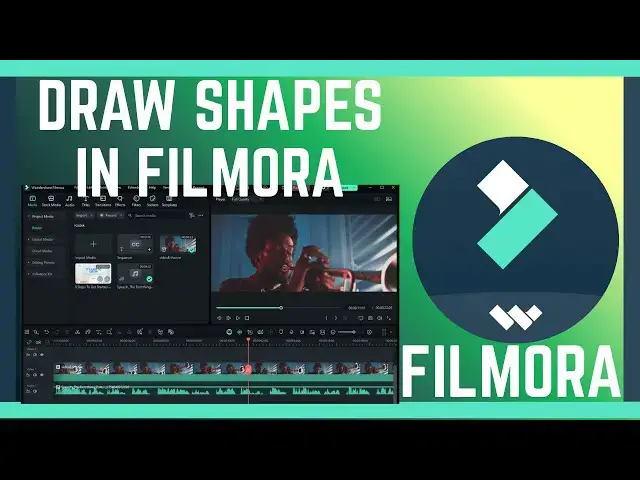
videos in Filora. If you find this video
0:07
helpful, I'll kindly request that you
0:08
support me by liking my video and also
0:11
by subscribing to my channel. All right.
0:13
So, drawing shapes is quite easy. Just
0:15
follow these simple steps. First, come
0:17
here and then look for this sign. This
0:20
is a drawing tool on your Filmora. If
0:23
you go ahead and click on it, you'll see
0:25
we have quite a number of shapes such as
0:27
rectangle, arrow, ellipse, triangle as
0:30
well as you can just draw a line. So
0:33
this is a drawing tool. If you click on
0:36
it, select the tool that you wish. For
0:38
instance, I want just to draw a circle.
0:41
I'll just click on it. Then come to your
0:43
video and draw that circle to that
0:46
section where you want it to be drawn.
0:48
For instance, I just want it to draw
0:50
here like that. And here we go. Now the
0:54
problem is we have a color fill that
0:57
I'll wish to remove because I want this
0:59
circle to be transparent or just have a
1:02
border line. To remove the fill, just
1:04
come to edit here and then click on it.
1:08
And this edit will give you some
1:09
functions here. Look for this option
1:11
called fill and then make sure you
1:15
toggle it off. And you can see this will
1:18
remove all the fill on that circle. You
1:21
may want to go ahead and maybe and
1:23
change the color of your circle border
1:25
as well as the thickness. To do so, just
1:28
scroll down and look for the option
1:31
called border. And if you click on
1:33
border, you will find we have quite a
1:36
number of options such as color. This is
1:37
where we can change the color. So,
1:39
choose the color that you so wish. And
1:42
we have quite a number of colors here.
1:44
You can change to any. Now to make it
1:47
thick, you can just go ahead and
1:49
increase thickness of your border or
1:51
your border line by increasing the
1:54
thickness on your circle there. From
1:56
here, you can go ahead also and make
1:59
some changes on where you want this
2:01
circle maybe to be shown. If you want it
2:04
to be just on a particular place or spot
2:06
on your timeline or on your video, go
2:09
ahead and move it there and it will only
2:12
be moved to that spot. However, should
2:15
you want it to run on the whole of your
2:19
video track, you can increase this to
2:21
start from the beginning to the end by
2:24
adjusting it like that. From here, now
2:26
if you want to write any text, you can
2:28
now use the text function to add any
2:31
text on your shape. So, that's how you
2:34
can draw shapes on videos and images in
2:37
Filmora. If you have any other question,
2:39
kindly let me know in the comment
2:40
section. Otherwise, thanks for watching
2:41
and let's meet in the next video.