Up next in 10


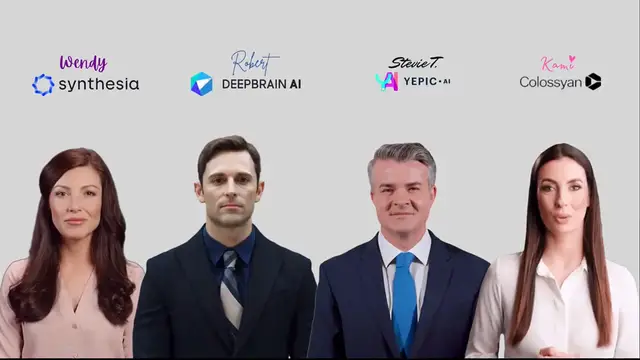
"Unlock the secrets behind captivating content creation in 'How I Made This Video'! 🎥✨ Join us on an exclusive behind-the-scenes journey as we unveil the magic of combining ChatGPT, Synthesia, DeepBrain, Colossyan, and Yepic AI to craft a truly unique video. Discover the synergies of these cutting-edge AI technologies, each contributing its special prowess to the creative process. From scriptwriting with ChatGPT to video synthesis with Synthesia and dynamic visuals with DeepBrain, Colossyan, and Yepic AI – witness the collaborative dance of these AI giants. Dive into the creative alchemy, unraveling the steps that brought this video to life. Don't miss the chance to demystify the art of AI-driven content creation!"
Show More Show Less View Video Transcript
0:00
If you're watching this video right now, my guess is that you saw my AI Smackdown video
0:04
featuring video avatars from four different platforms. In this video, I'm going to show you how I created this
0:13
And the first thing we need is a script, but if you've seen my videos before, you know that
0:17
rather than writing the script, I went to chat GPT and I just said write a four-person dialogue
0:22
that discusses the impact of AI in our society. So I took this dialogue, which was generated, I copied it
0:30
and I assigned a role for each one of the platforms that I'm using
0:35
After this step, what I had to do is to actually go into the platforms and copy and paste some text
0:42
So, for instance, here is Synthesia. And this is what it looks like
0:46
You can see that the background is just a regular green screen background because I removed that in the final video
0:53
Another thing that I did, which was really important for the video, is that I added a pause for about 20 seconds because I knew that there were
0:59
be times where the other avatars would be speaking and that this avatar from Synthesia when it
1:05
wasn't her line, she'd just have to kind of be sitting there looking at the camera. So luckily
1:10
I was able to do that. Now, I also used Synthesia to introduce the AI Smackdown, so I just
1:17
picked a different avatar and I wrote up a little script and I put that at the end of the video
1:22
Things worked exactly the same with the next program I used which was Deep Brains AI Studios Of course here is that scene again with a 55 second pause for my avatar
1:35
This is Yepik Studio. I would love to show you what I did, but as you can see, my trial membership is run out and I'm not renewing
1:42
So basically, there was no way to pause a video in Yepic Studio
1:47
Now, the last one was Colossian Creator, and because Yepic didn't have a pause
1:52
I kind of just assumed that Colossian was the same way because I didn't see a pause button anywhere on the screen
1:58
But of course, if I would have clicked this link, it does give you directions on how to add a pause
2:05
So I really messed this part up. And you'll see why in a second. So once the videos were finished from the platforms, I exported them and then downloaded the video file
2:14
So now, after I downloaded the files, the next step for me was just to take all of those files
2:21
and to upload them in a video editor, I chose to use Final Cut Pro
2:26
I really could have used any multi-track video editor. So if you're not familiar with Final Cut, I'm not going to get into a super detailed explanation
2:35
but I will show you how I created this video. So, of course, this is Robin
2:40
She was the host. I just brought her in. I removed the background, and I filled the background with this graphic that you're looking at right over here
2:50
I also added an intro which you seeing on the screen And then I went to our avatar She introduced each of our avatars
3:01
And then we got into the actual discussion. So this is where the pause was important
3:09
I want you to take a look at our avatar at the bottom
3:14
Okay. So she's the first one that is speaking. When she's not speaking, that's where I added that pause
3:20
So I think I had like a 20 second pause that I was able to add in syntheia after her lines
3:26
So every time she wasn't talking, I basically just used that pause
3:30
And you can see it just sort of looks like she's looking at the camera waiting
3:34
It worked the same way with deep brain here as the 55 second pause that I was able to add in deep brain
3:40
This character, Robert, set his line. And then I added that pause again
3:45
So that worked great for the first two programs. Now for the other two where I didn't have
3:50
that. It's a little problematic because in the Epic Studio, first off, there is no way for me to add a
3:58
pause. So as a result, I took this line that you're seeing right over here. And there was about a two
4:07
or three second pause at the beginning. And I had to loop that over and over and over and over again
4:14
Same thing with Colossian creator Now remember you could add a pause here but I didn know that you could So I didn add it This pause before this actor speaks is even shorter So as a result as I playing this since there is no pause
4:29
you can see there's a little bit of a jittery appearance because it's just looping things
4:35
over and over and over again. Here is Colossin, you can see, and that's just
4:41
because she starts at a different spot when she ends. Those two video avatars were
4:47
jittery. That was one of the things that I had to kind of do. Fortunately, if you use Colossian, there is a way to add a
4:54
pause. Last step for me was to add the outro. Pretty easy. Again, I just used the keen effect
5:01
removed the green background, filled it with the graphic at the bottom. I think I had a title on
5:08
the screen, and that was just about it. So this was a very fun way to take four different video
5:15
avatars to use them in one program. It wasn't really hard. This is something you can probably do
5:21
If you don't have final cut, you can use any other video editor that allows you to add multiple
5:27
video tracks on top of each other. And again, there's probably more than one way to do it
5:32
This is just the way that I created this video. Now, if you want to try or if you have any questions
5:37
please go ahead and leave a comment in the comment area below, and I'll do my best to get back to you
5:43
Thanks for watching and have a great day
Movies
Online Media
Online Video
Email & Messaging
Voice & Video Chat
Clip Art & Animated GIFs
Virtual Worlds
Animated Films
Other
Intelligent Personal Assistants