Up next in 10

New to Midjourney or want to catch up on what's changed? In this complete guide, I'll walk you through everything you need to know about Midjourney AI in 2026 — from writing your first prompt to using the latest V8.1 model.
📌 WHAT YOU'LL LEARN
- How to sign up and get started (Midjourney is now web-based, no Discord required)
- Prompt writing basics and advanced parameters
- What's new in V8.1 (faster generation, HD 2K output, Raw Mode)
- How to animate images into short videos
- Midjourney's plans and pricing (no free tier)
- Style consistency tools and Niji 7 for anime-style art
This guide is perfect for beginners and anyone who used Midjourney a while ago and wants to see what's changed.
🔔 Subscribe for more AI art tutorials and tool guides.
👍 Like the video if it helped, and comment with the Midjourney feature you want covered next!
#Midjourney #AIArt #MidjourneyTutorial #AIImageGenerator #GenerativeAI
Disclaimer: Midjourney updates its models, features and pricing regularly, so details shown here reflect the V8.1 update at the time of recording. Always check midjourney.com for the current version and plans.
Show More Show Less View Video Transcript
0:00
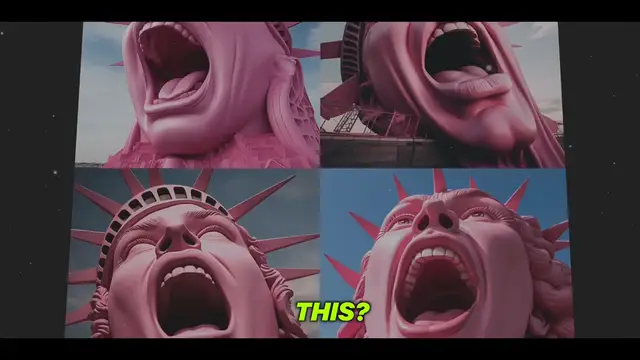
Do you want to learn how to use MidJourney to create really cool images like this
0:04
or like these? After using MidJourney quite a bit, I found the ultimate way to leverage this tool
0:10
So in today's video, I'll show you the correct way to use MidJourney
0:13
so you can later utilize its power and bring your own creative ideas to life
0:18
Step by step, I'll walk you through the entire process and share valuable tips you won't find
0:22
in other videos. I'll even reveal a couple of my favorite prompts, which I usually only offer for
0:27
sale, so be sure to watch until the end. Remember, this isn't just about what AI art can do
0:33
it's about what you can do with AI art. Let's get started. So the first thing you're going to do is
0:38
go to midjourney.com and select join the beta. It will open up Discord, so you need to have a
0:44
Discord account. If you don't have one, it's completely free. Just go to discord.com and
0:49
download the free tool. After you click join the beta, Discord will open and it will put you inside
0:55
a Discord room. You can go into one of the other newcomer rooms and generate your prompts there
1:00
But what I like to do instead of sharing my prompts with others is to open up the MidJourney
1:04
bot, where I can do my prompts kind of in private. On the right, you can see a list of users. If you
1:11
don't see this list, click the Member List button at the top, and it will show you the list of users
1:16
Somewhere in the list, you'll see MidJourney bot. Right-click on MidJourney bot, then click on
1:22
message. It will open MidJourney in a bot view here. Next, you're going to type slash and then
1:28
imagine. Once you hit the spacebar, it will give you a little box to start writing your prompt
1:34
That's it. Now you can start prompting. To get the best results from the MidJourney bot
1:38
keep it short and straight to the point. Skip the long-winded requests. For example
1:44
instead of saying show me a picture of tons of California poppies in vivid orange drawn in a cool colored pencil style Try saying vibrant orange California poppies with colored pencils
1:55
The bot will totally get it. Now, let's break down the important points before we start prompting
2:00
To get the best results, we need to be precise and know how to use MidJourney correctly
2:05
Instead of prompting slash imagine an astronaut in space, there are other elements that if we add them to the prompt
2:12
we'll get more accurate results for what we are looking for. Here are some examples of elements that can be added to the prompt
2:18
A medium. Here we can specify an artistic medium. An artistic medium can be risograph, blacklight painting, watercolor, graffiti, or anything else you can think of
2:28
Then, you'll need to get even more specific. More precise words and phrases will help create an image with exactly the right look
2:35
You can add emotions to give characters personality. You can type happy, sleepy, embarrassed, or shy
2:41
You can also add a specific decade. For example, the 20s or the 80s
2:45
This can give the image a different perspective. And even to get crazy colors
2:50
Ask MidJourney for a millennial pink-colored astronaut, or DayGlow, or green-tinted, or maybe canary yellow
2:57
You can try and go as far as you want with your prompts. Selecting and adding each of the elements will bring you a better and more accurate result
3:04
That's what I like about MidJourney. Even if you master the tool, you'll get something slightly different every time
3:09
Now let's move on to something which is not always told. even secrets. Have you ever wondered what all those two hyphens at the end of other people's
3:16
prompts are? What are they actually doing? So I'll tell you, not too much, but they are necessary
3:22
if you are looking to get a more specific result. They are called parameters, and they are for people
3:28
looking to be even more precise with AI. Therefore, it is necessary to learn and understand how to use
3:34
them Now we will explore some of these parameters and understand how they can be helpful so you can also use them in your prompts later 2 hyphens and AR are when you want a specific aspect ratio
3:46
The most common is 916 for vertical and 69 for horizontal. 2 hyphens and S influences how strongly this prompt is applied
3:54
Low stylization values produce images that closely match the prompt but are less artistic and the opposite
4:00
2 hyphens and a V means version. The latest model of MidJourney is the default, but other models can be used by adding two hyphens in V
4:08
This parameter accepts the values 1, 2, 3, 4, 5, 5.1 and 5.2
4:13
You can try different versions in your prompts to see what you get. And the last one is chaos
4:18
The chaos parameter in MidJourney affects how crazy and varied your image variations are
4:23
High chaos values will produce crazier and more varied results, and lower chaos values have more reliable results
4:30
So from now, the next time you see these hyphens, you'll know exactly what they are
4:34
Note to write them only at the end of the prompt and not at the beginning. Here is an example of a full prompt with the elements I shared at the beginning
4:41
combined with the parameters. And here is an example of a similar prompt without all the elements and parameters
4:46
You can see a significant difference in how the AI receives and processes the prompt
4:51
You can choose how precise to be with the AI. Sometimes mid-journey can give you images that exceed your imagination
4:57
which can pleasantly surprise you. So, it's also worth letting AI work on its own without too many
5:03
guidelines. But if you are looking for something specific to your needs, these elements and
5:07
parameters are exactly for that. Feel free to play with the prompts and try different promptings
5:12
By doing so, you'll learn even more about how to work with MidJourney. Now, I'll share my top three prompts for MidJourney. These are the ones I use the most
5:21
and in the upcoming videos you see why The first prompt will generate something like this It reminds me of cartoon characters in kids movies This will be useful later Simply take this prompt and modify the red part to match your needs Next This is a video of the video
5:55
but very useful. Check this out. I use this prompt to create amazing logos or stickers
6:01
Feel free to change, add, or remove anything you see fit in your prompts
6:05
To save you from having to rewrite the entire prompt, I've included a link to all the prompts
6:10
I shared in today's video in the description below. Feel free to copy and try them out
6:14
For those who have made it this far, well done. Your persistence and investment will lead you to
6:19
faster results. And just for you, I'm going to reveal another method for writing prompts that
6:24
you probably haven't thought about. If you are still having trouble writing prompts that match
6:29
what you want, you can use tools that will write the prompt for you. Just explain to them exactly
6:34
what you are looking for. This is the first site you can use. Explain your idea here, and it will
6:40
generate the right prompt for you. Additionally, you can use ChatGPT in the same way. My goal is
6:47
for you to be able to create everything that I'm teaching here by yourself. I hope this guide was
6:52
useful to you. If you want me to share ways on how you can use MidJourney to make money online
6:56
let me know in the comments. And if you find this guide helpful, subscribe to my channel
7:01
as this helps me produce more videos and provide more valuable information
7:05
That was it for today's video. And remember, knowledge is not power
7:09
it's only potential power. It becomes power only when we apply and use it
7:13
Thanks for watching, and see you next time. The Guru
Photographic & Digital Arts
Computers & Electronics
Business & Productivity Software
Clip Art & Animated GIFs
Animated Films
Visual Arts & Design Education
Educational Software
Computer Education