Up next in 10


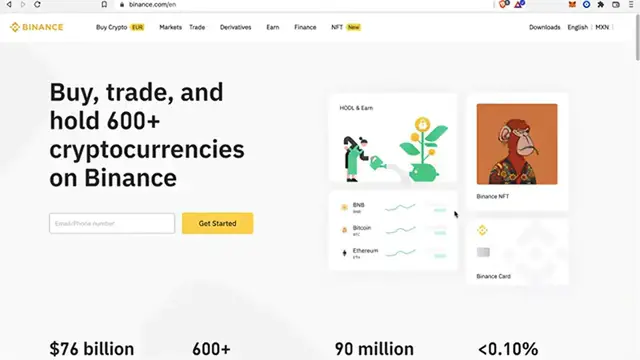
How To Send Bitcoin From Binance To Metamask (Step by Step)
Show More Show Less View Video Transcript
0:00
How to send Bitcoin from Binance to MetaMask
0:05
Hey guys, welcome to this new video. In today's tutorial, I'm gonna show you how you can
0:08
trade your Bitcoin and send it right into your MetaMask wallet. So as you can
0:14
see I'm already signed in into my Binance account and the first thing you want to
0:18
do is to have your assets are ready to be sending into your MetaMask. So if I go
0:23
into my wallet and I go into fiat and spot if you want to send a specific
0:28
token, you want to set Bitcoin, Ethereum, BUSD, it's the same process. So in this
0:34
case you're gonna select the option that says Bitcoin and in here you're gonna go where it says withdrawal. Now before you want to send your Bitcoin into MetaMask
0:41
you should know that Bitcoin is not supported by MetaMask at the moment so
0:46
if I go into MetaMask and I go into import tokens and try to search the
0:50
token Bitcoin, you're gonna see that this one it's not available. It's only the
0:56
wrapped Bitcoin. So either you want to choose your smart chain and try to look
1:02
for the Bitcoin contract or you can swap your tokens into another coin and that
1:09
coin receive it into MetaMask. So what I did is to go into my wallet and after I
1:16
go into Bitcoin I want to select the option that says convert. So once you are
1:21
in here you want to select the token that you'll be trading and in this case
1:24
I'm gonna select BMV and you're gonna put the maximum amount and after you
1:30
enter the amount you go back into your wallet you're gonna see that your spot
1:36
wallet availability has changed into this coin which now it's available on my
1:41
MetaMask. So the last thing you want to do is to go back into your tokens and go
1:46
again into withdrawal using our new token and what I want to do is to go
1:50
back into my mainnet. I'm gonna copy my address into my clipboard I'm gonna
1:54
paste it into Binance and I'm gonna choose the exact same network which in
1:59
this case it will be the smart chain. I guess I'm really sure. If you want to put
2:04
the maximum amount you go ahead and go into that and the last thing you want to
2:09
do is to go and select the option that says withdrawal. So as you can see the
2:13
recent withdrawal you're gonna be seeing it something like this and it has to say
2:17
completed. It's this one this says processing and it has been more than 20
2:22
or 30 minutes you don't have to worry about that. After the 120 minutes you can
2:27
select your transaction which is in here and you go into this option that
2:32
says why hasn't my withdrawal arrived just in case that you don't see your
2:36
withdrawal inside your MetaMask guys. So there you have it don't forget to like
2:41
and subscribe to this channel if you want to see more about MetaMask and Binance application. Thank you for watching the video and I'll see you guys
2:47
on the next one
#Computers & Electronics
#Finance
#Internet & Telecom
#Money Transfer & Wire Services