Up next in 10


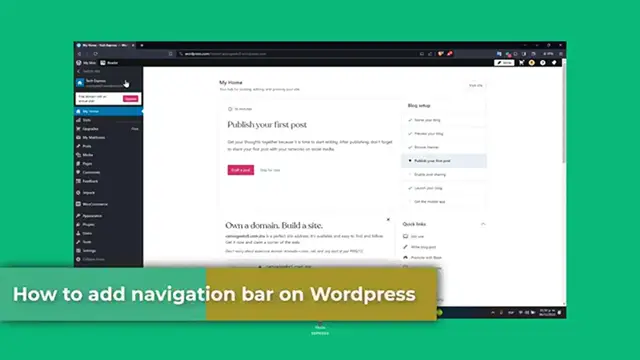
How To Add Navigation Menu In WordPress 2024 (Step By Step)
Show More Show Less View Video Transcript
0:00
Welcome, everybody. So are you interested into how to add a navigation menu into WordPress for the year of the 2024
0:08
We're going to be organizing as a key to provide a great use experience on your business
0:14
So let's get started. First of all, accessing your WordPress dashboard. First of all, we're going to look into your WordPress dashboard
0:20
You can see where you're already in here. This is where you control all the expert of your WordPress site, including the menus
0:26
Once you're logged it in, what you want to do is to navigate to the appearance
0:29
the section that appears into your left part. If you have more than just one website, what you want to do is to focus into switch site
0:37
Choose the website that is the one that you want to edit. And then once you are here into the dashboard, then you can go directly into the appearance
0:45
So there you go. As you can see here, the appearance section. And as you can see, then what you wanted to do is to focus into the menus
0:51
So you have the themes, they have the editor, we have the customize, and we have much more
0:56
elements as we are moving on. So then later on, creating an individual. menu. What I wanted to do is to focus here into themes. Let's go for menu, for example
1:06
And as you can see, we have the featured menu. There's a classic menu. There's a custom menu
1:11
And of course to create a new menu you can click into the creating new menu links at the top of the page You can give your menu a name something descriptive like the main menu top navigation whatever Usually what there a lot of people do here into the editor It that they created an actual template of course when it moving on into creating and starting on with actual templates
1:32
But if you are willing to work into the actual designer editor, so if I activate my design, what I wanted to do is to customize this design
1:41
and usually into navigation it should be appearing my actual menu so what I wanted to do now
1:50
is to add items to my menu to the navigation board so it's time to add items to the menu on the
1:56
left hand side you'll see options to add pages post custom links or categories you want to select
2:01
the items you want to include to click add to the menu for example here's only the page list
2:08
So I can go here and delete the navigation or just hit into edit and add more elements as we're just getting started
2:16
For example, a good plus and I have the link to have the social icons
2:21
Let's say side logo. But in my case, I'm not going to be focusing a lot on that
2:25
Let's go here into my page list. Remember that inside the sub menu, you wanted to move this along in here
2:32
And this is what we have so far into the navigation So it such a mess of course later on if you wanted to change stuff later on you can edit directly from the actual header
2:44
I can create a draft page, the About Us, for example. I can click here
2:51
Let's say that this is the home. I create a new draft page
2:55
And now, once this has been saved it, I can go into edit inside the navigation bar
3:00
Remove the socials. I remove my site logo. and my custom link. So far, you have the About Us and the home section so far
3:08
So as you can see, it actually looks great. Once your items are added, you can customize
3:12
your menu folder. You can assign it to a display location, we can theme offer location like
3:16
primary folder or social menus. You can also use the screen options, tap to the show
3:21
addition and property like CdWS classes for customization like this. We have a lot of
3:28
things creating a template, we can create a pattern, we can create a palette pattern. If this
3:33
part of a header this is part of a folder whatever so fill out the template part for example the
3:39
about us created and then you're actually good at it so you can do this uh one by one page if you want
3:46
to or if you're not just going to leave this like that but it's going to be really really easy if you
3:50
choose an actual template as you can see i chose a template form and actual uh blog so if i go into the periods and the themes I can choose something different For example this 2024 I activated this design
4:07
And after activate the design, I can go into customize the design. And you can see that now into the upper side
4:13
The menu that was generated, the navigation menu that was generated for us, is going to be added
4:18
into the upper side. And if you wanted to edit all of this part, you can just click
4:22
in it and just add or delete the elements that you do want or you do not want to see
4:28
As you can see here are all the elements that we just generated and created from the latest
4:32
menu bar that we can just add it on the other template
4:38
Make sure to save your changes once you're happy with your menu, guys. And lastly, you're good to go
4:45
And there you have it, guys. That's it. You have successfully added navigation menu with your WordPress site
4:49
A well-designed menu can guide your best editor seamless through your your side, improving their overall experience
4:55
If this tutorial was helpful, please give us a thumbs up and subscribe to X-Press for more WordPress guides
5:00
If you haven't tips of questions about WordPress menus, you can let us now in the comments below. Thank you so much for the video and happy website building
5:05
Stay tuned for more helped tutorials. See you soon
#Computers & Electronics
#Skins, Themes & Wallpapers