Up next in 10


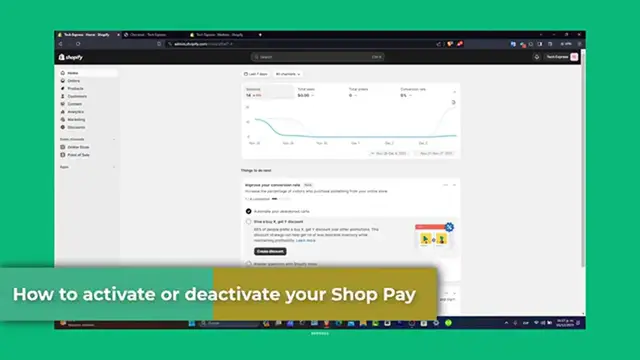
How to Activate or Deactivate 'Shop Pay' Accelerated Checkout in Shopify
Show More Show Less View Video Transcript
0:00
Activating or deactivating your shop pay can help you to speed up the checkout process
0:06
for your customers, potentially increase your conversion rates. Were you looking to enable it for the first time or needed to turn it off for any reasons
0:14
the guide could cover anything. So let's get started. Welcome back to Express, let's understand the shop pay
0:20
Now shop pay is an accelerated checkout solution for Shopify that's customers
0:25
Now shop pay is an accelerated checkout solution for Shopify that's customers
0:33
It enables returning customers to complete their purchases faster, often with a single click
0:39
Now for store users, it can mean quicker checkout and potentially higher conversion rate
0:45
Let's access your Shopify administrator dashboard. First of all, you want to log into your Shopify administrator dashboard
0:51
This is where you can manage all the aspects of your Shopify store, so check this out
0:56
So once you are in the dashboard, what you want to do is to navigate into the settings section, here's your little left pod
1:02
And then what you want to do is to locate the bottom left on your screen
1:07
So you can see that we have a lot of information in here. Now to activate your shop pay, what you want to do is to focus into the left pod and go
1:16
into payments. Now here in payments, what you want to do is to find the section that says as your payment provider
1:25
So as you can see, we have the Stripe, we have the PayPal, we have the manual method
1:30
And later on, you might be seeing that the shop pay works in conjunction with Shopify Payments
1:35
So you don't see this in here. That means that you wanted to do is to make sure that you have this enabled into your
1:41
actual store. So you can go here into save and usually it appears into the manual payment methods or
1:48
you can go into the Shopify app store. Now here, what you wanted to do is to make sure that the shop pay is enabled into your
1:57
store into the country you're currently living. Otherwise, it just won't be enabled there
2:03
Now under the Shopify payments, you want to look how fully accelerated checkout
2:09
So for example, what I do have here is that I have the PayPal account express checkout
2:15
You can complete this setup later. But then later on, if you wanted to look out for something else, for example, let's say
2:21
I manage this Stripe and I go here and to choose United provider, choose United provider
2:28
Once again, I go here and I go for shop now payment method
2:34
So as you can see into my country, it is not enabled the shop pay, but the process
2:39
of enabling or disable it is exactly the same. What you just want to do is to look into the Stripe or the payment that you're currently using
2:47
After you hit into manage, what you wanted to do is to go and scroll all the way down
2:51
and choose the option that says deactivate your account. In this case, it's going to be Stripe
2:57
So if you needed to activate this, you have to do this process really, really easy
3:01
If you wanted to enable something else, what you wanted to do to choose another provider
3:06
go for choosing other provider. And then what you want to do is to enable the best that suits for you
3:12
In my case, what I can do or what I wanted to do is to go here into the payment method
3:17
and I wanted to choose the payment method that I wanted to accept into my new third
3:22
party payment provider. Let's say for example, that I only wanted to enable Visa, Mozart card and Apple Pay
3:29
So with all of that being said, it's going to be showing me the payment methods that
3:33
are currently available into my country. So choose the one that best suits for you and then go for connect
3:40
Of course, you needed to have an account in order to continue and to install the application
3:45
and set up your account. But this is how you can do this directly into your Shopify section
3:49
So I'm going to go back and make sure that all the changes has now been saved
3:53
It is important to save your changes to ensure that your preferences are updated into your
3:58
actual local store. So you can see here it is. Even I have the test mode, so you just want to make sure that all the payments has now
4:05
been like the transaction that are going to be enabled automatically. So you can go back, you can reload your paste and you're good to go
4:13
So guys, and that's all that it has to be done. Activating or deactivating your Shopify into your Shopify store is straightforward
4:20
But understand that you can manage this feature. So if this tutorial was helpful, please hit the like button
4:26
Don't forget to subscribe to the express for more Shopify guides and tips
4:30
How many questions or experience with Shopify pay? You can let us know in the comments below. Thank you once again for watching the video
4:35
We'll see you in the next video. See you soon
#Business & Industrial
#Shopping
#Consumer Resources