0:03
canva is a free to use graphic design
0:06
web site that can substitute for paid
0:08
programs like Adobe Photoshop it all
0:10
runs in your browser or mobile app so
0:12
there's no need to download more
0:13
software for your computer if you're not
0:15
really a graphic designer need to do
0:17
something fast or just need some
0:18
inspiration canva is a great tool for
0:20
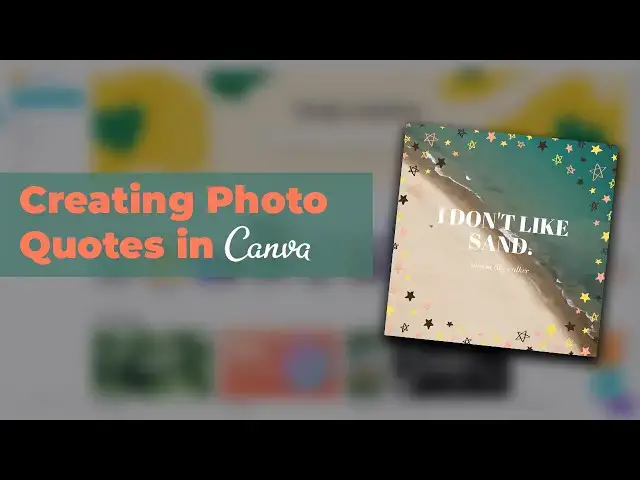
making things like photo quotes to start
0:23
log into canvas or create an account the
0:25
first thing you want to do is create
0:27
your canvas since a photo quote can
0:29
really be any dimensions you want it to
0:31
be picking your sizing may be the
0:32
hardest part of the whole project click
0:34
on create a design and you'll be
0:35
prompted to choose custom dimensions or
0:37
to create based off of a sizing template
0:39
this is great if you want to post an
0:41
Instagram or another platform that
0:42
relies on exact dimensions but in this
0:44
case we're going to type quote into the
0:46
search bar and select the quote social
0:48
graphic template this will open up our
0:50
canvas and we'll actually see a variety
0:51
of templates to choose from if you don't
0:53
want the hassle of making a design from
0:55
scratch this is the place to start
0:56
choose from a ton of templates that
0:58
encompass various styles and moods the
1:00
text and imagery will match nicely in
1:02
these templates and all you'll need to
1:03
do is replace the sample text with
1:05
whatever you want to say if you have a
1:07
specific photo in mind just go straight
1:09
to the upload tab and select your image
1:11
resize it so it fills the canvas if you
1:14
don't have an image in mind you can
1:16
click on the photos tab and select from
1:17
one of canvas free images or go to the
1:19
background tab and pick a solid color or
1:21
texture from canvas library sometimes
1:24
these more simple backdrops are easier
1:25
to work with when using large amounts of
1:27
text because it prevents the image and
1:29
text from getting muddled together next
1:31
click on the text tab you can certainly
1:33
pick your own fonts if you have
1:34
something in mind if you select heading
1:36
the subheading or body text canva will
1:38
insert some pre formatted text for you
1:40
from there you can change the font type
1:42
style and color there are also a number
1:44
of great font combinations that are
1:46
guaranteed to look good together
1:47
the layouts are also preset so if you're
1:49
not a graphic designer by trade these
1:51
font templates will help you not only
1:52
with style choices but also with word
1:54
arrangement the next bit is fairly
1:58
subjective so trust your gut here make
2:00
sure the font to the quote and the
2:01
background image all match up together
2:03
for example you probably won't pair a
2:05
quote from Hulk Hogan with a flowery
2:07
cursive font against a background of the
2:09
ocean at least not in most cases make
2:12
sure everything feels natural and like
2:13
it's belong together by now you should
2:16
have an attractive photo quote the
2:18
project is automatically saved for your
2:19
account so you'll be able to come back
2:21
and make more images in this style later
2:23
to save the image click on the download
2:25
button in the top right corner this will
2:27
save the image to your device and you
2:28
can upload it to your favorite social
2:30
media platform from there hopefully this
2:32
video helps you get more comfortable
2:33
with canva let us know in the comments
2:36
what quote you want to put on a social
2:37
media image if you enjoyed this video be
2:42
sure to LIKE and subscribe and leave a
2:44
comment down below and if you're looking
2:46
for professional Luntz lightroom desktop
2:48
and mobile presets Premiere Pro
2:49
templates and more photo and video
2:51
education visit filter grade comm today