Up next in 10

Find out why some photographers get such authentic looking film style photos here - http://filtergrade.com/product/filmstock-film-photoshop-actions/
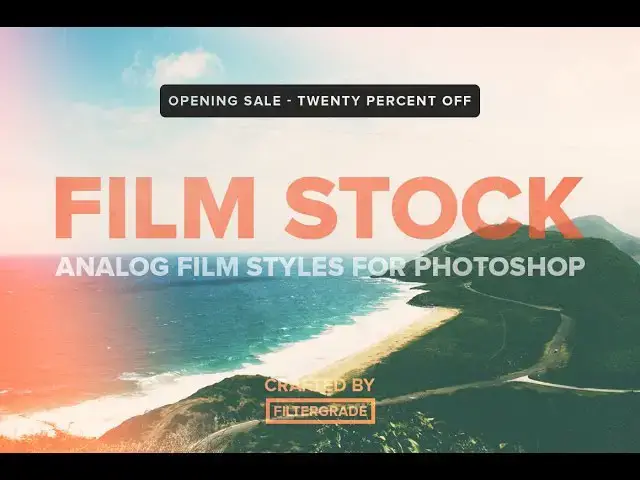
FilmStock is a collection of analog film filters, brushes, and light leaks for Photoshop. Build your vintage film masterpiece in seconds!
This video goes through everything included and shows you how easy it is to build a custom photo effect.
- - - - - - - - - - - - - - - - - - - -
Follow FilterGrade!
Facebook - https://www.facebook.com/filtergrade
Twitter - https://twitter.com/filtergrade
Pinterest - https://www.pinterest.com/filtergrade/
- - - - - - - - - - - - - - - - - - - -
Subscribe so you can see future Photoshop tutorials first!
Show More Show Less View Video Transcript
0:02
Hey everyone, Mike here from Filter
0:04
Grade again and today I have a new type
0:06
of video for you. So in a few days we're
0:09
releasing a new product called Film
0:11
Stock. Essentially what this is is a
0:13
collection of analog film styles for
0:15
Photoshop. So retro effects, light
0:17
leaks, analog errors, and other cool
0:20
things that will help build a nice retro
0:22
effect around your image. So today I
0:24
want to do a quick demo of the product
0:25
and show you exactly what's included. To
0:28
do that, I'm going to apply all the
0:29
effects to this
0:31
image. So, to get started, we're going
0:33
to select the film stock play all
0:35
action. You'll see a dialogue box when
0:38
you play it. And then you just hit
0:39
continue. Uh, included in all of our
0:41
filter grade products is a play all
0:43
action. And what this does is it plays
0:46
every single effect in the pack and then
0:48
groups them according to their task. And
0:51
then on top of that, it will turn all
0:52
the effects off. So then at the end of
0:54
the action, you'll have each effect
0:59
grouped and organized and shut off. So
1:00
you can turn them on, build them on top
1:02
of each other, and basically just build
1:05
the effect you want for your image
1:06
without having to play each action
1:08
separately and delete them and mess up
1:10
your whole editing process. So it's
1:12
really an easy way to play everything at
1:14
once. So, if you want to save time as
1:16
well as a lot of effort in terms of
1:18
looking for the right effect, I would
1:20
suggest using the play all action when
1:21
you get started rather than playing
1:23
individually. So, in just a few more
1:25
seconds, it'll be complete and I'll go
1:27
ahead and run you through each effect
1:34
included. All right, all set. So, to get
1:37
started, I usually use the noise and
1:39
grain filters. Uh, these are a nice
1:40
background filter for your photo. So, it
1:43
just adds some noise in the background.
1:45
And um I usually go with the medium one.
1:47
The hard's a little bit too much noise
1:49
and the soft is a little hard to see.
1:50
So, I'm just going with medium. Um then
1:53
next you're going to want to look at the
1:54
analog looks. So, these are the bulk of
1:56
what the product is and their actual
1:58
analog film styles based off the cameras
2:00
of that time period. So, first we have
2:02
analog tint one. And this adds just a
2:04
nice vintage effect. And then you can
2:06
always adjust the opacity if you're not
2:08
happy with how harsh it is. And I
2:10
usually do, but I I make them a little
2:12
bit more harsh for people who enjoy
2:13
that. So, right now, I'm going to tone
2:15
it down to about 60%. And it still looks
2:18
great, but it's not too harsh. Um, I'm
2:20
going to turn it off for now so I can
2:21
show you the rest of the effects, but
2:22
we'll build on this later. So, next we
2:24
have analog tint,
2:26
too. Another great analog style. Then we
2:29
have the monotone effect, which is a
2:30
black and white look. Let me close this
2:32
so you can see. Then we have the analog
2:34
fades effect, which is probably my
2:36
favorite out of all the looks. And this
2:38
adds a nice leak up here or down here
2:40
and up here and then a green tone to
2:41
your image. And um you can always go in
2:44
and adjust the brightness or the curves
2:46
if there's too much contrast or not
2:48
enough in your images, but we'll leave
2:50
that. Then we have analog lith, which is
2:52
like a sepia black and white. Uh then we
2:55
have the roast effect, which is similar
2:57
to the previous one, but with some color
2:59
in it and a more yellow tone. Then we
3:01
have roast two which is similar to the
3:03
previous effect but harsher shadows and
3:06
darker. And then we have the analog
3:08
vignette effect which adds a vignette to
3:10
the edges and a red
3:12
tone. Then we have the caramel effect
3:14
which fades out the image and adds a
3:16
brown uh blend. And then we have analog
3:19
burn which is a burnt look with a little
3:21
bit of brightness. So I'm going to go
3:23
ahead and turn analog tint one back on
3:25
and then we'll move from there. So, next
3:27
we have the add-ons which are made to
3:29
replicate certain errors that occurred
3:31
with film cameras of the time. So, the
3:33
first one is analog soft burn and this
3:35
just adds like a hazy look to your
3:37
image. Uh, then we have analog bleach
3:39
which bleaches it out completely. Which
3:42
is one of my favorite effects as well of
3:43
the add-ons because it's so unique and
3:45
interesting. Um, next we have analog
3:48
expose which just bumps up the exposure
3:49
a little bit. You'll see in here. Uh,
3:52
then we have analog distortion which uh
3:54
adds like a posterized effect.
3:56
And then we have analog green tone which
3:58
greens it out. And finally, we have a
4:00
hard burn effect. So, it's a little bit
4:02
harder than the previous one. And if you
4:04
want like a burnt out image, this is a
4:06
great one. I'm going to go ahead and use
4:08
analog bleach and then turn it down to
4:10
about
4:13
50%. After that, I usually put on a
4:15
light leak or two because it adds a nice
4:18
um blur and sort of like brightness to
4:21
the image. Um the first three are just
4:25
simple leaks that come on the edges of
4:26
your image. Um you'll see the second one
4:29
here and the third one here. And if you
4:31
ever want to adjust the light leak, all
4:33
you have to do is turn it on and double
4:35
click the gradient layer. So then let's
4:37
say you wanted to take this light leak
4:39
and move it to this bottom left corner.
4:40
So all you have to do is adjust the
4:42
angle until you get the right side. So
4:44
about five maybe six or four seven%
4:49
looks good. And then if you want to
4:51
adjust the color, you just come come
4:53
into the gradient layer, click that,
4:55
double click the bottom color, and move
4:58
this up or
4:59
down. And then you can get a more orange
5:02
or more red color. And then you could
5:04
always change that however you like. I'm
5:06
going to go ahead and leave it like that
5:07
and leave it, but let me just show you
5:09
the rest of the light leaks first. So
5:11
then we have the lomo effect, which adds
5:13
like a radiating orange glow in the in
5:15
the center of the image. the leak
5:17
filters which are on their
5:19
own. This is one of my favorites, the
5:22
leak filter too. And then we have leak
5:24
blend which overexposes the image a bit
5:26
and adds a leak on this side. I'm going
5:28
to stick with leak two. And next we're
5:31
going to go ahead and look at the fades.
5:33
So these are the last effects that we
5:34
include. And these just add like a wash
5:36
over the edge of your image. So fade one
5:38
looks like this. Fade two looks like
5:41
this. And fade three looks like this.
5:44
I'm not going to use those for our image
5:45
because it already looks pretty bleached
5:46
out. But, um, those are useful if you
5:48
want a background image or something of
5:50
that
5:51
nature. So, that's it for the actions,
5:53
but then I also included a set of
5:55
brushes to really emulate the dust and
5:58
film scratches you might see in photos
6:00
of that time period. So, what you're
6:01
going to want to do is create a new
6:03
layer so you can apply the brushes and
6:05
then go ahead and check out the brushes
6:07
panel. And then I'm going to select the
6:10
first one and change the color to white.
6:13
And then in the center, click twice. And
6:16
you might not be able to see it
6:17
perfectly on camera, but there's a few
6:19
little dust specks up down here, over
6:22
here, in that area. I'm going to create
6:25
a new layer and do one in black just so
6:26
you can see the difference. And we'll do
6:29
uh let's do the fifth
6:31
one. And I'm going click in the center.
6:34
And as you can see, they're all over the
6:36
place. And then I'm just going to turn
6:38
the opacity down to 20% to make them
6:41
blend in more. And this one I'll do
6:44
50%. And that's basically it for the
6:47
product demo. So, as you can see,
6:49
included with film stock, you get a ton
6:50
of great resources to really build on
6:52
top of each other and create the per
6:55
perfect analog photo that you want. And
6:58
um that's about all I have to demo
7:00
today. If you have any other questions
7:01
or concerns, feel free to leave a
7:03
comment or email us at
7:05
supportfiltergrid.com and I'd be happy
7:06
to answer them. And I encourage you to
7:08
check out Filmtock today. Thanks so
7:10
much.
7:12
[Music]
Jobs & Education