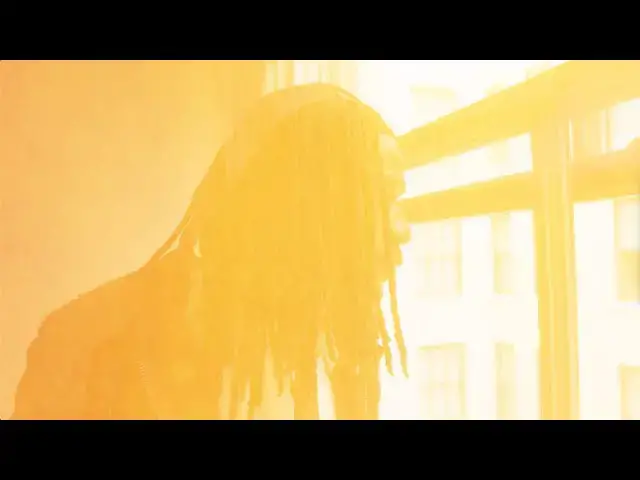

BMPCC6K Focus Assist Demo + Tutorial
Apr 2, 2021
A quick tutorial for working with the Focus Assist on the BMPCC6K. See a few examples of the focus shifting, and learn how to set up Focus Assist, change the intensity, change the color of the lines, and more.
**Our BMPCC6K Gear** (affiliate links)
If you have a different camera type or body, make sure these work for your device before purchasing, some items below are discontinued or are now updated for newer devices.
BMPCC6K (body): https://amzn.to/3YSg2Ro
Sigma ART 18-35mm f/1.8: https://amzn.to/3UAxeIt
Tilta Camera Cage: https://amzn.to/3Z1Xtu9
Tilta Top Handle: https://amzn.to/4efLgGj
Small Rig Carbon Fiber Rods: https://amzn.to/4hwvGJk
Cheeseplate for Battery: https://amzn.to/3Ar3qHn
V-Mount Battery: https://amzn.to/4hruhUi
D-Tap Battery Charger: https://amzn.to/3YwHPFv
Samsung T5 (now T7 or T9) SSD: https://amzn.to/3NViyQy
Samsung T5 (now made for T7 Shield) SSD Mount: https://amzn.to/3UFtTIe
Base Plate: https://amzn.to/3UBLcK0
Tiffen Black Pro Mist 1/4 Filter: https://amzn.to/3YGLIIa
Step Up/Down Filter Adapters: https://amzn.to/40z7xf8
Check out our other BMPCC and filmmaking tutorials!
**Trending** - How to Use a 3.5mm Mic with the BMPCC 6K (RODE Mic Tutorial) https://youtu.be/Ez_y3o46xvY
BMPCC Clips Missing During Playback - How to Review Footage Shot with Different FPS https://youtu.be/DCISO7V60zI
How to Change from Shutter Speed to Shutter Angle on the BMPCC 6K https://youtu.be/UVgDZ39nT8Q
- - - - - - - - - - - - - - - - - - - - - - - - - - - - - - -
Video shot by Mike Moloney
- Instagram: https://www.instagram.com/mjmolo/
- Twitter: https://twitter.com/moloneymike
- Website: http://mjmolo.com/
Featuring Matt Moloney
- Instagram: https://www.instagram.com/matt_moloney/
- Twitter: https://twitter.com/matt_m64
- Website: http://mjmolo.com/
Music:
Much Higher by Causmic
Flight to Tunisia by Causmic
Causmic: https://www.youtube.com/channel/UCptYdIghPgmOl8opbjZrcuA
- - - - - - - - - - - - - - - - - - - -
Follow FilterGrade!
Facebook - https://www.facebook.com/filtergrade
Twitter - https://twitter.com/filtergrade
Pinterest - https://www.pinterest.com/filtergrade/
Instagram - https://www.instagram.com/filtergrade/
Newsletter - https://filtergrade.com/filtergrade-newsletter/
- - - - - - - - - - - - - - - - - - - -
Check out all FilterGrade Film Filters here: https://filtergrade.com/product-category/lightroom-presets/film-effects/
Subscribe so you can see future film photography videos first! #bmpcc6k #tilta #filmmaking #filmmaker #filtergrade
See what's new: https://filtergrade.com
Show More Show Less