Up next in 10

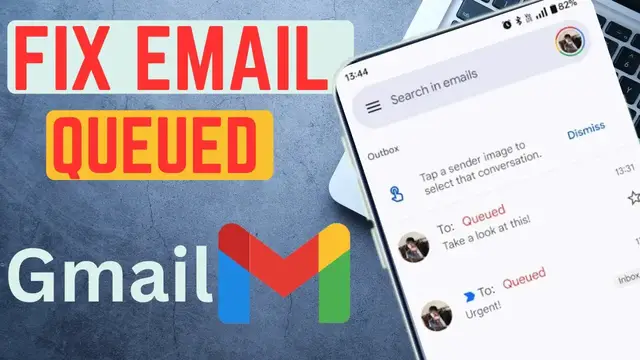
Learn how to fix the “Email Queued” issue when your Gmail messages aren’t sending. This video explains common reasons behind queued emails and provides easy steps to get your messages sent instantly.
Watch the full tutorial to resolve Gmail sending issues quickly.
#GmailTips #EmailQueued #GmailFix
Show More Show Less View Video Transcript
0:00
Hello guys. Now if you're trying to send
0:02
Hello guys. Now if you're trying to send
0:02
Hello guys. Now if you're trying to send any email but you are not able to send
0:05
any email but you are not able to send
0:05
any email but you are not able to send because you're told it is ceed and not
0:08
because you're told it is ceed and not
0:08
because you're told it is ceed and not sent then let me show you how you can
0:10
sent then let me show you how you can
0:10
sent then let me show you how you can solve this on Gmail. If you find this
0:13
solve this on Gmail. If you find this
0:13
solve this on Gmail. If you find this video helpful, I'll kindly request that
0:15
video helpful, I'll kindly request that
0:15
video helpful, I'll kindly request that you support me by liking the video and
0:17
you support me by liking the video and
0:17
you support me by liking the video and also by subscribing to this channel. All
0:19
also by subscribing to this channel. All
0:20
also by subscribing to this channel. All right. So for my case, I was able to
0:21
right. So for my case, I was able to
0:22
right. So for my case, I was able to send this after having issues with the
0:24
send this after having issues with the
0:24
send this after having issues with the ceed email. And let me just show you how
0:27
ceed email. And let me just show you how
0:27
ceed email. And let me just show you how I solved this. So if the email you are
0:29
I solved this. So if the email you are
0:29
I solved this. So if the email you are trying to send is killed then you should
0:31
trying to send is killed then you should
0:31
trying to send is killed then you should be able to find it under outbox here. If
0:34
be able to find it under outbox here. If
0:34
be able to find it under outbox here. If you go to outbox you should be able to
0:36
you go to outbox you should be able to
0:36
you go to outbox you should be able to see it here. For my case it's not here
0:39
see it here. For my case it's not here
0:39
see it here. For my case it's not here because I've managed to send the email.
0:41
because I've managed to send the email.
0:41
because I've managed to send the email. This is how I did it. First just go to
0:44
This is how I did it. First just go to
0:44
This is how I did it. First just go to this ellipses and tap on it. And then
0:46
this ellipses and tap on it. And then
0:46
this ellipses and tap on it. And then from this scroll down to settings
0:50
from this scroll down to settings
0:50
from this scroll down to settings and then choose your email that is the
0:52
and then choose your email that is the
0:52
and then choose your email that is the email you are using to send. So I'll
0:55
email you are using to send. So I'll
0:55
email you are using to send. So I'll choose mine here. And then under it,
0:57
choose mine here. And then under it,
0:57
choose mine here. And then under it, scroll down until you see this option
0:59
scroll down until you see this option
0:59
scroll down until you see this option called data usage. And under it, we have
1:03
called data usage. And under it, we have
1:03
called data usage. And under it, we have sync email. Go ahead and unselect this.
1:06
sync email. Go ahead and unselect this.
1:06
sync email. Go ahead and unselect this. Tap on okay. And then start your
1:08
Tap on okay. And then start your
1:08
Tap on okay. And then start your smartphone. And once you have restarted
1:10
smartphone. And once you have restarted
1:10
smartphone. And once you have restarted your smartphone, come again and check
1:13
your smartphone, come again and check
1:13
your smartphone, come again and check this box on. Then go ahead and check
1:16
this box on. Then go ahead and check
1:16
this box on. Then go ahead and check under the outbox. And you'll find that
1:18
under the outbox. And you'll find that
1:18
under the outbox. And you'll find that there is nothing in the outbox because
1:20
there is nothing in the outbox because
1:20
there is nothing in the outbox because the email will have been sent. However,
1:23
the email will have been sent. However,
1:23
the email will have been sent. However, if your attachment or your email is
1:25
if your attachment or your email is
1:25
if your attachment or your email is still in the outbox, then this might
1:27
still in the outbox, then this might
1:27
still in the outbox, then this might take some few seconds or a minute before
1:29
take some few seconds or a minute before
1:29
take some few seconds or a minute before your email is finally sent. So, that's
1:32
your email is finally sent. So, that's
1:32
your email is finally sent. So, that's how you can fix killed email or email
1:35
how you can fix killed email or email
1:35
how you can fix killed email or email not sent on Gmail. If you have any other
1:38
not sent on Gmail. If you have any other
1:38
not sent on Gmail. If you have any other question, kindly let me know in the
1:39
question, kindly let me know in the
1:39
question, kindly let me know in the comment section. Otherwise, thanks for
1:41
comment section. Otherwise, thanks for
1:42
comment section. Otherwise, thanks for watching and let's meet in the next
#Software
#Internet Software
#Email