0:00
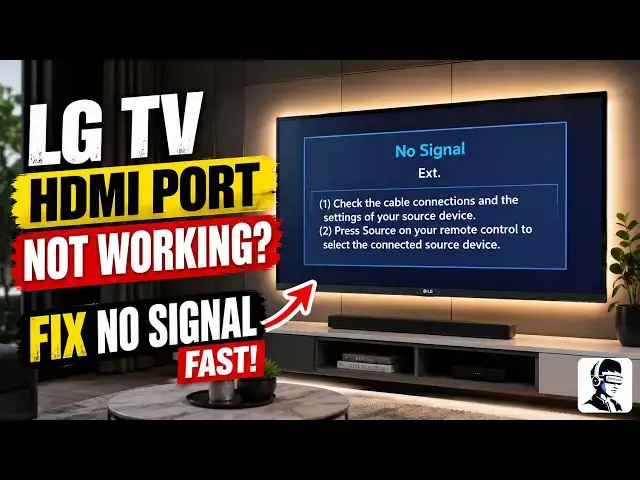
You turn on your game console or
0:01
streaming device, but your screen just
0:03
says no signal. Or maybe your device is
0:05
plugged in, but your LG TV isn't
0:08
detecting it at all. If your HDMI port
0:10
isn't working, don't worry. This usually
0:11
happens because of a small software
0:13
glitch, a cable problem, or something
0:15
called an HDMI handshake issue, where
0:17
the TV and the connected device fail to
0:20
communicate properly. The good news is
0:22
that most of these problems can be fixed
0:24
at home in just a few minutes. In this
0:26
video, I'll show you simple step-by-step
0:28
fixes to get your HDMI connection
0:30
working again. First, start with a full
0:32
power cycle reset because this is the
0:34
most important step and it fixes many
0:36
HDMI problems. Unplug your TV completely
0:39
from the wall outlet, and leave it
0:41
unplugged for at least 60 seconds. While
0:43
the TV is unplugged, locate the physical
0:45
power button on the TV itself, usually
0:48
on the back or underneath the panel, and
0:50
press and hold it for about 30 seconds.
0:52
This helps drain any leftover electrical
0:54
charge inside the TV and resets the HDMI
0:57
handshake system. At the same time,
0:59
unplug any HDMI devices such as gaming
1:02
consoles, cable boxes, or streaming
1:04
devices from their power source. After
1:05
that, plug the TV back into the wall
1:07
first and turn it on. Then, reconnect
1:09
each HDMI device one at a time. If the
1:12
signal still isn't detected, the next
1:14
thing to check is the HDMI cable and
1:16
physical connection. Unplug the HDMI
1:19
cable from both the TV and the connected
1:21
device. Then plug it back in firmly on
1:23
both ends. Make sure the cable is seated
1:25
properly because HDMI ports sometimes
1:28
require a snug connection. If the cable
1:30
feels loose, gently press the connector
1:32
to ensure it is fully inserted. Now try
1:34
switching to a different HDMI port on
1:36
the TV. Move the cable from HDMI 1 to
1:38
HDMI 2 and test again. Sometimes a
1:41
single HDMI port may stop responding
1:43
while the others still work normally. If
1:45
the issue continues, replace the HDMI
1:48
cable with another high-speed HDMI
1:50
cable. HDMI cables can degrade or become
1:53
damaged over time, especially if they
1:55
are frequently unplugged. This is even
1:57
more common with 4K devices that require
1:59
higher bandwidth. Next, make sure the TV
2:01
is set to the correct input source. Look
2:03
at the back of the TV and confirm which
2:05
HDMI port your device is plugged into.
2:08
Then, press the input or source button
2:10
on your remote and manually select the
2:12
HDMI number that matches that port. If
2:14
the wrong input is selected, the TV will
2:16
not detect the signal. If you are using
2:18
a 4K device like a console or streaming
2:21
box, check the HDMI settings on your TV.
2:23
Open settings, go to all settings, then
2:25
select general and go to devices. From
2:28
there, open HDMI settings and enable
2:30
HDMI Ultra HD deep color for the HDMI
2:33
port where your device is connected.
2:35
This setting allows the TV to properly
2:37
recognize high bandwidth 4K signals.
2:39
After that, check for a software update.
2:41
Go to settings, open support, and select
2:44
software update. Check if a new update
2:45
is available and install it if there is
2:47
one. System updates often fix
2:49
compatibility issues and bugs that can
2:52
affect HDMI connections. Once the update
2:54
is complete, restart the TV and test the
2:57
signal again. Finally, if none of these
2:58
fixes work, the last option is a factory
3:01
reset. Keep in mind this will remove
3:03
installed apps, Wi-Fi settings, and
3:05
personal preferences. To do this, open
3:07
settings, go to general, and select
3:09
reset to initial settings. If the TV
3:11
asks for a password, try common default
3:16
1234 or 1 2 3 4 5. Then follow the
3:19
on-screen instructions to complete the
3:21
reset. At this point, you've ruled out
3:23
HDMI handshake problems, cable faults,
3:26
incorrect input selection, software
3:27
glitches, and configuration issues. In
3:29
most cases, one of these steps restores
3:31
the HDMI signal quickly. If this video
3:34
helped you fix the problem, give it a
3:36
thumbs up and subscribe for more simple
3:38
and useful tech fixes. and let me know
3:40
in the comments which device was not
3:41
showing a signal, your console, cable
3:43
box, or streaming stick.