Up next in 10



If you have a MacBook Pro or any other modern laptop with USB-C, it seems like you've had to simultaneously begin a journey in finding adapters. USB 3.0, HDMI, SD Card readers, the modern trend of all USB-C all the time might make manufacturing easier, but it sure doesn't simplify our life as users.
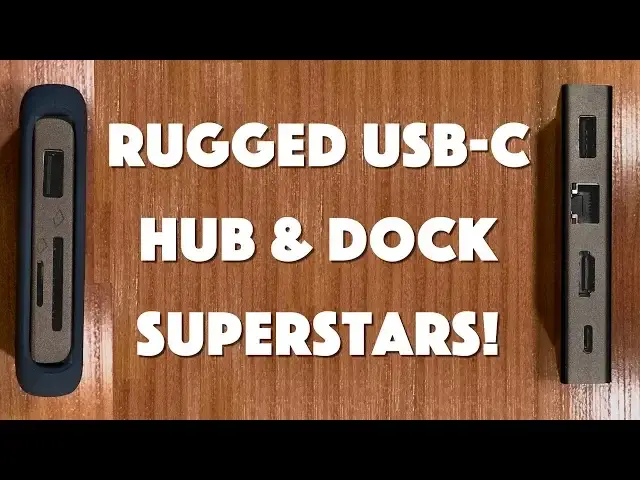
Enter the terrific Uni Rugged USB-C Hub and Dock devices. Perfect for any MacBook and MacBook Pro owner, they offer a tiny and flexible solution to all your connectivity woes, either the 6-in-1 Hub or the 8-in-1 Dock. Better yet, they're currently on Kickstarter so if you move quickly, you can get quite a deal on these game changing devices.
Tech expert Dave Taylor of https://www.AskDaveTaylor.com/ tested out both the smaller Hub and the larger Dock with his Retina TouchBar MacBook Pro and a variety of peripherals and found them definite keepers for any tech person.
On Kickstarter: https://www.kickstarter.com/projects/uniaccessories/uni-the-first-rugged-usb-c-dock-and-hub
Show More Show Less View Video Transcript
0:00
USB-C docks that can fit in your pocket? Let's have a look
0:11
Dave Taylor here and I'm looking at these. These are the Uni Rugged USB-C Hub and Dock
0:19
And the difference between them is size but the size is because the bigger guy
0:23
has more ports. That makes sense. Let's start with a little one. So the hub is nice. It's a
0:29
six-in-one connector and you can actually use it with the little rubber case on it or you can pop
0:35
it off. Or you can even use a blue one instead of a gray one. Either way. Or you can just use it
0:40
just like this. It's super small. Very nice piece of engineering. On one end is USB-C and it comes
0:47
with a little USB-C to USB-C connector. So we're good to go. Excuse me. And then on one side we
0:55
have USB 3.0 SD card and micro SD card reader. And on the other side we have a USB-C pass-through
1:05
power plug. So it's not a full USB-C. You can't plug in a hard drive or something. And USB-3 where
1:11
you can plug in a hard drive. And HDMI. So best way to demonstrate something is to plug things in
1:17
right? So let's plug things in. So the first thing we're going to plug in is a hard drive on one of
1:23
the USB plugs. I'm going to charge a digital watch on another one of the USB 3.0. Let's see
1:31
And then we're going to put pass-through power. So we're going to need the power from here to go
1:37
through and actually power my MacBook Pro while everything else is going on. And then finally
1:43
HDMI which we'll use to drive this little LG monitor. So as you can see there's a lot
1:50
plugged in. Let me actually just close the screen here. There's a lot plugged into this little
1:54
octopus here. So let's go ahead and plug it into my MacBook Pro and see what happens
1:59
Now here's something you really need to know. On MacBook Pros in particular, the left side USB-C
2:05
and the right side USB-C are not the same. If you want to use an external monitor, you have to use
2:11
the right side. Everyone who's done this has probably gone through that confusion and figured
2:16
it out and said, oh that's strange. Okay I get it. So no difference with this. If I want to use this to
2:22
power the external monitor, I'm going to have to use one of the right side USB-C plugs. So I'll
2:28
plug it in. We got all this crazy wiring going on. It's a bit more than a bit confusing but let's see
2:35
what happens. So there. Boom. Second monitor showed up. So that's HDMI. Let me close this a little bit
2:43
and then this hard drive is actually shown here. So if I go over here and double click
2:51
you can see that it opens up and things move pretty darn quickly here. I'm actually running
2:58
a speed test. You can actually check the specs out on their website and let's see what else. And how
3:04
is the watch doing? And this watch is charging. I can show you the screen but I know it's going to
3:09
just look like a little black circle. Okay now that works. And finally let's look on the Mac
3:14
itself and actually you can see here. So the Mac is also charging. So this little tiny hub is doing
3:21
everything I'm pushing on it all at the same time. And you know what? Let's go ahead and try out a
3:26
little bit on the hard drive because that's always one that's interesting to see how it works. So
3:31
if we go into this folder, let's see if we can find a nice big file. Here's one that's 700 megabytes
3:38
and I'm going to just drag it onto my desktop and we'll see how long that takes. There's a progress
3:44
bar somewhere. Oh it is on this screen. I'll put it on here. Oh it's already done. So that was 700
3:52
megabytes and it was so fast that I didn't even have a chance to move the progress bar onto the
3:57
second screen. That's not bad. Now let's go ahead and unplug this and try the bigger one which is
4:03
the dock. So first thing I want to do is I want to eject the disk because generally you don't want
4:09
to just unplug hard drives. That's not really good hard drive karma. So that's unplugged and now we
4:16
can actually unplug everything and I'm going to just take this whole thing apart. Let's see
4:25
I've got a lot of stuff going on and I just lost the HDMI cable. We'll find that in a sec
4:30
So this is the hub. This is the 6-in-1 hub. Now we're going to switch to this dock which is an
4:38
8-in-1 and the dock similarly has the rubber that you can take off if you want. If you want something
4:44
a little more modest or you can put it in gray and it comes with a little bit longer USB-C to USB-C
4:51
connection. So that's pretty handy. So you can again plug it into one end and now what you gain
4:58
is you gain another HDMI 3.0 plug and you gain an ethernet plug. So let me give you some specs
5:07
here. So it has the USB-C pass-through. It has HDMI and the HDMI is actually what's known as
5:14
HDMI 1.4. So it can drive a 4k monitor but only at 30 hertz. So it's not quite HDMI 2.0 level
5:23
but for 99% of people that's probably fine. And then we have ethernet and it's a thousand megabits
5:30
per second ethernet. So it's fast ethernet and then USB 3.0 and then on the other side we have the SD
5:38
card, micro SD card and then two more USB plugs. So all of that's very nice. Nothing on the end and
5:46
this one's much heavier at three and a half ounces. So you know you can probably manage this. So let's
5:52
go ahead and plug things in again and let's start by me recovering that HDMI cable. Let's see it's
6:01
back here somewhere. Here we go. I tend to use long cables so it takes a little effort. There we go
6:08
So we have HDMI. I will plug that into the HDMI port. Then we will do pass-through USB-C power
6:17
and then I will plug in the hard drive also on the same side and I don't have any ethernet to test
6:26
I really haven't used hard ethernet wires in a while and then we'll just plug in that watch to
6:32
charge again. So it's basically same setup we did with the smaller hub and this time I will again
6:38
plug it into the right hand side of the MacBook and let's see what happens when I turn it on
6:44
Hopefully everything will work. I see this. The screens come up and underneath here you can see
6:54
there's that external hard drive and I can open it up and we can again actually this time maybe we
7:02
can copy a nice big file onto it. So let's I'll just move it over here so it's still on my
7:08
MacBook's hard drive and now I'm going to copy it onto the external hard drive which is connected
7:14
via the Uni-Dock. Okay you follow all that? So all I have to do is just drag and drop and
7:23
there it is and so this one's going a little bit slower. You can see the progress bar there
7:28
and it's taking oh I don't know maybe 15 seconds 10 seconds is what it estimates
7:35
and write is always slower than read that's just the nature of hard drives so that's nothing new
7:39
or surprising to me. Now one of the things I want to say about the dock is they did a really nice
7:44
job of thinking about which port should be on which side because it's designed so that on one side
7:52
the HDMI, the Ethernet, the USB-C pass through all of that is stuff that you generally are going to
7:58
plug in and leave and then on the other side are the kind of ports for things that you will unplug
8:04
and plug and little SD cards you might put in and take out so they've really sort of thought through
8:10
having what they call their stationary side and then the side that you'll be using a lot so that
8:15
makes it really nice and it becomes easy then to have it just sort of tucked on the back of your
8:19
desk and while it comes with really short USB-C cables you could use a longer one so that's easy
8:25
enough. Okay so let me tell you just a little bit more about it is that this is the 10 centimeter
8:32
I'm going to just go ahead and close this and this stays open because of how I have my Mac configured
8:37
so if I had a wireless keyboard I could do all this and you'd never even know I had a Macbook
8:41
in the middle of it how about that. So 10 centimeters this one is 20 centimeters long
8:47
and this is all on Kickstarter right now and they are rocking it on Kickstarter so they have a goal
8:52
of $15,000 of sold units and they are just a smidge under $30,000 right now by the time you check it
8:59
out they'll probably have hit 2x on their goal that's really nice that's actually a very impressive
9:04
accomplishment and you know the rubber and stuff yeah whatever I don't know that I like those
9:11
although it's nice to have something that helps your little device or little dock or port or hub
9:16
be a little bit more rugged so there's that. So let's talk about prices first off the little guy
9:23
the one I really like because it's so small and it's so light this one the hub 6-in-1 hub
9:30
is actually running for oh wait a minute before we get to price if I can ask go ahead and click
9:36
on that subscribe button and subscribe to my channel really appreciate when you do that and
9:41
you tell me isn't this nicer than having five or six crazy little dongles in your computer bag or
9:47
in your desk one of these solves all those problems very very nice piece of engineering
9:52
so now the hub the 6-in-1 hub manufacturer suggested retail price MSRP this will be going
10:00
for 69 bucks but right now early bird on Kickstarter you can get it for $39. 39 bucks is cheaper than
10:09
just getting the USB-C to HDMI adapter so you know instead of buying that one super expensive cable
10:15
from Apple solve all your problems in one little dock that's nice now if you want the bigger one
10:22
and I'm not going to unplug everything because it's crazy right it's crazy the bigger one is
10:26
the dock and the dock is an 8-in-1 and the dock actually has an MSRP of $95 but right now on
10:34
Kickstarter you can pick it up for 55 bucks and one of the things that's really nice is they
10:39
actually have the pair you can buy it as a pair and they have some really nice pricing on that too
10:44
so I think Uni has a real home run here these are really nice and I am definitely just going to
10:49
have this one permanently in my computer bag because I'm always hunting for ways to plug in
10:54
different devices or different peripherals or just like get to a USB 3 plug you know Apple could have
11:01
actually left some of those things on the MacBook Pro and on its latest generation of other devices
11:06
but no they didn't do that so it's up to us to solve the problem ourselves and this is a very
11:13
elegant solution so I suggest you check out Kickstarter while you can I am really glad to
11:18
have these to add to my arsenal of connectivity and that means I will catch you in my next video
#Computer Hardware
#Desktop Computers
#Consumer Electronics
#Product Reviews & Price Comparisons