Up next in 10



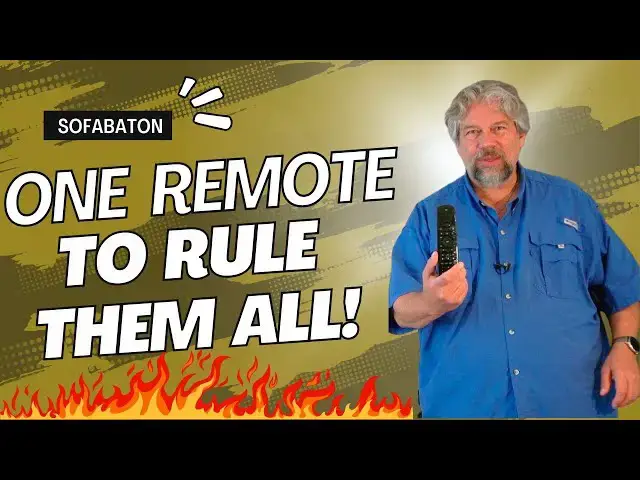
Tired of having a half-dozen remotes so you can control your TV, DVD player, Cable box, and everything else you've got hooked up to your entertainment system? Then you'll ♥️ the Sofabaton U2 Universal Remote Control. Tech expert Dave Taylor demonstrates how to program it for both a Vizio television and a Samsung 4K Blu-Ray player in just a minute or two. Result: One remote to rule them all!
Check it out at: https://www.sofabaton.com/products/u2/
and use promo code "DaveTaylor" for a sweet 15% discount
or, if you prefer Amazon: https://amzn.to/3rwptY8
with the promo code "DaveTaylorU2" for a 10% instant discount
Visit Dave's Q&A Web site at: https://www.AskDaveTaylor.com/
#sofabaton #television #remote #remotecontrol #universalremote #bluray #hometheater #askdavetaylor @sofabaton
Show More Show Less View Video Transcript
0:00
One remote to rule them all
0:01
Let's check this out. Dave Taylor here, and if you're like me, you have a lot of devices plugged into your television
0:15
and you have a lot of remotes, which has become more and more a complicated hassle
0:23
And yes, some remotes can ostensibly take on some of the role of other remotes
0:28
So your TV remote might be able to control your soundbar or something, but generally speaking, I find that I have a half a dozen remotes
0:37
So what I'm really going to be checking out today is this
0:42
This is the sofa baton U2 universal remote, and they have two different styles of remote
0:50
This is the less complicated one. And where this becomes really cool is that it has an app that it works with
0:57
and so you work with the app instead of monkeying with this to try to get everything to work
1:04
But as you can see in this close-up, the top actually features a little tiny screen
1:10
So you can actually choose which device you want and then the buttons remap for that device
1:16
So what I'm going to do is I'm going to show you how I'm going to add my Vizio TV and my Samsung Blu-ray player
1:24
And hopefully both of those remotes will be taken over by the device. this one remote and we will be able to actually have this thing rock and roll. Now, let me get my
1:33
phone because as I said, this is all app driven. So what I'm going to do is I'm going to let you
1:39
watch and sort of see how it goes. So here's the sofa baton app. And as you can see
1:47
it's not seeing any devices yet on my remote. So I'm going to add the first device. Now
1:53
Here's what's important is it works with both infrared and Bluetooth devices
1:59
Now, what infrared devices are supported? Well, a lot. So, Apple TV, X-Finity boxes, TiVo, DirecTV, Samsung, Sony, LG, Bose, Panasonic, Vizio, Haza
2:15
Yamaha, Xbox. A lot, a lot of different infrared. And then on the Bluetooth side, more modern Apple T's
2:23
TVs work with Bluetooth, as does the fire TV, as do most Android TVs. So you get all
2:30
of that compatibility But I going to start with infrared We going to look for Vizio let see I just search for Vizio and the one thing you want to do
2:41
before you start is you want to look up your model number
2:47
now what I do is I just take a photo of the back so here's the back of my
2:50
television that shows you this is a Vizio M50 D1 so I'm just going to look for M50
2:59
and there it is M50 D1 one looks like it maps just about every single button which looks great I'll do next I will
3:08
leave the icon as a TV and complete and so now what's happening is the app is pulling all of
3:15
this information from the sofa baton database and then when it's done it will actually
3:22
synchronize with the remote and if everything's working properly the remote will
3:26
then control my television so let me also tell you It's powered by two AA batteries and they should last you somewhere between two or three months
3:36
depending on how heavy a remote control user you are. If you're a hardcore channel surfer might last a little less, but figure two months
3:45
And dimensions wise, it is 8 inches by 2 inches by 1.2 inch and it's 6 ounces
3:52
So it's a little heavier than your standard remote, but that's because it's doing more
3:58
So this is all very exciting. Let's zoom forward a second. Looks like it's just about downloaded
4:04
There we are. So now it has been added and the remote says Vizio as its first choice
4:10
So we'll complete that. I'm going to put this back down and then we're going to go ahead and add the Blu-ray player
4:16
So also infrared. This is a Samsung. And you can see there's a bunch of different options there
4:24
And this is a UBD, Universal Blu-Ray, I think, is what. what that might stand for, K-8500
4:33
So it's literally the first match. So that's also super easy. Looks like it's matching all of the key buttons here
4:40
on the top at least. And I'm gonna change the icon on this one
4:45
because that is a Blu-ray player. Which of these looks most like it
4:49
I don't know, we'll pick this one. And then again it will have to download the data
4:54
So this time I'll just jump straight to the end. And this one's also been added
4:58
So complete. So now you can see there's two in the app, but now we should be done with the app
5:04
So let put the app down and let go to the remote And now the remote says Vizio and Samsung on the top You can see that in this close So let roll down to Samsung and then I going to push the power button And you
5:20
might notice that the Blu-ray player has a little red light. And now it's turned on and because of
5:27
the magic of modern TV systems, it has automatically turned this on and switched it to that channel
5:35
And here we are. So now, let's see. You can see here I am choosing which one to do
5:43
Let's play disc, and this is double indemnity. I'm just at the beginning of this fantastic film noir
5:49
Such a great movie. I'm not going to spoil it for you, which is why I'm near the beginning
5:53
And let's go to play. There we are. So play. Oh, so it started right out at the beginning
6:02
And that's fine. But again, notice I can pull. pause and I can play and I can skip to the next chapter
6:11
So I have complete control over that Samsung. So that's cool. But now let's go to the Vizio and see if we can change inputs
6:21
So we're going to switch here and now this is from the Vizio
6:27
So I'm going to switch to Smartcast and then Smartcast is Vizio's smart TV operating system
6:34
So this is now here and then I am now controlling what is happening with the same remote that I'm using for that Blu-ray player
6:48
So this worked perfectly. This is exactly what I want it to do
6:52
Now, worth noting is that universal remotes are kind of silly if you only have one device
6:58
And even if you have two devices, it's not, I mean, two remote controls isn't that much
7:03
But the more devices you have, the more something like this makes sense
7:08
It's really nice. And this also shines that you can actually create macros
7:14
So you can say push one button and have multiple things occur, which is pretty darn cool
7:20
But I could add my sound bar, assuming it's compatible. I could add other players or other devices
7:27
Maybe I have an old VHS tape player. I could use that too, assuming it was compatible
7:32
And so let's talk about that compatibility. So one of the issues is that this is really great for devices that have been around for a while
7:41
but if you on the cutting edge and you buying brand new stuff like a Tableau or a zapper box or something like that for you know having a better TV reception if you do over the air then this device doesn
7:56
support those the X2 the one that is the higher level unit might be a better
8:02
choice for you what I would highly recommend before you buy one of these is take
8:08
the pictures of all of your model numbers send it to their customer support
8:12
saying here's all the I want to control is the U2 compatible with all of them and hopefully they'll send
8:19
back in a day or two saying you're good go for it or they'll say we got everything
8:24
except this one and there are ways you can train this by actually using an
8:30
existing remote control so some people have some videos out there on how to do
8:35
that so you can go and review those and decide you really want to get into the
8:39
training business it's not that hard and then you could actually use it
8:43
even if they don't have it in the database. But as you saw, they have a pretty darn extensive database with thousands and thousands of different devices
8:52
I will say I really like having that one remote for everything
8:56
So I can just put everything else away. And it's like, you know, a crisis situation, the actual Vizio remote or the actual Samsung remote
9:05
And otherwise, I can just do what I want all from this one remote, giving you the dimensions
9:11
I've given you the demo, I've talked about the process. and the cons and you know again if you only have one or two devices this is
9:18
probably overkill but the more you have the more this is going to be something
9:22
really cool so before I talk about the price I'm gonna invite you to subscribe
9:28
to my channel a click or a tap on subscribe hit that bell icon for notifications
9:33
give me a thumbs up if you found this was a value that is all appreciated
9:37
excellent this is the sofa baton you to Universal Remote it is
9:43
is 6999 currently discounted down to 5999 at sofa baton.com. I will say again the more devices
9:54
you have the more this is a fantastic device. That's all I got I'm going to go back to double
9:59
indemnity so I'll have to catch you in my next video
#Arts & Entertainment
#Computers & Electronics
#Consumer Electronics
#Shopping
#Media Streaming Devices
#Virtual Reality Devices