Up next in 10



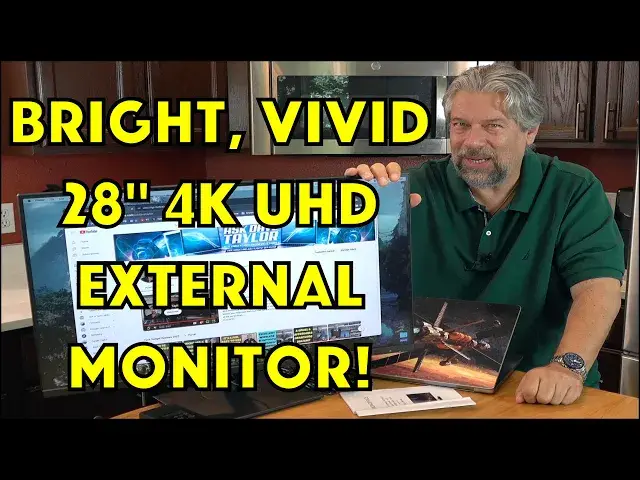
This Monoprice 28-inch CrystalPro external 4K monitor is so well integrated with Mac laptops that you'll swear it's from Apple. Plug in the USB-C cable and you'll not only have crisp 4K UHD on the big 28" display, but it'll be powering a built-in USB-A hub, able to push audio out to the built-in speakers (or the audio-out jack and external speakers) and receive 65W of charging power too. One wire, and everything you need, no hub required. Tech expert Dave Taylor checks out the Monoprice 28" CrystalPro 4K UHD Monitor and finds a few quirks, but overall a solid option for any user.
Check it out at: https://www.monoprice.com/product?p_id=43019
Visit Dave's Q&A Web site at: https://www.AskDaveTaylor.com/
#monoprice #crystalpro #4k #uhd #monitor #display #externalmonitor #macdisplay #apple #mac #macbook #macos #askdavetaylor
Show More Show Less View Video Transcript
0:00
A 28-inch 4K UHD monitor
0:03
Let's check this one out. ♪♪♪ Dave Taylor here, and I'm checking out this
0:14
This is the Monoprice 28-inch Crystal Pro 4K UHD monitor, and it's really nice
0:22
One of the most important things is it's super adjustable. You can change that
0:27
You can change its angle. You can change the height. So, it gives you a lot of flexibility
0:36
and it's at a very affordable price, which is really pleasant because a lot of those 4K monitors are pretty darn spendy
0:45
This one, they've managed to sidestep that, and it's still a pretty darn nice display
0:51
Now, what I most like about it is it's a one-wire connection to my MacBook Pro
0:58
Just USB-C on both sides. It even includes the USB-C to USB-C cable
1:04
I'll unplug it and just show you. So, it is a 6-foot cable
1:08
I have it running through the stand, and all I have to do is plug it in
1:14
and not only does it all turn on and work correctly, although I... yeah, there we go
1:20
but it's pushing 65 watts through the wire into my Mac, and it is 65 watts as this shows
1:29
So, that's great. It means I can plug this into my display
1:34
and the display even has more ports. Let me just real quickly show you
1:39
It has two HDMI 2.0, one DisplayPort 1.2, one USB-C video input
1:48
That's the one I'm using right now, and it has two more USB-A plugs
1:54
that you can use as a hub. So, you can plug in a keyboard and mouse if you want
1:59
or a keyboard with a built-in trackpad or mouse, and a webcam that you would just stick right on top
2:05
All of that, and it's all powered by the display. It all is neatly integrated
2:09
Very cool. So, the display specs. Let me give you some of those
2:15
So, it's 4K at 60 hertz with less than 5 millisecond response time
2:22
Full resolution here is 3840 by 2160 with a 178-degree viewing angle
2:28
You can see this even as I turn it to a fairly acute angle
2:33
It's still nice and bright, and I've turned the brightness way down because of the needs of having a camera
2:39
but suffice to say, this gets even brighter and even brighter and crisper
2:44
Really, really nice. It does have built-in speakers. They're a little dorky
2:48
There's no bass, but if you need them in a pinch, then it is nice that you can do that
2:52
I'll demonstrate all of this in just a second. And let's see
2:56
So, it has an on-screen display system for setting things up. That one's pretty clumsy
3:02
I'll come back to that in a second, too. One-year pixel-perfect guarantee
3:07
If you have any pixels fail on this display in the first year, and there's a lot of pixels at 4K
3:13
then they will actually replace it. So, that's really nice, because a lot of people say
3:17
oh, I pulled it out of the box. With different manufacturers, I pulled it out of the box, and there's four dead pixels
3:23
Well, Monoprice has you covered. So, that's really nice. Now, let me show you a couple of things real quick
3:30
First off, I'm mirroring my screen. So, let's go on to a UHD source
3:35
courtesy of NASA. And let's see. I'm going to bring that into full display
3:42
And you can see, it's a really beautiful display. And, of course, NASA's given us some really amazing footage
3:51
This is just gorgeous stuff. But it's so crystal clear. It's so clean
3:57
And there's no blurring or jaggies. And, of course, I'm mirroring my Mac display
4:03
I could just as easily have it as a second display. And then this could be showing my favorite sports event
4:10
while I'm working on my computer. Now, you're probably not going to get a lot done in that situation
4:16
but that's okay. So, let's go back from there. And, oh, I see. I have it muted
4:24
So, the audio you're hearing is out of the monitor. And it's not great
4:30
And, to be honest, one of the frustrations, and this is not their fault
4:34
this is just an overall design problem, is that you have to use the display to adjust the volume
4:41
if you're using this speaker, rather than being able to use the computer to adjust the volume
4:47
All I can do is I can do mute. Well, not even that, right
4:50
So, I can do pause and play, which is just like video controls
4:54
But none of my audio controls actually work. That's not their fault
5:00
That's just the way all this stuff's designed. But, you know, it's still better than nothing in a pinch
5:07
And it is something where you can just go into Settings. Let's go into Settings super quick, and I'll just show you
5:13
You go into Settings, and you go into Sound, and you go into Output
5:18
And so, here I have it chosen for DisplayPort. I can just switch back to my MacBook Pro speakers
5:24
I can even have it hooked up to my Apple TV if I want better quality sound
5:29
even though it's coming out of here. I'm not sure why I would do that, and not just have it on the Apple TV
5:34
but be that as it may, your Mac gives you lots of controls with this
5:37
which is pretty handy. So, let's see. What else can I show you
5:43
Let's switch things around, and let me show you the on-screen menu system
5:47
It's pretty typical of these companies, and it's a little clumsy. In fact, before we get there
5:52
let me just show you, here's how the buttons lay out. So, there's a bunch of buttons just under here
5:59
but there's no labels for them. It's not super easy. Now, let's do this quick OSD demo
6:06
The rightmost button is Power, and the next button in gets you to the OSD
6:12
And then there are these four different shortcuts. One, I'll do the leftmost one
6:16
gets me to different game modes or display modes. And I can choose that
6:22
and go back here, and I can do brightness. And so, basically, it's increase, decrease
6:31
choose this particular one, and then I can just X. Well, let's see, X
6:37
So, I can use this to choose between the two. And it is confusing
6:43
There's no way around it. And notice I have to keep going back to the menu
6:47
which is a little tedious. But here's the primary menu, finally. So, I have Input Select
6:52
Audio Adjust, View Mode, Color Adjust, Manual Image Adjust, and the Setup menu
7:02
And you can see there's a lot of different choices here. My experience is that I didn't adjust any of this
7:08
I didn't mess with the Color Adjust. The only thing I did is I adjusted the audio
7:14
and then I made sure I had the right input selected. And then I'm going to go back
7:19
and then I... Let's see. So, that also gives you a shortcut to selecting input
7:28
But then I just went to Brightness and Contrast. And you can see I've turned the brightness way down
7:35
because I'm using a camera with this. In real experience, you'd probably turn the brightness way up
7:40
So, that's the OSD system. And you can see it's not the smoothest, easiest thing to use
7:49
But you can figure it out, and you can get things adjusted as needed
7:53
Not super easy to work with, but to be honest, I think those are the kinds of things
7:58
these on-screen menus, where you just set it up once, and then you're done
8:02
Now, I will say that it comes with a bunch of useful cables
8:06
It comes with HDMI to HDMI. It comes with... I think this is a Type A connector
8:12
to a regular USB 3 or USB A connector. The only time I ever see this is on scanners
8:21
So, we're going back a ways. And it does come with that USB-C to USB-C
8:26
And this pretty substantial power brick that you have to plug into the wall, obviously, to get it to work
8:33
In normal situations, you're probably not going to just have it sitting on your desk
8:37
It's going to be tucked neatly behind it. But that powers everything
8:41
So, again, this is charging my MacBook Pro while I'm using it as a second display
8:47
And I have no other wires here. That's pretty sweet. So, dimensions-wise
8:52
the screen itself is 25 inches across by 14 inches down, giving it, yes, a 28-inch diagonal screen
9:03
It's 2 1⁄2 inches deep. With the stand, it's a little deeper than that
9:07
I would say that... it's probably about 8 inches deep total, maybe 6 inches deep, something like that
9:14
The stand gives you a height option of, at its lowest, it is down
9:19
So this is now 16.5 inches off the surface. And at its highest
9:26
this is now 21.3 inches off the surface. So, lots of adjustability
9:33
And then the stand itself, this is one more thing you want to know
9:36
it is 9.5 inches by 7.2 inches. The whole thing's fairly heavy
9:42
because the stand needs to be able to hold the display so it never wobbles or teeters
9:48
And I find it to be pretty darn solid when I have it set up like this
9:53
It is 13.9 pounds with the stand. And that's really all the specs
9:58
Can't think of any other spec I could tell you. It is an in-plane switching IPS LCD screen
10:05
Like I said, it runs at 3840 by 2160 with a 178-degree viewing angle
10:11
It's HDR, UHD, 4K at 60 hertz. A lot of specs. But you want to know all this
10:19
What I will tell you from actual use is that it works really, really well with my Mac
10:26
I really like that I can just plug in the one USB-C connection
10:30
and boom, I'm fully set up. The display's working, it's charging. I can push audio through if I want
10:38
You know, your mileage may vary. And it just makes it really easy and convenient
10:44
If you're someone that works from home and you have a little corner set up for your office
10:49
and you also are on the road or you're working at coffee shops
10:52
or you have to go into the office occasionally, this is such a great setup
10:56
So really nothing else to tell you. This is one that's definitely worth checking out
11:01
We do need to talk about the price. Before we get to the price
11:05
I'm going to ask you to subscribe to my channel. Click or tap on that subscribe button
11:09
Give me a thumbs up if you found this useful. If you didn't find it useful
11:13
give me a comment telling me what you wish I would have covered. And let's talk about that price
11:19
So, this is the Monoprice 28-inch Crystal Pro 4K UHD monitor. And it's $359.99
11:28
currently discounted on their website down to a pretty darn sweet $239.99
11:35
at monoprice.com. That is a pretty darn good price for a bright, sharp, fast 4K monitor
11:44
that's this compatible with Mac systems. And of course, it'll work with anything
11:49
PCs, Chromebooks, Linux machines. You can use this as a TV or plug in a Blu-ray player
11:56
That's why you have that HDMI to HDMI. And from the OSD
12:00
you can go ahead and choose whichever input you want. Flexible, powerful, easy to work with
12:06
There's lots to like here. That's all I got. I think I'm going to go back to watching the Earth via NASA
12:12
Isn't that amazing footage? Which means I'll have to catch you in my next video
12:36
NASA Jet Propulsion Laboratory, California Institute of Technology
#Consumer Electronics