Up next in 10



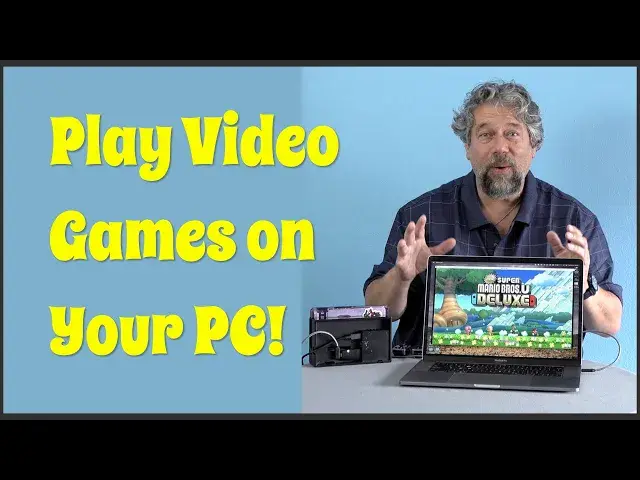
The Genki ShadowCast Console Laptop Link lets you hook up a Playstation, Xbox or Nintendo Switch and have it appear as a window on your computer. For real. And it works great, whether you have a Mac, Windows system or even run ChromeOS. Tech expert Dave Taylor of https://www.AskDaveTaylor.com/ has a lot of fun playing his Nintendo Switch on his Mac through the Switch Dock and the Genki ShadowCast device. Don't worry if you shout "I Must Have One!" after this video either, a link to get one is just below:
Learn more at https://www.GenkiThings.com/
Check out Dave's tech Q&A site too at https://www.AskDaveTaylor.com/
#switch #playstation #xbox #genki #shadowcast
Show More Show Less View Video Transcript
0:00
Turn your computer screen into a TV screen with this little device
0:04
Let's check it out. Dave Taylor here, and I'm checking out this
0:16
This little gadget is so cool. This is the Genki Shadowcast console laptop link
0:22
And on one end, it's HDMI, and on the other end, it's USB-C
0:28
And the idea is you take a device like a Nintendo Switch adapter, and you plug it into HDMI
0:35
out, and then via USB-C, you plug that into your computer, and if you're running their
0:42
software on that end too, boom, your computer turns into a TV screen, and you can play things
0:48
like Switch games on your computer. And it works for Mac or Windows or Chrome OS, for those of you having devices from school
0:59
And it is compatible. This is compatible with PlayStation, Xbox, Switch. You can use the dock, obviously
1:06
Really any device that pushes out HDMI, this thing can plug into and then turn that into
1:12
a window on your computer, including, that means, cable boxes or Blu-ray players or whatever
1:19
else you might have, maybe surveillance cameras, right, that are pushing out HDMI
1:25
It's a pretty simple and elegant solution. But I don't want to talk about it
1:28
I want to give you a demo. So give me a second, I gotta get everything hooked up, and then we'll see what that Switch
1:33
looks like on my Mac screen. I have it all hooked up, and as you can see, it's working great
1:40
Not only that, but of course, the sound is coming through the computer too
1:47
So I don't even have this in full screen mode, and it's clearly significantly bigger
1:52
than the size of the Switch screen. Let me go ahead and turn Mario off there
1:57
So it's actually really easy to work with. Now, I have a Nintendo Switch dock, and they take a little finesse to get them to work
2:05
just right, in our experience. But you can see on the back, and you can see in this close-up, that I have power coming
2:12
in, and then I have the Genki Shadowcast plugged into the HDMI, and then the USB-C
2:20
plugged into there, and then it sort of snakes around and comes into the side of my Mac
2:26
Now, I've also tried it with Chrome, I've also tried it with Windows
2:30
It works great in all three environments. It's actually so fun. And it is a little tricky
2:36
I will warn you that it's really important that you follow the steps they say
2:41
So, start the app, plug the wire into your device or computer, plug that into the Shadowcast
2:50
and then plug the Shadowcast into your device. If you do these in the wrong order, then they might not work, and you'll be sitting there
2:57
very frustrated, wondering why your unit isn't lighting up. To suggest I have done that is a possible accurate truth
3:05
Now, I don't have the rights to really show you everything going on with Nintendo games
3:10
so I'm going to switch things around again and let's talk about this just a little more
3:15
You'll notice I resisted actually playing the game. Well, not sure about re-broadcast rights
3:20
I know that there's all these people on Twitch that do this, but hey, I'm on YouTube, right
3:24
So, suffice to say, it works really well. Now, let me give you a little bit of specs here
3:29
So first off, you don't need any special drivers, but you do need the Genki software, and that's
3:35
a free download right off their website. It's super easy. This thing can take as input HDMI 4K at 30 frames per second or 1080p at 60 frames per
3:48
second, and then it converts it to a video stream on USB-C with the included cable, and
3:55
then its output can be 1080p at 30 frames a second, or you can step it down to 720p
4:03
at 60 frames a second with 9, 10, or 12 bits of color for compatibility
4:09
As you saw, it looks gorgeous. It looks really good on my computer screen
4:14
It looks good on a PC. It looks good on a Chromebook. I mean, this is actually super compatible
4:21
There's a lot of fun things you can do with it, and I really, I have no criticisms of
4:26
it at all. I will just again reiterate that do things in the right order
4:31
I had a lot of problems until I really carefully and methodically went through, start the app
4:38
plug in the wire, plug in the unit to the wire, then plug the ShadowCast into whatever
4:44
device you want to work with. If it's working correctly, when you have this plugged into here, then a light will come
4:53
on and it will show you that it's active. Then plug it into your device
4:57
Now, where this gets a little more fun is that the Nintendo Switch dock is super sensitive
5:02
to power sources, so if you're not going to use the Nintendo USB-C charging cable, which
5:08
you must do, then this thing's probably not going to work, even though you're giving it
5:12
the same voltage. I don't know what that's all about, but suffice to say, this device itself, super cool
5:18
Now, one of the things to note about the software that you run on your computer is that it can
5:23
record that video stream. You can take screenshots of the video. You can hook up a microphone so you can go in the other direction too, so that you can
5:33
talk to people while you're playing. You can move your mouse into the screen, and then you get settings
5:40
This gives you the ability to choose your input microphone. You can see there are two different modes, performance or resolution
5:48
You can choose your save directory, volume, and so on. If you want to take a screen capture, boom, you just did that
5:58
You can turn your microphone on and off, and you can also record a video stream
6:03
Now I want to move my cursor out, so get rid of that
6:07
This is pretty darn fun. Now I'm recording the information that I'm getting from that HDMI
6:14
Now, let's stop it so you can see what it did. Honestly, it's ridiculously fun
6:34
It's really quite reasonably priced, given how much power and flexibility this gives you
6:39
If you're a gamer, and you really love something like your Switch, and you keep looking at
6:43
it and saying, I wouldn't mind if that screen was a little bit bigger, but still highly
6:48
portable, here's your solution. Simple. You probably already have a computer with a screen that's four to ten times the size
6:56
of your Switch, so use that. Awesome, right? Now the only thing left to talk about is the price, so let's get there
7:04
This is the Genki Shadowcast Console Laptop Link, and it is $44.99 at GenkiThings.com
7:12
and if you need a USB-C to USB-A adapter for your computer, they'll throw one in the
7:19
box too for a couple more bucks. That's $49.99. Either way, this is great fun, and I might need to go buy two more, because all three
7:28
of my kids want to have one of these in their go bag, so I totally understand
7:33
It's really fun, and I love the Switch, but I love having a little bit bigger screen
7:38
so win-win. Definitely worth checking out. That's all I got. If you want to click on that subscribe button, I sure appreciate that
7:46
Give me some feedback. Tell me what else you wish I would have shown, or what other devices I should have plugged in
7:51
Give me a thumbs up. Whatever. So, I will hope to see you in my next video
#Consumer Electronics
#Game Systems & Consoles
#Computer & Video Games
#Media Streaming Devices
#Virtual Reality Devices