Up next in 10



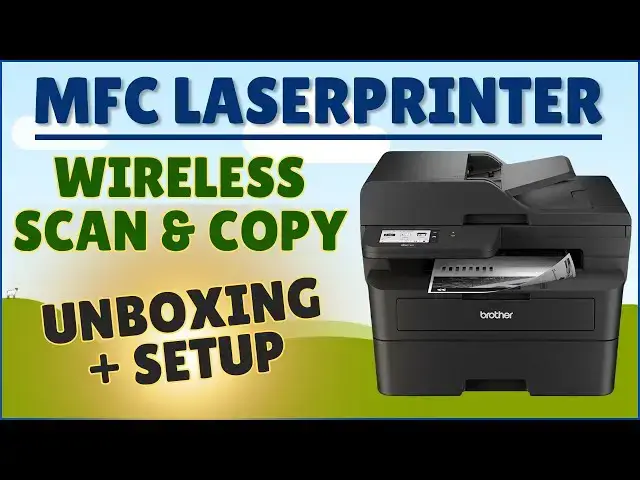
Whether you're trying to go paperless or not, there are times when nothing beats a hardcopy of a letter, essay, application, or document. With the remarkable Brother MFC L2900DW Wireless Monochrome Laser Printer, you'll be up and running in no time, printing via Wi-Fi from a Mac, Windows PC, even Linux system. It also offers scanning, copying, and you can send and received FAXs too, as desired. Tech expert Dave Taylor goes through the entire unpackaging, setup and configuration process, ending with a demo wireless print from a MacBook computer.
Check it out at: https://www.brother-usa.com/products/mfcl2900dw
or on Amazon: https://amzn.to/4fZx2eE
Visit Dave's Q&A Web site at: https://www.AskDaveTaylor.com/
0:00 Introduction
2:16 Tape Removal & Prep
4:18 Adding Paper
6:52 Plugging the Printer Into Power
7:55 Inserting the Toner Cartridge
9:35 Connecting to Wi-Fi
12:00 Panel Tour @firstimpressionprintmarket6839& First Printout
13:52 Adding Printer to MacOS
15:13 Final Thoughts
#brother #laserprinter #wirelessprinter #brotherusa #mfcl2900 #macprinter #linuxprinter #askdavetaylor
Show More Show Less View Video Transcript
0:00
a new printer let's set it up and see
0:02
how it
0:04
[Music]
0:09
works Dave Taylor here and the reality
0:12
is is that sometimes I need hard copies
0:15
of things I also need to make copies and
0:18
I often scan things and all of that can
0:21
be done along with faxes with this
0:23
printer this is the Brother MFC 2900 DW
0:30
Wireless monochrome laser printer and I
0:33
didn't want to show you me pulling it
0:34
out of the box cuz it's a little bit of
0:36
work but this is exactly what you get
0:39
when you pull everything out of the box
0:40
you get a cord for a phone connection if
0:44
you're going to use fax you get let's
0:46
see what's here a power cord and it is a
0:50
three prong so you will need a grounded
0:53
Outlet that's convenient there is a
0:55
printer cartridge that it includes we'll
0:57
open that in a minute and there's a lot
0:59
of paperwork starting with an offer for
1:02
a trial run of what they call their
1:05
refresh easy print subscription and this
1:08
basically is where you predict how much
1:11
you'll be Printing and then it'll
1:13
automatically send you a new toner
1:15
cartridge like 30 to 45 days before
1:18
you're going to run out so that you
1:19
never end up where you have a really
1:22
important document to print and the inks
1:25
run out and you don't have a cartridge
1:27
so this solves that there's that and
1:30
let's see um register get a free 6-month
1:34
extended
1:35
warranty product safety guide product
1:38
safety guide in
1:40
espanol um more small print another
1:45
refresh promo in espanol limited
1:48
warranty a reference
1:50
sheet
1:52
uh installation guide rapid and the one
1:56
we want the actual quick setup guide
2:00
in engl and it is pretty easy there are
2:04
they say seven steps so we're going to
2:06
go through them now to start out we need
2:10
to unpack the machine and check the
2:12
components so the machine itself looks
2:15
good and then we have to take all the
2:17
tape off there's a lot of tape so take
2:21
your time and make sure you get every
2:23
single piece so the nice thing is is
2:27
that printer companies actually fold
2:30
back the very end of the tape making it
2:33
pretty darn easy to remove it so let's
2:37
see there's some tape over
2:39
here tape over
2:44
here I'll have to spin that around in a
2:46
minute to see what's going on so there's
2:48
all this tape but there's more on the
2:50
front that you can see and I can't so
2:51
I'm going to spin it around and let's
2:53
see what we got here we got this
2:55
piece and this piece in the middle
3:02
which H well we'll get to that in a
3:05
second and then this piece and then I
3:07
think that'll let us open the front
3:11
which is probably yeah so then this now
3:13
comes off easily enough and this is
3:15
where we're going to put that toner
3:17
cartridge so it looks like what else do
3:20
we have here we have in the scan bed a
3:24
piece of plastic so lots of things to
3:27
make sure this survives its Journey saf
3:30
L and looks like there's nothing on that
3:33
side which is good one of the cool
3:35
things about this printer is it has a
3:37
3.5 in color touchcreen so not only does
3:42
it have all these great capabilities but
3:44
it makes it really easy for you to work
3:45
with it even right there at the printer
3:48
and it is cloud friendly so you can get
3:51
this onto your internet and you can
3:53
actually scan to for example Dropbox or
3:58
you can print from a folder that you
4:01
already have up on something like one
4:03
drive so let me give you some specs as
4:06
we go through let's see that was step
4:09
one and step two is to load paper so
4:12
we'll do that and this is let's move
4:16
this stuff out of the
4:18
way this is the essential thing you
4:20
always want to do and this the bottom
4:22
tray and when you first look at it
4:25
you're like uh that's pretty small but
4:28
this stretches out and it stretches out
4:31
and then I just happen to have some 8
4:33
1/2 by 11 recycled paper so I'll put
4:37
this in and then the trick is to then
4:40
adjust this so that it's nice and snug
4:44
that looks good I'll put it back
4:46
in let's see so there's step two done
4:51
now this printer can print up to 36
4:55
pages per minutes and it can duplex
4:58
print or scan or copy which means it can
5:00
print or scan or copy on both sides it's
5:03
really nice and the printing is up to
5:06
1200 DPI so it's a really tight dense
5:10
print with a lot of information per unit
5:13
area so the result is it comes out
5:15
really high quality we'll see um the fax
5:19
I haven't sent or received a fax in
5:21
years but if you are going to use it for
5:24
the fact you do have the phone line that
5:26
you need and it can actually use up to
5:29
500 pages in memory so you can just have
5:33
this receiving faxes and then you could
5:36
go through it on here or something or
5:38
via the app I think and then print out
5:41
the ones that you actually want you can
5:44
scan to email scan directly to your
5:47
computer scan to the
5:49
cloud I mean they really these companies
5:52
have so much time that and there's so
5:55
much evolution in printers that this
5:57
really does just about everything you
5:59
could possibly imagine you can plug in
6:01
directly to ethernet you can also do it
6:04
on WiFi at 2.4 or 5 GHz you should use 5
6:08
GHz if you have that option because it
6:10
is faster and then there's mobile
6:12
printing so we'll get there I'm going to
6:14
use my phone and they have something
6:16
called the brother mobile Connect app
6:19
and there's a 50-page document feeder
6:22
it's energy STAR certified it's an epat
6:25
silver so it uses incredibly little
6:28
power when you're not using it so you
6:29
just leave it on the whole time and then
6:32
it actually has double the wakeup speed
6:34
of its previous generations so that
6:37
means that if you just have it sitting
6:39
there then when you do send a print out
6:41
it only takes a couple of seconds for it
6:43
to wake up and start printing and that's
6:45
really great okay so that was step two
6:49
step three is power cord well let's see
6:53
that's going to be in the back so I'm
6:54
going to spin this back
6:56
around and where are we in the back okay
7:00
here's our power cord and I just happen
7:03
to have an extension cord to make us be
7:05
able to do this so let's get a little
7:10
twisty off and
7:18
then and this is a standard three-prong
7:21
wire so that's nice if you ever lose the
7:23
power cord cuz maybe you're moving or
7:26
something not a crisis so there's step
7:28
three done I'm going to actually move
7:30
all this
7:31
paperwork out of the way just one less
7:34
thing to hassle with so now let's see so
7:37
load paper connect to power cord select
7:40
your language so I think now we're
7:42
working on the little LCD screen I will
7:46
turn it
7:48
on
7:50
[Music]
7:52
and very nice you know what I realized
7:56
is that we were supposed to already put
7:58
the toner cartridge in that was was all
7:59
part of Step One You're supposed to
8:01
remove all the tape then put this in now
8:04
you cannot rip these with your hands so
8:06
I have scissors and toner cartridges can
8:10
be messy so I'm counting on brother to
8:14
have designed this well so that's not an
8:17
issue we'll see in just about 5 seconds
8:20
so here's the toner
8:22
cartridge and you always want to have a
8:25
toner cartridge that matches the exact
8:28
model of your printer cuz that's the
8:30
only one that's going to fit and then we
8:32
just simply take all of this orange
8:34
stuff off this is one big very complex
8:38
shaped piece of plastic let's see should
8:42
all come off there we go so we don't
8:44
need this and then the cartridge
8:47
itself goes into where are we into here
8:52
right we saw that earlier so all we have
8:55
to do is put it
8:57
in in the only way that it's going to
9:00
fit which should
9:03
be let's see what's happening
9:06
here
9:08
um might just be that I'm at a funny
9:11
angle but
9:12
let's let's
9:17
see well maybe I'm doing it backwards
9:19
let's try it this
9:21
way
9:24
aha so push it all the way in until it
9:27
clicks close this
9:30
and now let's go over to that screen and
9:33
let's see what's going on I scanned the
9:36
QR code and now I'm going to go ahead
9:38
and grab the
9:43
app there we go and I'm going to open
9:47
it and I'm going to agree to all the
9:50
policies and allow
9:53
this and we'll get to there and allow
9:58
that and now we need to enter the model
10:02
number which is mfcl 2900
10:06
MFC
10:08
L
10:10
29
10:11
oops try it again
10:18
MF wow they have a lot of darn printers
10:21
let's try
10:24
2900
10:25
DW okay so now I want to get back here
10:29
let's get this screen woken up press and
10:32
hold the Wi-Fi button so that's what I'm
10:33
going to
10:35
do okay so I have done
10:40
that and then it should prompt me to
10:45
join the printer as a Wi-Fi
10:51
network there we go so I'll join that
10:54
and then the app will be able to access
10:57
the printer
11:04
well looks like we're having some
11:05
problems so there's a way you can do it
11:08
manually instead so I'm going to put my
11:10
phone aside we're going to cancel this
11:13
we're going to go into
11:14
Wi-Fi and let's try find Wi-Fi network
11:18
switch network interface to wireless
11:21
yes and now it's going to search to see
11:24
what networks are in my
11:26
area and I'll go with that one then it
11:29
will prompt me to enter the password
11:31
which is going to
11:33
be a little bit tedious so let me just
11:35
do this and I'll come right back and now
11:38
we're connecting to my wireless
11:42
network connected
11:44
excellent all right
11:47
so now we should be
11:50
online
11:51
and able to proceed and notice it says
11:54
change admin password that is an
11:56
excellent idea I will do that as soon as
11:58
I'm done with this video but for now
12:01
let's try let's see what we have here so
12:05
we have copies we have
12:08
print let's go into
12:12
Diagnostics
12:14
and I'm sure there is a way to get to a
12:17
test print so let's try General
12:24
setup
12:26
H all right well we'll use this that get
12:29
you back to the previous one so we can
12:32
do
12:33
that printer Network print
12:43
reports let's try printer settings and
12:47
we're going to start printing so before
12:48
I do that let me switch the camera back
12:51
all right well we're at print reports
12:54
printer settings let's do this and I'm
12:56
going to say
12:57
yes and
12:59
and well we're getting sound that's a
13:03
very positive
13:04
sign I hear paper
13:11
loading four pages wow that's a lot of
13:14
printer settings but as you can see it
13:17
is a crystal clear printout and it is
13:20
fast and easy to work with and all four
13:23
of these Pages printed in what about 5
13:25
seconds so very nice I will recycle the
13:29
these later oops we don't want to put
13:30
them in the document feeder I'll just
13:32
put them over here now as one final step
13:36
let's see if I can actually get this to
13:39
show up as a printer on the network with
13:43
my Mac and that should be a no-brainer
13:46
so again let me spin around and show you
13:48
what's on my screen this is pretty
13:50
straightforward just go in Mac settings
13:53
and look for printers and scanners and I
13:57
will add a printer
14:00
and let me move this over it's right
14:02
there that this new printer is right
14:05
there available to go and it notices and
14:09
identifies the necessary driver so I can
14:13
add
14:14
it picture is not great but that's
14:16
something I could fix if I want in fact
14:18
look at that it actually changed the
14:20
picture and now it's giving me the
14:22
ability to add it as a printer and
14:24
output fax device I'm not going to do
14:26
that cuz as I said I don't really use
14:29
faxes very much so now let's give it a
14:33
quick test by I think I can actually
14:35
print
14:36
out this looks likely this is actually
14:39
the page for this printer on the brother
14:43
website so I'm going to choose print but
14:45
we're only going to do the first page
14:47
which is something I do frequently so
14:49
it's one to one and we want to make sure
14:52
it's not the HP it's the Brother printer
14:55
and let's press print all right I'm
14:57
going to push the button
15:02
and all completely wireless no wires no
15:07
connection no special configuration you
15:09
just saw everything I did and here's
15:13
that page and it's not really great the
15:16
way it's rendered but that's a whole
15:18
different issue but nonetheless it all
15:21
worked and that is fantastic so let me
15:25
tell you just a tiny bit more about this
15:27
printer I'm going to close this up and
15:30
so I've already given you a bunch of
15:32
specs and I'll tell you it's pretty
15:34
stressful to configure this with a
15:36
camera on but we got it all working it
15:39
wasn't quite as smooth as we expected
15:41
with the mobile device being able to
15:43
connect to it wirelessly not sure what
15:46
was going on there but luckily I know my
15:49
network I know my network password so it
15:51
was easy enough to enter that manually
15:53
and then proceed from there there's
15:55
probably some other things I should
15:57
change including that admin password
15:59
that's a really critical one but we got
16:02
it up we got it running we got it
16:03
working on a Mac just as easy to get it
16:06
working on a PC um the tray capacity we
16:10
already put some paper in you can put up
16:11
to 250 sheets at a time remember you can
16:15
print two-sided which is really great it
16:17
is fully compatible with Windows and Mac
16:20
and Linux machines and as I said you
16:23
know the toner cartridges obviously
16:26
those are important but you also can
16:29
actually subscribe to that refresh easy
16:32
print service if you want so that's
16:34
everything I wanted to show you with
16:36
this printer it was pretty darn
16:38
straightforward and without the camera
16:40
running I would have been less stressed
16:42
and probably would have been able to
16:43
work out that problem but you saw from
16:46
Soup To Nuts me going from pulling this
16:50
out of the box well you saw post box um
16:53
all the way to being able to wireless
16:56
wirelessly print from my laptop
16:59
that is pretty sweet now I'm going to
17:02
ask you to subscribe to my channel click
17:04
or tap on that subscribe button and hit
17:07
that Bell icon for notifications give me
17:09
a thumbs up if you found this of value
17:11
and I hope you did great this is the
17:14
brother mfcl 2900 DW Wireless monochrome
17:19
laser printer and it is
17:22
299.99
17:23
currently discounted down to
17:26
$269.99 at brother
17:29
usa.com you can also find this exact
17:31
same printer at amazon.com if you'd
17:34
rather go through them it's easy
17:36
straightforward this particular model
17:39
the toner cartridge has 7,000 Pages it
17:42
can print on average depending on how
17:44
much ink you use on each page Etc but
17:48
you should be able to pull this out of
17:49
the box get it set up on your wireless
17:52
network and then just run with it for
17:55
months if not years and then when you do
17:58
need a new toner cartridge pick up
18:00
another one from brother because the
18:02
original manufacturers their cartridges
18:04
are more expensive but they're
18:06
guaranteed to work perfectly with your
18:08
printer so it's everything I got I think
18:11
I'm going to go back and do some more
18:13
printing so I'll have to catch you in my
18:16
next video
18:22
[Music]
18:34
he
#Document & Printing Services
#Photo Printing Services