Up next in 10



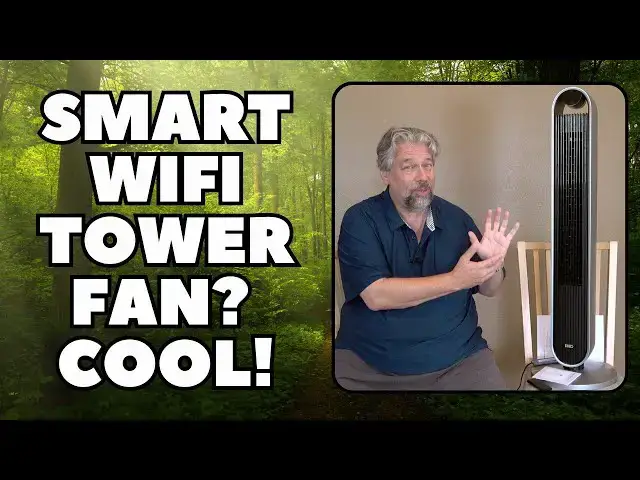
You don't have to run your A/C to cool off in the heat of the summer; use an air circulating fan instead. Like the start DREO Pilot Max S, which offers 12 speeds, 4 modes, and 4 oscillation ranges. Better yet, you can control it with buttons on the device, an included remote control, the DREO app, Amazon Alexa or Google Home! Tech expert Dave Taylor explores its features, including showing how to build it and pair the fan with the app.
DREO Pilot Max S Smart Tower Fan: https://shorturl.at/bP5pe
*** Father's Day sale!! Save up to $110 until June 16th
*** Get an extra $10 off with code [10DAVE]
Or get it on Amazon: https://amzn.to/4c5uwRy
Visit Dave's Q&A Web site at: https://www.AskDaveTaylor.com/
#dreo #towerfan #smartfan #ac #hvac #askdavetaylor
Show More Show Less View Video Transcript
0:00
A smart tower fan with remote and app
0:03
Let's check it out. Dave Taylor here, and if you're like me, you're starting to feel the heat of the summer
0:16
And when it gets hot in the house, you can kick off that air conditioning. But I actually prefer just having a fan, because I find that if you just get the air moving
0:25
it actually cools off a lot. and it's obviously vastly more energy efficient
0:30
So, enter this. Just in time for the summer, this is the Drio Pilot MaxS smart tower fan
0:41
Now, I have reviewed the Drio Pilot Max before. That's the same design mostly
0:48
but it doesn't have any smarts. This one actually connect via Wi-Fi
0:53
and then I can control it with an app. I can control it with Alexa or with Google Home
0:59
It's really pretty smart. Now, it also comes with a handy remote control
1:03
so you don't even need to use any apps or do anything if you don't want to
1:08
but I really like that stuff. Now, it does come with a tiny bit of assembly
1:13
and let me show you just a couple of quick photos, is basically the base is two parts, you click it together
1:19
then the bottom of the fan has this sort of screw assembly, so you take the red piece off, put the base on
1:25
tighten the red piece back and you're done. And then you plug in power, it goes into the wall outlet
1:31
and you're good to go. And then, just like I have here, you can see, here's the remote
1:37
It's pretty darn simple. I'm gonna turn it on. And now you can see it's at power level four
1:44
and I have it oscillating. So let me tell you, this is a 12-speed fan
1:50
with four different modes. I'll come back to that in a second. And the oscillation angles, you can
1:55
to 30, 60, 90, or 120 degrees. Now, from experience, I've learned to pay attention to the lines on the base because the center
2:06
those lines are giving you that 180s. So you point that at the area you want as the center of your oscillation, and that works really well
2:16
Now four modes normal standard sleep and auto And I want to say this because the auto is really cool because when you put it in auto it actually works and reacts to the ambient
2:30
temperature in the room so it will slow down or speed up as the room gets
2:35
hotter or cooler so it's ideal for like the baby's room in the heat of the
2:40
afternoon for a nap turn it on leave it in auto mode and then forget about it and
2:45
then late at night it's gonna go into a very very slow sort of fan speed because the room's already cooled off but in the middle of the
2:53
day when it's really hot that auto will get it going faster so you have the
2:58
remote on the top here you can see in this close-up that there are also duplicate
3:03
buttons so you can do everything even if you lose the remote but of course the
3:07
fun in this is the app so let me show you I'm gonna go ahead and I'm gonna
3:13
pair this with the Drio app or DREA I'm not sure how they pronounce
3:19
I pronounce it Drito. So here in the app you can see I already have one of their fans already hooked up
3:25
but we're going to add the new ones. I'm going to do plus and we'll do add device and there it is, tower fan
3:31
So I'm showing you this because I think a lot of people think, oh, well like pairing a smart device is super complicated
3:39
But you can see this is pretty darn easy. So there is my pilot fan and press and hold the button indicated for five seconds
3:48
All right, well, I'm going to have to stand up for that. So I'm going to push this for five seconds
3:54
One, two, three, four, five. There we go. And sorry, he had a slight technical malfunction
4:04
But you can see on the side here the sequence that the Drio app went through as it found my Wi-Fi network or actually found the fan
4:15
and then I said that's the one, and then it found my Wi-Fi network
4:21
and then it sent that Wi-Fi information to the fan, and now in the apps it says
4:27
Connections succeeded. And then I can even pick which color of the fan it is
4:31
but we'll just do this, and ready? Now, let's turn the fan off
4:37
It's about as easy as it gets. Turn it back on. And at this point I can get into some settings so we can look at things like the FAQs I can pair it with Alexa so I can do voice control Imagine how nice it would be to just say
4:53
Alexa turn on tower fan. That will be very nice. And then I also have learned the interface doesn't make this obvious
5:00
but if you tap and hold where it says normal and four
5:05
then it will actually show me all of these controls. So I can speed it up by just dragging it higher
5:12
And let me just show you, I have to have a piece of paper here
5:16
Sort of a sense of, well, first off, let's stop the oscillation
5:21
So I think that turns that off. Oops, let's oscillate it a little bit more towards me
5:27
There's a lot to keep track of here. So I'm going to turn off the oscillation now
5:32
And so this is normal at speed six. We can do sleep at speed six
5:38
at speed six. So that's still the same basic fan speed. If we turn the speed way down to one
5:47
then watch what happens to this piece of paper. There's very little air coming out. It's
5:53
happening. There's still some, but by comparison, let's push it all the way up to 12
6:00
And now as it speeds up, there's quite a lot of air coming out. In fact, let's just let go
6:08
There you go, there's your dramatic demo there. So I think 12 is probably a bit much
6:15
I can go down to 7. We'll turn it on natural mode. And we'll turn the oscillation back on
6:21
We can do 60 instead of 90. And you can see there's adaptive brightness and you can calibrate the ambient temperature
6:30
There's so much happening here for something as simple as a fan
6:34
Now I will tell you, based on the other fan that I have, that my approach is to get all the settings and all the oscillation and everything how I like it
6:44
and then it's just an on-off. So here's the ways you can do it
6:48
You can do it with Alexa. You can do it with Google Home. You can do it with the remote control
6:54
You can control it with the top of the fan itself. It's super easy
6:59
It pushes out a ton of air. It has smarts both in how you connect with it and control it
7:05
but it also has smarts in terms of the speed of the fan versus the temperature if you in auto mode And when you have it on its lowest setting it is crazy quiet at 25 decibels That is less than the
7:19
noise that your fridge is probably making. So you're not even going to hear it. So that's everything I
7:24
wanted to share with you. So you've seen it's easy to build. You've seen it's easy to pair. You've
7:30
seen it's easy to control. So as your space gets hotter, think about how nice one of these would be
7:38
I really, really like these sort of fans. Now, dimensions wise, it's 42.5 inches tall and the base is
7:45
just under 13 inches around, and it's 10 pounds. So it's easy to carry. And I like, if you look
7:52
at the top, they have that display panel, and then there's a little space below it. And that
7:57
turns out to be a convenient handle if you want to pick it up and move it around and it makes it
8:02
really easy so that's really everything i got this is just a great fan it can change your experience
8:09
in the hot weather definitely one to check out now i am going to ask you to subscribe to my channel go
8:14
ahead and click or tap on that subscribe button hit that bell icon for notifications give me a thumbs up if you found this
8:21
of value excellent now this is the drio pilot max s smart tower fan and it is a hundred and twenty nine ninety nine currently on
8:32
discount at drio.com down to a hundred and ten fifty and I'll tell you that's
8:38
less than you're gonna pay for one week of air conditioning when it gets
8:42
really really hot so something like this is a game changer and if you're in a
8:47
shared space and it's always too hot this gives you control over your
8:53
environment even in a larger space really nice you can even have it turn on and start cooling down the space on your way to home or the office
9:03
by using the app. I mean, what's not to love here? That's it
9:08
I'm a fan. Get it. So I hope to catch you in my next video
#Home Automation
#Household Fans