Up next in 10



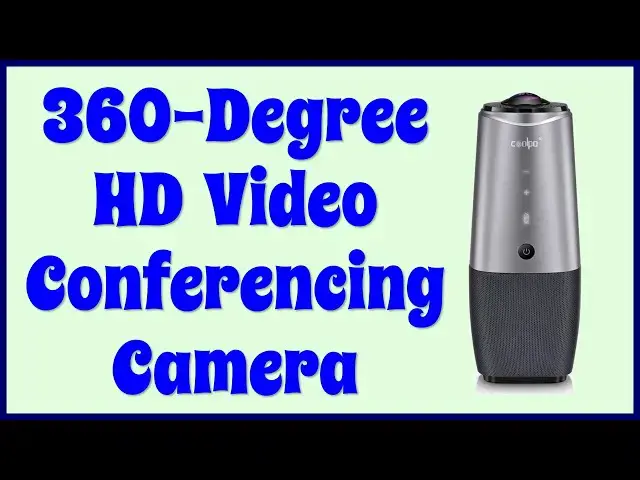
The Coolpo AI Huddle "PANA" Video Conferencing Camera will level up your video conferences, whether you're flying solo at home or sitting around a conference room with a half0-dizen other people. It features a 4K 360° camera, AI software to ensure that the speaker is front and center, 4 microphones for all-around pickup and more. It even lets you adjust the auto-exposure so you aren't overexposed. Finally.
Tech expert Dave Taylor of https://www.AskDaveTaylor.com/ tested out the Coolpo AI Huddle PANA Camera setup and found lots to like, as he shows in the extensive demo. Is it worth the cost? That depends on how often you're on camera and how easy you want to make your next multi-group event.
Check the Coolpo PANA at https://amzn.to/3AlTuda
Check out Dave's Q&A Web site at https://www.AskDaveTaylor.com/
#coolpo #videoconference #4kcamera #zoom #skype
Show More Show Less View Video Transcript
0:00
This device will revolutionize your video conferences
0:03
Let's check it out. Dave Taylor here, and you know, we've all spent a lot of time on video conferences
0:16
whether you're using your laptop or you're in a conference room with other people now
0:21
It just seems to be something that we're going to be doing for a while. We're going to do video conferences
0:27
So, why not have some really good hardwomen? to make that as easy as possible
0:32
That's what this is. This is the Coolpo AI Huddle Pana video conferencing camera system
0:40
It's a mouthful, but it's really cool. On the top, you have a 4K camera that gives you a 360 degree horizontal
0:48
and 60 degree vertical view, but there's a lot of software inside that makes it really smart
0:54
It includes four pickup microphones, so you really can put this in the middle of your conference table
0:59
and have people all around you. And honestly, depending on what mode you set it in
1:05
whoever talks it then points to them and zooms in on them. Very cool
1:09
Now, it's 15-foot voice pickup, but obviously that's a function of how loud you are
1:14
So really loud people can be further away, but it certainly is going to work great in a conference room
1:20
And there's a 360-degree speaker on the front too, on the front, all around it too
1:24
So it really works well in the middle of a table. But there's other cool things it can do too because it actually will track a face
1:35
So if I have it on and then I have to move to a side, it will actually follow me with the camera
1:42
So that's very slick. I'm going to give you a demo in a second. I just want to show and talk about a couple more things first
1:47
So it is plug and play with Mac and PC. There is an app that you'll want to download
1:53
I'll show you that in a second. And that gives you the ability to update the firmware, which is important
1:57
But more than that, it gives you the ability to change settings and to do one thing that I really wanted in every webcam I've ever had, which was to adjust the auto exposure
2:09
Too many of them just blow out and there's just too much and it just gives you a crummy picture and that's really disappointing
2:16
This gives you all those adjustments Yay And it works with any software that going to use a video input or microphone input So you can use this with Zoom with Skype with Google Hangouts with Microsoft Team with Blue Fans
2:31
You name the software, it'll work with it. Now, it doesn't work with FaceTime
2:36
So if you try using it with FaceTime on a Mac or something, then you're going to be disappointed
2:41
But otherwise, it works across the entire spectrum. Really slick. On the top, you can see that it's basically just a spherical lens
2:51
And on the front, I just turned it on. Notice the light on the bottom. On the front, there is the power switch
2:57
and then there's a mute button for the microphone and volume up and down. It does come with a handy cover
3:03
If you want to make sure that camera's off, just leave this on. And when you're using it, that is a perfect little UFO, right
3:10
UFOs, there's one. Wait, no one is going to acknowledge it's a UFO
3:15
Now, on the bottom, it has two plugs. It has power, and it needs its own separate power
3:25
And it also has a USB. And then on the other end of that wire is just regular old USB 3
3:32
So for my Mac, because it only uses USBC, yes, I needed to use an adapter
3:39
Super tedious with these adapters, Apple. So I know, just the way it is, but annoying
3:45
Okay, I've shown you the specs and we've looked at some of the actual pieces
3:51
Let's go ahead and turn it on and let me switch things around and I'll show you both their software that let you adjust things
3:58
And then we'll have a sneak preview of what it would look like with Zoom
4:02
Let's do that. So now you're seeing the video and hearing me through the Cool Po microphone and camera setup
4:11
And as you can see, it is adjusting its position so that it
4:15
It can keep me centered on the screen, which is pretty fun
4:20
And then in this inset, you can see the software that I'm running
4:25
So it gives you picture mode, and I can go into auto
4:28
and then it'll actually try to figure out who else is in the room
4:32
Sometimes it gets confused, but if you're in the middle of a conference room and there are people sitting all around, obviously that's a win
4:39
I generally leave it in this mode, and you can turn off that 360 at the bottom if you don like it But honestly it is kind of fun and it gives you a little bit of an insight into what the room I recording in looks like right
4:51
So then you have display settings, and this is so fantastic to give us the access
4:57
to all of these controls. Picture customization, which you can use if you want to tweak things
5:03
you can block the screen if you actually wanna, you know, turn off some of these features
5:10
device upgrade, choose your language. But really, I think most people are going to do this
5:16
They're going to pick the picture mode they want, and then they're probably going to quit the program
5:19
So we'll just go ahead and save and exit. And now let's go into Zoom
5:24
And one of the cool things Zoom does is it actually lets you set up a meeting and then run a meeting with just you in it
5:31
So it's a great way to test and demo things. But first, let's go into settings in Zoom and choose video
5:38
And you can see, I'm using the built-in camera on my computer
5:43
Well, that's not what we want. We want to switch to the Kouopo AI huddle Pena
5:50
And now you can see it's giving me that 360 view, and it's giving me the sort of central focus on myself
5:58
Looks good, right? Let's do that. And I should mention that if you have backgrounds and you turn on blur
6:03
or any virtual backgrounds, it will confuse the heck out of things
6:07
For example, if I do that, the Zoom really doesn't know what the heck to do with this image
6:14
So best to leave that off. So we'll go ahead and turn that back off
6:18
and we'll go into audio, make sure that it's using the speaker
6:22
for audio in both directions. And I'll go back here and I'll just start a new meeting
6:28
And here's my meeting in Zoom. I'm not going to share that and I am connected
6:34
Let's just double check that we're getting the right systems everything but now I'm in Zoom and this is what everyone's seeing from my signal
6:42
They're seeing that 360 panel on the bottom and they're seeing me and the camera is
6:48
doing that AI thing so it's tracking to make sure that I'm in the picture
6:53
Now you can imagine if you're doing something like you're doing a cooking demo and
6:57
you're in the kitchen this is a fantastic feature so there's lots to really like and
7:03
be impressed by this Now let me switch back around to being on camera Okay so let me go ahead and close my computer and that my demo of this really cool piece of hardware
7:14
This is, like I said, the Cool Po AI Huddle Pana video conferencing camera system
7:20
and it's really nice. It is also really expensive, but let's get to the price in just a second
7:26
I also want to mention that it's 11 inches by 4 inches in each of these directions
7:31
and it's 4 pounds. It's kind of heavy, doesn't come. with a carrying case does require that you have the wires so this is not so much a portable device
7:40
as something that you're going to hook up set up and leave in your conference room now you can imagine
7:45
if previous video conferences in a conference room have involved everyone having their own laptops and
7:51
switching things around that's kind of a nightmare this is such an improvement over that it's such a
7:56
better setup now before we get to the price i'm going to ask if you don't mind go ahead and click on
8:02
that subscribe button i really appreciate when you subscribe to my channel and give me some feedback. What else would you have liked me to demonstrate
8:08
And hey, give me a thumbs up if you thought this was good, useful, interesting, and engaging
8:13
Excellent. Thank you. This is the Coolpo AI Huddle Pana video conference and camera system
8:20
4K video conferencing camera system, and it is $69999 minus $50. And I noticed on Amazon right now
8:29
there's another minus $50 coupon dropping it down to $599.99. at amazon.com. That is a pretty premium price, but this is a pretty premium product
8:41
This is actually really cool and I'm really looking forward to being in a conference room with
8:46
other people so I can put this in the middle and see how it works. I unfortunately am working
8:51
at home still. So that's how that works right now, but you can see that this is just a really
8:56
powerful device. Very cool. Really interesting to see these devices coming on the market
9:01
and giving us so much more flexibility. And with that, that I am going to go back to my one person conference so I hope to catch you in my next video
#Camera & Photo Equipment
#Multimedia Software
#Voice & Video Chat
#Science
#Virtual Reality Devices
#Teleconferencing
#Video Sharing