Up next in 10



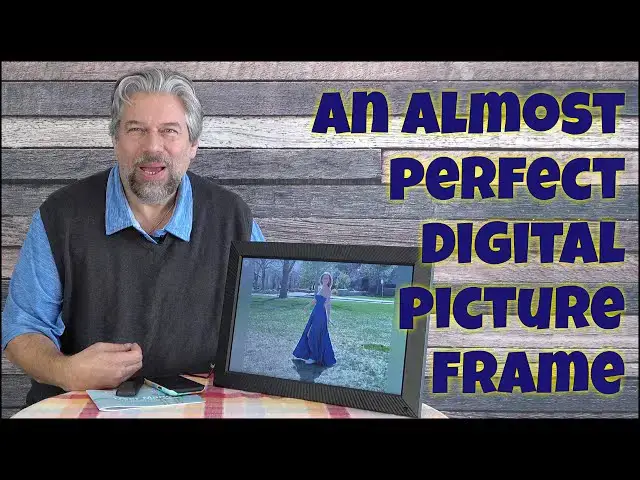
Benibela delivers an almost perfect digital picture frame with a bright 17-inch HD display, touch screen controls, a remote control and a companion app. You can share photos from the unit, an external MicroSD card, a USB flash drive, even hook it up to your computer to download content. it's perfect for grandparents to stay in touch too because photos can be easily shared via the Internet too (securely). Tested and reviewed by tech expert Dave Taylor.
Check it out at: https://amzn.to/3v2MXmy
Then visit Dave's Q&A Web site at: https://www.AskDaveTaylor.com/
#benibela #photography #pictureframe #pictures #askdavetaylor
Show More Show Less View Video Transcript
0:00
A digital picture frame that gets almost everything right. Let's check it out
0:11
Dave Taylor here and I'm checking out this. This is the Benebella 17-inch digital picture frame
0:17
and as you can see it's a big, bright, cheery, and really beautiful display that lets me have
0:26
a photo gallery just running all by itself. It's not hooked up to any computer or anything
0:31
Has its own onboard storage. In fact, it has storage up to 30,000 pictures if you really
0:38
want to put a lot on here and you can set a bunch of different preferences to get it to slow down
0:45
You can have a picture every hour instead of every like 30 seconds as I have now. You can watch
0:51
videos. There's a ton you can do with it. Comes with a remote control. Comes with an app that you
0:58
have on your smartphone. You can remote send videos or photos. So hook this up on the mantle
1:05
at grandma's house and every so often new photos show up. How cool is that? Now let me give you
1:11
some specs and then I'll show you a little bit about how it works. So first off it is dual wi-fi
1:17
A lot of these devices you have to have a 2.4 gigahertz wi-fi to work with. This also works
1:23
with 5 gigahertz which is great because that means whatever kind of wi-fi you have it'll work fine
1:29
There's an AI face match. In fact, it's touchscreen sensitive, right? So I can do this and I can get
1:35
different features to come on. I can also do that with the remote. It's a little hard for me to see
1:40
what's happening here but I can get back to all of these different settings and I'll go back here
1:48
Hopefully that'll take me right back to the photos in a minute or so. It has the remote
1:53
It has an app called vphoto. I'll demo that in just a minute. The touchscreen you already saw
1:59
There's an orientation sensor which is cool because if I actually rotate the device then
2:05
it will actually rotate the screen too to orient it correctly. I'll just go ahead and put it back
2:13
So I actually prefer a horizontal orientation. Let me just put it right about there
2:20
You can do wall mounting. In fact, I'll show you the back. There are hooks here. So there's
2:26
screw mounts here and here so you can do a horizontal or vertical orientation. It's big
2:32
and thick and kind of heavy but you can still put it on the wall. Then on the bottom there are
2:38
some ports. One of which is for power and it doesn't have batteries. It's not rechargeable
2:43
It has to be plugged into the wall 24-7 if you want it to work. But once you get that power
2:50
figured out it's pretty straightforward. Then there is the ability to plug in a micro usb
2:57
or a usb. So that usb for example could be a little thumb drive. You just plug in and you
3:04
could just see all the images off of that. Which is another really fun way to show travel pictures
3:10
to people. It is a WXGA screen running at 1920x1200. So that's a little better than 1080p or
3:20
HD. It's a 16x10 image ratio which means that while some images fit really nicely
3:28
other images are a little awkward. And certainly if you have a vertically oriented image on a
3:35
horizontally oriented screen it's obviously going to be an awkward fit. It does have a built-in zoom
3:42
but I found that when I had the zoom feature enabled I got rid of some of those borders
3:47
But I also ended up sometimes having the picture cropped in strange and awkward ways
3:53
There are also museum and memory filters that actually like make them black and white and
4:00
change the way things are presented. What the company says is that people that are more senior
4:06
actually prefer to have things in black and white. And I'm not sure where they get that data from
4:11
I'm pretty sure that most everyone's going to enjoy this bright vivid color screen
4:17
As I said there are lots of on-screen settings but let me go into the app here because the app's
4:23
actually pretty fun. Let me turn on recording and then let's see here's our app. And it's pretty
4:34
basic but what you get to do is you can go to your frame. So here's my frame and I can get
4:42
some settings here. Most of the settings like the speed of changing images and stuff
4:49
most of those are on the display itself which is something I'd actually like to see
4:54
all of that duplicated in the app because the app's so much easier to work with
4:58
But you can see I can just pick an image out of my photo archive. Let's pick this one of my kids
5:08
freezing themselves at an outdoor wedding in October. And then I can add a description. I've
5:15
already got this device chosen so I'm going to just tap and you can see boom it's already been
5:20
added. And now since I have this on shuffle that image might show up immediately as it did here
5:27
but it also might just now go into the mix. And this is a little anxiety provoking having it be
5:34
this fast. So there's not much else I can show you in the app. So here you can add videos. I
5:42
already added one. I'll show you that in a second. And you can go back to photos. One thing I wish
5:47
they had is I wish you could choose entire photo albums on your iPhone or your Android phone and I
5:54
can just say automatically upload everything that's new. So as I take photos they would also
5:59
show up here which I think would be really fun. And that's pretty much the app. So I'm going to
6:05
stop that recording. Now let's use the remote and I'm going to have to sort of peek around the side
6:10
here to see what's going on. So I can go into album settings for example and then not sure how well
6:17
you can see this. There's brightness, volume adjust, touch sounds, assistive touch, language, slideshow
6:26
slideshow mode. So let's go back to a slideshow for example and I can change how long each image
6:33
stays on the screen. One minute, two minute, five minutes, ten minutes. Super easy to work with. And
6:40
then this mode gives you, you can do all of your images sequentially or you can do what I have
6:46
which is just random order and sort by. And obviously sort by doesn't matter as much if you
6:54
have it set to random. But one of the things I wanted to show you is that you can also set your
7:01
frame to automatically go to sleep at night. So the default is to have it turn off at 9 p.m
7:08
and then turn on again at 9 a.m. And I think that's good because there's really no reason to
7:12
have this thing chugging along at 2 in the morning unless someone has some pretty serious insomnia
7:18
And then there's also a motion sensor. So on the front here there are two little holes and one of
7:26
which actually is a motion sensor. And if it doesn't detect any motion in the room then it'll
7:31
start a timer. And as soon as it gets down to zero it'll turn off the screen until it sees motion
7:38
again. Now you can take that to be up to 30 minutes after there's no motion. But again this is
7:45
consuming energy. So the idea that you can just turn it off when you're not in the room is pretty
7:50
cool. So I have it set to what 15 minutes. That works out pretty well. And let's see I can turn
8:00
on or off auto rotate of the screen. Not sure why I'd do that but I could. And so now let's go back to
8:08
I'll show you a video. So on here there's also clock and video and music and settings and weather
8:17
So there's a number of different things you can get to. But let's go to video
8:22
And I think I only have this one. So it's our dog
8:30
And he really really wants a treat. So that's what this is about. So as you can see it is a
8:38
vertically oriented video on a horizontally oriented screen. So it's not optimal but the sound
8:45
is certainly listenable and it certainly looks great. A horizontally oriented video would look
8:50
even better. But we need to go back. So then if you just choose this then you go back to
8:58
the photos. And I think I can just choose all and just start with one and then it'll automatically
9:04
go back into whatever my default setting is. So one of the few things that I wish it did is I wish
9:10
there was a shuffle mode that would have photos and videos. But at this point in the way it's
9:16
designed you have to choose if you want to be looking through your videos or if you want to
9:20
be looking through your photographs. And I'm not sure why they don't have that integrated a little
9:25
better. And then my other complaint is like I said in the app itself I'd like to be able to choose an
9:31
album. I also have favorites albums. So it'd be really cool if I could have it where I tap the
9:37
heart icon on an image in my photo viewer and then automatically the app would actually upload it to
9:44
the frame. And remember I have both of these devices in the same place. They don't have to be in the
9:50
same place. They don't have to be in the same place. This is all internet based. So this could
9:55
be on grandma's mantelpiece or sitting on her piano with a bunch of other photos around it
10:02
And then maybe every hour it changed. And so she'd look at it and she'd be like oh I like that picture
10:08
And then every so often she'd be like oh that's a new one. That's really nice. And that is really
10:13
where you get into the fun of digital picture frames. So really lots to like. And one of the
10:18
other things I really like is Benny Bella has put a lot of effort into privacy. So there's no
10:25
personally identifiable information that the app collects. And you can add guests and then they can
10:31
add photos. So maybe your brother who's not so good with technology you could get him set up
10:37
with this and he could also upload photos to grandma's photo album. So all of that really
10:43
really pretty slick. Now dimensions wise this is a 17 inch image but it's actually a 19 inch frame
10:52
that's you know about I think I don't know about an inch and a half thick. It is fairly heavy and
11:02
on the back you have this stand that you can pop off or put on. And obviously I have it
11:10
enabled or engaged so that helps it stand up and look nice. Let's see get in there we go
11:17
Right about there. It's really everything. So we do need to talk about the price but before we get
11:23
to the price I'm going to ask if you could subscribe to my channel. Click or tap on that subscribe
11:28
button. Click or tap on that little bell notification image. We are connected. Super appreciated. If you
11:35
found this a valuable video don't forget to give me a like or a thumbs up. Really appreciate that
11:40
too. Cool. This and actually well hold on before we get there let me tell you it comes with a really
11:46
well done user manual and it comes with a USB-A to micro USB cable if you want to download images
11:55
onto the frame automatically. Comes with a wall mount kit and of course it also comes with the
12:01
power cord which I have plugged into my extension cord. So it has that on one end and it's a pretty
12:07
long cord so you shouldn't have any problems getting it stretched all the way out to the
12:13
closest power outlet. Okay that's everything. Again the Benny Bella 17 inch digital picture
12:20
frame. It's $299.99 currently on Amazon minus a hundred dollars. It's a really sweet promo
12:27
Making this $199.99 at Amazon.com. It is big. It is a nice high resolution screen. You've been
12:37
enjoying my photo show of my kids and my family. There's a lot to like here. They've done a lot
12:43
right. One more tweak. One more iteration and it might get perfect marks but for now this is a
12:50
solid entrant in this really fun and very improved category of digital picture frames
12:57
That's all I got. I'm going to spin it around so I can enjoy some of these pictures
13:00
which means I'll catch you in my next video
#Computers & Electronics
#Skins, Themes & Wallpapers
#Virtual Reality Devices