Up next in 10



If you're used to NOOK readers from Barnes & Noble that are the size of a paperback book, you're going to LOVE the new 10" NOOK HD tablet, produced in cooperation with Lenovo. It's a big screen, full color, fast, and runs Android 10 in addition to the NOOK apps you know and love. This means you not only have access to 3.6 million NOOK ebooks, but you also have access to thousands of Android apps through the Google Play store too. Feel like watching a show on Netflix or HBO Max? Want to enjoy Instagram on a big screen? Or maybe you just want to share photos from your latest adventure with family members? All easily done with the big new 10" HD tablet.
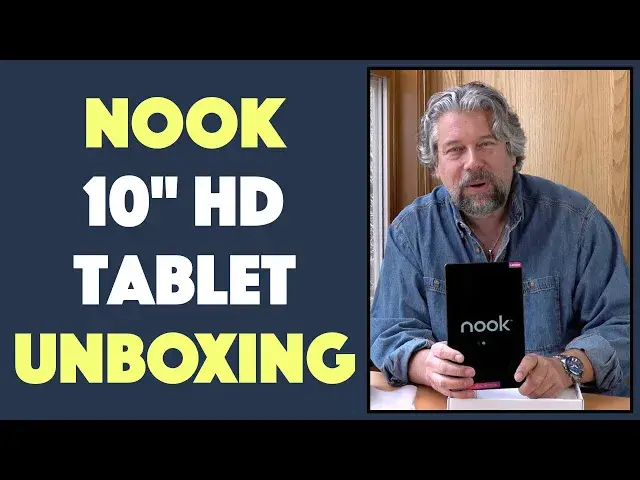
Tech expert Dave Taylor of https://www.AskDaveTaylor.com/ got his hands on one of the very first Barnes & Noble NOOK 10" HD Tablets and offers up this unboxing, including tons of key tech specs and close-ups too.
Learn more about the full NOOK lineup at https://www.BarnesAndNoble.com/nook/
Show More Show Less View Video Transcript
0:00
This is the Barnes and Noble Nook 10-inch tablet
0:03
Let's check it out. Dave Taylor here, and I got my hands on the new 10-inch Barnes & Noble Nook HD tablet
0:19
Now, as you can see, looks a whole lot like the Lenovo tablet, right
0:24
It's the Tab M10 HD, but it's designed with Barnes & Noble
0:29
Noble or as Barnes and Noble likes to put it designed with Lenovo so let's open it up
0:36
and let's see what's inside the box now I have my patented opening for
0:42
unboxing and let me just focus on this for a second and then as we go I'm gonna
0:47
give you all the specs as we proceed now those of you that are not familiar with
0:54
Barnes & Noble Nook universe they have 3.6 million nooks ebooks, so quite the collection. And it also includes the Nook Newsstand and a whole bunch of other
1:08
cool stuff. But what makes this tablet really interesting is it's also running Android 10. So that
1:14
means you get access to the Google Play Store. You can set this up with Google Kids Space if you
1:20
want to give this to someone more youthful in your family. And that's all good. Let's see. Sometimes these
1:27
boxes are precision cut and not so easy to open. But again, my unboxing tool serves me well
1:36
Notice I always close it. I don't want to cut myself. But I think we are ready to actually
1:41
unbox. So let's see what's inside the box. There we go. You can remember what it is. And of course, right on top is the tablet itself
1:57
This features a 10.1 inch iPS HD display, and that's running at 1280 by 800
2:07
And it's a very nice looking display. Let's see if it is shipped with power
2:13
See if we can turn it on. I feel a vibration. So we're getting the Lenovo lighting up
2:19
So one of the really interesting things about this screen is it uses what's known as the Tuve Rhineland, or T-U-V-Rin-Lond
2:27
blue light reflection and flicker-free certification of the display. So this is not like some lower budget displays that could have flicker or could have lots and lots of reflections although you kind of seeing reflections because of the way I doing this
2:47
Try and keep track of what's going on here. But in normal reading, you're not going to have any issues
2:53
But most importantly, it's going to minimize the blue light emission so that you're going to have a better reading experience
3:00
Now, interestingly, with the tablet, this is a full qualified Android tablet
3:05
So it has everything you're going to want, right? So it has 2 gig of RAM, 32 gig of ROM
3:12
It supports a microSD card if you want to slide one into it
3:16
So you can get a ton more storage. Bluetooth 5.0. It even supports FM radio so you can listen to music while you're reading
3:25
The front camera is a 5 megapixel camera. The rear is an 8 megapixel camera
3:31
And it has two side speakers. There's cutouts for that on both sides
3:37
so that if you want to watch a movie or something, you're going to get really nice sound with Dolby Atmos
3:44
So all of that's pretty darn sweet. Let me go ahead and just
3:49
I don't really want to have you need to watch me do the full setup
3:53
but let's see if I can get to at least the rudiments so I can show you something on the screen
3:58
And that will mean I need to enter my Wi-Fi password, So give me just a second here
4:08
I think we did it right. Let's see what happens. And, all right, connecting
4:15
This may take a few minutes. Tell you while it's connecting, let's see what's in the box since this is an unboxing
4:22
So on one end we have a wall charger and a charging cable
4:30
And this gives the obvious question of, Well, what kind of connection do they use
4:34
And the answer is USBC. Well done. So it's a USB 3 connection that goes into the charger unit
4:43
And of course, this means you can charge this with other USBC sources too
4:49
But this is nice and easy. You plug it in. You get the tablet working and that's all good
4:55
I think the middle part here is empty. But we open this end and let's see. Okay
5:00
So now we have. a little SIM removal tool, which I suspect is actually also how you access the microSD storage
5:11
and a surprisingly thick little instruction booklet to get you started. So that everything that in the box in terms of the official unboxing And let see what else is happening here with this is copy apps and data
5:28
Sure. No, we don't want to copy. We just want to proceed to get to the home screen
5:33
See if we can do that. And checking info. So while this is going on, I'm going to use a chance to take some photos and put them back into my video
5:45
So let's do a tour of the edges. So starting with the right-hand edge, there's power, and there's volume up down, pretty typical Android layout
5:55
And then a little lower down is the micro SD slot, which you can pop open
6:01
Along the top, there's a 3.5 millimeter audio jack and one of the speaker cutouts
6:08
And then on the left side, there are some electrical connectors, which means that there is a
6:15
the ability to get a docking keyboard. So it's like a keyboard cover
6:21
which Lenovo must sell. So you could use that. And it probably is a stand too
6:26
and that would give you a lot more functionality. And then along the bottom
6:30
you have that USBC charging and the other paired speaker. So that's pretty sweet
6:38
And it's still trying to set things up. It's really not very exciting demoed for
6:45
you to watch me set up a tablet but hopefully you've done this before and I'm
6:51
gonna skip signing in and it's gonna complain but I can always go back and do all
6:55
that Google services sure sure except I think this is pretty much how
7:03
everyone does this right so you just say I don't know what this means so I'm
7:08
just gonna say yes because I want to get on to the home screen and adding
7:13
finishing touches I think we're all almost there. Let's see what happens. Anything else? No. Let's go ahead and finish device
7:25
setup. And here we go, Nook by Barnes & Noble. So finally, once we get through the whole Android
7:33
setup process, we actually have the Nook. And I do have an account, of course, with books and
7:39
everything, but I'm going to skip that too, because all of that I can do later. And I think
7:45
this gets us to the home screen. And that's nice. They've laid out the home screen so that it really does look just like another Barnes
7:55
and Noble Nook. So you can jump right in find your favorite books Once you signed in and you signed into your Wi it automatically sync and it show you everything that you have on your device
8:08
And that makes it great. Now, I'm going to do a separate video review of the unit once it's all set up
8:15
and I have it all configured the way I like. So this was really just about, hey, what's in the box, right
8:20
So really, really worth checking out. It's at a really good price point. And what I really like about this is that
8:27
it's really flexible because you have a really nice 10-inch Android tablet and you have a 10-inch
8:33
nook, which means if you want to read it this way, you can have your books nice and big print
8:39
if you want. And if you read it this way, you're going to have two pages up, which is going to be
8:44
really convenient if you're used to a paperback, because that's about what size that is. Or if you
8:50
have something like a cookbook, you might have a photo of the food on one page and then the recipe
8:57
or directions on the other page. That's going to be perfect. It's obviously also really good for kids
9:02
but we'll get there. For now, this is the Nook 10-inch HD tablet
9:09
designed by Lenovo or designed with Lenovo, and it's pretty sweet, and it definitely looks like one worth checking out
9:17
The dimensions, it's 9.5 inches by 5.8 inches by 2 tenths of an inch thick
9:24
That's pretty amazing, and it's 15 ounces. There's going to be no fatigue if you want to hold it like this and read a book or two
9:32
And finally, what is the price? Well, before we get to the price, I'm going to ask, if you don't mind, give me some feedback
9:38
Thumbs up if you liked this and appreciated it. Leave a comment if you're so inclined
9:43
Subscribe to my channel. Always appreciate that. All real good stuff. Also, in the comments, go ahead and tell me your favorite book from the Nook e-book store
9:52
There's 3.6 million books. Which one's your favorite? So I'll check them out
9:59
All right, with that, this is the Nook 10-inch HD tablet designed with Lenovo
10:04
It's 12999 at Barnes & Noble.com, and it should be coming to your stores too, but for sure you can check it out online
10:13
That's all I got. I have to get back to my book right now, so now I have a big screen to check it out
10:17
And with that, I'll hope to catch you in my next video
#Laptops & Notebooks
#Gadgets & Portable Electronics
#Other