live_tv
Livestream Starting Soon
00
Hours
:
00
Minutes
:
00
Seconds
Up next in 10


Create stunning videos with Hailuo and other AI models - https://lanhive.com
Hailuo Prompting guide - https://www.lanhive.com/blog/hailuo-prompting
Show More Show Less View Video Transcript
0:00
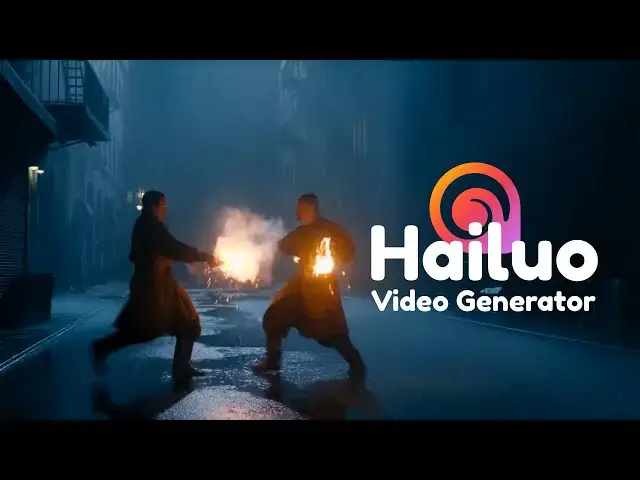
Hyo is one of the best models for making
0:02
videos with AI. It is optimized for
0:04
realistic human motion, cinematic VFX,
0:08
high action scenes, and strong prompt
0:10
appearance. So in this video, we are
0:13
going to see how we can use Hyo to get
0:15
the best AI videos. Let's get started.
0:18
So Hyo can be accessed from many
0:20
platforms. You can use the official Hyo
0:23
website, which is Hyoai.
0:25
And when you log in, this is the
0:27
interface you're going to have. You can
0:29
just go to video here and here you can
0:31
create your video. Other platforms you
0:33
can use include replicate or file AI. In
0:37
my case, I'm going to use Lanhive
0:39
because on Lanhive you have all the top
0:41
AI modules for image and video
0:43
generation. So once you log to Lanhive,
0:45
you are live on this page here on the
0:48
video section. You can just click on
0:50
create video. Then you have this
0:52
interface where you can choose the model
0:54
that you want to use and these other
0:56
settings. So in our case, we are
0:57
focusing on Hyo. We're going to click on
1:00
the drop down here. Then you can just
1:02
scroll down. So you can see all these
1:04
video modules are available to use. But
1:06
we're going to scroll down to the HYO
1:08
section. So we have Hyo 2.3 and Hyo 2.
1:12
Then within these versions, we have
1:14
different variations. So to get started,
1:16
we're going to use HYO 2.3 here. So
1:19
there are three ways in which we can
1:21
make a video with Hyro. So we can make a
1:23
video using text to video. We can use
1:26
image to video and we can also use first
1:29
frame and last frame. So for the first
1:31
one, we're going to use text to video.
1:34
Now, whenever you're making a video with
1:35
text, you have to make sure to use a
1:37
clear and detailed prompt. If you use a
1:39
vague prompt, the output will be
1:41
unpredictable. So, you have to be as
1:44
detailed as you can be. You have to
1:45
describe the mood, the lighting, the
1:47
camera movement, and the pacing. I've
1:50
written a full guide on how to print
1:51
Hyro. The link is in the description. So
1:54
let's start with text to image. So I'll
1:56
just choose the text here. Then we'll go
1:58
for 10 seconds. The aspect ratio be 16
2:01
to9. You can use the prompt optimizer
2:04
here. But since I'm going to use a
2:06
detailed prompt, I'll leave this one on
2:08
off. Then for our prompt here, I'll just
2:10
paste on this one. So this prompt is
2:12
about the lady walking in the street.
2:15
Then it begins to rain and she looks for
2:17
shelter somewhere. So once you're happy
2:19
with all your settings, you can just
2:21
click generate here. And this is what we
2:23
get.
2:33
So you can see Hyro did very well here.
2:35
If you look at the prompt and what has
2:37
happened in the video, it's exactly as
2:39
it was described, which is very good.
2:41
For the next one, we're going to try
2:43
image to video. So this is the image
2:45
that we're going to use. And I'm going
2:47
to do two for this one. For the first
2:49
one, we have a very simple prompt. So
2:52
we're just going to say they are happily
2:53
dancing. So here you upload the image
2:56
that you want to use. So in this case
2:58
you can see that our instruction is very
3:00
simple. We are leaving most of the
3:02
things to AI. This happens when you
3:04
don't really have an idea how you want
3:06
your video to come out. So you just want
3:08
to get the ideas from AI. Plus we also
3:10
have the image in this meaning the AI
3:12
has somewhere to start from. But if you
3:14
already have the full pit in your mind
3:16
you can put the full prompt in here. And
3:18
if you're fine with all your settings,
3:20
you can just click generate. So here is
3:22
the result that we get.
3:25
So you can see the movement is very
3:27
good. How the dress is moving, the hair,
3:30
the physics of it is just very good. You
3:32
can also see the refraction here. It's
3:34
very realistic. So this is good.
3:37
Although it was a very simple prompt,
3:39
the result is very good. Okay. Using the
3:42
same settings and the same image, let's
3:44
change the prompt slightly so that we
3:46
specify the kind of dance that we want.
3:49
So in this case, I'm saying they're
3:50
happy dancing to this dance that I've
3:52
specified. And when everything is okay,
3:55
you click generate. So here is what we
3:58
get.
4:01
Okay, the dance is very similar to the
4:03
dance that we specified, which is very
4:05
good. If you Google this dance, you'll
4:07
see that whatever they are doing here is
4:09
very similar to the original dance. Hyo
4:12
2.3 is actually very good with such kind
4:14
of scenes, higher train scenes, dances
4:17
or anything like that. Now for the last
4:19
one, let's try first frame and last
4:22
frame. So at the moment, Hyro 2.3 does
4:25
not support last frame. So to use last
4:27
frame with Hyro, we'll go back to the
4:29
models and choose Hyro 2 here. Then once
4:33
we have chosen the image you can see
4:34
that we have last frame here. Then last
4:37
frame is only supported when the
4:38
resolution is 768p.
4:41
So if we switch to this one you can see
4:43
only here that last frame will not be
4:45
supported. So the first frame is where
4:47
the video is going to start from and the
4:50
last frame is where the video will end.
4:52
So this gives you a lot of control when
4:54
you are making videos. First and last
4:56
frame is one of the best features to
4:58
look out for in AI models. So for this
5:00
one, we're going to use these two
5:02
images. Want to go from the first image
5:04
to the last image. This is a very
5:07
popular application in motion graphics.
5:09
So we have our two images and the prompt
5:11
we are saying slowly zoom in and animate
5:14
the words to refill the robot part. And
5:16
here because I want a shorter animation,
5:18
I'll just put it at 6 seconds. And once
5:20
you're happy with everything, you just
5:22
say generate. Here is the result that we
5:24
get.
5:29
Okay. Okay, I love that the heart is
5:30
also moving which is very good. So you
5:32
can also add to the prompt that the
5:34
heart should be pumping or anything like
5:36
that. If you are doing this manually it
5:39
will take you a lot of time and first
5:41
frame and last frame open up a lot of
5:43
applications that you can use especially
5:45
in motion graphics creating AI movies
5:48
and making transformations. So that's
5:50
what you can do with Hyo AI. If you want
5:52
to try it I'll leave the link in the
5:54
description. If you want to see how you
5:56
can use LTX for video generation, that
5:59
video is up here or see you over