Up next in 10


Get the full source code of application here:
Show More Show Less View Video Transcript
0:00
Uh hello guys, welcome to this video. So
0:02
in this video, I'll show you how to
0:03
check uh the Python installed version
0:06
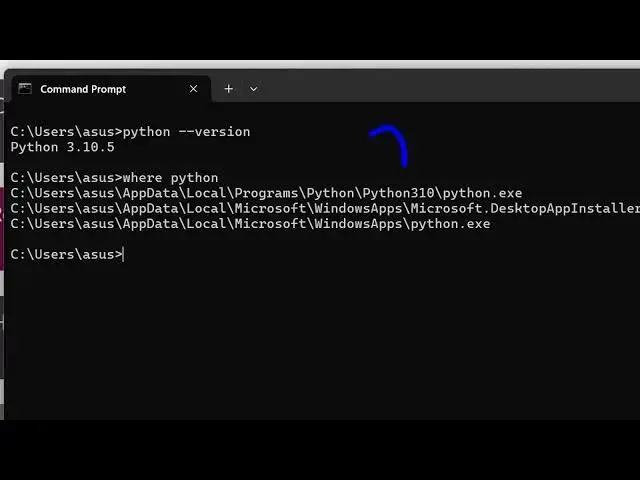
inside the terminal. So the command is
0:09
simple. You simply write python d-
0:12
version. This will exactly tell you the
0:14
version which is installed on your
0:16
system which is 310.5.
0:20
So if you're wondering where it is
0:22
located inside your system, so there is
0:24
this command here which you can say
0:26
where python. So this will exactly tell
0:29
you where it is installed all these
0:31
executables.
0:33
So this is the overall location right
0:35
here you'll see.
0:37
So here you can simply copy this
0:39
location
0:42
Ctrl C and simply go to the file
0:45
explorer and paste this address.
0:48
This will exactly tell you the location
0:50
right here. So it is located in the app
0:53
data folder. then local programs Python
0:56
and this is all the Python installations
1:00
which are there on my computer. You will
1:01
see Python 3.10 3.12 3.13.
1:07
So this is your Python executable right
1:10
here. So you can have multiple
1:12
executables of Python running on a
1:14
single computer. You can see we are
1:15
running different versions of Python. So
1:18
if you still haven't installed Python,
1:20
it's very easy. You simply say Python
1:23
download and go to their official
1:25
website and download the latest version.
1:28
So just select the version number and
1:32
then click the download button. And for
1:34
Windows it is simply a .exe file which
1:37
will download and for different
1:40
operating system you can simply download
1:42
them. And also check out my website
1:45
freemediattools.com
1:46
uh which contains thousands of tools.
#Programming
#Scripting Languages
#Technical Reference