Up next in 10

Vue.js 3 Tutorial to Build Scrolling Text & Image Marquee Animation Using vue3-marquee in TS
Jan 9, 2025

Get the full source code of application here:
https://gist.github.com/gauti123456/72916d5a9a2d3585b63101dfb99729d7
Show More Show Less View Video Transcript
0:00
uh hello guys welcome to this video so
0:02
in this video I will show you how to
0:04
make this scrolling marku animation
0:07
inside the vuejs 3 so there is a package
0:10
inside vuejs 3 where you can animate a
0:13
series of
0:14
images like a marq and a scrolling
0:18
slideshow kind of so when you load your
0:21
application these images will
0:23
come so you can configure these images
0:26
using this package in view Chas 3 which
0:28
allows you to scroll your images nice
0:30
little animation is going on you will
0:32
see that all your images will scroll
0:35
like a
0:36
marku
0:39
so there is a package here uh if you go
0:42
to npmjs.com just search for this
0:44
package which is
0:46
view3 Mark Q This is actually the name
0:49
of the
0:53
package uh the command is simple I just
0:55
need to install this package and it's
0:57
almost having 6,000 weekly download
1:00
and they do offer a series of examples
1:03
on their website in nice little
1:05
documentation is also given you can even
1:07
animate text as well uh if you don't
1:10
want to animate images you can animate
1:12
almost
1:13
anything any code it can contain
1:17
gradient so lot more examples are given
1:20
I will show you a very simple
1:22
example scrolling text scrolling images
1:25
all sort of things you can animate so
1:28
now to get started first of all after
1:30
installing
1:32
it you just need to go to that main.ts
1:37
file inside your UJS project and
1:39
register this module so for registering
1:42
it we just need to add some lines so
1:45
first of all we will import this module
1:47
so we say
1:50
import and then I have given the link in
1:54
the description so you can get all the
1:56
source code
2:00
so I have just given a GitHub repo where
2:05
you can get all
2:08
this so let me just show
2:11
you so first of all you use the import
2:15
statement view Mark q and we just write
2:19
this line and it will be coming from
2:23
view3 so the package is almost 8
2:25
kilobytes we import this package first
2:27
of all and I think it
2:31
also after registering it we need to
2:34
register it so simply we need to pass it
2:36
using this app app.use and then we pass
2:40
view Mark Q so that's all we import this
2:44
and then we use it so just close this
2:46
file and now come to your app. view file
2:50
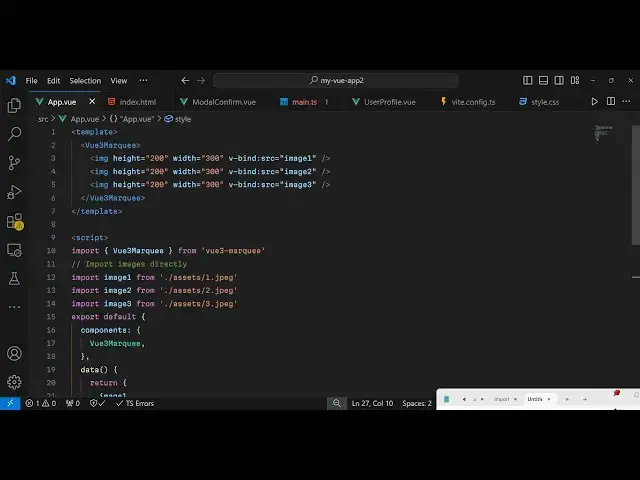
and right here inside our
2:53
template we will Define The
2:56
View three Mark Q component like this
3:01
so here it can
3:02
contain text as well so this is simple
3:05
text a heading tag and then we can
3:08
animate a series of images as well we
3:12
can provide a
3:14
height
3:16
200 a
3:19
of
3:22
300 and then we can use this parameter V
3:26
bind and we can bind the source which
3:29
which is image one so now we just need
3:31
to Define these in the typescript code
3:35
so I will just repeat
3:39
these so I'll will just change it to
3:41
image 2 image 3 image
3:51
4 so now in this typescript code we
3:55
Define
3:56
this first of all we
4:02
import the
4:04
module so using the import statement so
4:08
we just write
4:10
import view3 marq and it will be coming
4:13
from this package which is view
4:19
3 and then we need to load these images
4:22
which are stored in my assets directory
4:24
if you see in the source directory we
4:26
have the assets directory by default and
4:29
we store for all the images that you
4:30
want to animate so we have all these six
4:32
images
4:35
and I will
4:38
directly import these images using the
4:40
import statement so image
4:44
1/ asset SL1
4:47
jpg and in this way you can import these
5:13
just need to replace it by the
5:16
name so we imported all these six images
5:19
now we just need to export this
5:20
component so we just write export
5:23
default and Then followed by the
5:26
components that we need to export so
5:30
here we Define this component view3 Mark
5:33
q and then we also need to pass the data
5:36
as well so to the VJs component
5:39
so we will pass all these images one by
5:42
one so
5:47
image image 2
6:02
so in this way you can configure this
6:04
and if you check the output in the
6:06
browser it will look something like this
6:08
if I open Local
6:13
Host so you will see uh it will have the
6:16
scrolling effect scrolling any it will
6:19
also contain the text as well if you see
6:21
alongside with the images so you can
6:24
animate almost anything with this
6:25
package so the configuration process is
6:28
very simple you import the package then
6:30
you define the things that needs to be
6:32
scrolled such as in the marq component
6:35
and then you can animate and in a
6:38
scrolling
6:39
way so instead of images it can have
6:43
text as well
6:45
so a series of text that you want to
6:48
animate so you will see scrolling text
6:51
it is moving in the
6:54
horizontal so they do offer their
6:57
documentation you can read more about it
6:59
view3 Maru
7:01
so it's zero dependencies vertical Maru
7:06
so you can read their documentation as
7:11
well so thank you very much and it also
7:15
provides you with the direction property
7:17
as well uh I think you can directly pass
7:20
it a direction property and if you pass
7:26
it reverse it will I think it will
7:30
animate in the reverse Direction so you
7:32
will
7:36
see you can all check out all the
7:38
properties the duration you can time
7:40
taken you can even put a delay Loop
7:44
gradient so all these options are
7:46
available so you can read their
7:48
documentation and configure this module
7:50
in view3 so thank you very much for
7:52
watching this video and do check out my
7:55
website as well free mediat tools.com uh
7:58
which contains thousands of tools
8:00
regarding audio video and image and I
8:02
will be seeing you guys in the next
8:04
video
#Other
#Other