live_tv
Livestream Starting Soon
00
Hours
:
00
Minutes
:
00
Seconds
Up next in 10

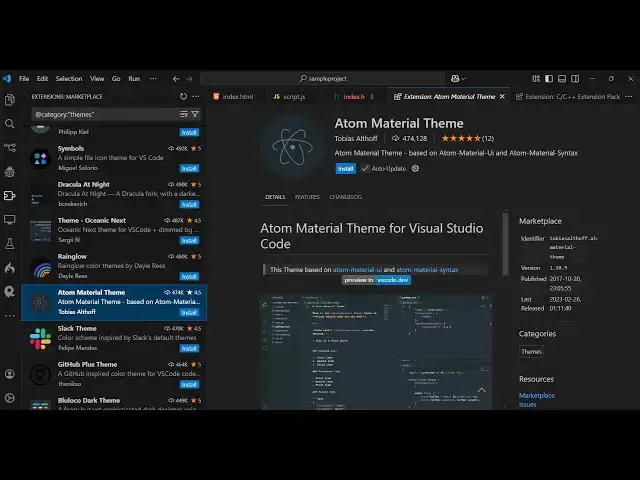
VSCode Plugin to Integrate Atom IDE Material Light and Dark Themes With Icons Tutorial
Feb 25, 2025

Watch My Visual Studio Code IDE Setup Video For Fonts,Themes & Extensions
https://youtu.be/Bon8Pm1gbX8
Hi Join the official discord server to resolve doubts here:
https://discord.gg/cRnjhk6nzW
Visit my Online Free Media Tool Website
https://freemediatools.com/
Buy Premium Scripts and Apps Here:
https://procodestore.com/
Show More Show Less View Video Transcript
0:00
uh hello guys welcome to this video so
0:02
in this video I will show you how to
0:04
integrate the theme of atom atom is
0:08
again a very popular IDE so if you're
0:11
using vs code and if you want to use the
0:13
atom style of theme you can go to the
0:15
extension and it has an extension
0:19
atom and if you want to use a dark theme
0:22
just type atom and you will see this
0:24
extension which is developed by this
0:27
person Muhammad Ali and it's having 6
0:29
point 1 million downloads so you can see
0:31
how popular this theme
0:33
is and
0:35
uh just activate this theme and it will
0:40
actually can see this is actually the
0:43
atom theme right here so it
0:47
looks as it is to the atom theme right
0:51
here same to same so if you use atom you
0:55
will see the default theme applied to
0:57
that code editor is this theme
1:00
having this gray background color and
1:02
this syntax highlighting also looks the
1:04
same the color combination the theme you
1:06
can see this redish color we have also
1:09
the yellowish color the sky blue color
1:12
and then we have the green color so the
1:14
color combination Remains the Same so if
1:18
you don't know about atom atom is again
1:21
a similar open source IDE similar to vs
1:24
code
1:26
so you can see the color combination
1:29
here
1:32
it also has a light theme as well uh if
1:34
you want the lighter version there is
1:36
also a second extension you can use cod
1:40
atom and just type atom
1:45
light so this one is the same person
1:49
developed this you will see it's having
1:51
almost 1 million installs as well this
1:54
one is the lighter version so if you
1:57
need the lighter
1:58
version you can use this atom one light
2:03
so so if you're working in night here
2:05
you can see the background color is
2:07
white rest of the color combinations
2:09
inex highlighting is the same right here
2:12
and you can switch between light and
2:14
dark right here so just shortcut key
2:17
control T so the theme switcher will you
2:21
can use the dark and then the light
2:22
theme as well so there is also the third
2:25
theme which is the material so if you
2:28
just type atom material
2:30
you will see this theme is also very
2:33
popular which is atom material theme uh
2:37
it's having 4 74,000 downloads so just
2:41
type atom material in the extensions and
2:43
this theme will come this one is also
2:46
very popular this is the material
2:49
theme so you can see slightly the color
2:52
is slightly
2:54
brighter so it's easy on the eyes and
2:58
you can easily detect which code is what
3:01
through the color combinations you will
3:03
see this one is also very good so these
3:06
three themes you can use for atom in vs
3:09
code so light dark and material apart
3:13
from that we also have the material
3:15
icons as well so if you also want your
3:19
icons to appear somewhat like atom you
3:21
can use this extension which is provided
3:24
by atom material so almost
3:27
219,000 so you can set the atom material
3:31
icons so it will look something like
3:33
this you will see that
3:39
so so these are the three four
3:42
extensions provided in vs code to to
3:47
match the atom feel like so if you need
3:51
the you can install these four
3:53
extensions that I showed you step by
3:55
step so thank you very much for watching
3:57
this video and also check out my website
4:00
as well free mediat tools.com uh which
4:03
contains thousands of tools regarding
4:05
audio video and image and I will be
4:08
seeing you in the next video
#Computers & Electronics
#Software
#Open Source