0:00
uh hello guys welcome to this video so
0:02
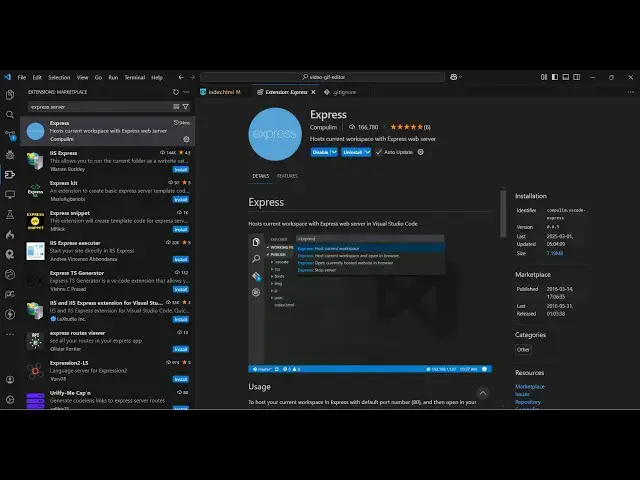
in this video I will show you a
0:04
extension inside vs code which allows
0:06
you to run your static applications
0:08
right in the browser using a server such
0:12
as Express web server so if you go to
0:14
the extensions uh just type here Express
0:20
tab so if you just type this Express
0:22
server the very first extension which
0:25
comes right here you will see this
0:26
extension will come and with the help of
0:29
this extension you will be able to run
0:31
your application with a Express web
0:34
server so it's almost got 167,000
0:38
installs so just install this
0:41
extension and as soon as you install
0:43
this extension just go to any file here
0:46
let's suppose I'm running this
0:47
index.html file here so now what happens
0:51
you need to restart your vs
0:56
code and then just press this shortcut
0:59
key control Shi shft p and here you just
1:06
Express just type Express and this will
1:09
come right here host current workspace
1:11
and open in browser it will actually
1:14
open this Express web server and which
1:17
will listen on Port 80 you can see as I
1:20
type Local Host in my browser the window
1:24
will open right here and if I make any
1:26
sort of changes refresh you will see
1:31
the changes will be reflected back in
1:33
the browser so as I'm doing my coding
1:35
here you can see that
1:37
uh automatically the page is refreshed
1:41
and you can even apply CSS as well
1:46
so can see that so this is actually the
1:50
express web server you can directly
1:52
install this extension inside vs code to
1:54
directly do this is web server if you
1:58
want to stop it again control shift V
2:01
shortcut key and just stop the server so
2:04
now the server is stopped if you just
2:06
visit so you will see the express server
2:09
has been stopped so now that again if
2:12
you want to start control shift p then
2:16
Express then select this option and you
2:19
will see the and now you can actually go
2:21
to the extension if you want to modify
2:23
the port number by default it runs on
2:26
port number 80 but you can click the
2:28
settings icon and go to settings here
2:32
and you can basically change this port
2:34
number let's suppose I want to run this
2:36
by default on 5,000 port number you can
2:39
change the setting now and now if you
2:45
again stop this and restart
2:48
this so now what happens it basically
2:50
changes the port number by default it
2:52
opens in Local Host 5,000 so in this way
2:56
you can change the port number as well
2:58
so this supports hot auto loading as
3:00
well so as you change the code here
3:03
you'll see the code will be reflected by
3:06
so it's a very nice extension you can
3:08
install this inside vs code it works for
3:10
with any kind of application it can be
3:12
react view angular any sort of
3:15
application you just need to hit this
3:17
shortcut key control shift p and then
3:20
actually start this web server side by
3:22
side so thank you very much guys for
3:24
watching this video and also check out
3:26
my website free mediat tools.com uh
3:29
which contains thousands of tools
3:31
regarding audio video and Mage and I
3:33
will be seeing you in the next video