live_tv
Livestream Starting Soon
00
Hours
:
00
Minutes
:
00
Seconds
Up next in 10


Get the full source code of application here:
Hi Join the official discord server to resolve doubts here:
https://discord.gg/cRnjhk6nzW
Visit my Online Free Media Tool Website
https://freemediatools.com/
Buy Premium Scripts and Apps Here:
https://procodestore.com/
Show More Show Less View Video Transcript
0:00
uh hello guys welcome to this video so
0:02
in this video I will show you about a
0:04
feature inside Visual Studio code which
0:07
will speed up your coding experience and
0:10
uh save you a lot of time with the
0:13
feature called is Snippets Snippets in
0:15
Visual Studio code is built in you can
0:18
try out by pressing keyboard key control
0:21
shift p so as you type the key here just
0:24
search for this
0:26
Snippets and as soon as you search it
0:29
you you will see you can configure your
0:31
own custom Snippets as well or you can
0:34
search for the Snippets so there are so
0:37
many built-in Snippets which are
0:40
available for every
0:42
language and framework so here you can
0:45
search let's suppose I search for
0:50
react or I search for jsx
0:54
so so these are the list of you can
0:58
search for Snippets
1:03
so one such snippet is TSR CC so as I
1:07
type
1:09
here the snippet T
1:12
TSR CC and just you need to press the
1:16
tab keyboards this is a built-in syit so
1:19
as you press the tab keyboard you will
1:21
see it will create a react
1:24
component a state a class level
1:27
component it will create so in this way
1:29
you can just search by pressing the
1:31
keyboard control shift p and you can
1:33
search for the built-in snits that
1:36
Visual Studio
1:37
have you can see that so all these are
1:40
built-in Snippets which you can directly
1:43
use
1:45
inside so one such CTL so if I press
1:49
this
1:53
it so you can see console table so you
1:57
can create your own custom Snippets as
2:00
well so there is a second option here
2:03
Snippets configure Snippets so for each
2:06
language you can have a Json file where
2:08
you can configure Snippets so let's
2:11
suppose I want to go for JavaScript so
2:13
it has a JavaScript Json file so here
2:16
inside this Json file you can configure
2:18
your own custom Snippets as well so I
2:20
have these Snippets available so one
2:23
such Snippets is for console log so
2:26
every time I need to write console log I
2:28
can just write this shortcut key ke
2:30
which is CL so if I show you this now so
2:33
if I just type CL you will see print to
2:36
console and tap CL tab you can see it
2:40
saves a lot of time I don't need to
2:42
write every time console log if I need
2:46
to console log statements while I'm
2:49
coding so I just write CL and then tab I
2:52
can just write it will save you a lot of
2:55
time and uh one other snippit I have
2:58
which is each snippet have three
3:00
properties first of all the name of the
3:02
snippet so it can be anything and then
3:05
the prefix prefix is generally the
3:08
shortcut key which will trigger the
3:09
snippet which will be Express and uh
3:13
then the body here you can just give any
3:16
name of your choice and then the actual
3:18
code that will be written so this is a
3:20
simple Express server which will be
3:22
running on Port 5,000 so I just don't
3:24
want to write this code every time when
3:26
I start Express server so I just create
3:29
this as a snpp it and then you can also
3:32
give a short little description that
3:34
sets up a nodejs server on port number
3:36
5,000 so if I go to the file here
3:39
Javascript file just write Express tab
3:42
you will see the code will be
3:44
pre-written and it will actually write
3:46
this code for starting the express
3:48
server on board 5,000 so every time uh
3:50
when I working with Express I don't need
3:52
to write all this code from scratch I
3:55
can just use the snippet to save a lot
3:57
of time and similarly if if you want to
4:00
start a Express server with molter file
4:02
upload I have written this snippet exp
4:06
molter so it will also set up molter for
4:08
me as well so exp
4:12
molter so now what happens it actually
4:15
starts Express server with a post
4:18
route with molter configured so we also
4:21
are importing molter path module so in
4:24
this way you can configure different
4:26
Snippets for different scenarios so if
4:28
you are making videos If you are also
4:30
self- coding as well so it will save you
4:32
a lot of time to snippet feature so this
4:34
is not a this is not extension this is
4:37
part of vs code so if you install vs
4:40
code just press the keyboard control
4:42
shift p and uh this will open the
4:45
terminal and just search for Snippets so
4:47
it's a part of vs code installation and
4:51
just you can search for buil Snippets or
4:54
you can even configure Snippets so if I
4:57
want to configure for the PHP for each
4:59
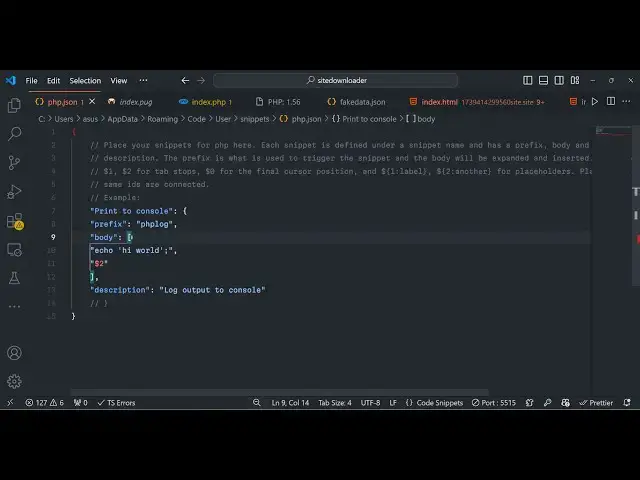
language there is a Json file here so
5:03
php. Json so here you can configure the
5:06
PHP snippits so
5:10
again we have the snippet for console
5:12
logging it so let
5:15
me toggle the comment
5:18
here so this one is for
5:21
the PHP file so now let's suppose if I
5:24
create a PHP
5:27
file and just trite
5:30
the log keyboard log key so as soon as I
5:35
do
5:38
this sorry we need to put the PHP
5:45
bracket so if I just typed log here you
5:48
will see log statement will be there
5:57
so so I can just customize the name here
6:00
let's suppose PHP log and go to
6:06
it so if I just write PHP log you will
6:11
see so in this way you can print out
6:14
these console log
6:20
statements for PHP I think it's not
6:23
console log it's Echo statement
6:32
so this is I think valid PHP
6:37
so so in this way you can do this
6:40
Snippets configure it inside your vs
6:43
code in Json file for each language and
6:45
you can save a lot of time it's part of
6:48
the vs code feature so thank you very
6:50
much for watching this video and also
6:52
check out my website as well free mediat
6:54
tools.com uh which contains thousands of
6:57
tools regarding audio video and image
7:00
and I will be seeing you in the next
7:02
video
#Software
#Development Tools