Up next in 10

Ultimate Guide to Toastr Notifications Creating Stunning Toasts & Alerts with HTML & JavaScript
Jan 9, 2025

Ultimate Guide to Toastr Notifications Creating Stunning Toasts & Alerts with HTML & JavaScript
Show More Show Less View Video Transcript
0:00
uh hello guys welcome to this video so
0:02
in this video we look at another open
0:05
source notification or toast library
0:08
inside JavaScript so if you want to show
0:11
small little notification messages
0:13
inside your application this Library
0:15
will be very helpful for that purpose so
0:18
we will have four buttons out there to
0:20
show you a very basic example of how to
0:22
use this Library so we have the success
0:25
toast notification so you can see as I
0:28
hit this button uh a success
0:31
notification appears right here on the
0:33
top left screen and it has a success
0:37
icon and message as well similarly we
0:41
have the info one warning and error so
0:45
this these to to notification messages
0:48
can be very helpful inside your
0:50
application if you perform any operation
0:53
if the user perform any operation such
0:55
as submitting any form if you want to
0:57
show error messages or is small little
1:00
notification message to the user that
1:02
your operation has been completed so in
1:04
those situations this Library can be
1:06
very helpful so and now in this video I
1:09
will show you how to use this library
1:11
right in the browser itself using CDM so
1:16
first of all the name of this library is
1:19
t o a s r toaster if you just write this
1:23
on Google the very first link which
1:27
come this is their official website and
1:31
uh it's a open source library and uh it
1:35
basically depends upon jQuery you do
1:37
need to include jQuery for
1:40
this and
1:43
uh now to get started right here uh I
1:46
have this example so I will just write
1:50
this example from scratch so let me
1:52
delete
1:56
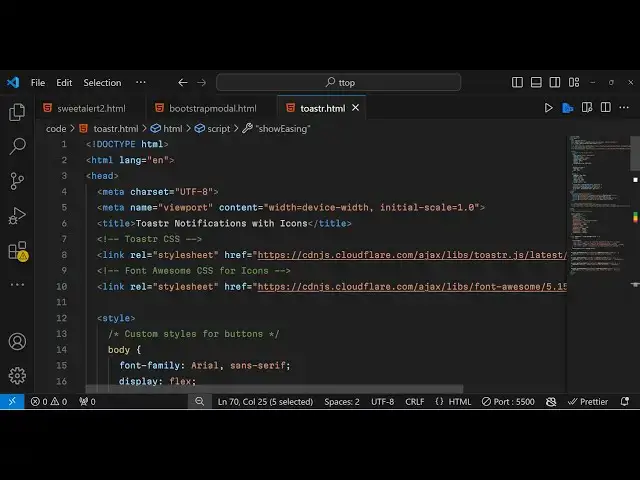
everything so I have already included
1:58
the CDN for jQuery you can see
2:01
that because jQuery is required for this
2:05
library and also we have included the
2:08
toaster min.js
2:10
file you can include this uh you can see
2:15
that both the CSS and the JavaScript
2:18
ones are available on their website you
2:20
can copy these
2:23
links or you can simply write toaster
2:28
cdnjs and uh
2:30
you just need to copy this CDN links and
2:33
just inside your script tag paste
2:39
it and same for the CSS as well we do
2:42
need the CSS as well
2:46
so you can just include the toaster min.
2:49
CSS file as well so simply copy this
2:52
link and inside your link tag simply
2:55
paste it so I've already pasted it if
2:58
you see
3:01
and for showing the icons we are using
3:03
another open source Library which is
3:05
font awesome which is used for showing
3:07
icons inside alert boxes so font
3:10
awesome is again open source live duty
3:14
for icons so again you can just write
3:17
font awesome
3:18
cdnjs and you can get the CDN for font
3:22
awesome
3:23
simply copy this link right
3:27
here and simply paste it I've already
3:30
pasted it like
3:33
this and now in the HTML if you see we
3:36
have four buttons out there uh we have
3:38
success info warning and error if I
3:41
click these buttons nothing happens we
3:44
have given IDs to these buttons which is
3:46
Success toast info toast warning toast
3:48
and error
3:50
toast and now I will write the custom
3:52
JavaScript here to show these alert
3:57
boxes so now to show show this first of
3:59
all we need to configure
4:03
the the toaster Library so here
4:07
basically you
4:08
can just have some
4:11
options how how to show these uh
4:14
notification messages toast messages so
4:18
we have various options that you can
4:21
configure first option is for if you
4:23
want to show the close button this is
4:26
again a Boolean parameter so I do want
4:29
to show the close button which allow the
4:32
user to close these notification
4:33
messages then we have the second option
4:36
which which is debug so debug is not
4:40
required but uh the default value is
4:45
false and then we have various other
4:48
options as well which is
4:50
newest let me first of all copy all
4:53
these options and then show one by
4:56
one how these options operate let me pay
5:01
these you can see we have all these
5:04
options right
5:06
here so I will show you one by one how
5:09
to how these options work so first of
5:11
all now to
5:14
show the toast message we will basically
5:17
write this function which will receive
5:19
three arguments first is the type of
5:21
toast message the second argument is the
5:23
message that you want to show and third
5:25
is the
5:26
title so this function will be
5:28
responsible for showing the toast
5:31
message and uh now one by one we will
5:34
bind the event handler to the buttons so
5:38
we have given this ID here success
5:41
toast so when the user clicked this
5:43
button we need to show the message here
5:45
so we'll call this show toast function
5:48
and this will be the success toast
5:51
message and here we'll be giving the
5:53
title here to the toast message which is
5:56
your changes has been saved
6:01
and the third argument is the icon that
6:03
you want to show which is Success
6:07
icon similarly uh we will have three
6:11
more
6:15
buttons uh this one for the info one if
6:18
you want to show the info message so
6:20
this will change from success to info
6:30
so let me just paste
6:35
it you will see this is now for info
6:38
here this is for warning and this is for
6:40
error
6:42
message just close
6:51
it so now we need to show this uh just
6:54
make this method which is show post
6:56
message if you now click these buttons
6:59
nothing will show because it is calling
7:02
this function which is receiving these
7:04
three arguments so now to show the
7:07
messages we will declare icon variable
7:10
and then we will make use of the switch
7:13
operator and uh just pass a type
7:16
parameter right here and we will have
7:18
based upon this type value we will have
7:20
various cases so the first case will be
7:23
for the
7:24
success so here we are comparing here if
7:27
the value of type is SU sucess in that
7:31
case we need to show the success icon so
7:35
we will use the font
7:40
awesome and phont awesome has these
7:48
classes so inside this it tag it tag is
7:51
used for showing the
7:55
icon and then we will break it
8:02
so we do need to close
8:10
it so this is the first case if the if
8:14
the to message is Success type then we
8:16
need to show the success
8:21
icon and in this way we will have three
8:25
cases the second case will be for the
8:27
info
8:31
so in this way we will have three icons
8:34
which is for info warning and
8:37
error this is your switch statement
8:39
based upon the type value we will be
8:41
showing these icons which is coming from
8:44
font
8:45
awesome and at last if you we do need to
8:49
add this
8:52
line icon plus the message whatever
8:56
message that you want to show alongside
8:58
with the title
9:01
so now if you hit the success you will
9:03
now see this message whatever message
9:05
that you have
9:06
passed same goes for the info warning
9:09
and error message so if you want to
9:11
change the location of these messages so
9:14
by default is it appears on the top left
9:16
position if you want to change their op
9:19
position now you can change these
9:21
options so the position option is
9:25
appearing right here you can see top
9:27
left position is there you can change
9:29
this to top right so now these alert
9:32
boxes will appear on the right position
9:35
top right
9:38
position so if you want to show
9:41
top
9:44
bottom so it will appear right in the
9:47
center
9:52
position so if you want to show on the
9:55
bottom right corner
10:00
so you can just see uh changing these
10:02
options so now you will see the messages
10:06
will appear on the bottom right position
10:08
so you can choose your own location as
10:10
well by changing this position class
10:14
value and then we have various
10:16
properties here if you want how many
10:18
time how many seconds you want to show
10:20
this alert box so show
10:25
duration is set to be
10:31
300 all these times are in
10:34
millisecond so if you hit this box I
10:38
think it appears
10:39
for 1 second so I need to change this
10:44
value which is this value which
10:47
is the extended time so this isn't this
10:51
is Thousands millisecond so this is 1
10:53
second so if I change this to 2,000
10:56
millisecond so now the
11:00
to toast notification will appear for 2
11:02
seconds you will see
11:04
that so in this way you can change the
11:08
amount of time each po post notification
11:11
message appears on the
11:14
screen so if you don't want to show the
11:18
progress bar you can set it to false so
11:21
now the progress bar will not be
11:24
appearing so it is recommended to show
11:26
progress path so I will change it to
11:28
true if you don't want to show close
11:30
button you will change it to false so
11:32
now you can't close the post
11:40
notification so now this close button if
11:42
you don't want to show it you will
11:44
change this value to
11:48
false and these are actually
11:51
the animation methods how these
11:53
notification messages appear on the
11:55
screen fade in Fade Out swing so you can
11:58
just check out their documentation
12:00
various me animation methods are
12:06
available so you can actually check out
12:10
this website and
12:13
uh in the doc section you can they do
12:17
have the demo as well which is hosted on
12:20
this website so you can just try this
12:23
Library all these positions are
12:25
supported and uh
12:29
so you can play with this tool to
12:33
actually better understand this Library
12:35
so this was the actual library for
12:38
showing toast notification messages on
12:41
the
12:42
browser so thank you very much for
12:44
watching this video and do check out my
12:47
website free mediat tools.com which
12:52
is a open source website which contains
12:56
lots
12:57
of tools regard
12:59
video image and
13:01
audio and I will be seeing you in the
13:04
next video