Up next in 10

React.js PDF-LIB Project to Export Multiple Images to PDF Document in Browser Using Javascript
Jan 9, 2025

Buy the full source code of application here:
Show More Show Less View Video Transcript
0:00
uh Hello friends welcome to this video
0:02
so in this video we look at how to
0:04
convert images into PDF uh inside react
0:07
Chas and we will be using this
0:10
open-source Library which is PDF lip
0:13
which is a JavaScript library for
0:15
converting or modifying PDF documents
0:18
and uh creating PDF documents so it's a
0:21
library and uh this is actually the
0:24
application we allow the user to Simply
0:25
select a bunch of images it can be PNG
0:28
or jpg so let me select these
0:32
images as you select the images you will
0:34
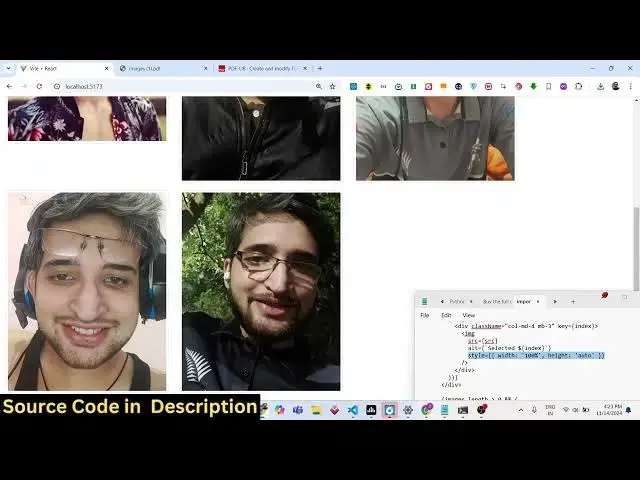
see a live preview of all the images
0:36
that you selected and then you will see
0:38
this download PDF button if you click
0:40
this button you will see this PDF file
0:43
will get downloaded and all the images
0:45
that you selected five images are being
0:48
converted to PDF document each page is
0:50
taking the full size of the image so
0:53
whatever is the size of the image it is
0:55
converted to the PDF document so we will
0:58
try to build this application from
1:00
scratch using this Library so now to get
1:03
started you do need to create a brand
1:05
new react CH project I've already
1:07
created this and then you need to
1:09
install this package npmi PDF lip this
1:13
is a package you need to install it by
1:16
using this npm command so I've already
1:19
installed this package so once you
1:20
install this you can start your
1:22
development server so I will start
1:25
building it from scratch so just create
1:28
a basic app GSX file your functional
1:31
component so I will have very basic
1:35
functional component app level component
1:37
if you refresh you will
1:40
see app here you will see now what we
1:44
need to do we need to have a simple form
1:46
where we allow the user to
1:49
Simply select files so inside this div
1:53
we will actually give it a container mt4
1:58
and inside this we will
2:00
have a heading and we'll simply say
2:02
export images to
2:04
PDF and then we'll be allowing a simple
2:08
input field to the user input type file
2:10
and we will be accepting only the images
2:13
so we will
2:14
simply give it an attribute here image
2:17
slash and it should be required and the
2:20
user can select multiple images it will
2:22
be giving a multiple attribute as well
2:25
and we will be binding an onchange event
2:28
handler so whenever the user selects
2:30
images this function will execute handle
2:33
image upload a custom function we do
2:35
need to declare this function right here
2:37
at the top so we can simply say handle
2:40
image upload and E parameter will be
2:44
automatically be passed to this function
2:46
so using this event
2:49
parameter so if you see now we have this
2:53
uh choose file button where we allow the
2:55
user to Simply select images so when
2:58
they select this function will
3:00
automatically trigger and I will make
3:03
this function as async just make this
3:06
async
3:09
function or we don't need the asyn
3:12
attribute so right here we will first of
3:14
all select the files the user select by
3:18
using this array from and then e.
3:22
target. files so multiple images that
3:26
the user selects we actually using this
3:28
array from and then we are passing e.
3:30
target. files this will get access to
3:33
all the files the user selects and then
3:35
one by one we will create an array here
3:38
image URLs and we'll use the map
3:41
operator and for each file what we will
3:44
do we will create an URL using Create
3:48
object URL and we'll pass the file right
3:51
here and then you simply say set
3:55
images and for this we do need a state
3:57
variable for keep tracking of the how
3:59
many images the user select so images
4:02
set images and we will be using the UST
4:04
State hook of react Chas so initial
4:07
value will be Mt AR so we have declared
4:10
a variable images set images and we have
4:13
used the UST State hook current value
4:15
will be empty so here you'll be setting
4:18
this using this hook function set images
4:21
and the image
4:23
URLs and now we just need to Simply show
4:27
a live preview of all the images the
4:29
user has has
4:30
selected and how to show this after you
4:34
have this input
4:36
field we will actually be
4:40
having a
4:44
div inside this we will have a curly
4:48
bracket and we will simply say if the
4:50
images exist in that case we will Loop
4:52
through each image source
4:56
index and we will show the image like
4:59
this in the if div
5:06
tag so you can even install bootstrap if
5:10
you want Ive already installed it so
5:13
what I can do I can import the CSS file
5:16
of bootstrap
5:29
so it is saying
5:35
that so if you do need to install
5:37
bootstrap you can npmi
5:40
bootstrap to give those classes npm this
5:43
is actually the module and it will
5:46
basically be installed inside your node
5:48
modules
5:49
folder inside the bootstrap folder if
5:52
you see we have this bootstrap dis
5:55
CSS and bootstrap main. CSS so what we
6:00
have
6:07
is just start your application so now if
6:10
you give bootstrap classes you will
6:13
actually see those classes will be
6:16
applied so in this way uh now we need to
6:19
show the images so for showing the image
6:22
we can
6:24
actually show it in the source
6:27
tag and we can give
6:30
a style
6:38
attribute we can give it a class name or
6:41
bootstrap which is image
6:46
thumbnail so if you basically select now
6:49
a bunch of
6:51
images you will see this live preview
6:53
you will see that one by one this is now
6:56
we need a download button so that when
6:59
we click the export to PDF button so we
7:02
will here compare if the images length
7:04
is greater than zero in that case now we
7:07
need to show we are simply writing a jsx
7:10
expression now we need to show
7:13
conditional button so if the images are
7:15
selected by the user then we show this
7:17
download PDF button and we will b a
7:19
onclick listener to this button so when
7:22
we click this button we will execute a
7:24
function handle download PDF function
7:31
so just we need to Define this function
7:34
at the top handle download
7:38
PDF I just make this a async function
7:41
because at the start we will be using
7:44
await keyword right here so when we now
7:47
do
7:50
this here you will be using the PDF lib
7:53
library for this we do need to import
7:55
this library at the top so we'll simply
7:57
say import
8:01
the PDF
8:04
document and plus the RGB from PDF lib
8:09
so we imported this package right here
8:11
at the top now we can use this package
8:14
to actually export the images to PDF so
8:17
creating a new PDF document you'll use
8:19
the await keyword and you simply say PDF
8:22
document and it contains a function of
8:25
create it will create a new PDF document
8:28
and then we will Loop through each image
8:30
by using the for Loop for let I is equal
8:33
to Zer
8:34
I smaller than image's length I + plus
8:37
so it will actually Loop through for
8:39
each image the user has selected and for
8:42
each image we will
8:45
simply get access to that image by using
8:48
this index
8:49
variable and then after fetching this
8:52
image we need to fetch that image
8:54
convert this into bytes and for this
8:57
you'll use the fetch API fesh the image
9:01
and then using that promise we can
9:04
simply convert this into a AR buffer
9:08
using response. AR so first of all what
9:10
we are doing we are actually fetching
9:12
that image which the user select
9:14
converting it to an array buffer using
9:16
response. array buffer using the fetch
9:18
API and storing it in this variable
9:21
image bites now we need
9:26
to basically split the extension
9:30
whatever is the
9:33
extension we will use the split
9:38
function and we'll use the pop function
9:41
so what it will actually doing it is we
9:43
are splitting
9:44
this full path of the image we are
9:47
extracting the image extension to get
9:50
whatever is is it a PNG or jpg so using
9:54
this after that we will create a
9:57
variable PDF image
10:01
not in this
10:08
sorry after this we compare in the if
10:11
condition that if image
10:14
type is the PNG if it's a PNG image then
10:18
in that
10:20
case this will
10:24
be embed PNG so we have two methods
10:27
either we can embed PNG or J jpg so if
10:30
say PNG image then we will use this
10:32
method and embed the bytes which is
10:40
there and we will also be having a l
10:43
scenario if this is a JPG image in that
10:47
case
10:48
uh we will use the embed jpg function
10:53
which is available inside this library
10:55
and simply pass the image bytes
11:00
so that's all and after that we
11:04
will set the width and height of the
11:08
page from the PDF image so whatever is
11:12
the width and height of the image we
11:14
will scale it using 0.5 you can just
11:17
change this value as well 0.5 is more
11:20
than enough for better scaling and then
11:23
we will set the property for the page we
11:26
will add in Page by using this function
11:28
add page
11:30
and then we will provide the width and
11:31
the height so for the
11:34
width we take the width of the page will
11:37
be width + 20 and height +
11:46
20 sorry this this is actually not an
11:51
object this is it actually takes a
11:53
square bracket so here you provide the
11:57
width withd 20 and and uh height as well
12:02
+
12:03
20 and then we
12:06
actually draw the image on the page so
12:09
for drawing that we use the function
12:13
draw
12:14
image this is a function which is used
12:16
to draw this image on the page so PDF
12:19
image and then we provide the
12:22
coordinates x coordinate 10 y you can
12:25
select it accordingly so width will be
12:28
the width and the height so in this way
12:31
we use this method draw image to draw
12:33
this image on the page and after that we
12:36
need to save the PDF so for saving it we
12:39
will use uh the save method PDF dog.
12:43
saave so it will save this PDF document
12:46
as uh now we need to download this as
12:48
attachment so for that we do need to
12:50
convert this into a Blog so we'll have
12:53
this blob Constructor and then we'll
12:55
pass this PDF bytes and here in the
12:58
second argument you need to provide the
13:00
MIM type for application SL PDF it's a
13:03
PDF document MIM type and then now for
13:06
downloading this as an attachment we
13:08
will use uh the anchor tab we'll create
13:11
this element dynamically by using Create
13:13
element and then we will set the HF
13:18
property Again by using URL create
13:21
object URL and passing it
13:24
blog set the file name and this file
13:27
name will be result. PDF and then we
13:29
will click this anchor element
13:31
dynamically by using link. click so this
13:34
completes the application and if you try
13:36
to open this application now if you
13:38
select a bunch of
13:40
images you will now see the live preview
13:42
of this images and you will see this
13:44
download PDF button appearing on the
13:46
bottom of the screen so if you click
13:48
this
13:51
button nothing happens let me see what
13:54
is
13:55
the fail to construct block the object
13:58
must have
13:59
a callable iterable property it happens
14:02
on line
14:05
number uh sorry let me I forgot to close
14:10
this okay okay I made a mistake here uh
14:13
we need to close this blog as
14:17
well pass the PDF bytes and then you
14:20
need to
14:31
so just make sure that you close
14:47
this so now if you see uh the PDF file
14:52
has downloaded and it has actually
14:53
converted all the images selected to a
14:55
PDF each page taking the full image size
14:59
whatever is the size width and height it
15:01
actually adapts and in this way you can
15:04
export images to PDF using this open
15:07
source library in PDF lib in react CH so
15:10
it's a simple functional component we
15:12
have a simple input field where we allow
15:14
the user to select images and then we
15:16
convert this into a PDF document so
15:19
thank you very much for watching this
15:20
video and uh please hit that like button
15:23
subscribe the channel and also check out
15:25
my website as well freem mediat
15:27
tools.com which contains uh free tools
15:29
regarding audio video and image and I
15:32
will be seeing you in the next video
#Programming