Up next in 10

React.js jsPDF & Html2Canvas Project to Export Multiple Images to PDF in Browser
Jan 9, 2025

Buy the full source code of application here:
Show More Show Less View Video Transcript
0:00
uh hello guys welcome to this video so
0:02
in this video we will look at how to
0:04
convert a bunch of images to PDF
0:06
document using jspdf and HTML 2 canvas
0:10
library and uh this is actually we will
0:13
do it in react Chas so this is actually
0:15
the screenshot of the final application
0:18
that we will make in this video is
0:20
looking like so we have a input field
0:22
where we allow the user to Simply select
0:24
a bunch of images it can be jpg or PNG
0:27
let me select a bunch of images you can
0:30
see the this SL to viw of each image so
0:33
we are using some bootstrap for the user
0:35
interface so you're seeing each image
0:37
which is selected AI preview and then we
0:40
have a download PDF button so if you
0:42
click this button it will
0:45
actually embed all the images in a per
0:48
page structure so each page in the PDF
0:51
document will take the size of this
0:53
image so one images will be appearing on
0:55
the first page then the second then the
0:58
third fourth fifth so all the images
1:00
selected are successfully converted to
1:03
PDF document so in this way you
1:06
can actually do this process and we are
1:09
using two packages for this jspdf which
1:11
is a PDF library for creating it and
1:15
then HTML to Canvas which actually
1:17
converts the HTML to
1:19
PDF and we'll use these two libraries in
1:24
togetherness so for getting started we
1:27
do need to install these packages npmi
1:30
bootstrap jspdf and HTML to Canvas so
1:33
I've already installed all the three
1:35
packages so simply install it using this
1:37
npmi
1:39
command
1:41
so now you can in uh start your
1:44
development server npm
1:46
runev so I will start it from scratch so
1:50
first of
1:51
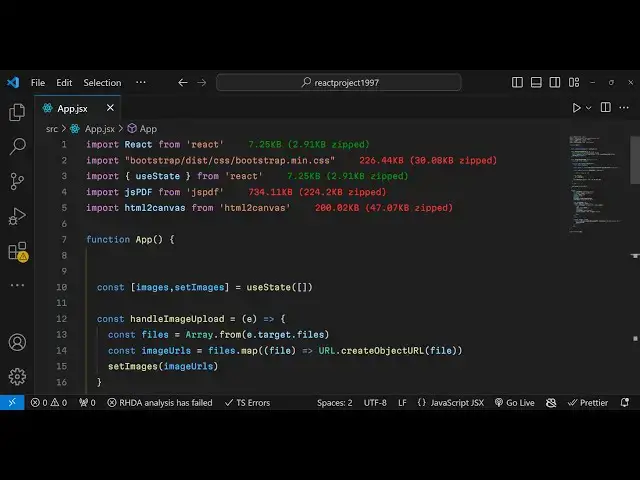
all we will have this functional
1:53
component and uh we will import
1:56
bootstrap the CSS file that we installed
1:59
is package bootstrap dis CSS
2:03
bootstrap.min.css so install basically
2:06
importing the CSS file at the very top
2:09
so we install this
2:11
package in the node modules folder you
2:13
will see this folder appearing in the
2:16
bootstrap disc we have this folder
2:21
structure so now to get started in the
2:24
HTML I already told you we will have a
2:28
input field will first all give a
2:31
bootstrap class container and margin top
2:37
four export images to
2:42
PDF we will have input type file and we
2:45
will accepting only images so images SL
2:49
star and multiple allow the user to
2:52
select multiple images and we'll be
2:54
binding an onchange event handler handle
2:58
image upload
3:00
giving a bootstrap class of form
3:04
control margin bottom F so we now need
3:07
to Define this custom
3:09
function handle image upload so here we
3:12
can
3:13
simply handle image
3:17
upload e parameter will be automatically
3:20
passed here for event parameter
3:25
so right here uh if you refresh
3:30
we will have this choose file button
3:32
so now you basically get access to all
3:35
the files the user select using aray
3:38
from e.
3:40
Target do
3:43
files and then one by one you'll use
3:45
this uh simple map
3:52
operator we basically convert this to a
3:56
object URL create object URL use it for
3:59
each file
4:01
and here we need to Simply declare a
4:04
variable for keep track of how many
4:07
images selected so use the huge State
4:11
hook of react CH so initial value will
4:14
be empty
4:15
array so it is imported here if you see
4:18
UST State
4:20
hook and now we'll set this uh U State
4:24
hook function set images to the images
4:26
URL selected here right so now we we can
4:30
simply show a live preview of all the
4:32
images selected by the user so we can
4:35
after this input field we can have a
4:38
simple div element and inside this we
4:40
can give a class here row of bootstrap
4:44
and here we'll be using the jsx right
4:46
here using a for map
4:48
operator and uh we will show this
4:54
images and we will be giving a bootstrap
4:57
class here call md4
5:02
margin bottom three giving a key
5:10
parameter then for showing the image
5:12
we'll use the image element we'll giving
5:16
a source here
5:19
attribute we giving a bootstrap class of
5:22
image
5:27
thumbnail and we will actually begin
5:29
giving some styling to this image so
5:32
width will be 100% and uh the height
5:34
will be
5:37
Auto so if you now actually select
5:40
images and you will see the SL preview
5:43
of each image
5:47
appearing you will see that each image
5:50
that you select you will see a slight
5:52
preview of which image that you have
5:54
selected and now we just need a download
5:57
PDF button just after this so that we
6:00
can export these images to PDF so we
6:03
will simply be writing some jsx so if
6:06
the images length is greater than zero
6:08
then we will show this uh download
6:11
button so we will have this download PDF
6:15
so we will simply bind an onclick
6:16
listener to this button so we give a
6:19
onclick event
6:21
handler so when we click this button we
6:24
will execute this custom function handle
6:26
handle download PDF function so we'll
6:30
give it a bootstrap class of BTN
6:33
BTN
6:35
primary margin bottom three so we need
6:37
to now actually Define this function so
6:41
handle download
6:45
PDF so I will just make this function as
6:47
async so just before starting this
6:50
function just add this keyword
6:54
async so now for
6:58
actually converting the images to PDF
7:01
it's really easy inside the JS PDF first
7:04
of all we do need
7:06
to import JS PDF it will be imported
7:09
automatically from vs code so just
7:12
import this add the import line and then
7:15
we'll be using a for
7:18
Loop using a simple for Loop images
7:22
length and for each image we will add
7:26
each image per page and uh we'll get
7:29
access to the image like this and for
7:34
each image we
7:36
will first of all draw the image on the
7:39
canvas and then take a screenshot of the
7:41
canvas so for doing this you will be
7:44
need to use HTML to Canvas Library so
7:47
you just need to add this Imports line
7:50
at the very top import HTML to
7:53
Canvas from HTML to Canvas so actually
7:58
we installed this package so we are
8:00
simply importing it and then we are now
8:03
using this package HTML to
8:08
Canvas and then here we will simply say
8:11
document. cury
8:13
selector and here you need to give it
8:15
the ID of the element so here we do need
8:18
to give it an ID so when we are showing
8:20
the images in the
8:23
browser right here we will give it a ID
8:27
attribute so it will be Dynamic
8:34
so image and then it will be dynamic
8:39
so every time this is in a for Loop so
8:42
it will be Dynamics image Dash whatever
8:46
is the number so now we need to Simply
8:49
select this image using their
8:51
IDs
8:54
so right here in the cury selector we
8:57
will simply say
9:05
Hash Hash for the ID and then image
9:14
Dash I this will get access to that
9:20
image and then we will actually use the
9:23
canvas to data URL which will convert
9:26
this image to a base 64 code and here
9:29
you need to specify the extension that
9:31
you want to we will be using the PNG
9:35
image and then we will be adding this
9:37
image to the PDF
9:41
so so here simply compare that if
9:47
I is not equal to zero then add this
9:52
image add a new page so for adding a new
9:55
page in jspdf use this method add page
9:58
this will add a new page
10:01
and then for adding the image we use add
10:04
image method you have two methods in
10:07
this this will add a new page and this
10:09
will add a new image on that page add
10:12
image so here we need to specify the
10:14
image data which is the base 64 code and
10:17
then the image type is PNG and x
10:20
coordinate 10 y coordinate 10 width 100
10:23
and uh height will be 160 you can change
10:27
all these parameters depending upon how
10:29
how you want to align the image in the
10:31
PDF after all then we need to lastly
10:34
save this file save the PDF for saving
10:37
it we use the save function PDF save and
10:40
we need to give it a file name here so
10:42
you simply say result.
10:44
PDF so this will download the PDF as an
10:47
attachment in the browser so this
10:48
completes the application and now if you
10:51
select the
10:54
images and now click the download
10:57
button you will see that the images are
11:01
converted and we see this PDF file
11:03
downloaded and if you try to open this
11:05
now you will see each image has been now
11:10
converted to the
11:12
PDF each it is appearing on a different
11:15
page so in this way you can actually
11:18
make this nice little application which
11:21
converts uh images selected to a
11:24
PDF automatically so we have used these
11:27
two libraries for this JS PDF and HTML
11:29
to canvas in react chairs so thank you
11:32
very much for watching this video please
11:34
hit that like button subscribe the
11:35
channel and do check out my website free
11:38
mediat tools.com which actually is a
11:40
open-source website for audio video and
11:43
image tools and I will be seeing you in
11:46
the next video