Up next in 10

Python 3 Streamlit Web App to Extract Text From PDF Document Using Poppler Library in Browser
Jan 9, 2025

Get the full source code of application here:
https://gist.github.com/gauti123456/7cf83a7081f070e4d2e4c189cddd32e3
Show More Show Less View Video Transcript
0:00
uh hello guys welcome to this video so
0:02
in this video we will look at how to
0:04
create a web application which allows
0:06
you to extract text from a PDF document
0:10
using Python and we'll be using popular
0:13
Library p o p l r and we also be using
0:18
pillow Library as well and uh there is
0:21
also a library called as PDF to image as
0:24
well first of all we will convert the
0:26
PDF that is selected by the user into an
0:28
image so we have this
0:31
interface we have the browse files
0:33
button so let me select my PDF document
0:36
so I will simply select the simple
0:40
sample.pdf
0:42
file and as I select the file you will
0:45
see the drop down where you can select
0:47
the actual page number so it will show
0:49
the total Pages which is there in the
0:51
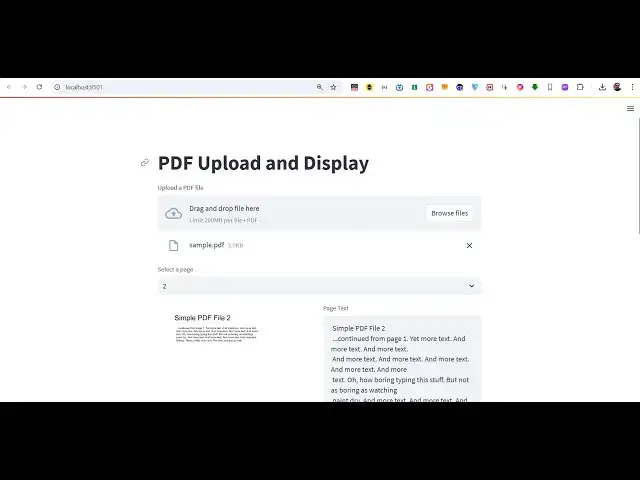
PDF document so in this case two pages
0:53
are there so you can simply select that
0:55
from the drop- down which page so the
0:59
first page if you see the live preview
1:01
is shown to me the left hand side the
1:03
PDF document page and the right hand
1:05
side we have this actual text extracted
1:08
now you can simply copy to clipboard
1:10
this text simply so you can now select
1:14
the second page so the logic is simply
1:17
that guys first of all we take the
1:19
screenshot of this PDF document page
1:22
convert this to into image and then the
1:24
image is translated into the text so we
1:27
we extract the text from that image so
1:30
we are doing the two things at the same
1:32
time we take the screenshot of the page
1:34
and then we extract the text from that
1:36
image inside python so we are using
1:38
couple of dependencies so for first we
1:41
are using PDF to image which is an open-
1:43
Source python package which allows you
1:46
to convert your PDF into an image and uh
1:50
this package you need to install it by
1:52
the PIP command pip install PDF to image
1:55
and then we also are using this module
1:57
which is pillow which is an image
2:00
processing
2:01
package which is used to read images
2:04
write images in the memory so we are
2:05
using this pillow
2:07
Library as well which is a very famous
2:09
library
2:11
and that's all and also we are using py
2:16
pdf2 Library as
2:18
well which is again a
2:21
image library or PDF Library which is
2:25
useful for doing any sort of operations
2:28
related to PDF
2:30
so also in order to build a web
2:33
application fast we are using a tool
2:36
called as streamlit streamlit is
2:39
specifically an open- Source python
2:41
framework to build out web applications
2:43
faster you may say it's a nodejs like
2:46
nodejs is used for JavaScript but inside
2:49
python if you want to build and share
2:51
data apps you can use this tool
2:53
streamlit and you need to install it by
2:57
using this command pip install
3:01
stream lit so if you're starting for the
3:04
very first time simply execute this
3:06
command to install stream lit inside
3:08
your machine so I've already installed
3:10
it so now to get started we inside we
3:13
have a simple app.py file so just create
3:16
this file and uh inside this we will so
3:20
first of all import the streamlit
3:22
dependency as St and then from the pdf2
3:27
image package we will import this
3:31
function which is available to us which
3:33
is convert from
3:36
bytes and then from the pillow Library
3:38
we need to import the image class so we
3:41
have imported all the dependencies and
3:44
at last we also need the pypdf to
3:47
package as
3:50
well and from this package we need to
3:53
import the PDF
3:56
reader class so inside this guys we will
3:59
Define our main function using the def
4:04
keyword so inside the main function we
4:07
will actually be creating
4:11
a configuration settings by using set
4:14
page config function and here you need
4:15
to provide the title of the page that
4:17
you want to set so you'll simply say
4:21
PDF to image and
4:25
text web
4:27
app very simple and then then we need to
4:30
give it the title here again the same
4:33
title we will give PDF to image and
4:38
text so if you want to see this on the
4:40
screen you can
4:43
simply start this application so in
4:46
the main function right
4:56
here you can call this main function
5:00
so if you want to now start this
5:01
application what you will say you will
5:03
simply say stream
5:05
lit run and then the name of the file so
5:09
this is actually the command streamlit
5:11
run app.py so if you enter this now your
5:15
application will start automatically on
5:17
port number Local Host
5:20
8051 so it is saying that cannot import
5:23
name PDF reader from py PDF 2 let me
5:26
check I think I made a typo mistake this
5:30
needs to be uh p and then DF is not
5:34
Capital so just make sure refresh and it
5:40
is saying that streamlit has no
5:42
attribute title sorry title spelling
5:45
mistake has happen this is
5:49
title so you can see PDF to image and
5:52
text we actually got this heading and
5:56
after you do this we need to
6:03
simply allow the user to Simply select
6:05
the PDF file so there is an widget
6:08
available inside streamlit directly you
6:11
where you can allow the user to upload
6:13
files so this is actually the function
6:15
which is file undor uploader here you'll
6:18
simply provide a label to the user
6:21
upload a PDF file and the user can only
6:25
accept the PDF files only upload so if
6:28
you refresh you will actually see a
6:30
button where the user can drag and drop
6:32
the PDF files so this is the uh the
6:35
power of streamlit guys it provides you
6:38
with predefined components that you can
6:39
use you don't need to redefine
6:41
everything from scratch it actually has
6:44
built-in component such as this one drag
6:46
and drop component so here the user can
6:49
select the files simply by selecting it
6:53
by just this one line of code so this is
6:56
why I use streamlit a lot to build out
6:59
fast web applications and then we will
7:02
check the PDF file if the PDF file is
7:05
there then we will read this so for
7:08
reading it we'll be using the PDF reader
7:10
class in py PDF 2 and passing it the PDF
7:15
file after reading it we need to show
7:17
the different page
7:19
numbers how many pages are there in the
7:22
PDF document for this will using the
7:24
range
7:25
function and then one comma the length
7:28
so you'll calculate the total number of
7:30
pages by using this property PDF reader
7:33
do
7:35
pages and then you increment it to one
7:38
so now we need to show this in the drop-
7:41
down the total number of pages so the
7:44
user can select and for this we'll be
7:47
using this select box function it will
7:49
create a select box dynamically and then
7:51
it will populate the total number of
7:54
pages so in this variable page
7:57
numbers so the selected page will be the
8:00
first page so you simply say minus is
8:03
equal to 1 so the selected page will be
8:06
one so if you see uh if you
8:10
simply
8:12
select so you will actually see PDF
8:15
reader where it is not associated with
8:17
the value cannot access local variable
8:19
PDF reader let me
8:27
check so it is saying can not access PDF
8:38
reader PDF reader PDF
8:46
reader okay okay this needs to be
8:48
capital P sorry PDF
8:56
reader so it is saying that
9:00
property has no property of length let
9:03
me
9:05
check oh sorry this needs to be PDF
9:08
reader
9:18
sorry if you now select
9:22
it has no attribute select
9:25
box St
9:34
St do select sorry this B is not Capital
9:39
here this is just a silly type of
9:41
mistake so B is not Capital so just make
9:44
sure that you write the correct code all
9:48
the source code is given in the
9:49
description so you will now see total
9:51
number of pages are two so it is showing
9:53
it in the drop down the user can select
9:56
which whichever page that they want to
9:57
select so in this way you can and
10:00
calculate the total number of pages and
10:01
show it in the select box so after this
10:05
the users select their page number we
10:08
will store that and then we'll create
10:11
this function convert from bytes we'll
10:13
use this
10:15
function to actually get the value which
10:18
the user
10:19
selects which page number the user
10:22
selects and we use this function convert
10:24
from bytes which is available inside PDF
10:26
to image so this will actually convert
10:29
the page number to an actual image this
10:32
module which convert this actual page
10:35
number to an actual image we'll store
10:37
this inside this so now we need to read
10:39
this image so for reading it you'll
10:41
create a image
10:43
variable the images selected page we
10:46
store this in this
10:49
array and then we will create a two
10:52
column column one column two in the left
10:55
column you will show the actual page and
10:57
the second column you show the image
11:00
like
11:04
this so now in the left column we'll use
11:08
the image function to actually show the
11:10
image plus the caption as well which is
11:17
uh you can simply
11:23
say the page number which is selected
11:25
page + one
11:34
and now we also need to show the page
11:36
content as well so if the page
11:39
text not in STD session
11:43
state so it's this if condition means
11:47
that if
11:48
your selected page is not in the second
11:51
column then in that case we just need to
11:54
so deset this session
11:57
state. page text
12:06
column to text area we will create a
12:10
text area on the right hand side where
12:12
we extract the text so the user can copy
12:15
to clipboard the page text height I will
12:18
set it to
12:20
800 and the value will be
12:23
simply we create this function read PDF
12:27
page
12:29
we will pass the PDF
12:33
file selected page as an argument so now
12:37
we need to
12:40
actually this needs to be passed as a
12:42
second argument such is selected page
12:46
now we need to create this function read
12:48
PDF
12:49
page so what this function will
12:53
do also you need to pass two more
12:56
function two more arguments so this is
12:58
look
13:06
like
13:08
so we defined this function read page
13:11
read PDF page and also on change on text
13:14
area change so whenever user selects all
13:17
the text we also need to copy to
13:19
clipboard we also are passing this
13:20
argument which is key which is my text
13:23
area so we need to Define these two
13:24
functions at the top so the first
13:27
function will be responsible for for
13:30
reading the
13:31
actual PDF and extracting the
13:35
text it will have the PDF file and the
13:38
actual page
13:43
number so after this in order to read
13:48
the we create a variable right here PDF
13:52
reader use this PDF reader
13:56
class contains you pass the actual PDF
14:00
file and the actual page so PDF reader
14:03
and it contains a function pages and it
14:08
select the page number and then we'll
14:10
return the actual text so it contains a
14:12
function which is extract
14:18
text it will return this so if you
14:21
refresh now you will hopefully see if I
14:24
select my PDF
14:26
document has no attribute get
14:42
value so what I will do I will paste
14:44
this main function I think I made a typo
14:47
mistake somewhere else so I just want
14:48
don't want to waste time so what I will
14:51
do in the main function all the source
14:54
code is given in the description
15:01
and also do Define the second function
15:03
where we select the
15:11
a so if you drag and drop your PDF file
15:14
you will actually
15:15
see the PDF will show on the left hand
15:18
side and the right hand side all the
15:19
text is
15:21
extracted and you can copy to clipboard
15:23
so you can select the second page same
15:26
process it will take the screenshot and
15:27
then it will extract the text so in this
15:30
simple way you inside python using
15:32
streamlet you can create a web
15:33
application which extracts the text from
15:35
the PDF document very easily so it's a
15:39
one file code you'll see that's all is a
15:43
code responsible for creating this
15:45
awesome web application so thank you
15:48
very much for watching this video If you
15:49
like this video then please hit that
15:51
like button subscribe to channel and do
15:54
visit my website free mediat tools.com
15:56
which contains thousands of free tools
15:58
related to audio video and image and I
16:01
will be seeing you in the next video
#Other
#Open Source
#Computer Education