live_tv
Livestream Starting Soon
00
Hours
:
00
Minutes
:
00
Seconds
Up next in 10

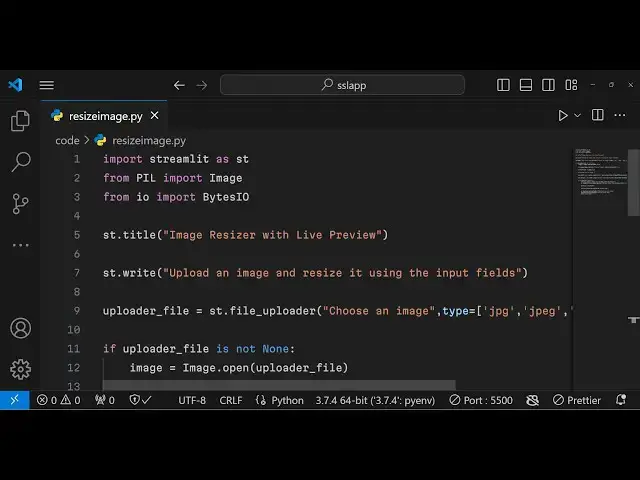
Python 3 Streamlit Project to Resize Images With Live Preview Using Pillow Library in Browser
Jan 9, 2025

Get the full source code of application here:
https://gist.github.com/gauti123456/b4d457cc79acda99321db647acb55dcc
Show More Show Less View Video Transcript
0:00
uh hello guys welcome to this video so
0:02
in this video we will look at how to
0:04
build out a image resizer application
0:07
inside uh python using pillow library
0:10
and we will be using this
0:12
streamlit open source framework of
0:15
python to build out web application so
0:17
this is actually the interface that you
0:18
can see on your screen image resizer
0:20
with live to viw so here you will drag
0:23
and drop your image
0:24
file either jpg or PNG let me select my
0:29
file
0:30
so this is actually the image that you
0:32
will see with live preview and
0:34
automatically whenever you select the
0:37
image the width original width and
0:40
height will be prepopulated in these
0:42
input Fields here you can change it
0:45
accordingly if I want to change the
0:47
width let's suppose from 900 to 300 and
0:50
the height to Let's suppose from 1,600
0:54
to 600 and there is a button out there
0:57
which resize which click and now you you
1:00
can see your image has been resized and
1:03
there is a download button which is
1:04
available if you click this button your
1:06
image will be
1:08
resized and if you see now your image
1:12
has been resized to 300 width and 600
1:16
height so in this way we will build
1:18
build out this
1:19
application inside uh Python and we will
1:23
using this uh
1:25
streamlet framework which is a fast way
1:28
to build out web applications
1:30
this is their official website
1:33
stream.io and uh it has a pre-built
1:37
component such as drag and drop we don't
1:40
need to build it from scratch and we are
1:44
using the pilo library which is actually
1:47
a python package for interacting with
1:50
images so the command is very simple pip
1:54
install pillow this is a command so just
1:57
go to your command line and just just
2:00
install these two packages pip install p
2:03
i w and
2:07
streamlit so this is a command that you
2:09
need to typ install pillow and stream L
2:13
I've already installed these two
2:15
packages so you need to create a new
2:18
file here which is resize you can create
2:21
a brand new python file so inside this
2:25
file first of all we need to import the
2:28
streamlit package s
2:32
St and then we need to import the pillow
2:35
library from P we need to import the
2:38
image
2:40
class and then from the input output
2:43
package we need to
2:45
import the byes input
2:48
output and then we need to give it a
2:51
title to this app which is image
2:55
resizer with live
2:58
preview and and then we need to Simply
3:01
write a short little description to the
3:04
user telling what to do upload an image
3:06
and resize it using the input
3:10
Fields so if you want to run this
3:13
application you will simply run this
3:15
command streamlit run and Then followed
3:18
by the name of the file so streamlit run
3:21
and the name of the file is resize
3:23
image. py so this will start your
3:25
application automatically on Local Host
3:28
8501
3:30
it is saying that from streamlit invalid
3:33
syntax line number one let me see what
3:36
is a
3:39
problem oh sorry this is import
3:42
statement guys not in from so I just
3:46
this is import statement in order to
3:47
import any module in Python we use the
3:49
import statement if you refresh
3:54
now and I think yeah import streamlet as
4:00
sorry this needs to be
4:01
as a type of
4:04
mistake and you will actually see this
4:07
title appearing and then after that we
4:10
will actually be adding this uh drag and
4:13
drop interface which this streamlit has
4:17
a predefined method file uploader here
4:19
you'll be choosing enable choose an
4:22
image and then the second argument is
4:24
the type of files that you want to
4:26
accept we need to accept uh jpg
4:30
JPEG and PNG
4:33
files so we are mentioning it in the
4:35
second argument the type array here we
4:38
only need to accept jpg jpg and
4:41
PNG and if you just refresh you will see
4:44
a drag and drop interface here the user
4:47
can upload a file and uh this is
4:50
actually one line of code and streamlit
4:53
has pre-built components for this so
4:55
this is makes it very easy to code web
4:59
application inside it and now we will
5:01
have this if condition that if the file
5:04
has been successfully uploaded if the
5:07
uploaded file is
5:10
not
5:12
none so this simply means that if the
5:14
file has been successfully uploaded in
5:16
that case we need to open the file so
5:18
for opening the file we use the image
5:20
class it does contain a open method
5:23
we'll open this image file using this
5:27
after that we need to
5:29
read this image
5:31
file and using this caption which is
5:34
original image we need to get the
5:36
dimensions of it such as width and
5:38
height and the second argument we need
5:41
to set is
5:42
use column width to be
5:47
true and then we need to declare two
5:49
variables width and height we will get
5:52
this width of the height of the image by
5:54
using image do size image is an object
5:57
which contains a size property and it
6:00
will give you the width and height
6:01
original width and height of the image
6:03
now we need to show it in the input
6:05
Fields so what we will do we use the
6:08
right function and we simply say resize
6:13
image and then we need to
6:16
calculate the new width so here the user
6:20
will actually tell you
6:23
the modified width so here we'll allow
6:26
the user the width and the second
6:30
property will be the minimum value so
6:32
minimum value will be one so the user
6:35
can provide at most one value and the
6:37
max
6:38
value will be the maximum
6:44
width that the user can provide and for
6:47
this we will set a limit here which is
6:50
3,000 after 3,000 the user can't provide
6:53
and the default value will be the actual
6:56
width of the image so we will put width
6:58
here and and step will be one so the
7:01
user can increment by one like this and
7:04
similarly for the new height variable
7:07
again we will have a number input
7:09
field this time this will be for the
7:12
height minimum value once again will be
7:16
One max value will once again be 3,000
7:20
and the default value will be the height
7:23
and step is equal to 1 so now we have
7:27
two input Fields if I refresh here
7:30
and select my image file so what you
7:33
will see if I select a file it is saying
7:37
that pil has no attribute open let me
7:40
check what is the problem
7:44
here
7:47
from
7:48
import sorry sorry this needs to be from
7:52
not
7:54
import this was a problem we need to
7:56
import from the pillow Library here we
7:59
are importing it so that was a
8:01
difference if you refresh
8:07
now okay guys I from from pillow Library
8:11
we need to import the image class and
8:14
from we need to import this one so just
8:17
make sure that you write this import and
8:19
from pH we are importing this from IO we
8:22
are importing this that's was just a
8:25
typo mistake and if you refresh select
8:28
your image
8:30
and now you will actually see the
8:32
original width of the image and height
8:34
is automatically binded you can change
8:37
these values by providing a input field
8:41
you can't provide higher than 3,000 or
8:44
less than you can't provide minus one
8:48
so if I
8:50
provide the width and height if I change
8:52
it and I should have a button to
8:54
actually resize this image so now for
8:57
showing that button what I I will show
9:00
after
9:02
this you will have a if condition right
9:04
here if the button St button resize so
9:08
if this button has been clicked by the
9:10
user then we will create a new resized
9:13
image and pillow Library does provide
9:16
you this method of resize we have this
9:18
resize method and we will provide the
9:21
new width and the new
9:25
height so you can see we are providing
9:28
desizing it to the new width and new
9:30
height and creating a new
9:33
image the resized
9:35
image and here it will be showing the
9:37
caption that it is
9:45
resized and again this property needs to
9:48
be true use column
9:55
width and now we need to show the
10:00
buff sorry this download button so we'll
10:04
use byes
10:05
iio and you will simply say resized
10:08
image it does contain a save method as
10:10
well this below Library which will save
10:13
the image file output file and here you
10:15
need to provide the second argument
10:17
which is the actual format so I will
10:20
just convert this into a BNG file so
10:22
that the user can download you can even
10:24
provide jpg as well totally depends upon
10:27
you and now to show the download Buton
10:29
button it contains a function download
10:31
button it takes four arguments first is
10:33
the label of the button that you want to
10:35
show so the label will be simply
10:38
download a resized
10:41
image the second argument would be the
10:44
actual data that you want to download
10:46
which is
10:48
buffer the third attribute will be the
10:51
file
10:53
name resized image.png and
10:57
the M type so this will be image/png
11:01
that's
11:03
all that's all that you need to do and
11:06
uh if you refresh now hopefully if you
11:08
select a image
11:11
file if you change it the values of
11:14
width and height from
11:17
500 800 click on resize you will see the
11:21
image is successfully resized
11:25
but oh sorry this needs to be file
11:27
uncore name
11:30
file uncore name just change
11:45
it so now we got this download button
11:48
the image is successfully resized and
11:51
uh I click the download button you will
11:54
see the image has been
11:57
resized so in this way you can resize to
12:00
Let's suppose 100 to 100 let me resize
12:03
to a shorter Dimension so now you can
12:05
see the image is little bit blurred
12:06
because it is resized to a smaller size
12:09
you will see so in this way you can
12:11
resize images in the browser using
12:13
pillow library inside python using a
12:16
streamlit data framework which allows
12:19
you to build a web application really
12:20
easily inside python with a short amount
12:24
of code so please hit that like button
12:27
subscribe the channel as well and do
12:29
check out my website as well free mediat
12:31
tools.com which actually contains
12:33
hundreds of open-source tools reging
12:36
audio image and video and I will be
12:38
seeing you in the next video