live_tv
Livestream Starting Soon
00
Hours
:
00
Minutes
:
00
Seconds
Up next in 10

Python 3 Streamlit Project to Export Multiple Images to PDF Using Pillow Library Web App in Browser
Jan 9, 2025

Get the full source code of application here:
https://gist.github.com/gauti123456/3840a6a62e1acbf2e39d6e2192ea0003
Show More Show Less View Video Transcript
0:00
uh Hello friends welcome to this video
0:02
so in this video we will look at how to
0:05
build out a web application inside
0:08
python which actually converts multiple
0:11
images into PDF document so we will be
0:14
using uh for this purpose the pillow
0:16
Library p i w l o w library which is an
0:20
open- Source python library for
0:23
converting images into PDF so this is
0:26
actually this web application which is
0:28
running on this for number which is
0:30
8501 so if I open this application by
0:34
visiting Local Host
0:36
8501 so this is actually the application
0:39
where we allow the user to drag and drop
0:42
images so simply the user will select
0:45
jpg or PNG images so I selected these
0:48
four images and there is a button called
0:51
convert to PDF so if I click this button
0:53
you will see this download PDF button
0:55
appears if I click this button now if
0:58
you open this PDF doc you will see four
1:01
Images have been successfully converted
1:03
into PDF document this is the first
1:05
image the second image the third image
1:08
the fourth image so each image takes the
1:10
full width and the height of the image
1:13
and it has been converted to PDF so we
1:18
will be making this application and for
1:21
building this we are using streamlit
1:23
streamlit is a very easy solution to
1:25
build web applications inside Python and
1:28
it's an open source solution and it's a
1:32
faster way of building web applications
1:34
inside python it has pre-made components
1:37
that basically helps you to get started
1:41
while building web applications so we
1:43
will be using
1:45
this so now to install this it's very
1:48
easy you just need to say pip install
1:51
stream lit
1:53
St lit this is actually the name of the
1:56
package in simply install this I've
1:58
already installed it
2:00
and also you do need to install the
2:03
pillow Library p i l
2:06
w so it's image processing Library so
2:10
also install this also so now to get
2:14
started I
2:16
will create a python file and first of
2:20
all we'll
2:24
import streamed Library by the import
2:28
statement streamed
2:30
as St and then from the pillow Library P
2:35
we need to import the image module and
2:38
from this input output built-in module
2:41
in Python we need to import byes IO so
2:45
these three packages we have imported
2:48
the first is the streamlit package for
2:49
building the web application then the
2:51
pillow Library we are importing the
2:54
image class which is used to convert
2:56
image to PDF and then the third is input
2:58
output
3:01
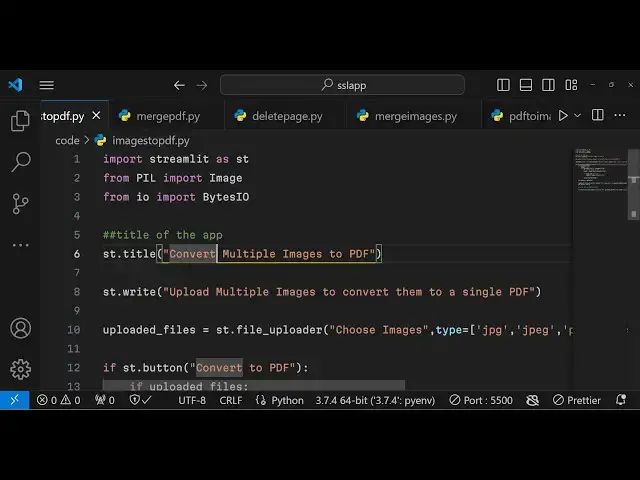
and now here we need to
3:03
Simply give the title and this object ST
3:08
which is actually the streamlit it
3:10
contains a title method which is used to
3:14
set the title of the applications we
3:16
will simply say convert multiple images
3:19
to
3:21
PDF and then here we will actually write
3:25
instruction to the user by the right
3:27
method we will simply say up load
3:30
multiple images to convert them to
3:34
PDF to a single PDF so if you want to
3:38
run this application now you will simply
3:40
run this command streamlit run this is a
3:43
command streamlit run and followed by
3:46
the name of the file so it is actually
3:48
images to pdf. py whatever is your file
3:51
name you will give this file name and
3:53
enter so it will start your application
3:56
instantly and it will give you this
3:58
heading convert multiple images to
4:00
PDF so whatever is the actual title and
4:03
that we have written a small little
4:06
description
4:07
so after that we need to allow the user
4:10
to Simply
4:14
select the images so for that streamlit
4:18
has a buil-in
4:19
component where we will allow the user
4:22
to Simply select images so you will
4:25
simply give it a title choose images and
4:28
the second argument is that type so
4:31
which images types you will allow so for
4:34
this I will allow jpg
4:36
PNG
4:39
jpeg so essentially we allowing the user
4:42
to upload jpg and PNG images and the
4:47
third argument is the accept multiple
4:50
files so this means that uh the user can
4:54
upload multiple images at once this is a
4:57
third parameter which is a Boolean
4:59
parameter
5:00
it is set to true so the user can select
5:03
multiple images so this is actually the
5:06
extensions which are allowed jpg and PNG
5:09
so if you reload you will see a prebuilt
5:13
component drag and drop component where
5:16
you can click this and drag and drop
5:18
your multiple images so you don't need
5:21
to code this from scratch streamlit
5:23
comes with this pre pre-built component
5:26
that's the advantage of using streamlit
5:28
you don't need to code from scratch you
5:30
can use these pre-built components in in
5:33
order
5:34
to develop
5:37
fast so after we do this uh now we'll
5:42
compare if condition so after the user
5:45
selects images we will have this if
5:47
condition St do
5:53
button and here we'll be having this
5:55
button if you see
6:02
we simply comparing it if this button
6:04
exist convert to
6:06
PDF if the user clicks this button in
6:09
that case this condition will value for
6:12
true and in that case we will simply
6:15
again have this if condition if the
6:17
files have been successfully selected in
6:20
that case we need to process
6:26
that so first of all what we need to do
6:29
after we do this after the user has
6:32
selected the images we need to create a
6:34
new
6:35
array images array which will be empty
6:38
by default and we will Loop through each
6:41
image using this for Loop uploaded files
6:46
and for each image we need to
6:49
convert image to
6:54
RGB so for doing this
6:59
we will first of all open this image by
7:02
using the op image class and it does
7:05
contain a method which is open which
7:07
will open this
7:08
image and here need to provide the name
7:12
of the file which is uploaded file and
7:15
then we need to convert this image into
7:17
RGB for doing this we will say if image.
7:21
mode is not equal to
7:27
RGB then in that case we need to use the
7:31
convert
7:33
method and here we need to specify RGB
7:37
which is red green
7:39
true and then after converting that we
7:42
need to append this into that newly
7:44
created arrrow that we created early on
7:46
so we will use this upend method to add
7:50
this image into this array so this for
7:53
the array that we created earlier so we
7:55
using this upend method to actually add
7:57
this image
7:59
so after we do
8:02
this we now need to create a PDF
8:08
document so this needs to appear uh
8:11
outside this for Loop so this is
8:14
actually a for Loop and this need to be
8:17
outside so the indentation is quite
8:20
important inside python so here now we
8:22
need to create a PDF document from these
8:25
images so we'll be creating a new
8:27
variable PDF buffer and you'll be using
8:30
this bytes input output you can see we
8:32
have imported this early on this is the
8:36
class that we
8:38
using and then we will simply say images
8:42
Zero
8:44
Save and we pass this PDF
8:47
buffer here you need to specify the
8:49
format so it is will be a PDF document
8:52
so it will be
8:54
PDF and this is the third property it
8:57
takes save all and because we need to
9:00
export all the images into PDF so this
9:02
needs to be true this third
9:06
parameter and the fourth one is append
9:09
images so this means that if you want to
9:12
save all the images into a single PDF
9:15
this needs to be
9:19
images One
9:21
colum so after we do
9:24
this we need to say PDF buffer do SE
9:30
zero so this means that
9:32
uh move to the first page whenever user
9:36
opens the PDF document so just show the
9:38
first page and then the second third as
9:41
as it is and also we need to also
9:45
show a download button to the
9:48
user so that the user can download the
9:50
PDF document for doing this we have this
9:53
download button method available inside
9:57
streamlit to automatically show a
9:59
download button and the label will be
10:01
download PDF and the data will be the
10:04
actual PDF document so this needs to be
10:07
PDF
10:09
buffer and the third parameter you need
10:12
to give the file name so here the file
10:14
name will be output.pdf
10:20
and also the fourth parameter here need
10:23
to need to provide is the MIM
10:26
type so MIM is equal to for a PDF
10:30
documents we have this application SL
10:33
PDF so this you need to provide so this
10:35
takes four arguments first is the actual
10:37
label of the button the second is the
10:39
actual file that you are downloading the
10:42
third one is the file name and the
10:43
fourth one is the MIM type so this
10:45
download button takes these four
10:48
arguments so if you refresh now
10:51
hopefully your application now if you
10:53
select multiple images let's suppose if
10:56
I select these four images and click on
10:58
this conver to PDF
11:01
button so it is saying that download
11:04
button got an unexpected keyword
11:07
argument file
11:11
name uh let me see sorry this needs to
11:14
be file uncore
11:16
name file underscore name just for the
11:19
error so just make this slide
11:20
modification and refresh
11:23
it and again select these four Images
11:26
click on convert to PDF and now you will
11:28
see as soon as you click the convert to
11:30
PDF there will be this download PDF
11:32
button will appear and all your images
11:35
now is converted so simply download the
11:38
PDF and your PDF has been downloaded as
11:40
an attachment you will see all these
11:43
four Images have been successfully
11:45
downloaded exported to PDF document so
11:49
in this easy way you can convert images
11:52
into PDF using pillow library inside
11:54
python using
11:56
streamlet which is a fastpaced solution
11:59
to create web applications inside python
12:02
so if you do need this source code the
12:04
link is given in the description of this
12:06
video so you can go there and thank you
12:10
very much for watching this video and do
12:13
check out my website as well freem
12:15
mediat tools.com which is an open-source
12:18
website which contains thousands of
12:20
tools related to audio video and image
12:23
check out this website and I will be
12:26
seeing you in the next video