Up next in 10

PHP FPDF Script to Add Watermark PNG & JPG Image to All Pages of PDF Document in Browser
Jan 9, 2025

Buy the full source code of the application here:
https://procodestore.com/index.php/product/php-fpdf-script-to-add-watermark-png-jpg-image-to-all-pages-of-pdf-document-in-browser/
Buy Premium Scripts and Apps Here:
https://procodestore.com/
Show More Show Less View Video Transcript
0:01
uh Hello friends welcome to this live
0:03
stream uh of this coding seure so here
0:07
basically we'll be building a PHP script
0:10
which allows you to add the watermark uh
0:14
logo image to all the pages of the PDF
0:16
document and we will be using the
0:19
library called as fpdf Library which is
0:22
a open-source PHP Library if you just
0:25
type here fpdf PHP the very first link
0:29
which comes right here it's a PHP
0:31
library and
0:33
uh it's basically a class which allows
0:36
you to generate PDFs on the server side
0:38
in PHP and uh it works without the PDF
0:42
lib Library so this is a fpdf library
0:47
that we have using right here in the
0:49
application and this is our script right
0:51
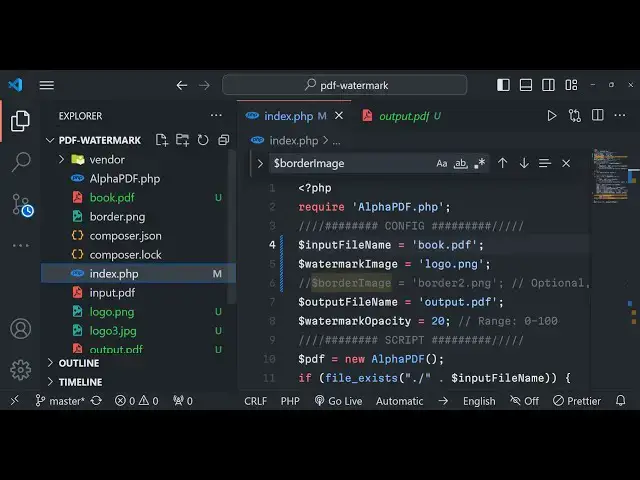
here index. PHP so let me show you the
0:54
input file right here you will see this
0:57
is actually the input file if I open
0:59
this in the browser
1:01
this is actually the input file that we
1:03
are taking 11 pages are there in the
1:05
document of PDF now I need to add the
1:09
watermark image to each and every page
1:12
in the PDF document so I can simply go
1:16
to the script and write here just here
1:19
you need to provide the input PDF path
1:22
here so I just need to write here input
1:24
PDF here so just replace your path right
1:26
here so I will simply replace the path
1:28
here and then the logo. PNG so whatever
1:31
image that you want to add right here so
1:33
my image is present in the same folder
1:36
so you will see logo. PNG if I show you
1:39
this is actually a YouTube transparent
1:41
logo so if I want to you can add your
1:43
own company logo so this is logo. PNG
1:47
and then this is actually the output
1:48
file name so this file will get created
1:51
in the same directory whenever you run
1:53
this PHP script so you can even control
1:56
the opacity as well of the watermark so
1:58
opacity is nothing but
2:00
the intensity of the watermark which is
2:03
there in the PDF document So currently
2:05
the default value is 20 you can change
2:07
it to 50 or 10 as well let me stick to
2:11
the default value which is 20 so if I
2:14
just run this PHP script as you all know
2:16
PHP is run by Apache server so you need
2:19
to have this exam control PN installed
2:21
on your system so I've already install
2:24
this if you just go to Google just type
2:27
here download exam control panel
2:31
so it's a crossplatform software it's
2:33
available for Windows Linux and Mac as
2:36
well so just need to install for your
2:38
respective operating system so I've
2:40
already installed it so you just need to
2:42
start the Apache web server simply will
2:44
start it on local host at Port number so
2:47
you just need to go to so by default
2:49
whenever you install exam it will be
2:51
installed in the C drive so just go to
2:53
the stre C drive here and it will create
2:55
a folder of examp go to the HD docs
2:58
folder and
3:01
so I've given the overall project in the
3:03
description of the video you can
3:04
directly purchase it and after you
3:06
purchase it you will actually get a zip
3:08
file from Google Drive and after you
3:11
extract the zip file inside this exam
3:13
folder you will HD dos
3:16
folder so you can simply open this
3:18
application in the browser by simply
3:21
typing Here Local Host PDF
3:24
Watermark so it
3:26
will nothing will be displayed in the
3:28
browser but if you now see a file will
3:31
be created output.pdf so you will see
3:33
that this output.pdf file is created
3:38
and if you open it inside the
3:42
browser so you will see each and every
3:44
page will have this waterm Mark of
3:46
YouTube here so you will see that this
3:49
is the second page third page fourth
3:51
page so let me modify some options right
3:55
here and rerun this PHP script let me
3:59
change this op opacity to so you can
4:00
choose the value from 0 to 100 let me
4:03
increase the intensity to 50 here
4:05
opacity and
4:08
uh again if I run
4:13
this so it will run and you will see
4:16
output.pdf will get
4:18
created this time you will see the
4:20
intensity of the watermark is increased
4:22
so you can now clearly see the water
4:24
mark So default value was good so 50 you
4:28
can control it opacity accordingly so
4:33
each and every page the waterall will
4:35
appear at the same location at the
4:37
center of the page you will see that so
4:40
it's very useful guys in many situations
4:42
if you have a large PDF document if you
4:43
want to add your own company logo to
4:45
each and every page in the PDF document
4:47
then it will be a good project you can
4:49
purchase it the link is given from my
4:51
website proot store.com so you will get
4:55
a z zip file right here and this will be
4:57
the directory structure you will get
4:59
after you extract the zip file and you
5:02
just need to run this index.php script
5:04
right here in the browser and just need
5:06
to replace your input file output file
5:09
and the logo file that you want to do it
5:11
let me now change the logo right here if
5:13
I pick any other logo and download it
5:15
from the
5:17
internet so make sure it should have the
5:20
size of the logo must be small so that
5:23
it appears correctly in the PDF document
5:25
so you can
5:28
just you can take the logo in PNG or jpg
5:31
so no problem in extension both the
5:34
extensions are supported
5:37
so so make sure that you take a
5:40
transparent logo
5:43
just so here you just need to save this
5:47
here so you will see that logo. jpg is
5:50
stored right here
6:00
so make sure that the file is
6:03
transparent
6:11
and so if I change this here logo dot
6:16
jpg if I pick this logo right
6:20
here and run
6:22
this so you will get this error right
6:25
here whenever you have changed the
6:26
extension from jpg to PNG or PNG to jpg
6:30
just inside the source code you just
6:32
need to make slide adjustment right here
6:34
you first of all just need to go to this
6:37
line
6:38
number uh 33 line number you will see
6:43
this is PNG so just if you are changing
6:45
the extension so just change it to
6:49
jpg just make the slid adjustment and
6:51
then run the code right here and it will
6:54
work so you will see this output.pdf
6:56
file is created and there is this
6:59
Facebook
7:00
logo is successfully added at the center
7:04
of the page of each
7:07
page so this is the script guys if you
7:10
are interested the script is given the
7:14
full source code is even purchase it
7:16
from my website procore.com
7:19
and you will get the zip file
7:21
automatically whenever you purchase from
7:23
Google Drive you will be redirected to
7:25
and you just need to extract it as I
7:28
told you how how to configure exam to
7:30
start the Apache server and you can even
7:33
use this code deploy this application to
7:36
a real real domain name as well and on
7:39
advertisement Revenue as well so it's a
7:42
specific tool website which adds
7:44
Watermark to the PDF document pages
7:49
so so let me just tell you some more
7:52
information about the code so I already
7:54
told you that we are actually using this
7:57
F pdf.php Library
8:00
so if you just don't know about this
8:02
Library s just type here it's a open
8:04
source Library you can read the
8:07
documentation more about this so it
8:09
allows you to generate PDF add
8:11
watermarks add different kinds of shapes
8:14
to your PDF document so we are actually
8:17
using it as a base library and on top of
8:19
that we are actually modifying it some I
8:23
just made this specific file here for
8:24
you alphap pdf. pH PHP and requiring it
8:28
at the top of the script then we are
8:30
providing the input file The Watermark
8:32
image the output file the opacity all
8:36
these things you can customize it
8:37
control it according to your own choice
8:40
and then we are instantiating a new
8:41
Constructor of this Alpha PDF file right
8:43
here and we have the if condition right
8:45
here we have setting the source file
8:47
here passing the input file name right
8:49
here in a TR catch block so if any sort
8:51
of error take place it can be cached in
8:54
this exception and we are displaying if
8:57
any sort of error take place it's a
8:59
group good practice in coding you should
9:01
have to have try catch
9:03
block and then we have in iterating
9:06
through each page here of the PDF
9:08
document using a for Loop so it will
9:10
repeat so if you have a lot of pages in
9:13
The PDF document so this for Loop will
9:15
be very beneficial we are actually
9:17
importing the Page by using the import
9:19
page method of fpdf and then we are
9:22
getting the template size we are getting
9:24
the size of each page using this method
9:27
get template size then we are adding
9:29
this page and then using this template
9:32
by using the use template method and
9:34
then we are setting the opacity by using
9:36
this method set Alpha and then
9:39
calculating these Co coordinates which
9:40
is x coordinate y coordinate the width
9:43
and the height and then we are setting
9:45
this Watermark image using this method
9:47
called as image and that's all and
9:50
lastly we are saving this output file
9:52
using the output method which is built
9:54
these are all built-in methods of this
9:56
library and on top of that I made this
9:59
file alpha. pdf.php which you will get
10:03
after you make the payment so you will
10:06
let me show you some other file right
10:08
here book.pdf so you can see it now it
10:10
contains
10:12
530 541 pages so now let me take this
10:16
example so it contains a lot of pages
10:19
let me book.pdf
10:22
book output.pdf so if I change this
10:26
opacity to
10:27
30 and
10:29
let me change the logo to back to the
10:31
original logo which was
10:38
logo.png so again run this so you can
10:40
see that the size is not a you'll see
10:44
that you again need to change it because
10:45
you changed this Watermark image to PNG
10:48
so again go to the line 33 and here
10:50
change it to PNG so you will see that in
10:53
this book.pdf it it is almost 538 pages
10:57
so again if you run this app apption it
10:59
will run instantly in 2 seconds all your
11:03
watermark will be added to all the 538
11:06
pages of the PDF document and a new file
11:08
will be created and you will see that
11:11
each page is having this Watermark all
11:14
the 5 38 pages is instantly being
11:17
watermarked with this simple image so
11:21
you no need to use third party websites
11:23
or third partyy softwares you can build
11:25
your own application in PHP and uh if
11:28
you're interested guys you can purchase
11:31
this project and thank you very much for
11:34
watching this live stream and I will be
11:36
seeing you in the next live stream until
11:39
then thank you very much