live_tv
Livestream Starting Soon
00
Hours
:
00
Minutes
:
00
Seconds
Up next in 10

Node.js Poppler Example to Export All Pages of PDF Document as PNG & JPG Images Using pdf-poppler
Jan 9, 2025

Buy Premium Scripts and Apps Here:
https://procodestore.com/
Show More Show Less View Video Transcript
0:01
uh hello guys welcome to this uh live
0:03
stream so in this live stream I will be
0:06
talking about a very special library in
0:09
nodejs which allows you to actually
0:12
convert your PDF document so this is an
0:17
example taking here this is my PDF
0:19
document it contains two pages this is
0:21
the first page this is the second page
0:23
so this Library
0:25
popular. JS it allows you to take
0:28
screenshot of every page of the PDF
0:31
document and save it as a PNG file like
0:34
this so This is actually a PDF file
0:37
which contains four pages this is the
0:39
first page second page third page and
0:41
fourth page and now we have actually
0:44
having these images right here you can
0:46
see that it is individual images of
0:48
individual pages so if you want to take
0:52
screenshot of a particular page in the
0:54
PDF document and save it as a PNG file
0:57
or JPG file you can use this script that
1:00
I will show you in this video and for
1:02
this specific task guys we are actually
1:04
using a library called as
1:08
p p l e r if you just type it on Google
1:14
it's a python library but it also has a
1:18
nodejs uh wrapper that you can use I am
1:22
using this PDF Das popular this is the
1:25
package we are using it for building
1:28
this nodejs application
1:31
and it simply does it simply convert
1:34
your PDF files into images using the
1:37
Base Library of popular with promises it
1:40
achieves 10x faster performance compared
1:42
to other PDF converters so uh if you
1:46
want to do this uh convert your PDF
1:48
individual pages to PNG images or jpg
1:51
image you can use this package npmi PDF
1:54
popular just make a simple nodejs
1:58
project and just type this command npmi
2:01
PDF d p o p l e r npmi PDF D popular I
2:08
already installed this Library it's a
2:10
newly Library 2,000 weekly downloads are
2:13
there so now I will show you a very
2:16
basic example of how to use this Library
2:19
so we will actually be looking at an
2:22
example right here I will show you step
2:24
by step how I develop this so each line
2:29
of code I will explain
2:32
you so let me just copy this code right
2:39
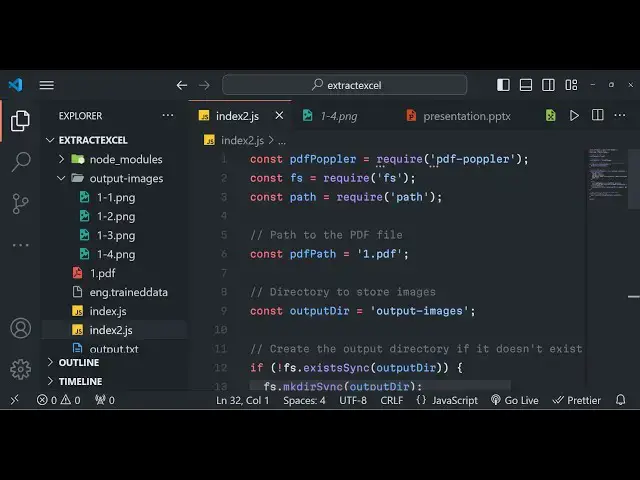
here so just make a index. GS file guys
2:44
inside your nodejs
2:47
project so at the very top we need to
2:50
import that Library PDF
2:53
popular and from that we need to require
2:56
this so we are requiring it at the very
2:58
top PDF Dash popular so this is actually
3:02
the package that we are using right here
3:05
after that we also need to import the
3:06
built-in module of file system in order
3:10
to save or read files so nodejs has a
3:14
built-in module file system also we need
3:16
to import the built-in module path
3:19
module as well we need to require it so
3:22
it's again a buil-in module so we have
3:23
required all the dependencies now we
3:26
need to Simply tell the path of the PDF
3:29
document where it is present so now it
3:32
is in my case it is present in the same
3:34
directory so we are taking this example
3:36
1.pdf it contains four pages so what I
3:40
will do is that I will simply provide
3:42
the path here which is 1.pdf so we are
3:45
actually processing this PDF file and
3:47
now here we need to tell the directory
3:50
wherever you need to create the
3:51
directory to
3:53
actually store the images which will be
3:57
created so here I will simply create a
4:01
variable which will say output directory
4:04
so I will simply create it in the root
4:06
directory this folder will be created
4:08
output underscore images so whenever you
4:11
execute this node jscript a folder will
4:14
be created Now to create that folder we
4:17
need to write some code right here so
4:19
here we will simply tell that create the
4:21
directory if it doesn't exist so if the
4:25
directory doesn't exist for the very
4:27
first time we need to create the
4:28
directory so so now to create the
4:30
directory we will simply check this
4:32
condition that if file system do
4:36
exist syn so this simply means that if
4:39
this directory exist then if this
4:42
directory don't exist because we put
4:44
this not symbol right here so if this
4:47
condition returns to be true if the
4:50
directory doesn't exist in that case we
4:52
will make this directory by using this
4:54
make directory sync me method and here
4:58
we will provide the address output
5:00
directory so this directory will be
5:01
created if it doesn't exist if if this
5:05
condition turns out to be true in that
5:07
case we will create this directory
5:09
output uncore images so after you do
5:12
this guys we now need
5:15
to uh make
5:19
basically uh make a method to
5:23
actually export PDF to image so for
5:27
doing this we will actually make a
5:29
simple function which will carry out
5:31
this process so we will simply call this
5:34
convert PDF to images so this will be a
5:39
async function and this function will
5:41
expect a PDF path and the output
5:44
directory these two arguments will be
5:46
passed to this function so we are
5:48
expecting this it will be an arrow
5:50
function so here you will see that guys
5:53
uh we have defined a function right here
5:55
it's Asing function we are basically
5:57
expecting these two arguments to be we
5:59
passed to this function which is
6:01
actually the PDF path and the output
6:03
directory so so these two things we will
6:05
need to pass it so now we need to
6:08
actually call this
6:09
function before so now to call this
6:13
function we need to make our main
6:17
function as async like this so here we
6:21
will simply call await and then we will
6:23
simply say convert PDF to images and
6:26
here we will pass the PDF path and the
6:28
output directory that so these two
6:30
things we are passing and then we'll
6:32
simply call the main function so this
6:34
main function will get called first of
6:36
all and then it will call this function
6:37
convert PDF to images passing the PDF
6:40
path and the output directory these two
6:42
things as argument right here you'll see
6:44
that so now we need to Define this
6:46
function guys so inside this function
6:49
what we need to do right here we need to
6:51
first of all Define the options object
6:54
so this options object basically
6:57
contains what is the format that you
6:59
want to convert so I need to convert
7:01
them into PNG images you can even say
7:04
here jpg webp so by default it is PNG so
7:08
I will stick to the default options
7:11
output directory I will need to set the
7:13
output directory whatever output
7:15
directory that you will pass as this
7:16
function argument so like this out
7:20
uncore prefix if you want to set any
7:23
prefix you can say path. base
7:26
name and then PDF path path. extension
7:33
name PDF path this will be the
7:37
prefix of all the images which will get
7:40
created and lastly page number is none
7:44
by default but these are the four
7:46
different options that you need to set
7:47
guys so just set this options object
7:51
right here the format of the image
7:53
output directory output prefix and the
7:55
page number so this we have set after
7:58
that we need to R act export the PDF
8:02
pages one by one to PNG images so for
8:05
doing that we will use the try catch
8:08
block so if any sort of error take place
8:11
you can simply console log the error
8:13
message so if you're liking it guys
8:16
please hit that like button subscribe
8:17
the channel as well so you can see that
8:19
it's a async function so now we can
8:22
simply use it a wait keyword right here
8:24
and right here you'll call the PDF
8:27
popular Library that we imported at the
8:30
very top PDF popular and it contains a
8:34
method called as convert and here you'll
8:37
pass the PDF
8:39
path and the options like this so we can
8:44
after that we can console log a simple
8:46
message that PDF converted to images
8:50
successfully it will create that folder
8:52
and all the pages will get have
8:55
individual images that's all guys this
8:57
is all that we need to do inside this
8:59
app application very simple application
9:01
now if I run this application you will
9:03
see on the left hand side node
9:07
index.js so a PDF converted to images
9:10
successfully this folder is created
9:12
output uncore images you will see that
9:15
this is a first image first page second
9:18
page is converted to this image you can
9:20
see that you can zoom in zoom out this
9:24
is a second image this is a third image
9:27
this is a fourth image so all the four
9:29
pages in The PDF document that you see
9:31
we have taken this example of this PDF
9:33
document if I open it in the browser
9:36
this is the first page second page third
9:38
page fourth page and you can even check
9:41
the quality of the images that are done
9:43
guys the quality looks tremendous and
9:48
it's this library is very awesome it
9:50
does the job to you if you need a
9:52
screenshot of any PDF document page you
9:54
can use this library and script that I
9:56
showed you step by step guys please hit
9:58
that like And subscribe the channel as
10:00
well and I will be seeing you guys in
10:03
the next live stream until then thank
10:06
you very much
#Programming
#Other