live_tv
Livestream Starting Soon
00
Hours
:
00
Minutes
:
00
Seconds
Up next in 10

Javascript Popup Boxes API to Create Alert,Prompt and Confirm Dialogs For User Input in Browser
Jan 9, 2025

Buy the full source code of application here:
Show More Show Less View Video Transcript
0:00
uh Hello friends welcome to this video
0:02
so in this video we'll be looking at the
0:05
popup boxes different kinds of popup
0:07
boxes alert boxes which is supported by
0:10
JavaScript natively without using any
0:12
sort of Library so there are three types
0:15
of uh dialog boxes or popup boxes inside
0:19
JavaScript the first one is the actual
0:21
alert box which you actually show the
0:26
user for any task related for any
0:30
message if you want to show the basic
0:32
alert box so how to do this we simply
0:35
write Alert in the
0:37
browser directly if you see you write
0:41
the
0:42
message whatever message that you want
0:45
to show to the user hello world this is
0:47
a
0:49
simple alert message so this will
0:54
actually show to the user if you refresh
0:56
the page you will see this message there
0:59
will be this
1:01
button so natively JavaScript supports
1:05
these alert dialogue boxes popup boxes
1:09
the second type of
1:12
uh dialog box which is supported by the
1:15
user if you want to take or if you want
1:18
to take some user input so if you want
1:21
to take a user input from the user let's
1:24
suppose we want to take the username so
1:27
we actually have this input user
1:31
uh dialog box so here the user will
1:34
enter some their answer so we simply ask
1:38
the username enter the
1:42
username so if I just show you on the
1:47
right hand side you will see this if I
1:49
refresh
2:01
let me just refresh
2:03
it it's saying that input is not defined
2:07
okay I think this is
2:12
uh not input I think I'm misspelled
2:21
it okay this is prompt not input it is
2:26
prompt p r o m PT so you will actually
2:30
see the so now you have this nice little
2:34
input field where the user can enter the
2:36
input in the alert box and this is
2:39
natively supported so here the user will
2:41
enter their response there will two
2:42
buttons out there okay and cancel if you
2:45
click the cancel button then you will
2:48
cancel the
2:49
prompt if you write some things right
2:52
here and click on okay if you want to
2:54
capture this username then you will
2:56
simply save this if condition if the
2:59
user has has written something then we
3:02
can simply say in the alert
3:05
box your username is and then we
3:10
concatenate the response which is coming
3:12
which is
3:14
username and then in the else blog if
3:16
the user has clicked the cancel button
3:18
then we can simply show you have clicked
3:22
the cancel
3:24
button so now what happens if you
3:26
refresh the browser if you write some
3:29
username
3:30
click we have written John right here
3:33
and click on okay you will see this your
3:35
username is John so whatever the user
3:37
has submitted they have simply seen it
3:40
in the alert box so now let's suppose if
3:43
I click the cancel button if I don't
3:46
enter anything you will now see you have
3:49
clicked the cancel button so in this way
3:52
you can capture the user input in the
3:55
alert box using the
3:57
prompt method the third type is the
4:01
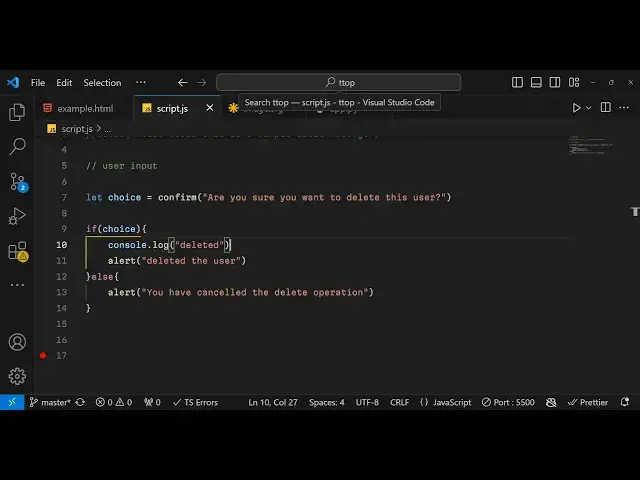
confirm message so now let's suppose if
4:04
you want to confirm the
4:07
user their choice so there is also a
4:11
confirm dialogue box which is available
4:14
which again has two buttons okay and
4:17
cancel this is specifically used for
4:19
those scenarios if you are making some
4:21
kind of operation and if you just want
4:23
to get a confirmation from the user so
4:26
in this case we can simply ask a user
4:28
are you sure
4:30
you want to
4:33
delete this user so this will be a
4:36
simple question mark they're simply
4:38
asking the user if they want to delete
4:40
this user So based upon the answer the
4:43
choice either it will be true or false
4:46
whether the user deletes or click the
4:49
okay button so you'll simply say the
4:51
user clicks the okay button then it is
4:56
deleted deleted the user in the alert
4:59
box
5:00
if they click the cancel button then
5:02
you'll simply say you
5:04
have cancelled the operation the delete
5:10
operation so if you refresh now you will
5:13
actually see this confirm button are you
5:16
sure you want to delete this user you
5:18
have these two buttons If I click the
5:20
cancel button you will see you have
5:22
cancelled the delete operation once
5:24
again if I click the okay button you
5:26
will see deleted the user so in this L
5:30
we have three dialogue boxes alert
5:33
confirm and prompt to take user input so
5:37
natively JavaScript support these three
5:40
types of alert boxes and uh without
5:43
using any sort of Library so this for a
5:46
short little mini C course on it so
5:50
thank you very much for watching this
5:51
video and do check out my free mediat
5:53
tools.com website which contains free
5:56
media tools regarding audio video and
5:58
image and thank you very much for
6:01
watching this video
#Programming
#Software
#Scripting Languages