Up next in 10

Javascript Google Maps & Reverse Geocoding Example to Add Markers & Popup Window With Location
Dec 10, 2025

Buy the full source code of application here:
https://procodestore.com/index.php/product/javascript-google-maps-reverse-geocoding-example-to-add-markers-popup-window-with-location/
Show More Show Less View Video Transcript
0:00
Uh hello friends, today in this tutorial
0:02
I will be showing you that how to add uh
0:04
markers and info window inside your
0:06
Google map dynamically while you scroll
0:09
the Google map. So you can see that this
0:12
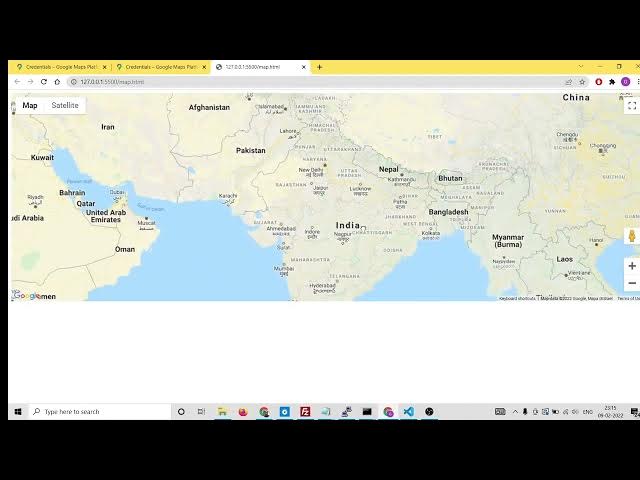
is a Google map which is loaded on the
0:14
screen and let me uh go full screen
0:17
here. So basically if you go to any
0:19
location inside it Google map you can
0:22
add a red marker. Let me add this
0:24
marker. You will see this marker is
0:26
added. You can add this at any location.
0:29
You can see that if I and if I click on
0:32
this red marker to get more information
0:34
about that marker. I can click this and
0:37
it will show me the full location that I
0:39
have put the marker on on the Google
0:42
map. So this is info window. You can see
0:45
that it gives detailed information about
0:48
the full address that I have marked on
0:51
the particular location. You can also go
0:53
down as well and then mark like this.
0:55
You will see
0:58
on a particular location just
1:01
you will get all this information. So in
1:05
this easy way guys you can add markers
1:08
as well as info window using Google maps
1:12
JavaScript API and also reverse
1:14
geocoding API. So we are converting this
1:16
latitude and longitude
1:19
into actual address. So we will also be
1:21
using reverse geocoding API of Google.
1:24
So this will be a complete tutorial. So
1:27
make sure that you watch it till the
1:29
last. I will be explaining you each and
1:32
everything about this how to achieve
1:35
this effect. How to do this inside your
1:37
application. So let's start building
1:39
this application. And if you want to
1:41
download all the source code regarding
1:43
this, I have given the link in the video
1:45
description. So where I have written all
1:48
the source code I have provided you.
1:50
This is the only source code that you
1:52
will need. Simple index.html HTML file
1:55
and just go to the video description
1:56
link to follow along with the video. So
1:58
now let's get started guys. So before
2:00
moving on, you need to create a API key
2:03
inside your cloud developer account. So
2:07
make sure that you
2:10
do this stuff before watching this. Let
2:12
me guide you how to do that. So you need
2:16
to create your Google Cloud Console
2:18
account. So if you go to just go to
2:20
Google and type here Google Cloud
2:22
Console
2:23
account.
2:25
So just sign up for a new account if you
2:28
don't have one. After successfully
2:30
signing up, you just need to link your
2:32
credit card and then you need to go to
2:34
go APIs preview
2:36
and after that you need to enable your
2:38
Google map API. Just click on enable
2:41
APIs and services and then enable this
2:45
map JavaScript API. So I have already
2:47
enabled it. And uh the second API that
2:50
you need to enable is reverse geocoding
2:53
API.
2:56
So if you search for this API, this will
2:58
be the geocoding API. You also need to
3:00
enable it. So I have already enabled it.
3:03
After that you need to create your API
3:05
key. Simply go to the dashboard and here
3:08
you will click create credentials.
3:11
So this window will come.
3:14
So after that you need to click create
3:16
your just click create credentials and
3:19
create your API key. So use your own API
3:22
key. Don't use my. So after that guys
3:25
just go to the video description link
3:27
and copy paste the script tag. This will
3:29
automatically have the script tag. This
3:31
is the actual library. Include your own
3:33
API key. And after that inside our body
3:37
we will have our uh simple map. So we
3:42
will give it a div here and we will give
3:44
it a id of map. Inside this we will give
3:48
it a style attribute
3:51
or we can add uh a stylesheet. Simply we
3:55
will target this div
3:58
and we will give it a width of 100%.
4:02
And uh height of 500 pixel. That's it.
4:06
And now we can write our own JavaScript
4:08
to load this map on the screen. So it is
4:11
very simple.
4:12
So what you need to do is that
4:16
you need to provide some options. So we
4:18
need to write this code inside window
4:20
dot
4:22
onload event. So when the all the
4:26
elements are loaded properly, this
4:28
callback function will execute.
4:30
And inside this function, we need to
4:32
first of all provide the map options.
4:39
So we can store these options inside a
4:41
object. So this will be a object. So
4:44
here you can provide uh the center
4:48
center will be
4:51
you can provide a latitude and longitude
4:54
like this google dot maps dot
4:59
uh
5:01
lat
5:04
longitude. So this is a method and here
5:06
you can pass latitude and longitude of
5:09
any location. So I will pass this
5:11
latitude which is 20 point 21.0000
5:17
comma then the longitude which is
5:19
78.0000
5:24
and then you can also provide the zoom
5:26
level how much zoom that you want. You
5:28
can customize these options. And then we
5:31
will have the map type id.
5:36
So this also supports many options. So
5:38
but I will take this option which is
5:42
google.maps dot map type id dot this is
5:47
a constant which is road map. We will
5:49
display the road map. After having these
5:52
options now we will display this map. So
5:55
we will instantiate a new instance of
5:58
the map library. So we will say new
6:02
google.maps dot
6:05
map. And here we need to pass the id. So
6:07
we have given this uh div id which is
6:12
map. So we need to simply pass this id
6:15
and plus comma and then we need to pass
6:18
the options that we created. So simply
6:20
pass the options. And now basically if
6:23
you refresh it if you open this you will
6:25
see this map here which is 100% widen
6:29
and uh this the height is 500. So
6:32
basically if I want to click this
6:34
nothing will happen because I haven't
6:36
written the code. So now we need to add
6:38
the code. So if I click on this map
6:42
a automatically a red marker will be
6:44
added. So let me try this how to do
6:47
this. So we will now write this code
6:50
which will actually add the marker red
6:53
marker.
6:54
So add the marker when clicked. So there
6:59
this also supports many event listeners.
7:02
So whenever you click the map this
7:04
automatically fires this uh callback
7:06
function which is google.maps
7:09
doevent
7:11
dot addlister. So we are writing this
7:15
code here. Whenever we are passing the
7:18
map that we created here you can see we
7:20
have created this map. So we are passing
7:21
it. So whenever you plus comma whenever
7:24
you click it so there is a click event
7:27
and then this call back function will
7:29
execute very simple and inside this
7:32
information you can just uh add this
7:35
marker. So first of all we need to get
7:37
the location of the where the uh user
7:41
has clicked. So in order to get the
7:43
location the E parameter which is passed
7:46
here event we can get this latitude
7:49
longitude using lat le.
7:53
So this will get latitude and longitude.
7:56
So basically if I console of this you
7:59
will see anywhere I click it.
8:02
So basically if I refresh it, if I
8:05
inspect element, go to console.
8:12
So if I click it, so it is saying
8:20
let me see what is it is saying SSL is
8:22
required to perform this operation.
8:25
Let me see.
8:29
Oh sorry just make it as HTTPS guys.
8:32
just made it https.
8:34
So that is why it was not working. So
8:36
once again if you load this.
8:40
So if if I click anywhere inside the map
8:42
it will not return anything. Let me see.
8:54
Let me add this location. Let me add the
8:56
marker first. So
9:01
just make the marker variable and uh
9:04
inside this we will initialize new
9:06
Google dot
9:08
maps dot marker. So basically in order
9:11
to add a marker this takes some options.
9:14
The position
9:18
is equal to
9:20
location
9:24
map will be equal to map. That's it.
9:28
So
9:31
now we should be having a red marker.
9:34
Let me see if it adds or not. Open with.
9:41
So I think it is not added it.
9:44
You will see undefined is coming here.
9:47
Let me check here why it is coming. You
9:49
can go to my video description link.
9:51
Here I have given all this code.
9:55
Uh Google
10:02
let me see guys what is the error. Uh
10:04
guys there was a very simple error that
10:07
I made here. So this latitude longitude
10:10
this I put this L as small. This needs
10:13
to be capital L which is lat and
10:15
longitude. So just make it capital L.
10:18
And now basically it will if I just uh
10:21
refresh my browser if I click any
10:24
location you I will be able to add
10:27
markers. You will see I can click any
10:30
location
10:32
and in the console it will show me these
10:35
locations. So all these location
10:37
latitude longitude.
10:40
So in this way you can add the markers.
10:46
So I can also get the latitude also. So
10:49
I can store this in latitude. So we can
10:52
uh get the latitude using marker dot get
10:56
position. This is the method. And from
10:59
this we can get latitude which is
11:00
latitude again method. Longitude in the
11:04
same way we can get marker dot get
11:05
position
11:07
and then longitude. So we can now
11:10
console log it latitude and longitude.
11:16
So we can just remove this. So again
11:20
open this. So if you click any location
11:24
and if you check the console now it will
11:26
tell you the latitude and longitude.
11:28
Latitude longitude. So with the help of
11:30
this information we can display the
11:32
address. We can extract it from the
11:35
reverse geocoding API and display it
11:37
inside the info window. When we click on
11:39
the marker it should display inside the
11:41
info window.
11:44
So
11:47
now we can uh
11:50
get the city name
11:53
from reverse geocoding API.
11:58
So for this guys we need to make a ajax
12:01
request. For that you need to include
12:03
jQuery. So just include that jQuery CDN
12:06
right at the top of the application.
12:08
After that we can use the
12:11
dollar. Ajax method. Inside this we will
12:14
write method to be post and here we will
12:17
write the URL. URL will nothing be very
12:20
simple URL. If you go to the video
12:22
description link I have given that URL.
12:26
This is a URL.
12:30
So simply copy this URL and paste it
12:33
inside your application. So we are
12:35
calling you can see we are calling the
12:36
geocoding API and uh inside your
12:40
latitude longitude.
12:42
So just make this back tick symbol.
12:47
So we are passing the latitude and
12:49
longitude which we have calculated. We
12:51
are passing it dynamically. And here we
12:53
need to paste your API key. So just go
12:55
to your uh dashboard. So wherever you
12:58
stored this simply copy your API key.
13:00
Paste it here.
13:03
paste it and uh put a comma.
13:09
So at the end of this video I will
13:10
delete that API key. So don't use that.
13:13
So after that
13:16
we will have the success call back. So
13:18
when the data is returned to us so this
13:20
will be contained inside it. So we can
13:23
have this data data dot results zero dot
13:27
formatted address.
13:30
So basically this is a value which which
13:33
we need to print. So this is actual full
13:36
address. So now basically if you open
13:39
this with live server if you make any
13:42
sort of location here if I check here in
13:44
the console you will see the location
13:46
here. It will have the full location. If
13:49
you just here
13:51
if you go to just zoom it and now you
13:54
can see the location. So we are
13:56
successfully calling the reverse
13:58
geocoding API and getting the full
14:00
address from the latitude and longitude.
14:02
So now we need to simply display it
14:04
inside the pop-up window.
14:07
So
14:09
here we will add the popup window
14:14
inside Google map. So for that we again
14:18
have to use the events. So Google dot
14:22
maps doevent dot
14:25
addlister
14:27
and inside this we need a marker event.
14:30
So when we click the marker so here we
14:32
are passing marker. So when we click the
14:35
marker the second argument will be click
14:37
this call back function will execute
14:40
holding the e parameter.
14:43
So here we need to add the info window.
14:45
So info window we will create the
14:47
variable
14:49
and this will be new google.maps dot
14:52
info window.
14:56
So I need to be capital. So just make it
14:59
capital
15:01
and this takes some options guys. So the
15:03
first option is the actual content that
15:06
you need to print out. So the actual
15:08
content is the full address. So we can
15:10
pass this location data.s0 results zero
15:14
dot formatted address just that
15:18
and after that guys we just need to open
15:22
this info window. So we can just say
15:25
info window dot open. We will use the
15:30
open method and here we will pass the
15:32
map variable and the actual marker which
15:35
was clicked. That's it. So this is the
15:37
whole application. If I try to open this
15:40
with live server and here let me make it
15:43
full screen. So here if you go to any
15:45
part of the world and let me try this
15:47
marker.
15:49
Let me add a bunch of markers here. And
15:52
now I if I try to hit a individual
15:54
marker
15:58
so let me see why it is
16:04
so it is saying data is not defined. So
16:06
oh sorry let me store this location. Let
16:09
me declare a variable here. location
16:13
address
16:16
variable at the very top and store it.
16:22
So location
16:23
address.
16:26
So we are storing it and then we will be
16:30
initializing it location address. That's
16:33
it. So now once again repeat this.
16:38
If you add a bunch of markers here, if
16:43
you click on the individual marker, just
16:45
go inside it.
16:50
You will see it will print out the full
16:52
address.
17:00
Just add this.
17:02
You will see
17:05
in order to close this you can click on
17:07
the cross button to close out this info
17:10
window
17:14
you can see that
17:19
the full address is printing out. So
17:21
this is the way by which you can add the
17:22
markers red markers and info window with
17:25
full location using Google maps API and
17:28
reverse geocoding API in JavaScript. So
17:31
thanks so much guys for watching this
17:32
video. If you like this video then
17:34
please hit the like button, subscribe
17:35
the channel and I will be seeing you in
17:38
the next video.