live_tv
Livestream Starting Soon
00
Hours
:
00
Minutes
:
00
Seconds
Up next in 10

Javascript Google Maps API to Render Maps With Autocomplete Search Field Using Places API in Browser
Jan 21, 2025

Get the full source code of application here:
https://codingshiksha.com/javascript/javascript-google-maps-api-render-maps-with-autocomplete-search-field-using-places-api-in-browser/
Hi Join the official discord server to resolve doubts here:
https://discord.gg/cRnjhk6nzW
Visit my Online Free Media Tool Website
https://freemediatools.com/
Buy Premium Scripts and Apps Here:
https://procodestore.com/
Show More Show Less View Video Transcript
0:00
uh hello guys welcome to this video so
0:02
in this video I will show you how to
0:04
integrate the Google Maps API inside the
0:08
browser using HTML CSS and JavaScript
0:11
and actually add markers as well so we
0:13
are displaying this Google Map and as
0:15
soon as I click on a particular location
0:17
in the map I will be able to add markers
0:20
like this so these red markers will be
0:23
there so we can zoom the map we can
0:26
navigate through dragging the map here
0:29
and at whichever location I clicked it
0:31
and this red marker will be added I will
0:34
show you the code here which is
0:35
responsible for integrating the Google
0:37
Maps
0:38
API and
0:41
uh first of all you can also go to the
0:44
description to follow along I written a
0:46
complete stepbystep blog post I've
0:48
written the complete source code is
0:51
given so you can go to the description
0:52
so now to get started you need to go to
0:55
your Google Cloud console and inside the
0:59
Library section you need to enable a set
1:02
of apis so the first API you need to
1:04
enable is Google Maps JavaScript API so
1:08
if you just type here Google Maps
1:11
JavaScript this API comes here M Maps
1:14
JavaScript API uh you just need to
1:17
enable this API I've already enabled
1:19
this you will see that and the second
1:22
API you need to enable I think yeah
1:26
that's the only API that you need to
1:28
enable and then you can create create
1:30
your API Key by going to apis and
1:33
services and
1:35
credentials and simply click on create
1:37
credentials and API key I've already
1:39
created one API key so this is my API
1:42
key so I will simply copy this and now
1:45
to create this application uh just
1:47
create a simple index.html file and just
1:50
I will simply Write the basic template
1:53
and I will change the title Google Maps
1:55
API
1:58
example and and also you will see inside
2:02
this application I'm also integrating
2:04
the Google Places autoc complete as well
2:07
so if you just
2:09
refresh you will see this autoc complete
2:11
search field will also be there and we
2:13
will able to uh search for places as
2:17
soon as I type here you will see the
2:19
places will come right here so Google
2:21
places so as soon as you select a place
2:24
just will add the marker right here add
2:27
the selected place so I selected o which
2:29
which is there in New Zealand so it's
2:31
actually added this marker red marker
2:34
similarly if I select any other place
2:37
Sydney you will see that now it will add
2:39
this markers so we also need to
2:41
integrate this autocomplete search API
2:43
which is actually integrating with
2:45
Google Places API and as you can select
2:48
the places with this nice little drop
2:51
down that it has
2:55
so you can see that
2:58
so now to get started uh you just need
3:01
to create a basic index.html file and
3:04
just write Google
3:08
Maps and places
3:11
API example and after this you need to
3:15
actually paste the
3:17
CDM which is required for this
3:19
application and first of all we are
3:22
using jQuery so we are simply pasting
3:25
the CDN of jury so I will simply paste
3:28
it
3:31
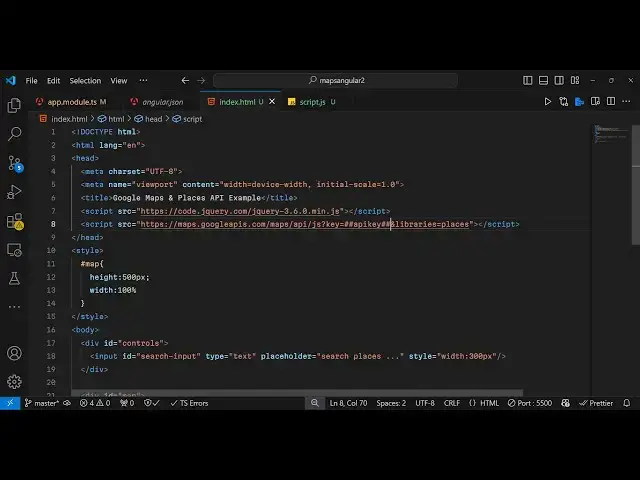
and then we will paste the CDN for the
3:34
Google Maps API and the places API so
3:37
with this CDN you will see HTTP maps
3:39
googleapis.com maps API JS and here
3:43
inside your API key you need to replace
3:46
it so whatever is your API key you will
3:49
copy this and after this key parameter
3:52
you just need to paste your API key so I
3:55
have already pasted my API key and here
3:57
we are loading the libraries which is
3:59
the place his API that's all this is the
4:02
CDM and now we will simply have a div
4:07
tag I will just give it an ID here of
4:10
controls and here you'll be having an
4:13
input field I will just give it an ID
4:16
search
4:17
input and uh this will be of uh type is
4:22
equal to
4:25
text and placeholder will be search
4:28
places
4:33
and I will just give it a style here
4:35
which will be a width of 300 pixels so
4:39
we have just added this simple input
4:40
field where the user will write the
4:43
places autocomplete
4:45
API so after this we will also show the
4:49
map just after
4:52
this you have div right here and I will
4:55
just give it an ID here of map so here
4:58
we will dynamically be showing the map
5:00
here so now we will write our JavaScript
5:02
code so for this I will just make a
5:05
simple file here script.js so right
5:08
inside your directory just make a script
5:10
or JS file so here you'll be making the
5:14
JavaScript code so we will use the
5:16
document. ready function of jQuery so as
5:20
soon as all the elements are loaded then
5:22
we need to actually create some
5:24
variables map autoc complete and
5:26
selected marker and after this
5:30
now we need to
5:31
initialize the map here for this I will
5:34
just create a custom function which is
5:36
init map so this function if you see we
5:39
are calling this function and now we
5:42
just need to Define this function which
5:43
is init map so you can write anything
5:46
right here let's suppose I say hi hello
5:50
and if you refresh right
5:52
here you will see this alert message
5:54
with printed out hi hello so as soon as
5:58
we load the page we are loading this
6:00
function in it map so inside this
6:02
function now we need to define the
6:03
actual map and display it inside the
6:06
browser for displaying the map it's
6:09
really easy first of all here we need to
6:11
Define the initial
6:13
coordinates where the marker where the
6:18
map will be located so here you can
6:21
provide the latitude and longitude of
6:23
whichever location that you want to put
6:25
the marker so this is latitude longitude
6:29
so each location in the map has this
6:31
coordinates and now you'll be
6:33
instantiating a new instance of the map
6:36
like this so Google we have this new
6:42
Google maps. Map and here we will pass
6:46
the
6:47
reference document. get element by ID so
6:51
we have given if you check in the HTML
6:53
we have given this ID here we are
6:55
targeting it inside the JavaScript so
6:57
you're passing this reference as the
6:58
first argument the second argument it's
7:01
an object and here you need to pass the
7:03
center of the map which is the initial
7:06
location and the zoom level so you can
7:08
even control the zoom level of the map
7:10
by providing the zoom property which is
7:12
12 and then we now need to if you
7:15
refresh
7:18
here I think now the map will display if
7:22
you refresh it
7:30
uh the map is not displaying guys
7:32
because we haven't added the CSS for
7:34
this if you go to your HTML we have
7:36
given this ID which is map so we just
7:39
need to add is custom CSS just give it a
7:42
height to this map so the map could
7:44
display on the
7:46
browser so we can Target this by hash
7:49
symbol because this is actually an ID so
7:52
we can give it a fixed height of 500
7:54
pixel and a width of 100% so now if you
7:57
check the browser you will actually see
7:59
the map will
8:01
display so just add this custom CSS code
8:05
so if you refresh now you will see the
8:07
map will display and automatically we
8:08
are on the San Francisco which we have
8:11
provided the latitude and longitude so
8:13
you can drag the map you can zoom it
8:16
zoom out all these controls you can have
8:19
inside the map and now I just need to
8:21
bind an onclick listener to the map so
8:23
that as I click the map we add this red
8:26
marker so for adding this we will go out
8:29
to our JavaScript code and first of all
8:33
we will put our autocomplete field and
8:37
before this we will get a reference
8:39
document get element by ID we have given
8:41
that ID to the input field search input
8:45
and we'll be integrating the places API
8:47
to integrate that autoc completes
8:50
suggestions so this for this we will use
8:53
google. maps. places.
8:57
autocomplete a should be cap Capital
8:59
Here auto complete and here you need to
9:03
pass again your reference first of all
9:05
so you pass the
9:08
reference so after this we need to bind
9:11
this so autoc complete do bind to there
9:14
is this function bind two and we just
9:17
need to say bounce to the map so in this
9:21
three lines of code first of all we get
9:22
the reference so the input element then
9:24
we are integrating the places API by
9:26
using this autocomplete method and then
9:28
we are passing this reference and lastly
9:30
we are connecting this auto complete to
9:32
the actual
9:34
map so if you refresh now you will see
9:42
your so it is saying that cannot treat
9:45
properties of
9:49
undefined add this line
9:58
of uh what is a problem right here let
10:00
me see aut to complete dot bind
10:16
to just wait let me see I think I made
10:19
some kind of typo mistake so what I will
10:21
do you can go to the description guys
10:24
you can get the full source code
10:33
so now it you see it is working so it
10:36
you specify if you write something in
10:38
the search field you will see all these
10:40
suggestions will come this is a places
10:42
API powered by Google so it is coming
10:44
through your places API so as soon as
10:47
you select a location we need to add a
10:49
marker so for doing this we do have a
10:51
places changed event handler so we can
10:54
directly attach to this in autocomplete
10:56
field so we can add a listener add
10:59
listener which is your places place
11:03
uncore changed so this is actually the
11:05
event which will automatically
11:07
fire and uh we need to actually inside
11:12
this call back
11:15
function we need
11:17
to get the actual place by using this
11:20
function get
11:21
place and
11:27
uh after getting the play is if the
11:31
marker is already added then we need to
11:33
first of all remove that marker for
11:35
removing that marker we will simply say
11:38
selected map set map to null so it will
11:42
actually remove the previous marker and
11:44
then to add a marker to the map we will
11:47
say new google.
11:50
maps. and we have the marker class and
11:53
inside this it actually takes an object
11:57
and here you need to specify where you
11:59
you need to specify the red marker so it
12:01
actually takes an object which contains
12:03
three properties of position so this
12:06
comes with place. geometry do location
12:11
and the map reference I need to provide
12:14
this the second property and the third
12:16
one is your title so which will come
12:19
place. name so whatever is the place
12:22
name so we add this marker and after
12:25
this we will Zoom to that location so we
12:28
will say map do set Center Place
12:33
geometry do geometry do location and we
12:38
set the zoom level set Zoom to 15 so now
12:42
what happens if you enter a location
12:44
from the autocomplete search field if I
12:46
search here for
12:49
ockland as soon as the event is Chang
12:52
you will see it will add a marker to
12:53
that particular location which is
12:55
ockland so now if I also want to bind a
12:57
event such that as I click the map I
13:00
need to add this marker so for this we
13:03
can directly attach a event
13:05
listener we can say map. add event
13:08
listener which is the click event so as
13:10
soon as you click the map here we need
13:13
to get the location and add the marker
13:16
on that so again you'll be using the
13:17
marker class and here the position will
13:20
come through e do latitude and longitude
13:24
and then the map is your actual map and
13:27
thirdly the icon if you also want to add
13:30
the marker icon you can add
13:34
this using this
13:37
URL that's all that's all that we need
13:40
to do so we are passing this position
13:42
map and the actual icon you can even
13:45
customize the icon as well
13:48
so so as I now enter the location you
13:53
will see it will add this marker and
13:56
also as I click the marker you will see
13:58
this is this marker is different from
14:00
the standard one so this is my customize
14:02
icon that we are as soon as we clicking
14:04
the map here you will see we are adding
14:06
the marker so in this way guys you can
14:08
integrate the Google Places and the
14:10
Google Maps API to render the maps with
14:12
this autocomplete search field so if you
14:15
enjoy this tutorial guys please hit that
14:17
like button subscribe the channel as
14:18
well and also go to my description link
14:20
to get all the source code and thank you
14:23
very much for watching this video and
14:25
also check out my website as well uh
14:27
free mediat tools.com
14:29
uh which contains thousands of tools
14:31
regarding audio video and image and I
14:34
will be seeing you guys in the next
14:35
video