live_tv
Livestream Starting Soon
00
Hours
:
00
Minutes
:
00
Seconds
Up next in 10

Javascript Axios Example to Fetch Dynamic Data From REST API With Pagination and Display in Browser
Jan 9, 2025

Buy the full source code of application here:
Show More Show Less View Video Transcript
0:00
uh hello guys welcome to this video so
0:02
in this video I will actually show you
0:04
the data fetching from a rest API and
0:07
we'll be using xio's library in
0:10
JavaScript so you can see on your screen
0:13
this is actually the demo as I refresh
0:15
the application we have this button and
0:18
we are actually fetching random users
0:20
from the random user API and we have the
0:23
profile picture name of the person email
0:25
address phone number location if you
0:27
drag down each of the user have these
0:29
properties
0:30
uh by default we are fetching five users
0:34
as we load the page as we load the
0:35
application then we have this button
0:38
called as load more users so if I click
0:40
this button a next set of users will pop
0:43
in you will see that so I will show you
0:45
how to implement this data
0:47
fetching on Dynamic basis so if you
0:50
click the button a rest API call will be
0:52
happening to the rest API and the next
0:55
set of users will be shown in the
0:57
browser so I will be showing you how to
0:59
use seos for this how to make use how to
1:03
call the rest API to actually fetch
1:04
these details fetch these users and
1:06
display them inside the browser so it
1:09
will be a complete tutorial so please
1:11
hit that like button subscribe the
1:13
channel as well so now let's get started
1:15
so for actually fetching all these data
1:17
we are actually using a free API called
1:20
as random user API which is this is
1:24
their official website Rand random user
1:26
generator it's a free and open-source
1:28
API for generating the random user data
1:31
such as the profile picture email
1:33
address date of birth everything you can
1:36
generate it so now all the source code
1:40
is given in the description so now I
1:42
will actually build it from scratch so
1:45
just give it a
1:47
title random user API
1:51
example so right here guys first of all
1:54
what we need to
1:56
do inside our HTML we will have a simple
1:59
heading which will say paginated user
2:04
Fetch with
2:08
AOS we have a simple heading right here
2:11
random user
2:13
API so after this heading you will have
2:16
a simple button and this will be load
2:19
more we are given an ID to it and this
2:22
will simply say load more
2:24
users so if you just open this
2:27
application in the browser you will see
2:29
this
2:30
we also need to write some custom CSS as
2:33
well so we have this JavaScript code
2:35
right here and for doing this we do need
2:38
to include the CDN for AOS so simply
2:41
copy the C CDN right here paste it
2:45
you'll see we are simply pasting this
2:46
exio is actually a
2:50
package
2:52
exos you can just visit cdnjs to
2:55
actually copy the CDN of xos right here
2:59
so so Ive already pasted the CDN right
3:02
here so now we basically need to set
3:05
some parameters for this first is the
3:08
current page current page will be
3:11
one and uh then we will how many users
3:15
we will be fetching per page we'll be
3:17
fetching uh displaying the five users
3:21
per page you can customize everything
3:23
right here all these values and after
3:26
this we will actually be defining a
3:29
function
3:30
which will be responsible for fetching
3:32
the
3:38
users this will be a simple async
3:40
function we will call this as fetch
3:41
users and we will also be calling this
3:44
as we load the page so fetch users we
3:46
are calling this function so this is
3:48
actually a async function so right here
3:51
we need to actually use the AIO so xos
3:54
doget so here you need to put the URL of
3:58
the API https
4:00
random user. me/ API verion users this
4:06
is
4:08
actually the
4:11
API and here we can attach some
4:15
parameters to this
4:17
API random users sorry random users.
4:21
me/ API and then we need to put a
4:25
question mark here for the query
4:26
parameter and we will be fetching the
4:29
page number so just make it this Dynamic
4:32
so just put back Tex symbol and here we
4:36
can dynamically put variables so we will
4:39
put the current page we have set and the
4:43
second parameter is the number of
4:45
results that we need to fetch per page
4:48
so we need to fetch uh the users per
4:51
page
4:55
value users per page so these are the
4:59
two parameters we have set if you see
5:01
just need to put a dollar sign right
5:04
here these are two variables first is
5:07
the current page if you see we have put
5:10
current page to one users per page is
5:12
five and uh if you just uh copy this URL
5:16
and paste it in the browser you will see
5:19
what I am talking about so you can
5:22
customize everything uh if you just
5:24
paste it results is five and I need to
5:28
fetch the page number
5:31
first so this looks something like this
5:33
https random user me/ API SL question
5:37
mark page is equal to one results is
5:40
five so if you enter it it actually
5:44
returns a Json response to you which
5:47
actually contains these results and we
5:49
have these properties gender name title
5:52
first name location city state Country
5:56
Time Zone this is the email this is a
5:58
login information username password and
6:02
this is actually the profile picture
6:03
that you're getting it so five users are
6:06
returned to it if you see you can even
6:09
control this also if you only want to
6:11
return two users now it will only return
6:14
two users you can see
6:16
that all different every time random
6:20
users are
6:21
feted so we are dynamically doing it
6:24
using xos right here we are making a
6:26
simple get request so this actually
6:29
returns a promise we can handle this
6:31
using do
6:32
then so we can have the response coming
6:37
and here we just need
6:40
to inside this we need to say let
6:45
users so first of all we can simply
6:47
console log the response just check if
6:50
the response is coming or
6:54
not so if you just refresh your
6:57
application
7:00
check inspect element you will see you
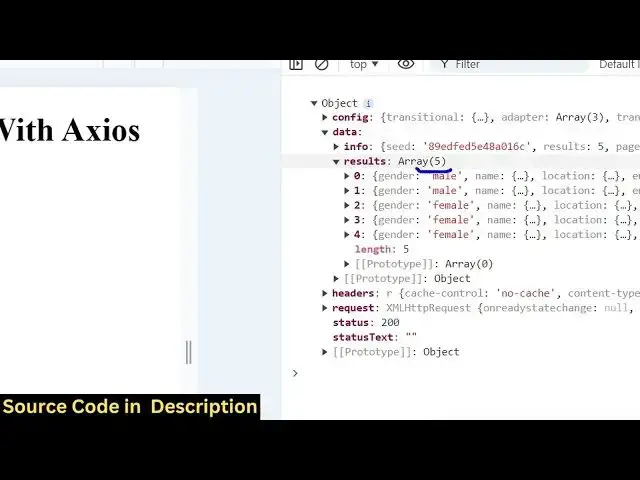
7:03
will receive this object and it will
7:05
actually contains the data property in
7:08
the object so we need this data property
7:11
and inside the data property we have the
7:13
results so five users have been returned
7:18
we need to get these so we can simply
7:21
say
7:21
response. data do users sorry
7:25
results so we need to store this in the
7:29
users so we can say response. data.
7:34
results this is actually a array so we
7:37
can simply uh loop through it first of
7:40
all we do need
7:41
to get the reference in the HTML where
7:45
we need to display these users so
7:47
document. get element by ID content so
7:51
just in the HTML uh just after this
7:55
button we can actually have a Content d
7:59
just after this
8:02
heading just give it an ID here of
8:05
content so here you will be displaying
8:07
all the users which are coming we have
8:09
given this ID if you see content we are
8:12
targeting this ID right here so now to
8:15
actually Loop through all the users we
8:17
can simply say users. we can use the for
8:21
each Loop for each user we can simply uh
8:25
loop through it and we can simply say
8:28
user div
8:31
document. create
8:35
element div so we are actually creating
8:39
a new element user div so after this we
8:42
just need to say user div dot inner
8:48
HTML and uh sorry first of all we do
8:52
need to set the class as well so class
8:55
name is equal to user you will Target it
8:58
in the uh CSS when we write it in an
9:02
HTML we can manipulate it using the
9:05
backtick symbol just to write multiple
9:07
lines of HTML so here we'll be having
9:09
this image tag to actually first of all
9:12
show the profile picture of the user
9:14
which will be located inside this
9:17
property which is user. picture.
9:23
medium you can just have in double code
9:25
sorry
9:30
and you can also have the all tag as
9:38
well just close this image tag and
9:41
inside this
9:43
uh you can simply in the all tag we can
9:47
say user.name do first like this so if
9:51
you refresh now all the profile pictures
9:53
will be shown to
9:55
you first of all we do need to add this
9:58
div as well
10:00
so just after this for Loop right here
10:05
which is
10:06
over we do need to after this line
10:10
simply say content
10:13
if append child user div so we are
10:17
actually adding this appending it to the
10:19
browser now you see five photographs are
10:22
added so whenever you do automatically
10:25
random photographs random users
10:27
photographs have been fetched from API
10:30
and displayed in the browser if you
10:32
click load more users nothing will
10:34
happen so we do need to bind a simple uh
10:38
event listener to the button so we can
10:40
say document. getet element by ID load
10:46
more if you see we have given this ID
10:49
load
10:53
more can add event listener to it so
10:56
when we click this uh we will add we
10:58
basically
11:00
call this function fetch users so if you
11:03
refresh click this next set of users
11:06
will pop in you can see that as we click
11:09
this button next five users are popping
11:11
it so you can see that it's damn easy
11:14
and after you do this we also need to
11:16
fetch the first name last name as well
11:19
as we fetch the profile picture just
11:21
after this we can simply say uh
11:30
we can have a div tag right
11:33
here just close the div tag and inside
11:36
this in that two
11:42
tag we will actually be having
11:46
uh user.name do first and
11:50
then user do name.
11:55
last so this is actually the first name
11:58
and the last name which is
12:00
showing and uh similarly we will
12:03
actually be showing the email address as
12:11
well so this will be for the email
12:14
address then we can even show
12:18
similarly
12:20
the phone number as
12:24
well user phone and similarly we can
12:28
even show
12:32
location as well user.
12:35
location and uh it also have the city
12:39
name as well user location City put a
12:41
comma and then we can even
12:45
show user. location.
12:50
country you can see Serbia
12:56
France so that's all guys uh uh
12:59
what you need to do after you do this
13:06
uh you can increment this current page
13:09
property Plus+ so what it will do it
13:12
will increase this value of current page
13:15
variable that is currently one so
13:17
whenever we load the users it will load
13:19
from the current page value one so after
13:22
we do this we increase increase this
13:25
number from one so now the current page
13:27
value will become two so it will now
13:30
fetch this next set of
13:32
users so you can
13:35
see again if I click you will see
13:41
that so now to actually style this we
13:45
can add some CSS this is not mandatory
13:47
but uh it's good to actually style these
13:50
as well just after here we can add some
13:53
styling as well so in the body we can
13:55
simply say we can change the font family
13:59
to be
14:00
areial
14:04
sensor and the user class we can
14:07
Target and we can simply give it a
14:11
border of one pixel solid
14:16
discolor margin
14:19
bottom all the source code is given in
14:22
the
14:25
description you can also give some
14:27
padding as well border radius just to
14:30
make it somewhat round as
14:32
well five pixel display
14:41
flex and we'll align the items in the
14:43
center position so now it will Center
14:46
itself you can see that it is appearing
14:49
in a card-like structure and also we
14:52
just need to Target the image tag as
14:54
well user image so we just need to give
14:57
a fixed width to the
15:02
image of 50 pixel height of also 50
15:07
pixel border radius I will change to 50%
15:10
to make it complete round in a circle
15:13
like margin right I will say 10
15:18
pixel it will look like
15:23
this and similarly for the
15:25
button we can
15:29
give a padding here of 10 pixel 15
15:33
pixel background color we can change
15:36
this to this 4
15:38
CA
15:41
F50 color is
15:45
white border I will remove it border
15:49
radius once again I will change to 5
15:51
pixel just to add some roundness cursor
15:56
pointer margin top for I will say 20
16:01
pixel so now the button will have this
16:03
nice
16:05
little round structure and we have
16:08
changed the
16:10
green so these are two pseudo classes we
16:13
can attach when we hover
16:15
or when the button is
16:18
disabled
16:20
so this is overall application guys
16:23
using xos how to actually do the data
16:25
fetching from the rest API we actually
16:28
fetching the random users with pag
16:30
Nation now we can display a set number
16:32
of users on when we load the application
16:35
we are fetching five users and now when
16:37
we click this button we are dynamically
16:39
fetching more users from the random user
16:41
API so this was a tutorial guys thank
16:43
you very much for watching this and
16:46
please hit that like button and I will
16:47
be seeing you in the next one
#Software