Up next in 10

How to Setup & Compile TypeScript to Javascript Code Using Webpack in VS Code Tutorial For Beginners
Jan 9, 2025

Hi Join the official discord server to resolve doubts here:
https://discord.gg/cRnjhk6nzW
Visit my Online Free Media Tool Website
https://freemediatools.com/
Buy Premium Scripts and Apps Here:
https://procodestore.com/
Show More Show Less View Video Transcript
0:00
uh hello guys welcome to this video so
0:02
in this video I will actually show you
0:04
how to compile typescript code into Java
0:08
Script code and run it inside the
0:10
browser and you can use it inside your
0:13
HTML file and we will also be looking at
0:15
a complex example on how to compile
0:17
typescript if you have multiple files
0:20
into a single Javascript file using
0:23
webpack which is actually again a
0:26
compiler which will
0:28
actually uh compiles your high level
0:31
typescript code into the JavaScript code
0:34
that the browser can understand so let's
0:36
start we are in the vs code right here
0:39
and uh basically I opened a browser
0:42
right here
0:43
and first of all you need to initialize
0:45
a nodejs project npm in it- file this
0:49
will actually create a package.json file
0:52
in the left hand side if you see
0:54
package.json file is created and uh now
0:58
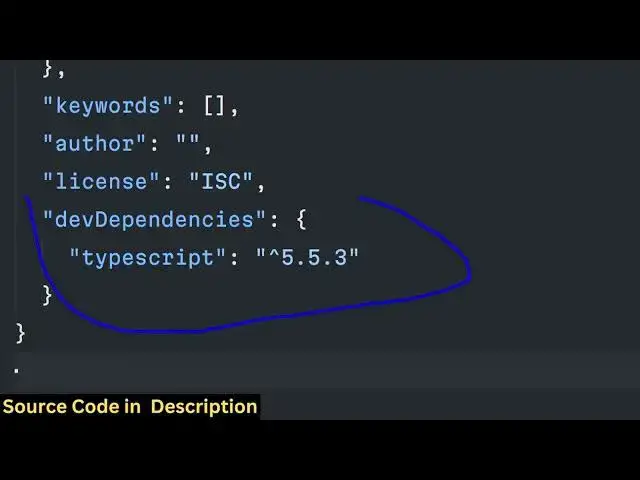
we need to install type typescript as a
1:01
dep dependency so this is actually the
1:03
command npmi
1:06
typescript D-
1:10
save-dev so this will actually install
1:13
typescript as a Dev dependency so
1:17
simply you will now see it is there now
1:19
in the dev dependency section so right
1:22
here guys after that we need to create a
1:25
typescript config Json file so for every
1:28
typescript project you have seen TS
1:30
config.js file it's a compiler file of
1:33
typescript so we need to generate this
1:36
either we can manually create it or we
1:38
can generate it using a command so I
1:40
will show you both the examples so there
1:42
is a built-in command for this which is
1:45
npx TSC which is stands for typescript
1:49
compiler and then it says dash dash in
1:52
it so just execute this command and you
1:55
will basically see it will actually
1:56
create the TS config.js file so if you
2:00
see this file will automatically get
2:03
created and it has some compiler options
2:05
right here
2:07
as it targets the
2:10
es26 and commonjs module so I will
2:14
basically show you how to compile a
2:17
typescript file so first of all we need
2:19
to define a typescript file so the
2:22
extension of typescript file is TS so
2:24
app. TS we will actually create a
2:27
typescript file so as you all know guys
2:29
typ script is a super set of JavaScript
2:32
it has additional features on top of
2:34
JavaScript it has Type checking so which
2:37
is a very huge feature so let's suppose
2:40
I declare a function right
2:42
here greet and the purpose of this
2:45
function is will it will take an name
2:48
parameter so but in JavaScript function
2:51
we actually pass variables without
2:53
defining the type of it but in
2:54
typescript you need to define the type
2:58
at the time of Declaration of the
2:59
variable so colon and here you need to
3:01
specify the type so name is of the type
3:04
of string variable this is the data type
3:07
of this variable so which values this
3:09
variable can hold so it can hold string
3:12
values only this is static type language
3:16
typescript so at the time of compilation
3:18
it basically checks these rules which
3:21
you have declared in typescript so this
3:23
actually reduces a lot of Errors when it
3:25
comes to typescript so that's why
3:28
typescript was created because
3:29
JavaScript it's dynamically typed
3:31
language and you can basically declare
3:33
variables and then uh this creates
3:35
problems so now we have a function greet
3:38
it takes a name parameter which is of
3:40
type string and what it does it actually
3:43
Returns the message hello and whatever
3:46
is the message you pass the name right
3:50
here very simple function we written in
3:53
typescript and uh now we can actually
3:56
call this function so we will actually
3:59
pass a Str Str value so in double codes
4:02
we are passing the string value and then
4:03
we can console log
4:06
it you can actually call this function
4:09
right here we are passing this value and
4:11
so this you can you can't directly use
4:14
this code in the browser if I try to use
4:17
it the browser doesn't understand
4:20
typescript that's why you can't directly
4:22
use this code so if I want to actually
4:25
include this file directly you will
4:27
actually get a error so if you see in
4:30
the
4:31
browser you can't directly use
4:33
typescript in the browser it doesn't
4:36
execute you will see that so the browser
4:40
doesn't understand typescript but the
4:42
main use of typescript is that let's
4:44
suppose if I want to pass a number value
4:47
right here to this it will instantly
4:49
show me this error that argument of type
4:52
number is not assignable to parameter of
4:54
typ string so this is the prime usage of
4:57
typescript why we use it in the first
4:59
place because it reduces a lot of Errors
5:02
at compilation time but if you use this
5:04
code in JavaScript in JavaScript doesn't
5:07
catch errors so at runtime you will get
5:09
errors that's why in typescript at
5:12
compilation stage a lot of Errors is
5:15
caught that's why typescript is used so
5:17
now if I want to compile
5:19
this into the native JavaScript code so
5:23
that we can use it in the browser there
5:25
is a simple Command right here uh this
5:29
script compiler npx TSC that's all
5:33
that's all that you need to write npx
5:35
TSC and on the left hand side it will
5:37
compile this typescript file into
5:40
JavaScript code which is app.js if you
5:42
see that now it has just added this U
5:45
strip at the very top and you you will
5:49
not see this string this data type that
5:52
is colon string you will not see in
5:54
JavaScript because in JavaScript we
5:57
don't specify the type of the data type
5:59
of the variable aable while we are
6:00
declaring the variable
6:02
so in typescript we need to be strict we
6:05
need to define the data type as well so
6:07
now you can directly use this in the
6:09
browser we can simply change
6:12
appjs and open it and if you see in the
6:16
console you will actually see a message
6:18
hello followed by the name John
6:20
Williamson you will see that so whatever
6:22
name that we pass right here so again if
6:25
you want to change the value let's
6:27
suppose I say
6:30
again you need to compile it so the
6:32
process is the same right here so again
6:35
it will generate this
6:39
file so you will see that the message is
6:42
there this is a very simple example the
6:45
best basic example of how to use
6:47
typescript in vs code and how to compile
6:50
typescript into JavaScript that you can
6:52
use it in the browser now in the next
6:54
section we will be looking at a very
6:55
complex example let's suppose you have a
6:57
lot of files
6:59
which you want to compile it into a
7:01
single JavaScript bundle file for
7:04
production we will use webpack
7:06
bundler so we will be seeing that in the
7:10
next
7:10
section uh now guys we will be looking
7:13
at a more complex example using webpack
7:16
module bundler and uh for once again we
7:21
need to actually start from scratch we
7:23
have this uh npm in a-y we installed
7:27
this typescript at as a Dev dependency
7:30
if you check package.json we have Dev
7:33
dependency type script right here so in
7:36
the last section we showed you the
7:38
command which automatically generate npx
7:41
TSC this will automatically generate
7:44
your TS config.js file but in this
7:46
tutorial we'll be creating it manually
7:49
so TS config Json so this file actually
7:53
contains a Json object and it contains
7:56
the compiler options of the typescript
7:59
so compiler options and in this object
8:02
we basically provide the target so it
8:05
can either take es2 200 15 es26 you can
8:09
actually manually select the version of
8:12
whichever version of JavaScript you want
8:14
to support So es2 25 is the oldest
8:17
version so we will be selecting es 260
8:21
this is the version that we need to
8:24
support you can just type here yes like
8:27
this and then the second property is the
8:30
module so module has commonjs attached
8:33
to it and then we have es module this is
8:37
a Boolean parameter it need to be set to
8:40
true and then these are two diff uh
8:43
important options out directory so it
8:46
will actually output to this directory
8:49
whenever your code is compiled so it
8:51
will actually create a disc
8:53
directory right here when web pack is
8:56
executed and where is your root C code
8:59
code is located where the typescript
9:01
code is located so you'll actually
9:02
create a directory called as source so
9:05
these two options are important you need
9:07
to specify your output directory and the
9:09
input directory where code is located
9:11
and then the next option is forced
9:14
consistent casing and file names so this
9:17
you can set it to True strict you need
9:20
to set it to true because typescript is
9:23
true and then the last one is Skip
9:26
Library check so again it's a Boolean
9:29
parameter so set it to true this is your
9:31
TS config.js if you don't understand all
9:34
the options it's more than normal to you
9:39
but you just need to create this
9:40
manually or you can generate this as
9:42
well so now we will come to the next
9:45
property to actually install the web
9:48
pack as a Dev dependency in our
9:51
package.json file so we will simply
9:53
execute a command npx sorry
9:56
npmi webpack web web pack
10:00
CLI PS
10:02
loader these are the three packages
10:05
first is the base base webpack package
10:08
then it actually has a CLI tool webpack
10:11
these are the second package and this is
10:13
TS loader this is the third Library we
10:15
are installing it and then just add a D-
10:18
save Das Dev this will actually install
10:22
it as a Dev dependency so install this
10:24
and now it will actually install all
10:27
these three packages so once once it is
10:29
done so we just need to actually create
10:32
a webpack config file as
10:40
well so it will installed it and now we
10:42
need to create a webpack file webpack
10:45
do. config JS file this is again a file
10:51
basically telling webpack whatever you
10:53
need to do right here we need to require
10:55
the path module which is a buil-in
10:57
module in nodejs so here we need to
11:00
specify module. exports so here we need
11:02
to specify the entry file this entry
11:05
file will be located in the source
11:06
folder app. TS file so we'll be whenever
11:10
we create the typescript code in the
11:12
source directory we will actually create
11:13
a app. TS file which will be the entry
11:16
point of the application and then we
11:19
specify the module here so this code
11:22
will be pretty much the configuration
11:24
code for webpack guys if you don't
11:26
understand it it's a pretty more than
11:28
normal don't need to worry about it so
11:33
you can even automatically or generated
11:36
using web CLI tool as well but I just
11:39
wanted to show you manually how to do
11:41
this so then we have a resolve
11:45
property this will be an object and here
11:48
we need to specify the extensions which
11:50
code you need to actually compile it we
11:52
need to compile any code which is
11:54
starting ending with these extensions
11:57
TSX TS and uh JS as well you can even
12:01
compile the high level JavaScript code
12:03
as well to
12:04
nely code as well so in using web pack
12:07
and then the output so here it will need
12:10
to specify the output file name so it
12:12
will be created as bundle JS and here we
12:15
need to specify the directory in which
12:17
directory you need to actually create
12:19
this bundle.js so we'll be creating it
12:21
in the disc
12:24
directory so disc like this this is a
12:29
basic webpack config JS file guys for
12:32
more complex projects it it may be very
12:34
lengthy as well but this is actually the
12:36
basic options which is there in every
12:39
webpack config Js Js file so now we come
12:43
to the application in the source
12:44
directory we this will be a simple
12:47
calculator application we will have four
12:49
operations addition subtraction Division
12:51
and uh multiplication so right here
12:54
first of all we'll create a file
12:57
arithmatic do TS so here we in this
13:01
application we will divide our code into
13:03
actually methods so export function so
13:06
you can use your export command in
13:08
typescript files so we will Define a
13:10
function add which will actually contain
13:14
it will take two arguments a will be a
13:16
number and B will also be a number so
13:19
this is statically type languages and
13:22
then what it will return so colon it
13:24
will only return a number so here we are
13:27
specifying right here in this function
13:30
addition number we are specifying two
13:32
numbers to be passed as argument and
13:34
also it will return a number as well so
13:36
in typescript we are specifying all
13:38
these at compile time and if I want to
13:41
return a string value it will return me
13:44
this error you will see string is not
13:47
assignable to the type number so we need
13:49
to
13:50
specify uh this actually now you can see
13:55
now it's a number so no error is there
13:58
so
13:59
in similar way we can actually make our
14:02
three more
14:03
functions we can change it to
14:07
subtract so this will be a minus
14:11
B this will
14:13
be multiply and this will be a
14:16
multiplied by B this last one will be
14:20
for
14:20
[Music]
14:21
divide this will be a divided by B so
14:26
these are the four methods guys we
14:28
actually
14:29
uh constructed in this arithmatic TS
14:32
file and uh it actually Returns the
14:35
addition subtraction multiplication and
14:37
division of two numbers now we need to
14:40
specify another file utils TS file and
14:44
here in this file we'll simply check if
14:46
the number if the argument passed is a
14:50
number or
14:52
not so we'll be actually be cutting our
14:55
code into different files so this will
14:57
again a function and the prime job of
15:00
this file is to actually check if the
15:02
value passed is a number or not so we'll
15:05
simply check value is
15:09
number so this function actually takes a
15:13
value and R we are specifying if the
15:15
value is number or not and for this
15:18
we're using the type of
15:22
operator so we can actually check at a
15:25
compile time if this value is number or
15:27
not
15:29
and uh you will
15:34
specify like this so in this actually
15:37
method we are specifying using the type
15:39
of operator we are checking if the value
15:42
passed is a number and also if this
15:45
number is we are checking that if the
15:48
number is uh passed is not defined so
15:51
both the conditions we are checking
15:55
so now we will actually create a file
15:59
which will be calling calculator TS so
16:03
in inside this file we will specify a
16:06
typescript class which will actually
16:09
contain all these methods so we can
16:13
Define classes in typescript by the
16:16
class keyword and then we can say
16:18
specify a
16:20
class so calculator and right here
16:23
you'll be specifying methods again
16:26
addition
16:29
so this method again will be
16:32
calling so here you'll be using the
16:35
methods that we defined in the earlier
16:38
file is number this will automatically
16:40
imported from this file you will see
16:42
that this is an advantage of using vs
16:44
code because it will automatically
16:46
import your all your methods instantly
16:48
so here we are checking if this past
16:50
number is a number or not in both these
16:53
scenarios we are checking if either
16:56
value is not a number in that case
17:00
we will return a
17:01
message that uh invalid
17:09
input so if both these values are number
17:13
in that case uh we can return this we
17:17
can use this function with that we
17:19
declared which is ADD
17:24
function we can just change it to
17:26
addition
17:32
so it will be imported you will see that
17:33
we declared this in the arthamatic TS
17:36
file you will see export function so the
17:39
important thing is that you need to
17:41
specify this keyword export because if
17:43
you want to use this function in
17:45
different files so now we are using it
17:47
automatically you will see that we need
17:49
to pass two values a comma B like this
17:53
so in the same manner we can
17:57
declare three more meth
18:00
methods this I can call as
18:05
uh subtraction and here we can call the
18:09
subtract
18:11
method so it will automatically get
18:13
imported you will see that so we are
18:16
actually enjoying the benefits of
18:17
typescript you will see that so then we
18:20
have the
18:22
multiplication you can use the multiply
18:25
method so it will be imported you will
18:27
see that lastly for the
18:30
division we will use the Divide
18:34
method so all the four methods have been
18:36
successfully imported and
18:39
now now we just need to create our entry
18:43
point file which we specify in our
18:45
webpack file which is app. TS file so
18:48
right here we will actually use this
18:50
class which we declared which is
18:53
calculator class so right here inside
18:56
this entry point file we will actually
18:59
create a new object of this class so
19:02
this is
19:03
a objectoriented programming in
19:06
typescript and JavaScript and we'll be
19:08
instantiating a new class calculator it
19:10
will be imported and then here we'll be
19:13
specifying uh two values 10 and five and
19:18
we will be calling uh methods here one
19:22
by one in the console log statements we
19:25
will be printing out the result in the
19:26
console we are actually using first
19:28
first of all the addition method it will
19:31
be imported you will see that it has
19:33
four methods
19:34
subtraction then we have the
19:37
multiplication then we have the division
19:39
so four methods are there in this class
19:42
we are using it using by creating this
19:44
object you will see that now the prime
19:47
job is to actually compile this code
19:49
using webpack the command is very simple
19:52
you can actually run this
19:54
command which is
19:56
MPX webpack this is actually the command
19:59
guys if you see npx web pack this is a
20:04
command if you run this command it will
20:06
actually create a dis
20:08
folder in the left hand side and
20:11
bundle.js file will be created
20:17
so so it will take some time so now you
20:21
can see that the disc folder is created
20:23
it has a bundle.js
20:25
file and now we can use this file
20:28
directly you can say uh d/ bundle.js so
20:34
this bundle.js file if you open it
20:36
you'll see it's a very garbage code and
20:40
it's a very big code you will see that
20:43
so it is compatible with the browser
20:44
every browser can execute this code so
20:47
if I try to open the index.html file and
20:50
try to see the result in the
20:53
browser you will basically see 10 + 5 is
20:56
15 10 - 5 is 5 10 multiplied 55 is 50 so
21:01
two so all the JavaScript typescript
21:03
code that we written we compile it into
21:05
JavaScript and now we can run this code
21:07
very simply in the browser using webpack
21:10
so this was a complete tutorial guys
21:12
mini crash codes on webpack typescript
21:15
how to compile typescript and use it
21:17
inside VSS code and convert this into
21:20
JavaScript so thank you very much for
21:22
watching this video please hit that type
21:23
button subscribe the channel as well and
21:25
I will be seeing you in the next
21:27
tutorial
#Programming
#Scripting Languages