Up next in 10

How to Navigate & Search Files Like a Pro with Path Intellisense Extension in VS Code!
Jan 9, 2025

How to Navigate & Search Files Like a Pro with Path Intellisense Extension in VS Code!
Show More Show Less View Video Transcript
0:00
uh hello guys welcome to this video so
0:02
in this video I will actually show you a
0:04
vs code extension which allows you to
0:08
actually uh provides the paths
0:11
intelligence feature so let's suppose
0:13
you have different files available
0:15
inside your directory if you want to
0:16
include them inside your project it will
0:19
actually show you this uh autoc
0:21
completion result whenever you are
0:23
including external files so the name of
0:26
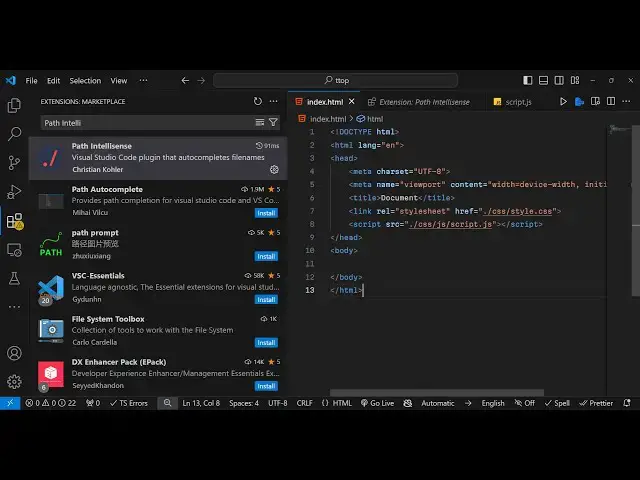
the extension is uh path intelligence so
0:29
if you go to the int uh extensions tab
0:32
just write this extension which is path
0:37
intelligence so the very first extension
0:40
which comes which is developed by this
0:42
person which is Christian coola and you
0:45
can just see it is used by 14
0:49
million uh downloads are there so simply
0:53
now click the install button simply
0:55
install this plug-in so once you install
0:58
this uh inside your project what you
1:01
need to do inside your
1:04
index.html so we can create a simple
1:07
file here index.html so if you want to
1:09
include something right here so you will
1:13
actually see let's suppose I want to
1:15
include this uh script file and the CSS
1:18
file so how we can include this so I
1:21
will simply
1:22
write in the href tab basically I want
1:25
to include the CSS file so what I will
1:28
do do/ and now you will actually see all
1:31
these suggestions will come it makes it
1:34
really easy so you will see all these
1:37
suggestions will come using this path
1:39
intelligence
1:40
feature so we can see simply navigate to
1:43
the CSS folder so you can see inside
1:47
this we have present style. CSS we can
1:50
include this file and now to include the
1:53
Javascript file we can include in the
1:56
CSS folder we do have the JS folder you
1:59
will see this autoc completion really
2:02
helps us in including the files really
2:05
easy you will see that so in this way
2:08
this path intelligence feature if you
2:11
have external files that you want to
2:13
include if they are present in nested
2:15
folders then it provides you this
2:17
autocomplete feature while you are
2:19
including the files whenever you write
2:22
dot slash it will actually provide you
2:24
this autoc completion results easily you
2:27
can select whichever file that you want
2:29
to Lo and this makes it really easy
2:32
because you don't want to remember names
2:35
of the files you can simply use this
2:39
autocomplete very
2:41
easily so in this way this extension
2:44
works it's very simple extension but
2:47
it's really powerful it will save you a
2:49
lot of time because in many projects you
2:51
don't want to remember names of the
2:53
files so it really makes it really easy
2:57
to work with the files inside your
2:59
project if you if the files are present
3:02
in a nested directory you can use these
3:04
autoc completion result using this s uh
3:08
extension which is path intelligence so
3:10
simply install this and use it inside
3:12
your vs code and thank you very much for
3:14
watching this video guys please hit that
3:16
like button and do check out my website
3:18
as well freem mediat tools.com which is
3:20
a tool-based website which contains
3:22
thousands of free tools related to audio
3:24
video and image and I will be seeing you
3:27
guys in the next video
#Software
#Multimedia Software
#Other
#Other