Up next in 10

How to Instantly Peek and Edit CSS Like a Pro in VS Code! Using CSS Peek Extension Full Tutorial
Jan 9, 2025

How to Instantly Peek and Edit CSS Like a Pro in VS Code! Using CSS Peek Extension Full Tutorial
Show More Show Less View Video Transcript
0:00
uh hello guys welcome to this video so
0:02
in this short little video I will
0:04
actually show you a vs code extension
0:06
which will super power you inside your
0:09
CSS or generally programming it will
0:12
save you a lot of time this vs code
0:15
extension is called as CSS Peak the CSS
0:18
Peak from the name itself it's related
0:20
to CSS and if you basically develop your
0:23
websites using HTML and CSS and you
0:26
define CSS in an external file as you
0:29
can see we have a simple document right
0:32
here it's a login page it has having
0:34
some HTML and it is having some CSS for
0:37
The Styling part you have we have
0:39
written this custom CSS file so now
0:41
let's suppose I can simply hover onto
0:45
this element this form element that you
0:47
see right here it is having this custom
0:49
class that we have defined this login
0:52
class we have defined this inside this
0:54
style. CSS so every time if you if I
0:57
want to change let's suppose any Fe
0:59
features I want to navigate to this file
1:02
every time I need to open this back just
1:06
do this it's a very time consuming
1:08
process you need to every time go to
1:10
this file and then find out this class
1:13
which is defined right here so in a very
1:15
long project it will consume a lot of
1:17
time and it is it is not good for
1:20
productivity so if you want to make any
1:22
sort of change let's suppose if you want
1:24
to change a background color if you make
1:26
this change
1:30
so you make this change you will now see
1:33
the background has been changed so every
1:35
time you want to make any sort of change
1:36
you need to navigate to this file so
1:39
this extension it
1:41
actually just uh solves the problem of
1:47
navigating to this so the EXT extension
1:50
that we are using is CSS Peak so if you
1:54
just go to the extensions right
1:57
here and just search for this extens
2:00
which is CSS
2:02
Peak this is actually the extension
2:05
which is developed by this person which
2:06
is PR prash this is actually the
2:09
extension that you want to use let me
2:11
just show you by restarting
2:15
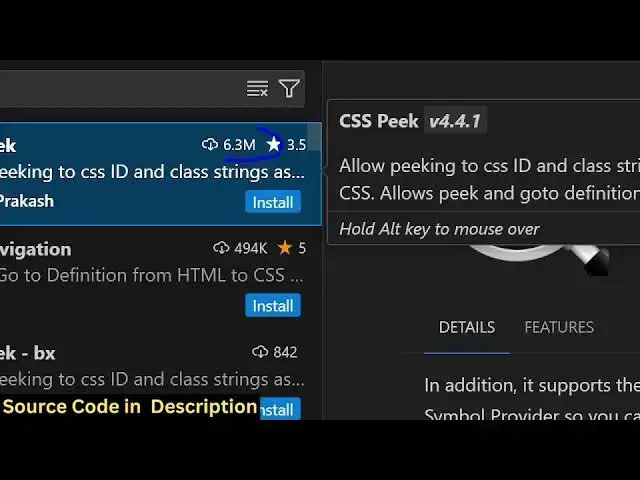
it this will be the extension which is
2:18
6.3 million downloads and the rating is
2:21
also good 3.5 rating you need to click
2:24
on install it will install this
2:26
extension and uh you can see now the
2:30
extension has been globally installed so
2:32
after enabling this extension you can
2:35
just close this close test Tab and just
2:39
Define some HTML code and just as CSS
2:42
code so I just cop pasted everything so
2:45
now if you actually hover onto this
2:47
class here you will actually see this
2:50
changing
2:51
to uh this sign you just need to press
2:54
the control key on the keyboard just
2:57
hover onto this and now you'll see
2:59
automatically if you click that you will
3:02
be redirected to the style which is
3:05
associated with that element now you can
3:08
adjust Styles very efficiently so it
3:13
actually so you can again see if you
3:17
want to navigate to the Styles which
3:19
have been defined so every time you can
3:21
see that you will be automatically be
3:24
redirected to the class CSS class which
3:27
is defined right here so this will
3:29
actually boost your productivity time it
3:32
will basically you don't need to every
3:35
time open this and find out the class it
3:38
will automatically redirect you you just
3:40
need to control press the control key on
3:43
the keyboard and just select the class
3:45
and it will just redirect you to the
3:47
actual class which is defined you can
3:49
see how e easy it is guys and you can
3:52
just see the scope of this extension uh
3:55
in a very large project if you have
3:57
multiple files defined then it actually
4:00
makes it really easy to navigate to
4:03
different files which you have defined
4:05
you can see it's an external file so it
4:08
redirect you to this file
4:10
so you can see
4:14
that so this really boost your
4:16
productivity time guys so this is
4:19
extension that I wanted to talk about
4:21
really simple simply install this and
4:24
then hover onto the class whichever
4:26
class you want to edit simply press the
4:28
control keyboard control key and just
4:31
click the it will change into the
4:33
hyperlink and then you will be able to
4:37
see the particular Styles which is
4:39
associated with that element so this was
4:41
the extension guys uh 6.3 million
4:44
downloads that's why it has been used
4:47
not a lot of settings you don't want to
4:49
control simply install it then you can
4:52
use this extension very easy
4:54
extension so thank you very much for
4:56
watching this video If you like this
4:58
video then please hit that like button
5:00
for more videos like this on this
5:01
channel and do check out my website guys
5:04
free mediat tools.com which is my
5:06
official website which contains a lot of
5:09
free tools thousands of free tools
5:11
related to audio image and video so do
5:15
check out this website as well I
5:17
basically uh add free tools daily so to
5:21
check out this website which is free
5:23
medat tools.com so thank you very much
5:25
for watching this video and I will be
5:27
seeing you in the next video
#Software
#Web Design & Development
#Development Tools