live_tv
Livestream Starting Soon
00
Hours
:
00
Minutes
:
00
Seconds
Up next in 10

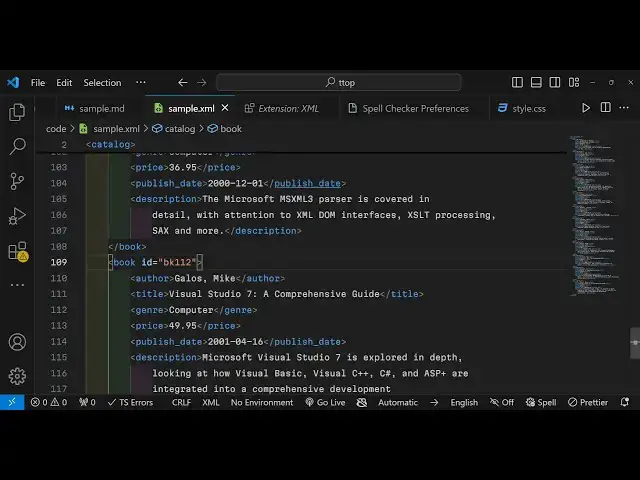
How to Format and Validate XML With Live Preview in VS Code Using XML Extension By Redhat
Jan 9, 2025

How to Format and Validate XML With Live Preview in VS Code Using XML Extension By Redhat
Show More Show Less View Video Transcript
0:00
uh hello guys welcome to this video so
0:02
in this video I will show you an vs code
0:05
extension which is very much useful if
0:08
you work with XML files extensible
0:10
markup language so it's a all-in-one
0:14
editor you can actually use it for
0:17
formatting your XML code or you can use
0:19
for validating your XML code whether
0:22
it's right or wrong so as you write your
0:24
code if you make any sort of mistake it
0:26
will highlight this line of code you
0:28
will see a missing tag author has not
0:32
been closed so it will highlight this
0:34
problem with a red line red underline so
0:38
that you will clearly identify at this
0:40
location the error is happening so that
0:42
you can fix
0:43
it manually or you can use this you can
0:47
see the error is
0:49
fixed so if you hover onto this you will
0:52
see the element type author must be
0:54
terminated by the matching and tag so
0:56
that's why it closely tells you clearly
0:59
tells you what's the problem and then
1:01
either you can click quick fix it you
1:04
will have disclos with author so it will
1:07
add this
1:08
tag and also it has the formatting also
1:13
available so if you click format it will
1:16
automatically format
1:18
this file for you so this is actually a
1:22
plug-in uh extension just go to
1:24
extension just type XML it's developed
1:27
by Red Hat Company it's verified so let
1:30
me show you first of all uninstall this
1:34
if you see now I don't have this
1:36
extension now so if I have the same
1:42
code let me paste
1:46
XML sample XML paste it so now extension
1:51
is not there I disabled that extension
1:54
so now if I make any sort of
1:56
mistake now you can see we don't get
2:00
this highlighting it's in incorrect XML
2:03
file but we don't get this highlighting
2:06
the validator is not there because we
2:07
haven't used that extension so
2:11
now to activate this extension
2:15
now I will simply click the install
2:17
button so now the extension is globally
2:20
installed on your system so now if you
2:22
open the same file it will highlight
2:24
this error it will exactly tell you this
2:27
uh author tag is missing we need to
2:30
close this tab so clearly it's a
2:33
validator with live preview and here you
2:36
can fix your mistake easily by closing
2:40
now the file is correct so there is a
2:45
shortcut as well if you want to format
2:47
your file you can format this so now
2:49
clearly it formatted with correct level
2:52
of indentation and spacing so there is a
2:55
if you just right click with your mouse
2:57
you will see this option format document
2:59
with with either you can select the
3:02
format or XML that's all there is a
3:05
shortcut key as well control shift p if
3:07
you hit this key you can have all these
3:10
options just type
3:11
XML you will see all these options you
3:14
can validate your XML file so if you
3:18
click this you will see the current XML
3:20
file was successfully validated there
3:22
was no
3:24
error so validation is built in so as
3:28
you type the XML code if you make any
3:30
sort of mistake it will clearly tell you
3:32
the mistake has happened right here add
3:35
this line number if you make multiple
3:38
mistakes you will see multiple
3:41
highlighting you will
3:45
see you
3:48
see so this was a very good XML
3:51
extension you must have if you work with
3:53
XML files right in the vs code you can
3:55
do this process validating
3:58
formatting and and let's suppose if you
4:01
want to format the if your files are not
4:04
formatted for some reason then you can
4:08
easily format them by right clicking it
4:11
there will be this option available
4:12
format document and automatically all
4:16
your XML will be formatted
4:19
successfully so this was the extension
4:22
guys so XML and uh it's used by many
4:27
people let me show you the total number
4:29
number of downloads 6.9 million
4:32
downloads or almost 7 million so you
4:34
should have this extension installed if
4:36
you work with XML files I personally use
4:39
this because I do a lot of XML work so
4:42
that's why I have this extension
4:45
installed so thank you very much guys
4:47
for watching this
4:50
video please hit that like button
4:52
subscribe the channel as
4:55
well and uh do also check out my
5:01
website free mediat tools.com which is
5:03
an open-source website which contains
5:05
thousands of free tools related to audio
5:08
video and image and I will be seeing you
5:10
in the next video