0:00
uh Hello friends welcome to this video
0:02
so if you are seeing this error message
0:05
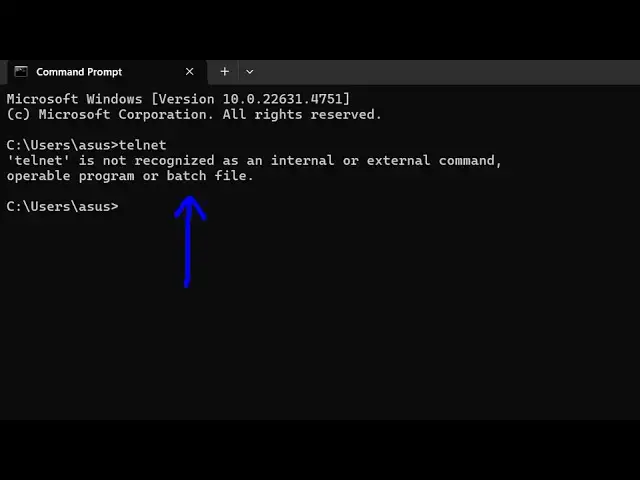
if you type tnet on command line and if
0:07
you seeing this error message tnet is
0:09
not recognized as an internal or
0:12
external command so there is a very easy
0:15
fix for this you need to enable the 10
0:18
net feature inside your Windows
0:20
operating system so we can enable the
0:22
features by going to the start p and
0:24
just typing Windows features just type
0:30
and this thing will come right here turn
0:33
the windows feature on or
0:36
off simply go to this and here you will
0:39
find out all the windows features you
0:41
can enable and one such feature is
0:43
called as tnet client if you see that
0:46
this is called as tet client by default
0:49
it will not be enabled so click this
0:52
check mark and click this check mark and
0:55
click on okay and then it will ask
0:58
actually enable the features and it is
1:01
searching for the required
1:03
files after enabling it you just need to
1:06
restart your computer to enable the
1:11
changes so you just need to re reboot
1:13
your system click on that button restart
1:15
now to restart your computer I have
1:17
already done that so if I now come to
1:20
the command line and just type the same
1:26
tnet and you will see the command will
1:28
be successful so tnet is actually a tool
1:31
by which you can communicate data across
1:33
multiple computers on the same internet
1:36
connection so this is actually the
1:38
feature and you can even go to control
1:41
panel and then search for this feature
1:44
turn Windows features on and
1:51
be go to programs and then you will see
1:54
this feature I think yeah here turn
1:57
Windows feature on and off simply click
2:00
it and this window will again pop up so
2:02
there are either you can search at it or
2:04
you can go to the control menu and then
2:06
enable this feature if you then want to
2:09
disable it you can un UNT untick this
2:11
Boxx and then click on okay so this will
2:14
again disable this feature and again you
2:17
need to restart your computer so in this
2:19
way you can enable the Tet feature
2:21
inside your Windows system so thank you
2:23
very much for watching this video and I
2:25
will be seeing you in the next video